How to render and edit Markdown in React with react-markdown
Publié le July 3, 2025



Inspiration pour votre boîte mail
Abonnez-vous et restez au courant des meilleures pratiques pour offrir des expériences numériques modernes.
React has become an attractive choice for content-driven sites like blogs and marketing pages. Frameworks like Next.js contribute to this appeal by offering highly performant rendering strategies, such as static site generation (SSG).
For many content-driven sites, Markdown is a popular format for creating and managing content. To take advantage of Markdown in React applications, developers need a way to render it as HTML.
This article will show you how to integrate and render Markdown in React using the react-markdown library, enabling you to build fast, content-driven pages.
What is react-markdown?
The react-markdown library is one of the most widely used choices for rendering docs sites and blogs.
The following tutorial will show you how to render Markdown in your React apps with react-markdown, which is just a lightweight package built on remark and rehype. It parses Markdown into an element tree rather than raw HTML strings, making the resulting React elements safe by default. These elements then get rendered as HTML by the browser.
react-markdown is 100% CommonMark compliant by default, so it follows the standardized Markdown spec rather than a looser, implementation-specific interpretation.
How to use react-markdown to render Markdown
You'll need a basic React app to get started. If you need help bootstrapping a new React project, then our React quickstart guide can help you get up and running. Alternatively, you can use Vite to start a new project:
npm create vite@latest react-markdown-example -- --template react
First you need to install the react-markdown package:
npm install react-markdown
Once the package has finished installing, you can import the Markdown component and use it inside your own React components as shown below:
The above code demonstrates some basic Markdown syntax (headers, links, images), which is stored in a variable. To render the Markdown as HTML, you only need to wrap the string with the ReactMarkdown component and run your app. You'll see the following output in your browser:
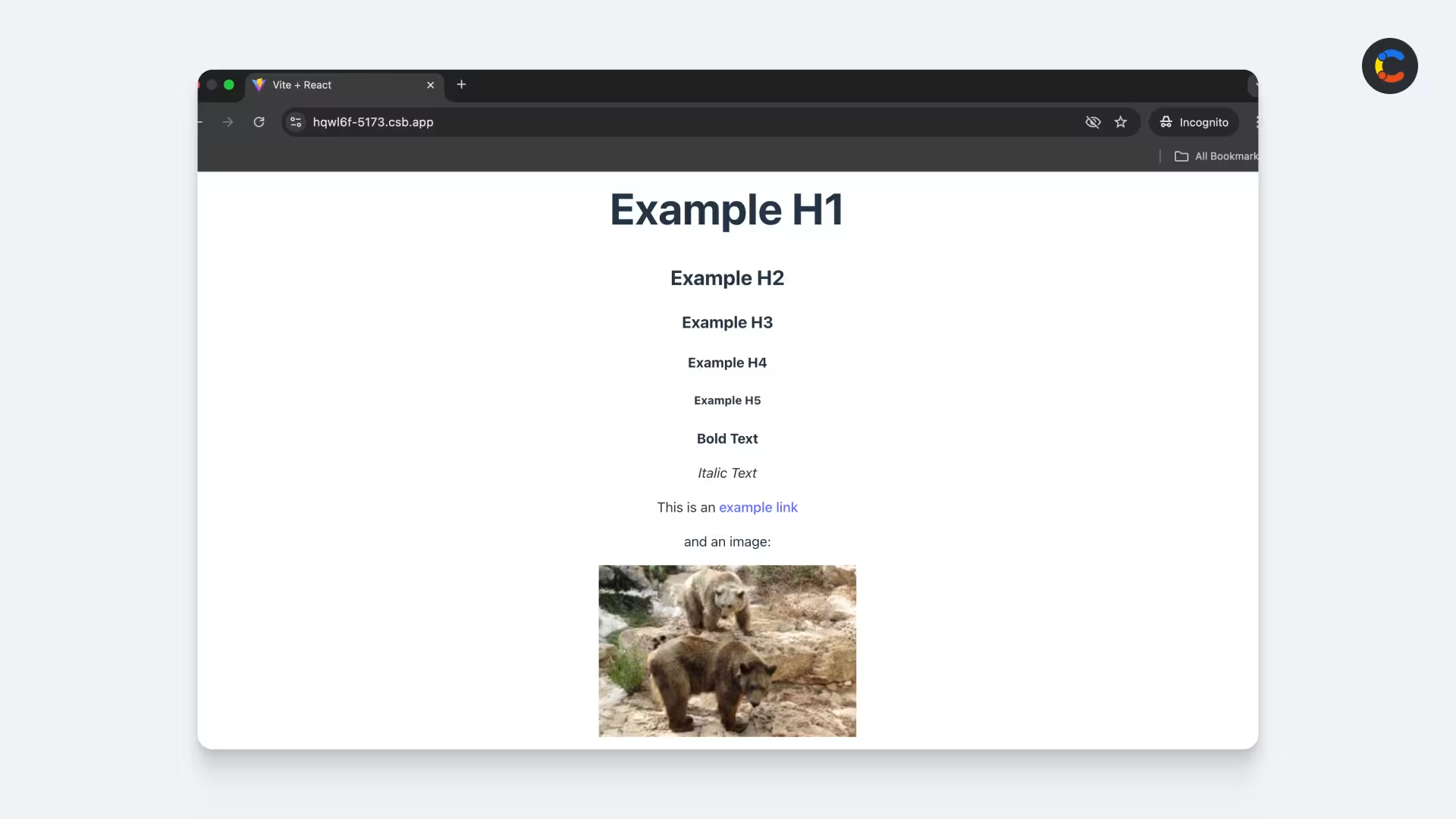
By default, your Markdown will be converted into standard HTML tags (for example, <h1>, <p>, and <a>), but you can add your own customization for how these elements look (or behave) using react-markdown’s components prop. For example, you might want to style these elements to match your own branding or ensure that all links open in a new tab. The code below shows how to use the components prop to do this.
In the code above, the components prop is an object that is mapping Markdown elements — represented by their equivalent HTML tag names (for example, h1 and a) — to custom React components. This is done using inline functional components.
Each functional component receives values like node and props, which allow you to change behavior and styling. For instance, you can change the color of the elements to blue and change all links to open in a new tab by customizing the <a> tag and adding target="_blank" to it.
In summary, react-markdown parses input Markdown and turns it into native React elements, and if you need full control over how each tag renders, you can use the components prop.
You can access live examples of this code at this sandbox link.
When to use react-markdown's other exports
react-markdown's default export is Markdown, but there are other exports you may want to use depending on your use case. Here's a breakdown of each react-markdown export and what each one does:
Feature | What it does |
|---|---|
| Renders markdown synchronously. Use this unless you need async plugins. |
| Renders markdown with async plugin support via async/await; works on the server. |
| Renders markdown with async plugin support via React hooks; runs on the client. |
| Sanitizes URLs, allowing only safe protocols (http, https, irc, ircs, mailto, xmpp) plus relative URLs. |
How to create a react-markdown editor for end users
The react-markdown package deals with everything to do with rendering Markdown, but if you need to provide an interface for users to edit Markdown (such as blog editors, internal tools, etc.), you’ll need to install a package called react-md-editor:
npm i @uiw/react-md-editor
The example below will render a basic Markdown editor in your React app:
When you enter your Markdown text into the react-markdown editor, the code above uses the onChange event handler to update local state in the parent component, keeping the editor and the live preview in sync. Any text entered into the editor on the left is shown as a live preview on the right. The editor also provides a number of different controls to help your users when writing Markdown, such as buttons for bold text, italics, and links.
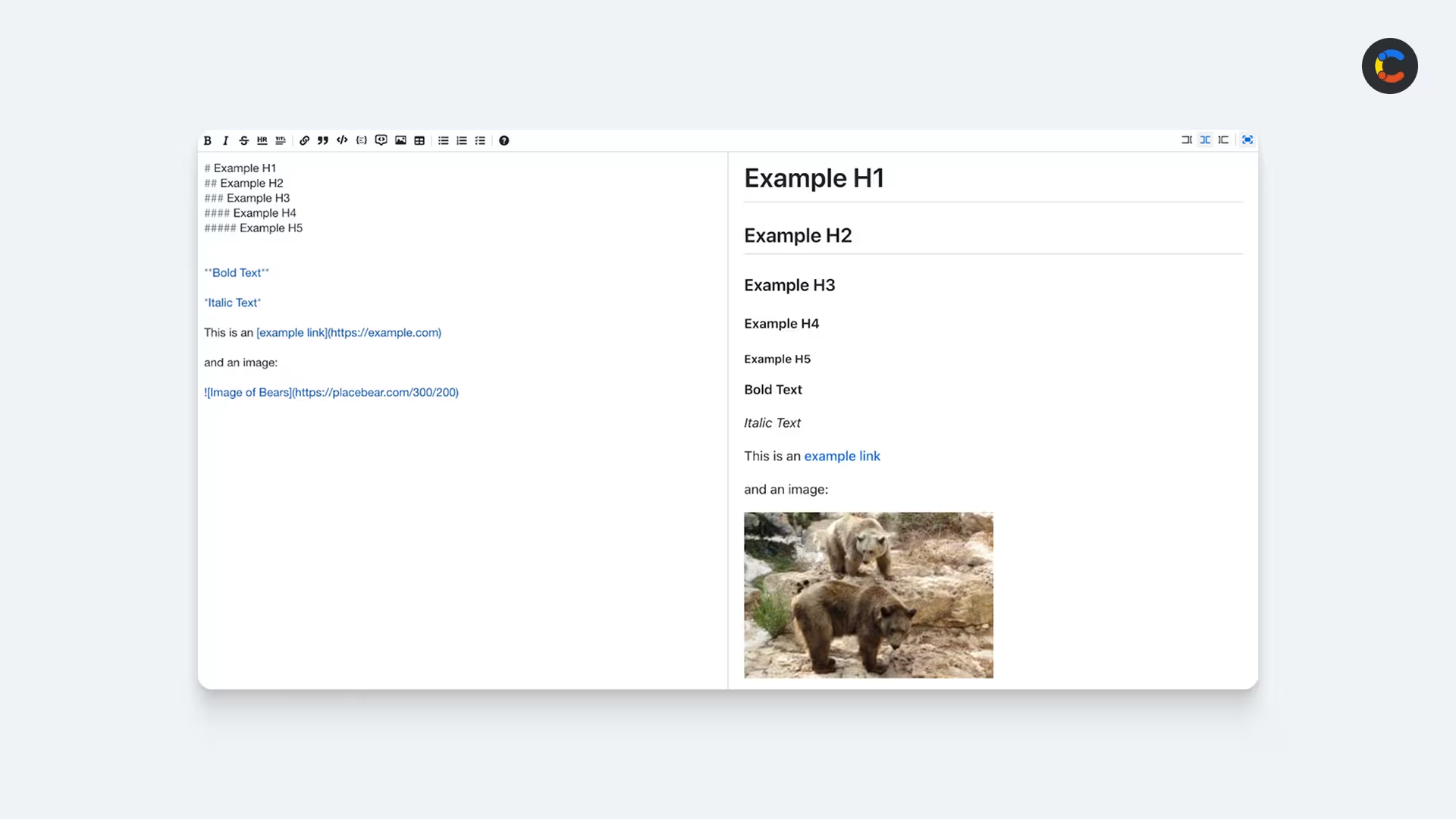
You can access live examples of this code at this sandbox link.
Security with react-md-editor
You may be using react-md-editor as an editing tool for your users creating content or as a back office (in a CMS or admin tool). If you're planning to save that Markdown and render it later elsewhere, it's important to either avoid rendering raw HTML or to sanitize your content before rendering to prevent XSS attacks. This is especially true if you allow HTML in the Markdown or you’re rendering the content in a public-facing app. We will cover tips for sanitizing your content next.
Best practices and tips for react-markdown
Security
It's generally a bad idea to render raw HTML in Markdown, so it's disabled by default in react-markdown. This means if you try to use HTML tags like <script> or <iframe>, they won't be rendered as HTML, they’ll just be treated as text. This helps reduce threats like cross-site scripting (XSS) attacks.
However, sometimes you may want to add more dynamic elements to your Markdown, such as an online video, a map, or a web form. Markdown is intended for content, not complex layouts, so this isn’t recommended; however, if you need to, you can use extra plugins like rehype-raw to allow the rendering of raw HTML in Markdown — but then you’ll need to sanitize your content with a plugin called rehype-sanitize. This acts as a whitelist-based filter that allows safe tags by default (<h1>, <p>, etc. ) and strips out dangerous tags like <script> and <iframe>:
In the above example, the script tag will be removed. rehype-sanitize will also remove dangerous elements like iframes, so if you wanted to work with YouTube videos, for instance, you could set up a custom configuration to allow all iframes from youtube.com.
Accessibility
Markdown supports basic accessibility practices, such as alt text on images or descriptive text in links, but it doesn’t support more advanced features, such as adding Accessible Rich Internet Applications (ARIA) attributes. If your Markdown includes UI elements like modals, tabs, or buttons, they won't have the right ARIA attributes right away. Developers can fix this by using custom components (via the components prop) to inject the correct ARIA attributes where needed. Markdown does support tables, but they aren't always responsive, and you'll have to add accessible labels and keyboard support with custom components.
The above code demonstrates how you can use a custom component to add an ARIA attribute to an element.
Performance
Rendering with react-markdown is usually quite fast, but excessive plugin usage or big Markdown files can introduce some rendering delays. Parsing overly large files using react-markdown will cause significant latency, but this is something that the community is actively working on improving. In the meantime, you'll have improved performance if you keep your Markdown files reasonably sized, splitting your content into chunks if the rendering becomes too slow.
You can improve performance by wrapping the react-markdown component in React.memo. By default, if a parent component re-renders, so will all of its child components. This would involve unnecessarily reparsing all of the markdown. React.memo stops this from happening.
Also, if you're rendering heavy custom components through the components prop, React.lazy and Suspense let you load them only when needed. This keeps your initial bundle smaller.
Storage and format
Always store Markdown as plain text strings. Markdown is designed to be lightweight and flexible. If it's stored as a string, it's easily editable, and you can parse or transform it dynamically. Plus, by avoiding storing it as HTML, you avoid some security risks. Markdown should be used purely for content — any logic or data should be kept in secure backend environments. Popular CMSes like Contentful allow you to store Markdown content as raw text fields, making the content portable and flexible.
React Markdown plugins and associated packages
The creators of react-markdown, Remark, have built a number of packages to help you achieve different purposes when rendering Markdown:
remark-gfm allows you to render GitHub-flavored Markdown (GFM), an extended version of Markdown popularized by GitHub for rendering issues and READMEs. It adds support for tables, task lists, and strikethrough, among other features. It also automatically renders bare URLs as clickable links.
mdx allows you to write JSX in your Markdown documents. You can add interactive elements like charts or alerts and embed them with your content.
rehype-highlight allows syntax highlighting in any code blocks used within your Markdown text.
rehype-raw allows you to add raw HTML to your Markdown text. As mentioned earlier, you can embed HTML in your Markdown, but it's recommended to use it together with rehype-sanitize to sanitize and prevent security risks.
remark-frontmatter allows you to parse YAML / TOML metadata blocks (titles, dates, and SEO fields) from the top of a markdown file, separating that data from the body content before rendering.
remark-math (paired with rehype-katex) allows you to render inline and block math notation via KaTeX, which is useful for more technical or data-heavy content.
Markdown is a useful tool for rendering content efficiently, but rendering it safely with React requires some attention to security, performance, and accessibility. Stick to well-supported plugins and sanitize if you're using raw HTML.
Use Contentful to edit and serve your Markdown
Although react-md-editor is a very useful tool, if you'd like to save time and not have to build, maintain, and secure a Markdown editor for your back office, Contentful can provide you with a CMS and intuitive interface. All content can be served over REST or GraphQL APIs, from a global, high-speed CDN. All you need to do is enter your Markdown content and connect it with react-markdown in your frontend app.
Let's step through how easy this is to set up. Head over to Contentful to log in or create a free account. Once you have created a space, click the Content model button in the top bar. Create a new content type called “Article” by clicking Create content type on the right:
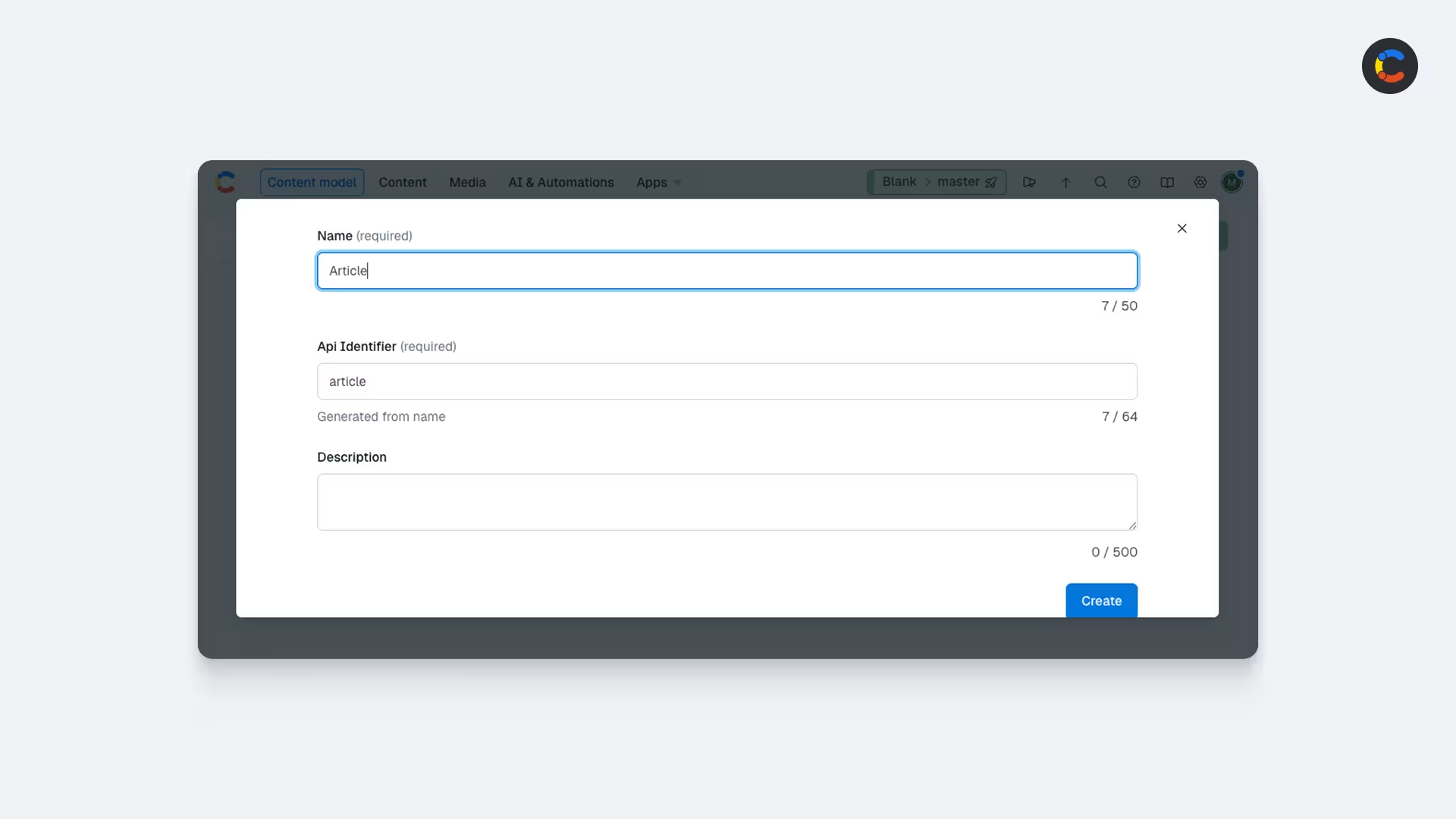
Now add a field of long text and give it a field name of “articleContent”.
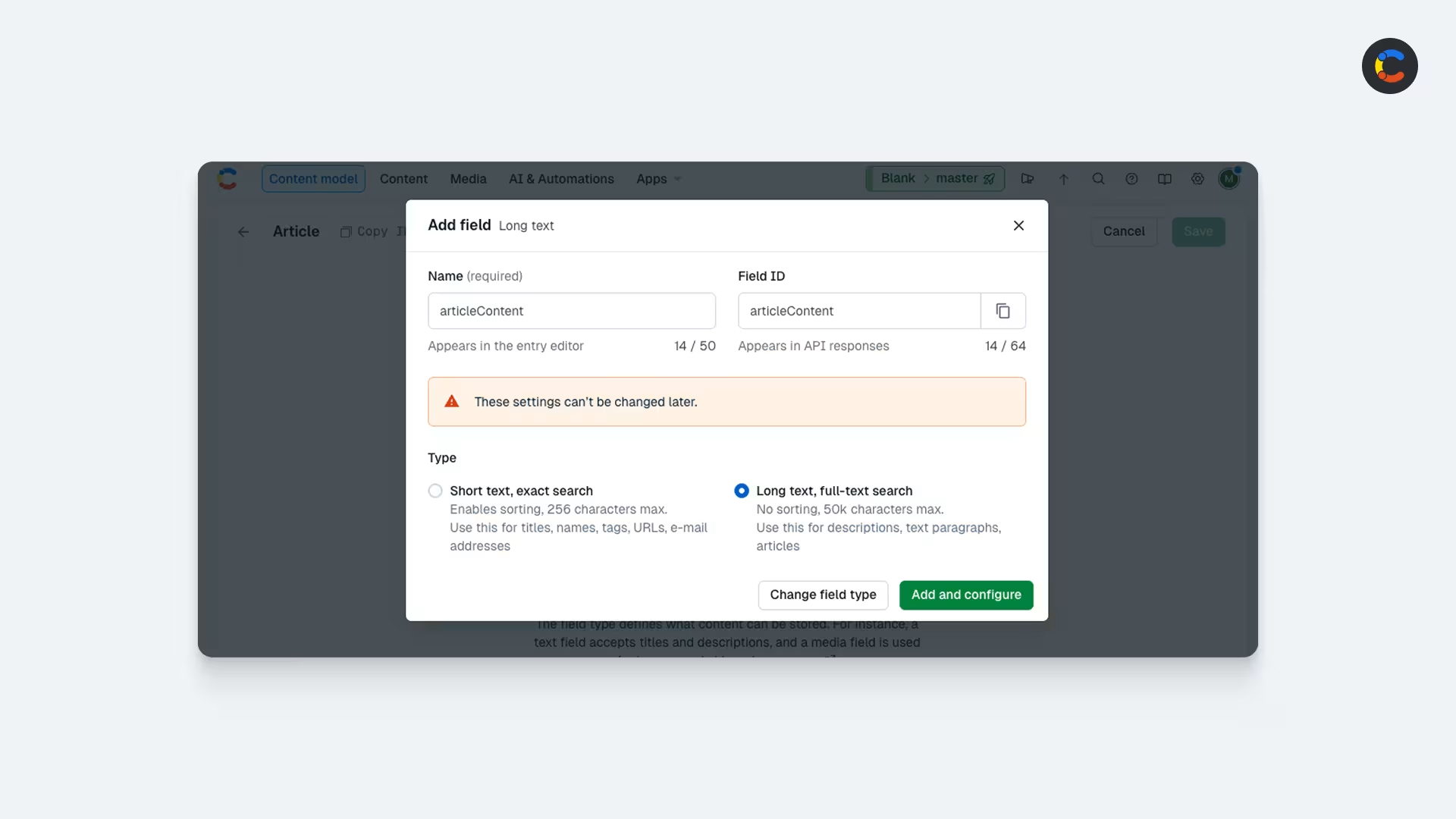
Click Add and configure and then scroll down to Appearance on the next page and select “Markdown.”
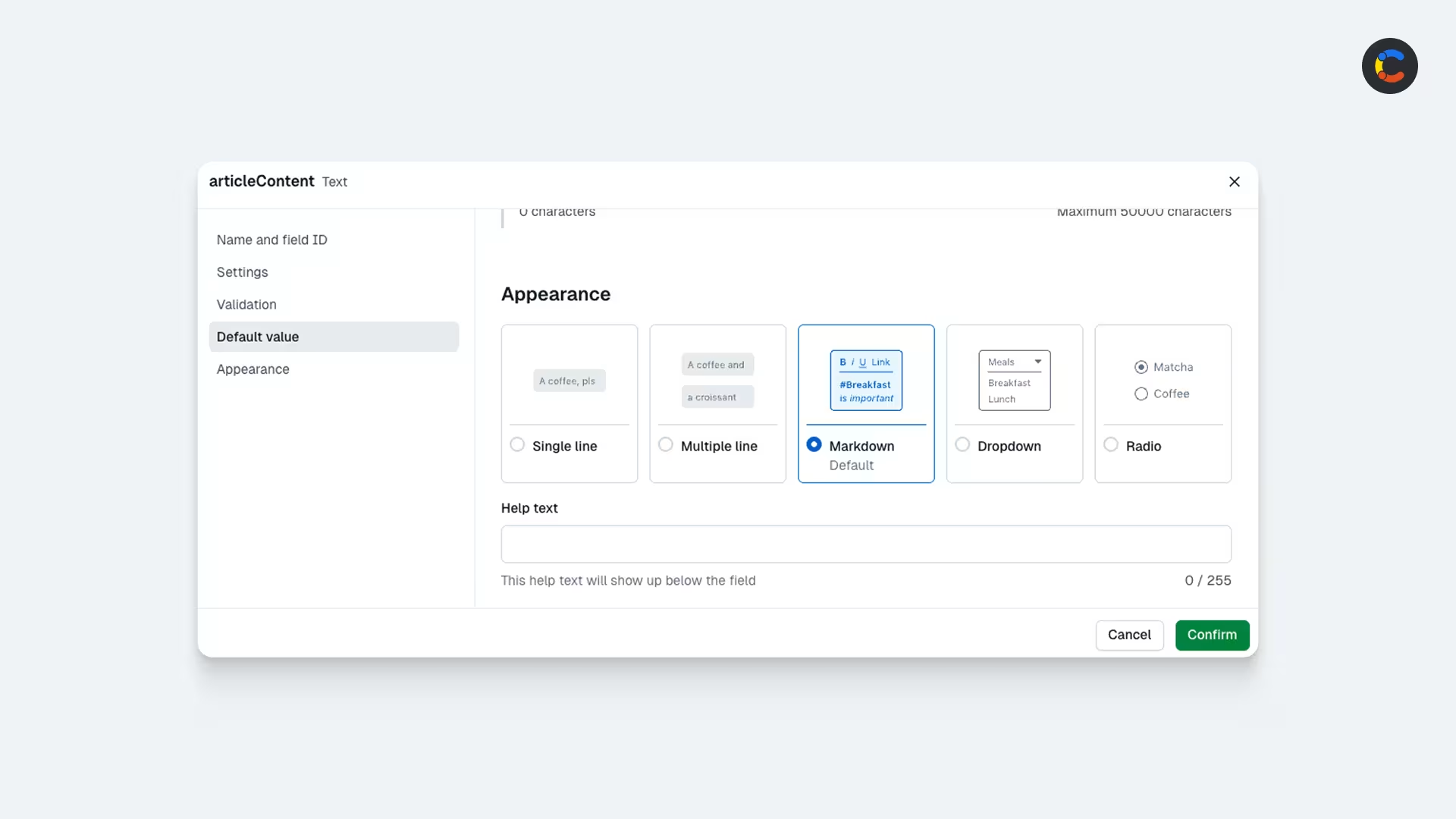
Click Confirm and then save. Head over to the Content tab and select to add some new content in the top right, select Article. Now in the editor you can add some Markdown and preview it before publishing. (This article about our Markdown editor can help with this.) Once finished, change the status to “Published” on the right:
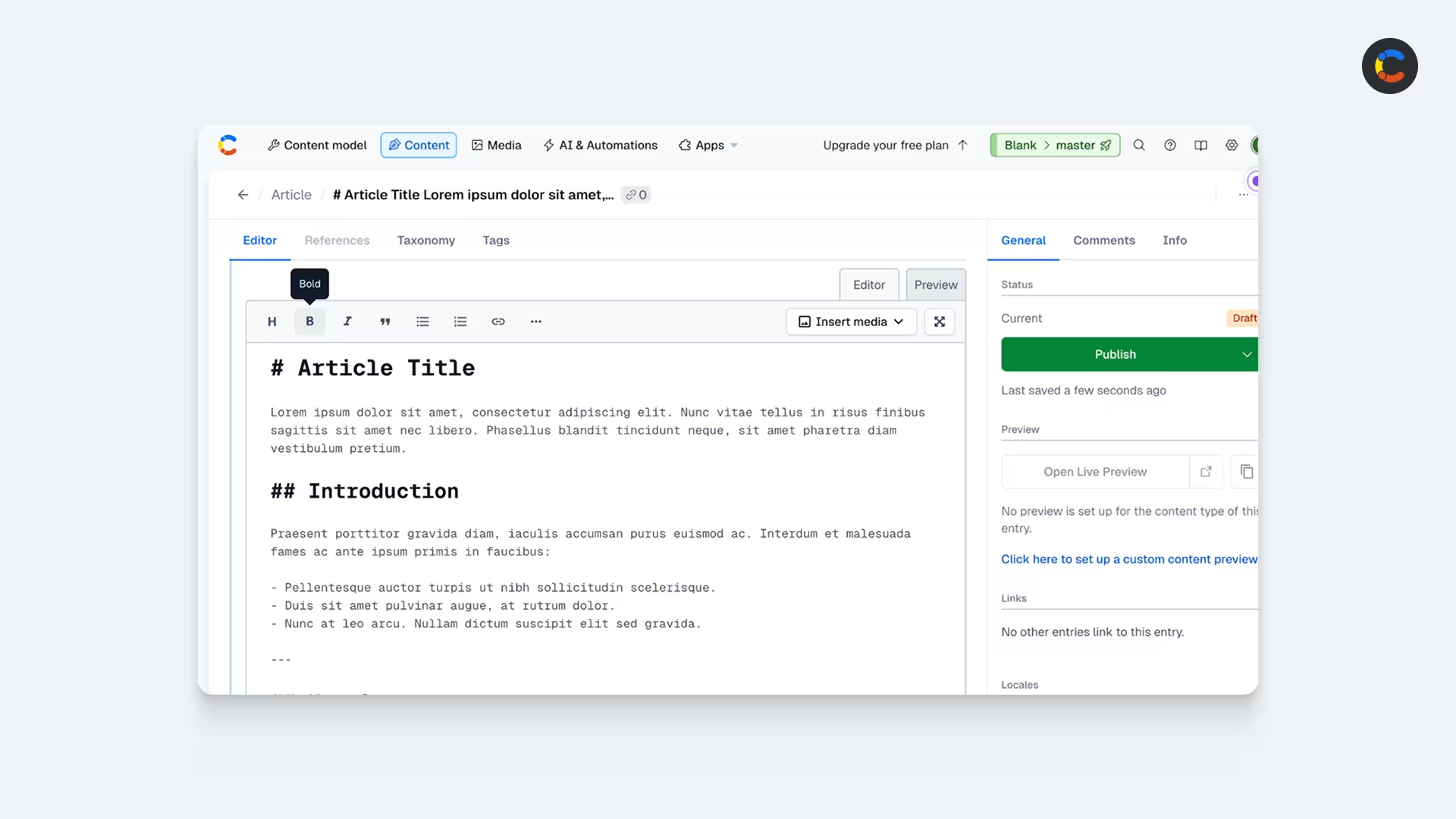
Once published, this content will be available for you to request over Contentful's Content Delivery API. Contentful provides a few SDKs for popular languages and frameworks that help you do this. The following example will use Contentful's JavaScript SDK, which you can install with the following command:
npm install contentful
Now you can connect to Contentful with the following code:
The VITE_CF_SPACE_ID is the Contentful space ID, and the VITE_CF_CMA_TOKEN is the Contentful Content Management API token, both of which are available from Settings in your Contentful dashboard.
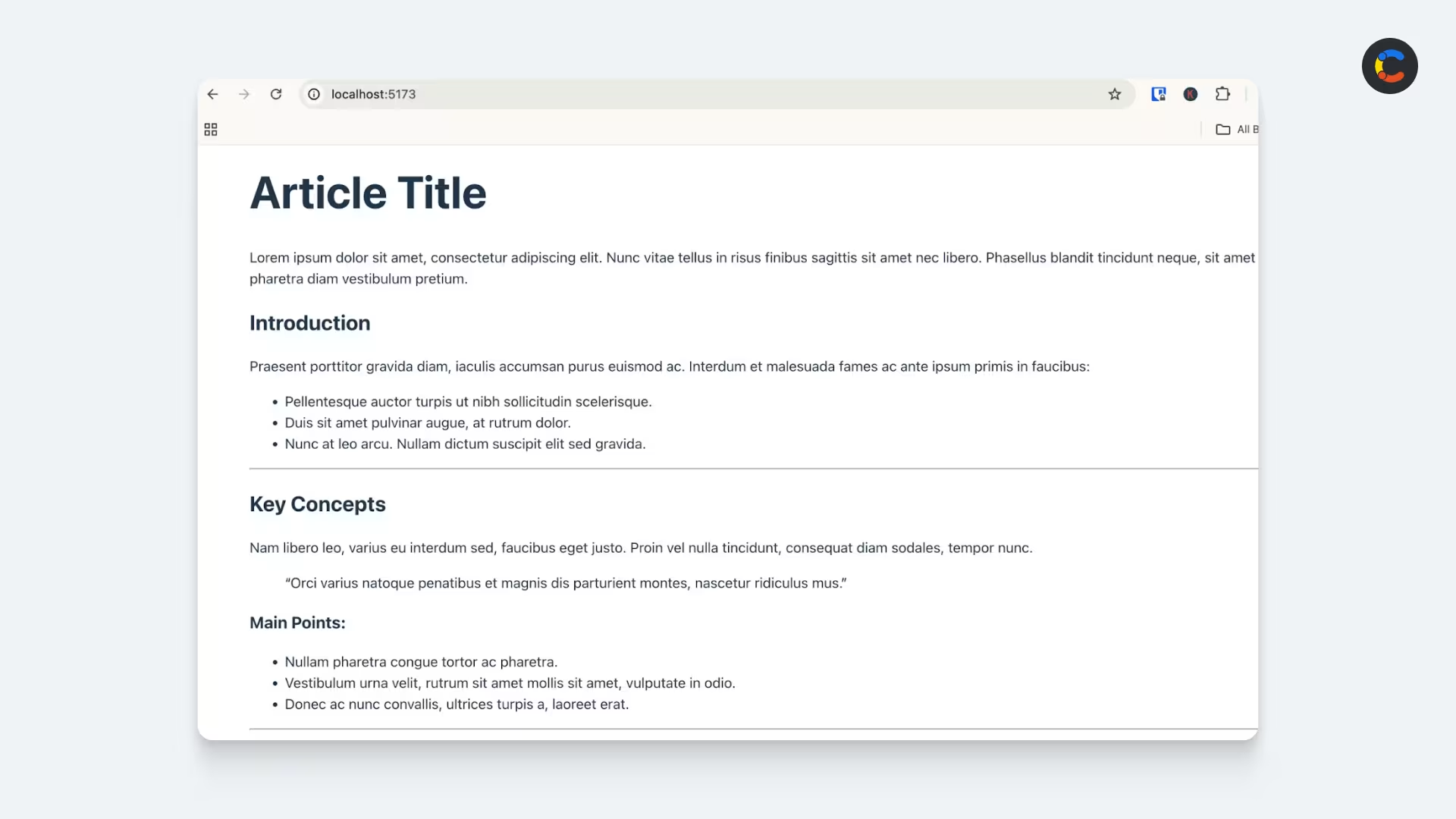
Now that your app is connected to Contentful, you can query its API:
This will display the Markdown in the browser like so:
Curating, storing, and delivering rich text content for apps and websites
react-markdown allows you to render Markdown in your React apps, but if you want a more structured layout (embedding assets, headings, tables, etc.), Contentful also offers a Rich Text field.
This enables you to store content as a structured JSON document (not just plain Markdown) and is useful for custom rendering, embedding media, or designing content to be used across different channels (web, mobile, email). You can migrate your Markdown to Rich Text with our rich-text-from-markdown package, then render Rich Text in React using the rich-text package.
Using Contentful makes your content omnichannel, reduces infrastructure, and gives you full control over how your content is displayed across a variety of platforms.

Inspiration pour votre boîte mail
Abonnez-vous et restez au courant des meilleures pratiques pour offrir des expériences numériques modernes.
À la rencontre des auteurs

David Fateh is a software engineer with a penchant for web development. He helped build the Contentful App Framework and now works with developers that want to take advantage of it.

Bulent collaborates with Contentful's customers, partners and users to publish articles that support and elevate the community.
Articles connexes

Next.js authentication with Auth.js (formerly NextAuth) and Contentful
January 8, 2025

Next.js vs. React: The difference and which framework to choose
February 4, 2025
Astro vs. Next.js: Features, performance, and use cases compared
December 3, 2024

Ready to start building?
Put everything you learned into action. Create and publish your content with Contentful — no credit card required.