Preview Center: gain early access to new features
You can now experience early Contentful features by self-activating/de-activating preview (Alpha and Beta) features and provide feedback.
This will enable you to provide feedback in the development process on the direction of the product by gaining early access to new features.
You can find the Preview Center by selecting your user profile.
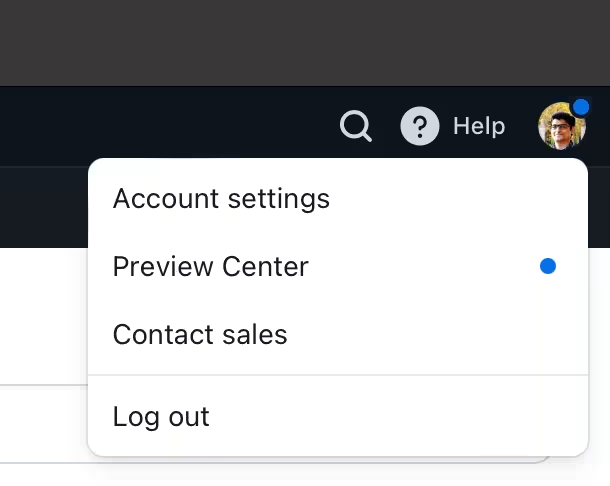
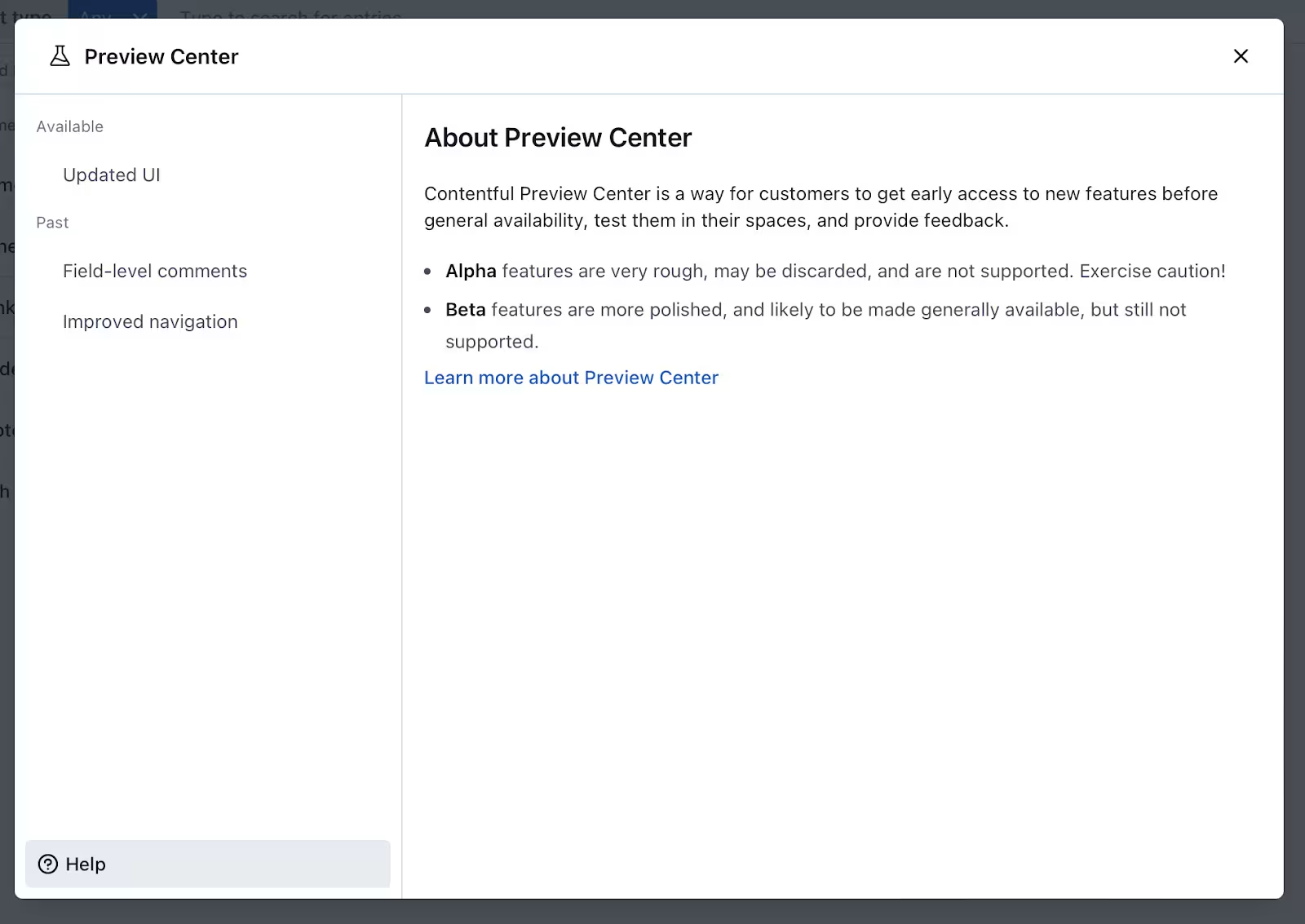
You will see a list of all the available preview features. Selecting a feature will show you the release stage of the feature (Alpha or Beta), a description, and a screenshot of the feature. Select the feature you want to try out, accept the Terms of Service, and the feature will be automatically activated.
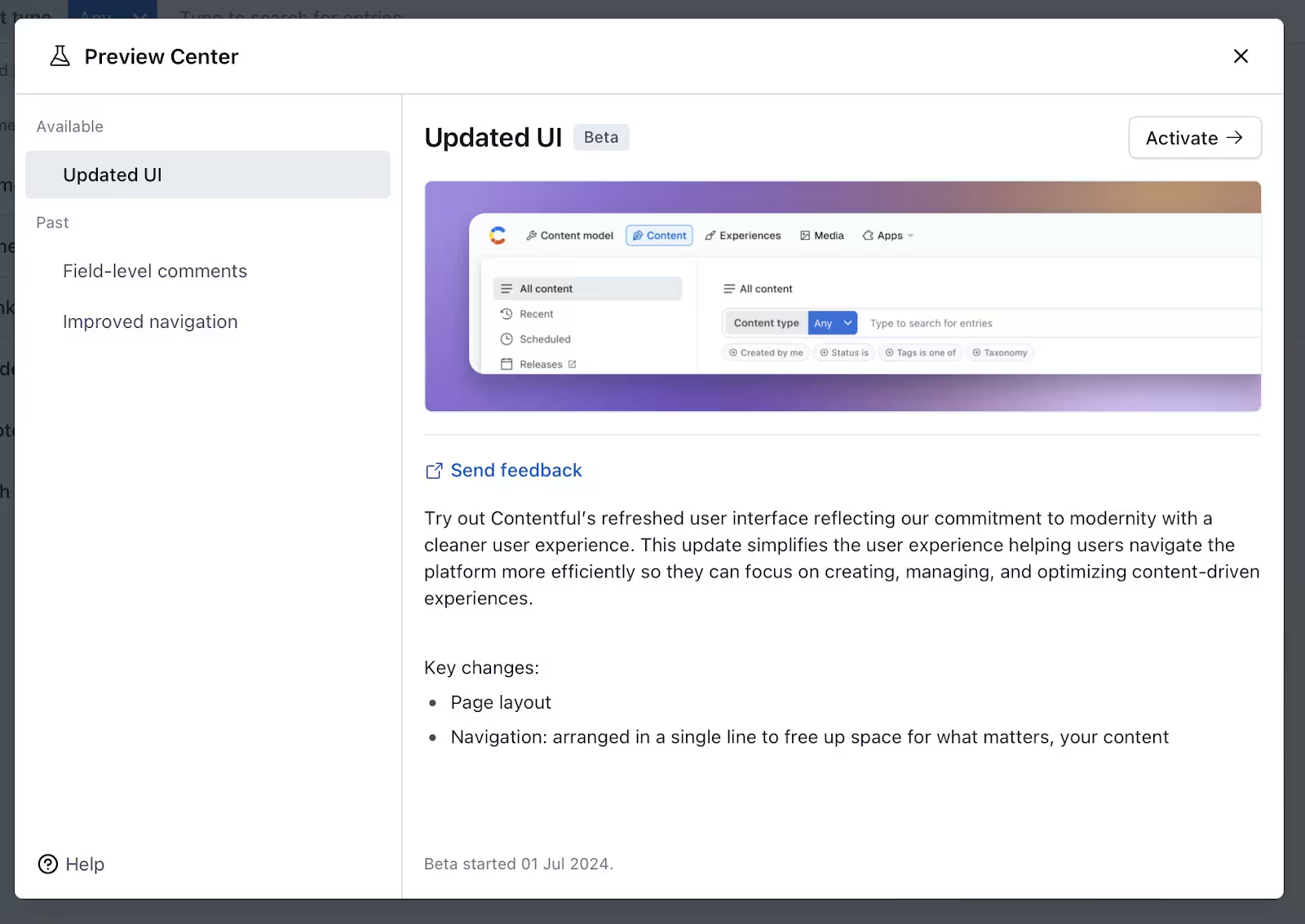
Every preview feature has one of the following three scopes: organization, space, and user. If the preview feature has an organization scope, only an organization administrator can activate/deactivate the preview feature.
Only the space administrator can activate/deactivate the preview feature for space-scoped features. For user-scoped features, users can activate/deactivate the preview features themselves.
You can also provide feedback using the “Send Feedback” link in the preview description.
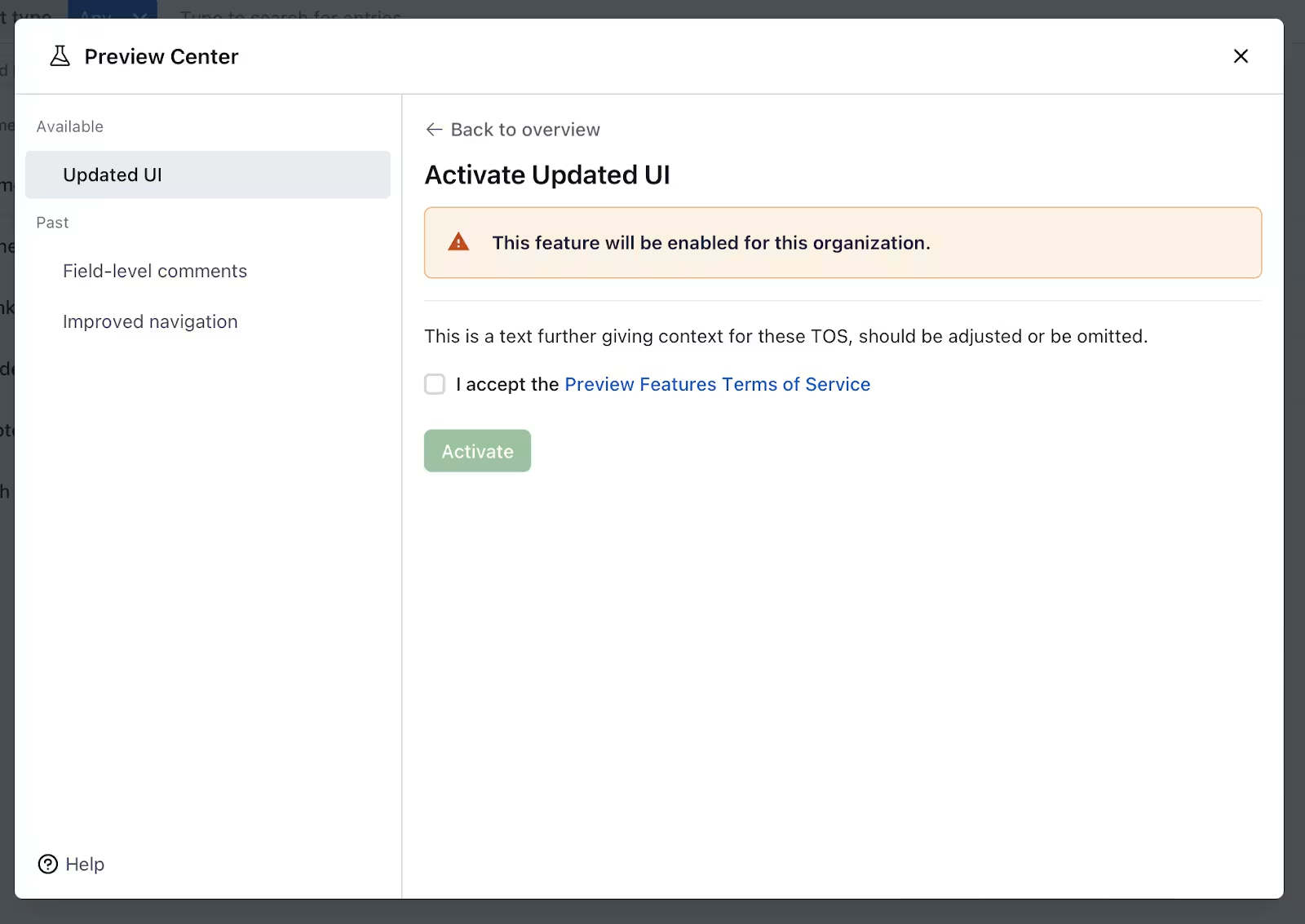
After trying out the feature, you can deactivate the preview feature.
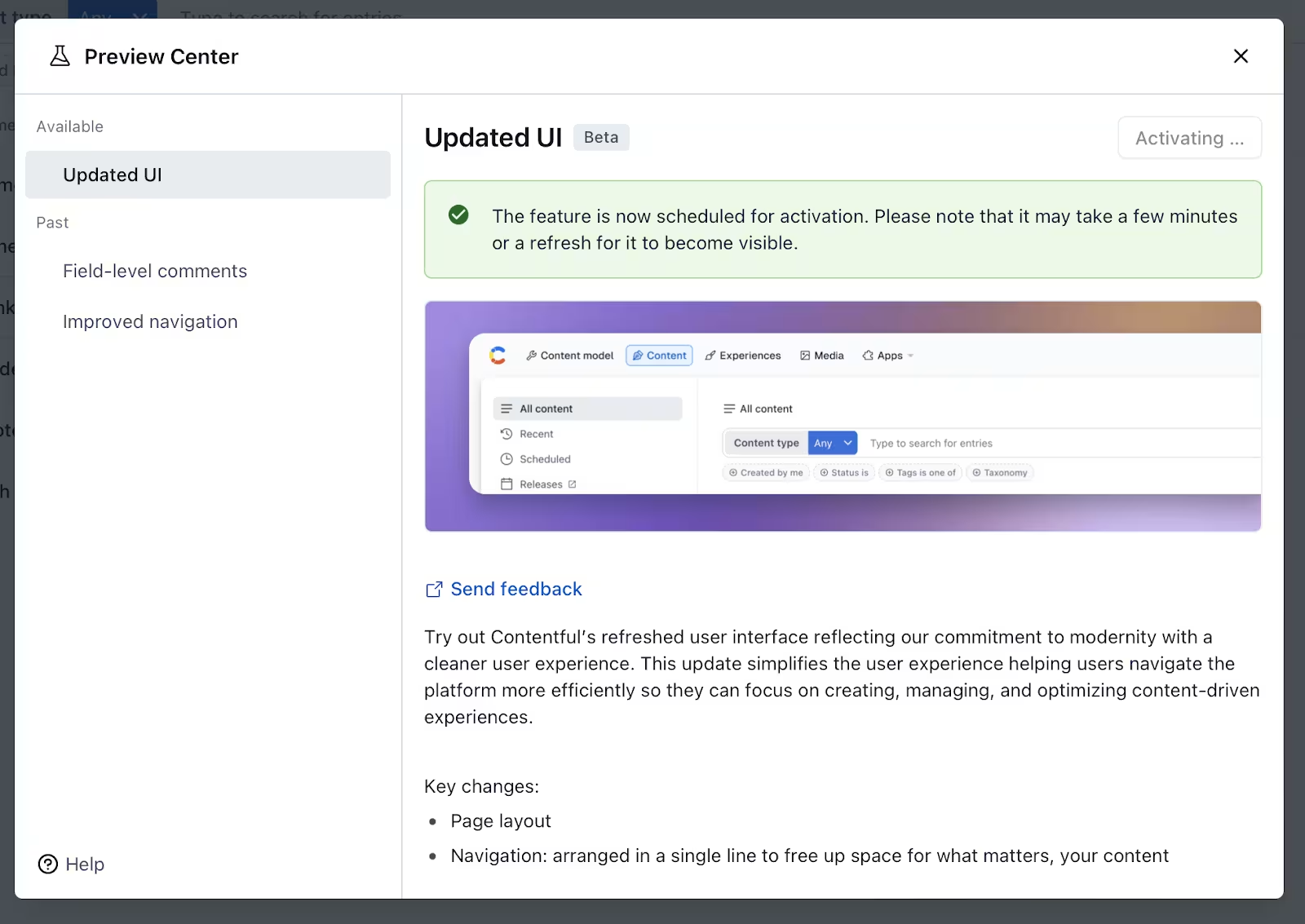
You can read about the feature preview in the Help section of the Preview Center. You can read more about the preview features on the Contentful website.
NOTE: Contentful preview features are not ready for production, expected to contain defects, bugs or errors and are not expected to operate at the level of final, generally available offerings. Contentful preview features may be substantially modified prior to general availability or withdrawn at any time. Please read the Terms of Service for preview features on the Contentful website.