

Import flow
The experiences import command reads your components, uses your coding agent to generate definitions, and pushes them to Contentful. You review and edit the results along the way.
This page explains each step. To run your first import, see Getting started. For every flag, see the Command reference.
What the import does
Component generation starts after you confirm your component choices. It runs while you check your credentials, so you don’t wait for it.
The import uses the coding agent you chose in experiences setup. To use a different agent for one run, pass --agent.
Add design tokens
Design tokens are the colors, spacing, typography, and other styling values in your design system. You can import them with your components. This step is optional.
Pass a token file with --tokens, or wait for the import to ask for one. The path must point to a file, not a folder.
These file formats work:
- SCSS and CSS variables
- JavaScript and TypeScript token files
- Style Dictionary files
- Tailwind config files
- JSON in any structure
The import converts your tokens to the W3C DTCG format. It then maps them to components. If a component has a design property for color, spacing, or another style, the import links it to the matching tokens. For example, a backgroundColor property can use tokens from your color group.
Tokens are reviewed, saved, and pushed with your components. Tokens that you remove from your source file are not deleted from Contentful.
Choose which components to import
After the import reads your code, the agent suggests components to leave out. These are usually hooks, context providers, and wrappers with no visible UI.
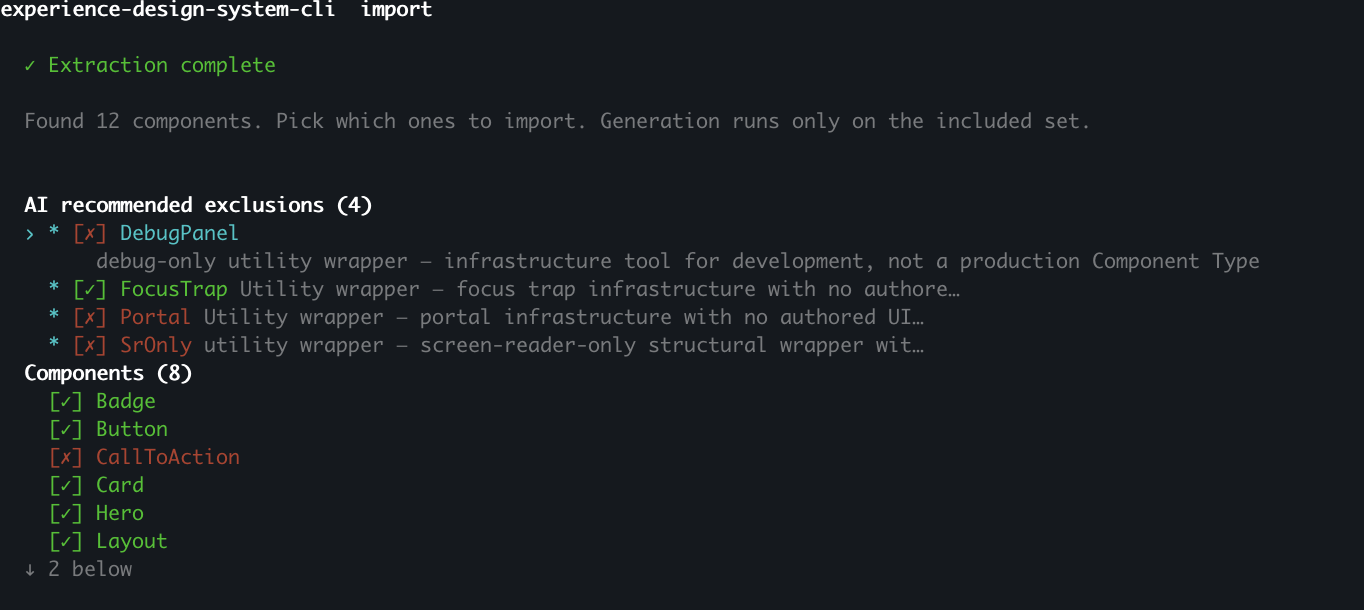
On this screen you can:
- Read the agent’s reason for each suggestion.
- Include or exclude any component, one at a time or all at once.
Generation starts when you confirm your choices. It takes a few minutes, so the import asks for your Contentful credentials in the meantime.
Review the generated components
This screen shows each generated component, with its properties, slots, and the agent’s reasons for keeping or leaving out each one.
You can:
- Read the agents’s reasons for each component, slot, and property.
- Edit fields. Change names, descriptions, types, defaults, and allowed values.
- View source code snippet
- View JSON definition

Your edits are included in the saved file and the push.
Push to Contentful
The import always saves components.json to your computer. If you have credentials, it then pushes to Contentful.
Before anything is pushed, you see a summary of what will be created, updated, and skipped. You can expand it to see every field that changes.
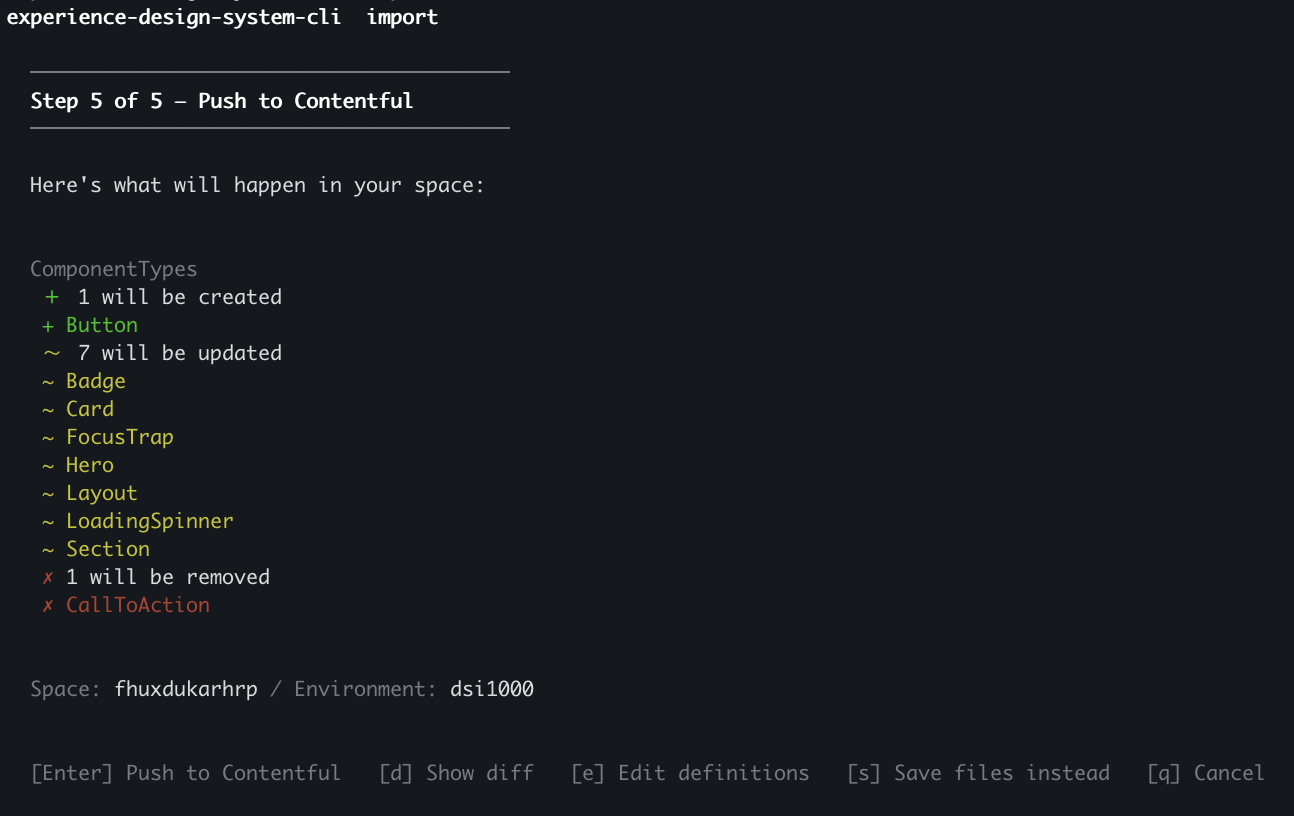
Components that are in Contentful but not in your import are skipped, not deleted.
When the push finishes, the CLI prints a summary and a link to your components. To find them yourself, see Getting started.
Skip credentials
You can skip the credentials step. The import still saves components.json to your computer, but it does not push, because the CLI cannot connect to Contentful.
To push the file later, set your credentials with experiences setup and run experiences apply components.json.
Run the import again
The CLI reuses results from earlier runs when your code has not changed. To run every step again, use --no-cache:
Next steps
- Command reference — See every command and flag.
- FAQ — Find answers to common questions.