Salesforce Marketing Cloud Form Selector
Attach Salesforce Marketing Cloud Next forms to Contentful entries.
About the Salesforce Marketing Cloud Form Selector app
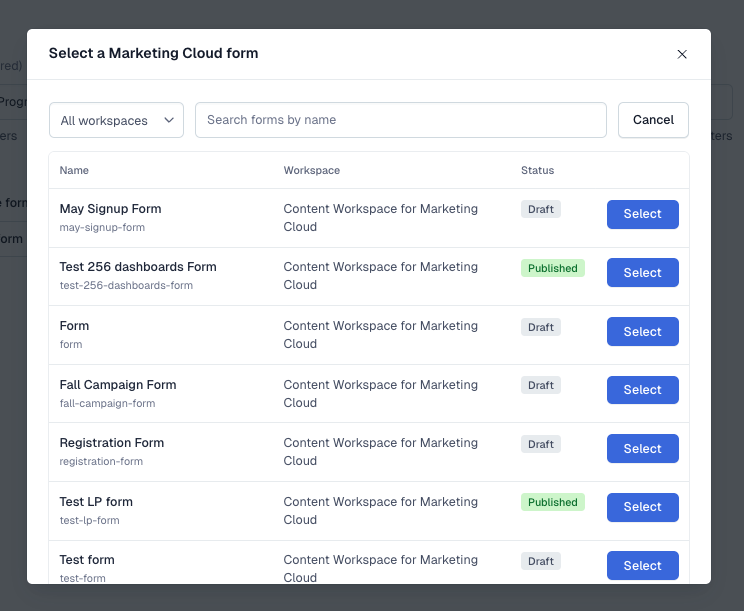
The Salesforce Marketing Cloud Form Selector app connects your Contentful space to the forms your team builds in Salesforce Marketing Cloud Next. Instead of opening Salesforce, finding a form, and pasting its embed code or IDs into an entry, editors click Select form on the entry, search by name, and pick the form from a list.
The app saves only what your website needs to show the form: the form's content key and its embed ID. Your front end uses those two values to render the live Salesforce form, so pages stay in sync with the form your marketing team publishes in Salesforce. Admins can limit which Salesforce CMS workspaces editors pick from, and the app connects to Salesforce through a secure OAuth connection, so no API keys or passwords are stored in Contentful.
Features
- Search forms by name: Editors search the Marketing Cloud Next forms in your Salesforce org from a dialog in the entry editor and pick one with a click.
- See form status before picking: Each result shows whether the form is published, so editors can tell which forms are ready for the website.
- Clean, minimal field value: The field stores just the form's content key and embed ID, with no HTML, so developers stay in control of how forms render.
- Workspace controls: Admins can limit picking to specific Salesforce CMS workspaces. When more than one workspace is allowed, editors can filter by workspace while they search.
- Change or clear at any time: Editors can swap the attached form or remove it from the field without leaving the entry.
- Unpublished form warning: If an editor picks a form that isn't published in Salesforce yet, the field warns them so the gap is caught before the entry goes live.
- Secure OAuth connection: An admin connects the space once with Salesforce's own sign-in. Every editor's searches use that connection, and access follows that Salesforce user's permissions.
Use Cases
Built for marketing and web teams that build lead capture forms in Salesforce Marketing Cloud Next and publish pages from Contentful.
- Landing pages: Add the right sign-up or lead form to a campaign landing page without touching code.
- Gated content: Attach a download or registration form to whitepaper, webinar, or event entries.
- Newsletter and preference sign-ups: Reuse the same subscription form across many pages from one source in Salesforce.
- Contact and demo requests: Let editors place contact or request-a-demo forms on product and pricing pages.
Requirements
To use this app you will need:
- Space Admin access to the Contentful space where you are installing the app.
- A Salesforce org with Marketing Cloud Next (Growth or Advanced edition) and at least one published form.
- The Contentful External Client App package installed in your Salesforce org. Install the package.
- A Salesforce user who can view your Marketing Cloud Next forms and CMS workspaces.
- Your Salesforce org's My Domain URL (for example, https://yourcompany.my.salesforce.com).
- A developer to add form rendering to your website or app. The app stores which form to show; your front end displays it.
Limitations
- The app attaches a form to an entry. Displaying the form on your website is handled by your front end, using the stored content key and embed ID.
- Only published forms have an embed ID. If an unpublished form is picked, publish it in Salesforce and select it again.
- Search shows up to 50 matching forms, most recently changed first. Narrow the search to find older forms.
- The app connects to one Salesforce org per Contentful space and environment. The connection is shared by everyone in that space.
- Salesforce sandbox orgs aren't supported yet.
Screenshots