Contentful Asset Selector in Salesforce
Pick Contentful assets inside Salesforce CMS, without leaving Salesforce.
About the Contentful Asset Selector in Salesforce app
The Contentful Asset Selector in Salesforce app brings your Contentful media library into Salesforce CMS. Once it's set up, authors open the image selector in any Salesforce CMS workspace, switch to the External tab, and pick assets straight from a connected Contentful space. Selected assets reference the Contentful-hosted file, so nothing is copied into Salesforce.
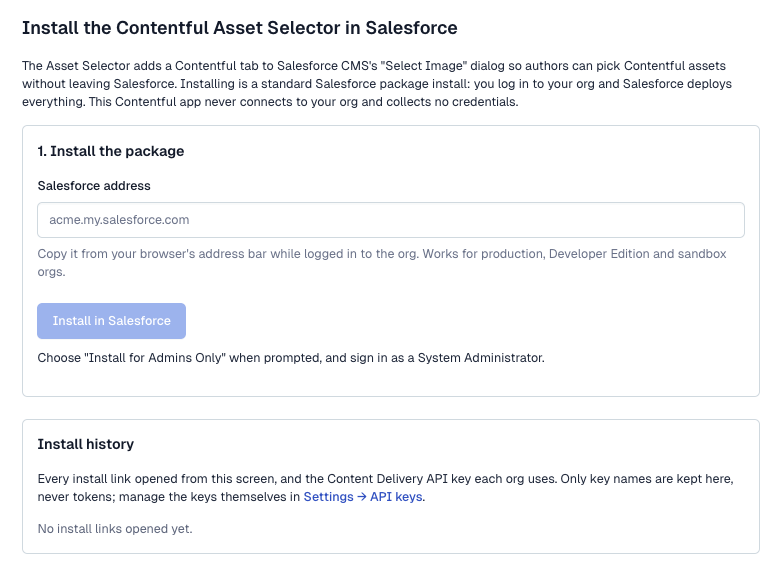
The Contentful app is where installation starts. An admin enters their Salesforce org's address, clicks Install in Salesforce, and Salesforce installs the Contentful package through its standard install flow. The screen then walks them through finishing setup in Salesforce. The Contentful app never connects to your Salesforce org and collects no credentials. Inside Salesforce, the picker reads only published content through Contentful's read-only Content Delivery API, and the access token is stored encrypted, where authors can't read it.
Features
- Contentful in the Salesforce CMS image selector: Authors pick Contentful assets from the External tab of the image selector they already use, in every workspace you enable.
- Search, filter, and sort: Search assets by title, filter by images, video, or audio, and sort by newest, oldest, or name.
- No file copies: Selecting an asset references the Contentful-hosted file instead of copying it into Salesforce, so there's one source of truth for brand media.
- Guided install: Paste your Salesforce address and click Install in Salesforce. The app works out the right install link for production, Developer Edition, and sandbox orgs.
- Step-by-step setup checklist: The configuration screen lists every remaining step in Salesforce, links straight to the setup tab, and shows exactly what the package installs.
- Install history: Keep track of every Salesforce org you've installed into, and which Content Delivery API key each org uses, so keys are easy to rotate or revoke.
- Connect multiple spaces: Connect more than one Contentful space or environment, and choose which Salesforce CMS workspaces can use each one.
- Read-only, encrypted access: Salesforce uses a read-only Content Delivery API key, stored encrypted in Salesforce. Authors can use it through the picker but can never see it.
Use Cases
Built for brand, marketing, and web teams that manage approved media in Contentful and build content, emails, or sites in Salesforce.
- One media library for both platforms: Keep brand-approved images in Contentful and use them in Salesforce CMS without duplicating files.
- Campaign content in Salesforce: Let marketers add Contentful imagery to CMS content used in Marketing Cloud Next emails and landing pages.
- Multi-brand or regional teams: Connect a separate Contentful space for each brand or region and enable it only in the workspaces that need it.
Requirements
To use this app you will need:
- Space Admin access to the Contentful space where you are installing the app, so you can create a Content Delivery API key.
- A Salesforce org that uses Salesforce CMS workspaces.
- A Salesforce System Administrator to install the Contentful package and finish setup.
- Your Salesforce org's address (for example, https://yourcompany.my.salesforce.com). You can copy it from your browser's address bar while logged in.
Limitations
- The picker shows only published Contentful assets. Drafts and archived assets don't appear.
- Each search shows up to 48 assets. Search by title or use a filter to find others.
- After installing or upgrading, Salesforce can leave the packaged connection to Contentful turned off. The setup checklist shows how to turn it on.
- Registering a space makes it available to Salesforce CMS, but each workspace has to add it before authors see it.
- The app uses your Contentful space's default locale for asset titles and files.
- A Salesforce CMS image keeps pointing at the file that was selected. If you replace the file on a Contentful asset, select the asset again in Salesforce.
Screenshots