Contentful Asset Selector in Salesforce
The Contentful Asset Selector in Salesforce app lets Salesforce CMS authors browse, search, and select Contentful assets from the image selector, without downloading and re-uploading files.
Overview
The Contentful Asset Selector in Salesforce app requires setup in both Contentful and Salesforce:
In Contentful, the app is an installer. An admin enters their Salesforce org's address and clicks Install in Salesforce. The screen then lists the remaining setup steps and keeps a history of the orgs the app has been installed into.
In Salesforce, the Contentful package adds the Contentful Asset Selector app. An admin connects one or more Contentful spaces on its setup tab and enables them in Salesforce CMS workspaces. Authors then pick Contentful assets from the image selector's External tab.
The Contentful app never connects to your Salesforce org and doesn't collect any credentials. In Salesforce, the picker reads published assets through Contentful's read-only Content Delivery API. The API key is stored encrypted in Salesforce, and authors can use it through the picker without seeing it. Selecting an asset creates a Salesforce CMS image that references the Contentful-hosted file, so the file isn't copied into Salesforce.
Requirements
To use the Contentful Asset Selector in Salesforce app, you need:
· Space Admin access to the Contentful space where you're installing the app - this is required to create a Content Delivery API key.
· A Salesforce org that uses Salesforce CMS workspaces.
· A Salesforce System Administrator to install the package and finish setup.
· Your Salesforce org's address. You can copy it from your browser's address bar while logged in, for example, https://yourcompany.lightning.force.com or https://yourcompany.my.salesforce.com.
Usage
Step 1: Install the app in Contentful
1. Log in to the Contentful web app.
2. Under Platform, click Apps.
3. Under Marketplace, click All apps.
4. Find the Contentful Asset Selector in Salesforce app and click its card. The App details window is displayed.
5. Click Install. The Manage app access window is displayed.
6. Under Environments, select the environments where you want to install the app.
7. Click Authorize access. The configuration screen is displayed.
Step 2: Install the Contentful package in Salesforce
1. Under 1. Install the package, paste your org's address into Salesforce address.
NOTE: The screen confirms which org it will install into, for example, Installs into yourcompany.my.salesforce.com.
2. Click Install in Salesforce. Salesforce's install page opens in a new tab.
3. Sign in as a System Administrator if you're asked to.
4. When Salesforce asks who to install the package for, choose Install for Admins Only.
5. Click Install and wait for the confirmation. Large orgs may get an email instead.
6. Go back to the Contentful web app and click Install (or Save) in the top right to save the address and your install history.
The app accepts the address in the forms you're likely to paste:
What you paste | Installs into |
|
|
|
|
|
|
NOTE: It works for production, Developer Edition, and sandbox orgs. Don't use
login.salesforce.comortest.salesforce.com, because they are sign-in pages, rather than your org.
Step 3: Turn on callouts for the Contentful connection
After an install or upgrade, Salesforce can leave the package's connection to Contentful switched off. Turn it on before you continue:
1. In Salesforce, go to Setup › Named Credentials.
2. On the Named Credentials tab, open Contentful CDA (namespace ContentfulInteg).
3. Click Edit, select Enabled for Callouts, and click Save.
NOTE: Don't change the Contentful CDA Cred entry on the External Credentials tab. Its authentication protocol must stay Custom.
Step 4: Create a Content Delivery API key in Contentful
Create one Content Delivery API key per Salesforce org so you can rotate or revoke access to a single org later.
1. In Contentful, go to Settings › API keys (the configuration screen links there).
2. Click Add API key.
3. Name the key. Use the suggested name from the Install history table on the configuration screen, for example, "Contentful Asset Selector – yourcompany – 2026-11-17".
4. Limit the key to the environment you'll connect.
5. Click Save, then copy the Content Delivery API - access token.
6. On the configuration screen, enter the key's name in the API key name column for that org, then click Save. The app stores only the key's name, but not its token.
Step 5: Open the setup tab in Salesforce
1. In Salesforce, assign yourself the Contentful Asset Selector Admin permission set.
2. Open the Contentful Asset Selector app from the App Launcher and go to the Contentful Asset Selector Setup tab.
NOTE: You can also use the Contentful Asset Selector Setup link on the Contentful configuration screen.
Step 6: Save the API key and connect a space
1. Under 1. Content Delivery API key, paste the access token into Content Delivery API access token and click Save key.
2. Under 2. Connect a space, enter:
Name: a label authors will see, for example, Brand assets.
Space ID and Environment ID: the Contentful configuration screen shows both for the space you installed the app in.
3. Click Test connection. If it succeeds, click Save space.
NOTE: You can connect multiple spaces or environments. Repeat this step for each one.
Step 7: Register the space with Salesforce CMS
1. Under 3. Make spaces selectable in CMS, find the space in the table.
2. Click Register. The space's Registered status updates.
NOTE: Registering makes the space available to Salesforce CMS, but it doesn't appear in any workspace yet.
Step 8: Add the space to each CMS workspace
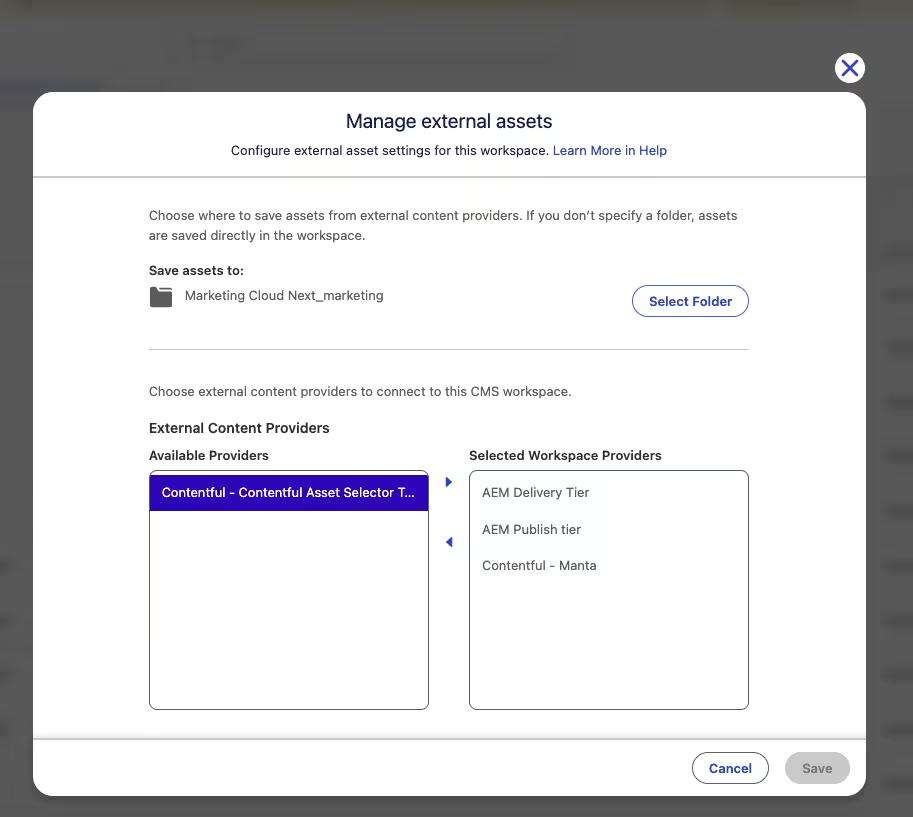
Do this for every Salesforce CMS workspace whose authors must see Contentful:
1. Open the workspace and go to Manage external assets in the workspace settings.
2. Under External Content Providers, move Contentful - <space name> from Available Providers to Selected Workspace Providers.
3. Optional: Under Save assets to, select a folder.
NOTE: If folder isn't selected, the selected assets are saved at the workspace root.
4. Click Save.
Step 9: Give authors access
Assign the Contentful Asset Selector User permission set to every CMS author who should use the picker.
Step 10: Select a Contentful asset
1. In a Salesforce CMS workspace, open the image selector for your content.
2. Go to the External tab and select Contentful - <space name>.
3. Search for an asset using the following search tools:
Enter the asset's name in Search assets by title... field.
Use the type buttons to show All types, Images, Video, or Audio.
Use Sort to order by Newest first, Oldest first, Name (A-Z), or Name (Z-A).
4. Click the asset, then click Select. The image is added to your content. It references the Contentful-hosted file, so the file isn't copied into Salesforce.
Install history
The configuration screen keeps one row per Salesforce org you've installed into, newest first. Each row shows the org, when its install link was last opened, and the name of the Content Delivery API key that org uses. Sandbox orgs are marked Sandbox.
Click Save to keep the history. Until you do, the screen shows History has unsaved changes.
Install links in the history always install the current package version.
The history is visible to everyone in the space, so it stores only key names, but not tokens.
Limitations
The picker shows only published Contentful assets. Drafts and archived assets aren't displayed.
Each search displays up to 48 assets. Search by title or use a filter to find others.
Asset titles and files use your Contentful space's default locale.
A Salesforce CMS image keeps pointing to the selected file. If you replace the file on a Contentful asset, select the asset again in Salesforce.
Each workspace has to add a registered space before its authors can see it (Step 8).
Troubleshooting
Test connection fails with "Callout blocked for named credential"
The package's connection to Contentful is switched off. Turn on Enabled for Callouts for the Contentful CDA named credential (Step 3), then test again.
Test connection fails for another reason
Check whether you saved the access token with Save key, whether the Space ID and Environment ID are correct, and whether the API key has access to that environment.
Contentful doesn't appear on the image selector's External tab
Check whether the space is registered (Step 7), whether it's under Selected Workspace Providers in that workspace's Manage external assets settings (Step 8), and whether the author has the Contentful Asset Selector User permission set (Step 9).
The picker shows "No assets found. Try a different search or filter."
Clear the search box and set the type to All types. If it's still empty, check that the space has published assets in the connected environment.
The picker shows "Couldn't load Contentful assets."
The connection to Contentful failed. Ask an admin to run Test connection on the setup tab. If the API key was deleted or rotated, save the new key with Save key.
The Salesforce address isn't accepted
Paste the address from your browser's address bar while logged in to the org, such as https://yourcompany.lightning.force.com. login.salesforce.com and test.salesforce.com aren't accepted.
I can't find the Contentful Asset Selector app or setup tab in Salesforce
Assign yourself the Contentful Asset Selector Admin permission set (Step 5), then reopen the App Launcher.
FAQs
Does the Contentful app connect to my Salesforce org?
No. It builds the standard Salesforce package install link for your org. Salesforce installs the package; the Contentful app never signs in to Salesforce or stores Salesforce credentials.
What does the package install in Salesforce?
The What gets installed table in the configuration screen lists everything: the picker and setup screen, the Apex classes that call the Content Delivery API, the CMS asset provider, the credential that holds the API key, trusted sites so Salesforce can show Contentful-hosted media, the Contentful Asset Selector app and setup tab, and the admin and user permission sets. The package also includes the External Client App used by the Marketing Cloud Next and Form Selector apps; the Asset Selector doesn't use it.
How do I rotate the API key?
Create a new Content Delivery API key in Contentful, save it on the setup tab with Save key, then delete the old key in Contentful.
Can I connect more than one Contentful space?
Yes. Connect and register each space on the setup tab, then add it to the workspaces that must use it.
Does it work with sandbox orgs?
Yes. Paste the sandbox's address, and the install history marks it as Sandbox.
How do I remove it?
In Salesforce, uninstall the Contentful package from Setup › Installed Packages. If your org also uses the Marketing Cloud Next or Form Selector apps, uninstalling the package removes what they need, too.