Content semantics
Overview
Content semantics helps you work more confidently with your content by understanding what your entries are about, not just the words they contain.
To enable Content semantics:
Log in to Contentful as an organization admin or owner.
Go to Organization settings → AI.
Turn on the Content semantics toggle.
Accept the AI Terms of Service, if prompted.
Click Manage Spaces, select the spaces to enable.
Choose a target locale for each space.
Once enabled, any content changes in the selected space will be analyzed and automatically updated in a dedicated semantic index.
NOTE: the provisioning time for a newly created semantic index can vary depending on the size of the space and current volume.
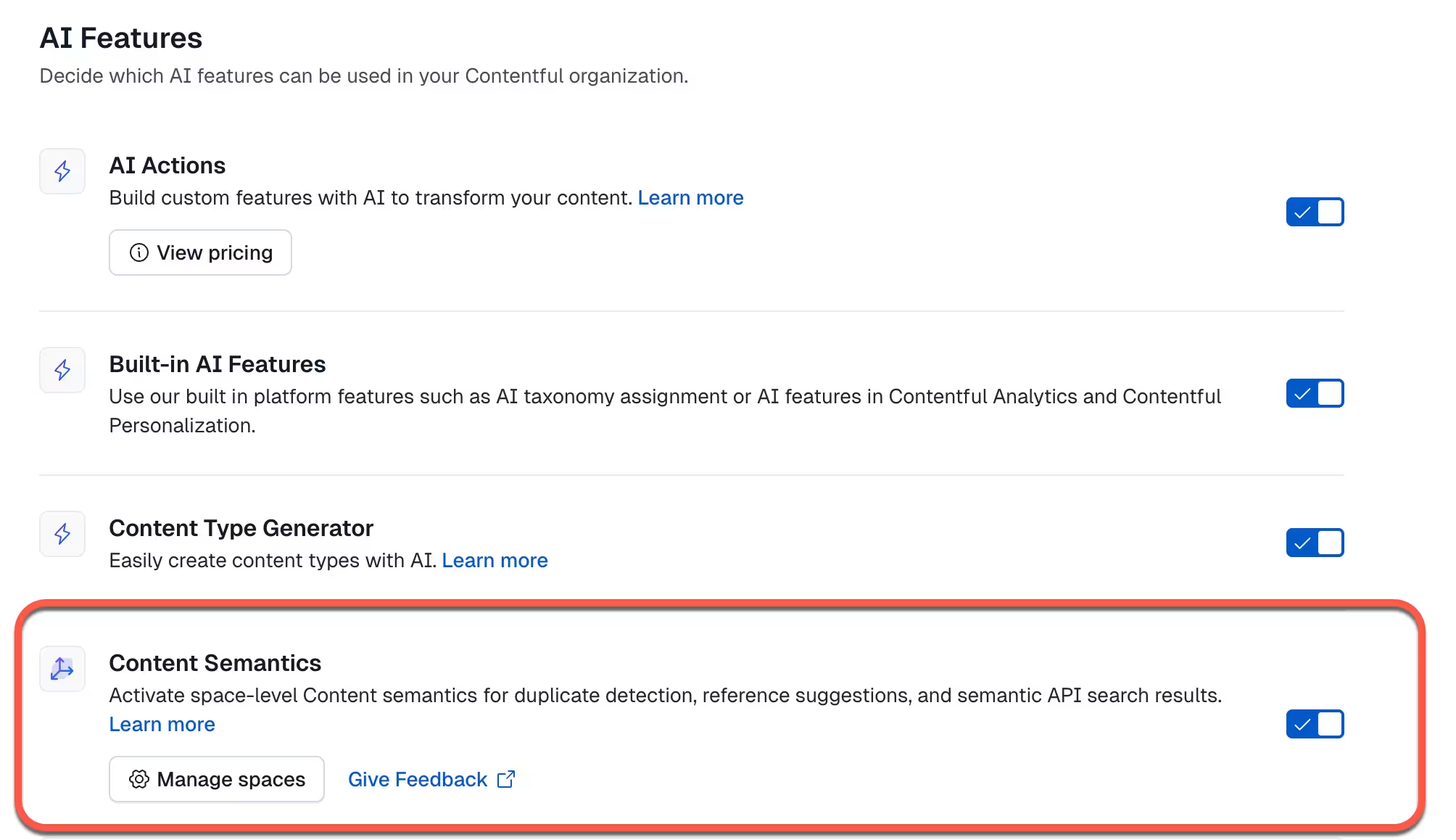
Once enabled for a space, it allows you to:
Avoid duplicate content by identifying entries that cover the same topics or ideas.
Reuse the right content by suggesting relevant entries when you add references or links to other entries.
Improve content quality by giving AI Actions better context from your existing content, so checks and generated output are grounded in what you’ve already published.
Key features
Content semantics management
In the Contentful web app and the CMA, the Content semantic features will only be available for the selected spaces. Only those selected spaces with semantic features enabled will be available in the web app and API.
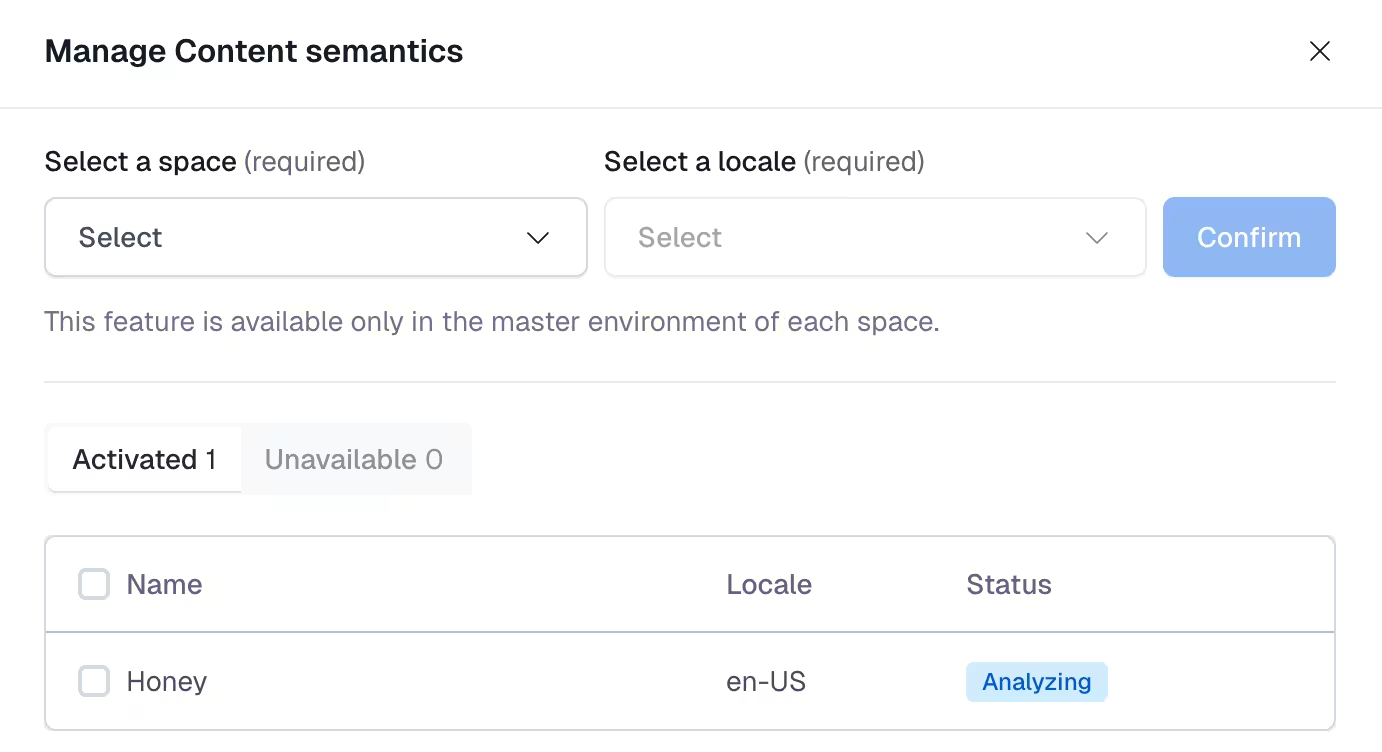
Duplicate detection
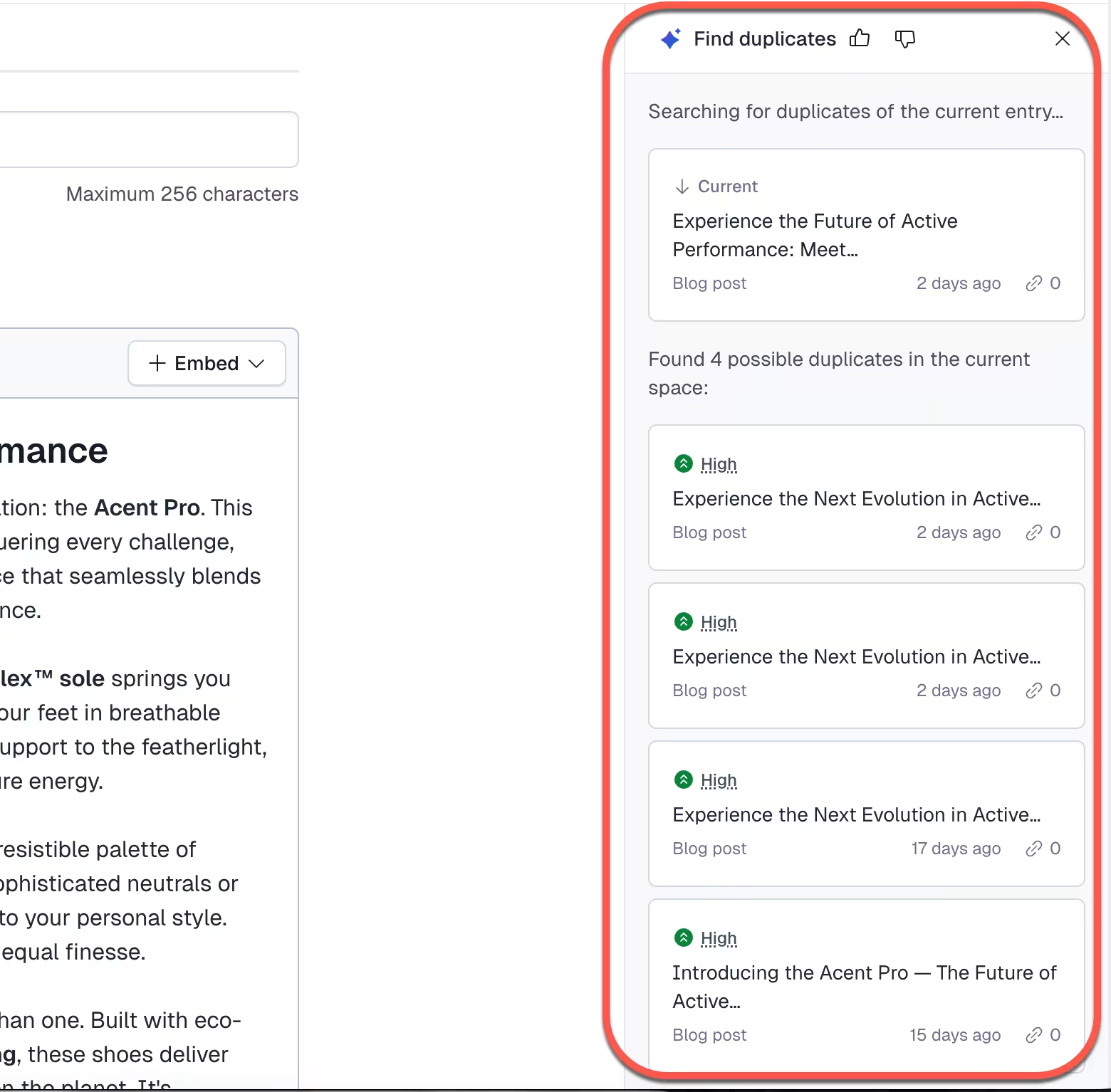
Identify entries similar to the one you are working on:
In the entry view, open the AI Actions menu and select Find duplicates.
Results are labeled High, Medium, or Low similarity. NOTE: these labels indicate semantic similarity, not exact text matches.
Semantic suggestions
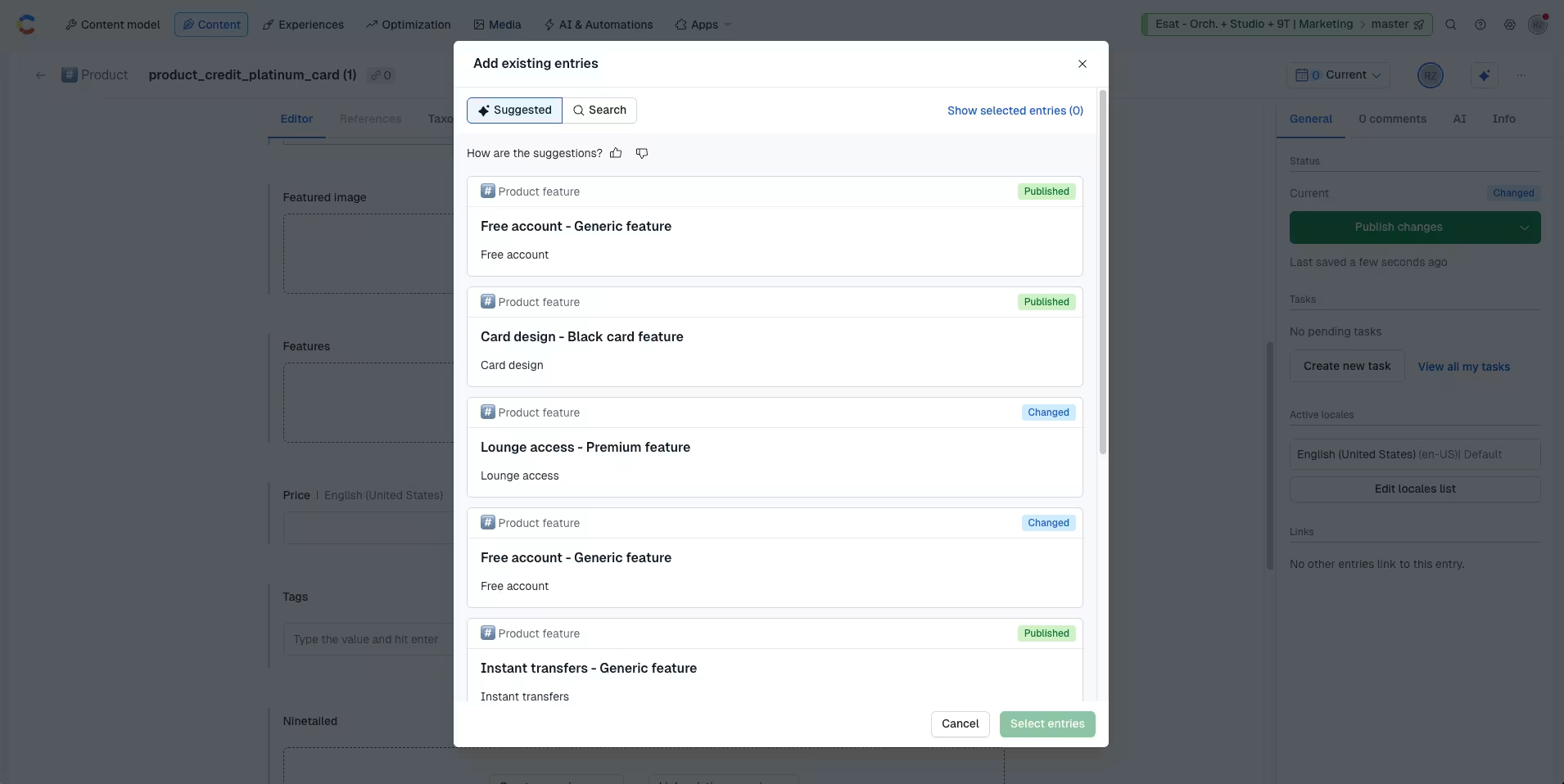
Content semantics enhances entry selection by suggesting relevant entries based on context.
Suggested references
When adding an existing entry to a reference field, a Suggested tab appears in the entry selection modal.
Suggestions are based on references in similar entries. Suggestions are only shown when there is existing content to compare against.
In newly created spaces, or in spaces with very little content, you may see no suggestions. As your space grows and more entries are added, suggestions become more accurate and useful. If no relevant entries are found, the Suggested tab will be empty.
Only entries that match the field’s validation rules are shown.
Suggested links in rich text
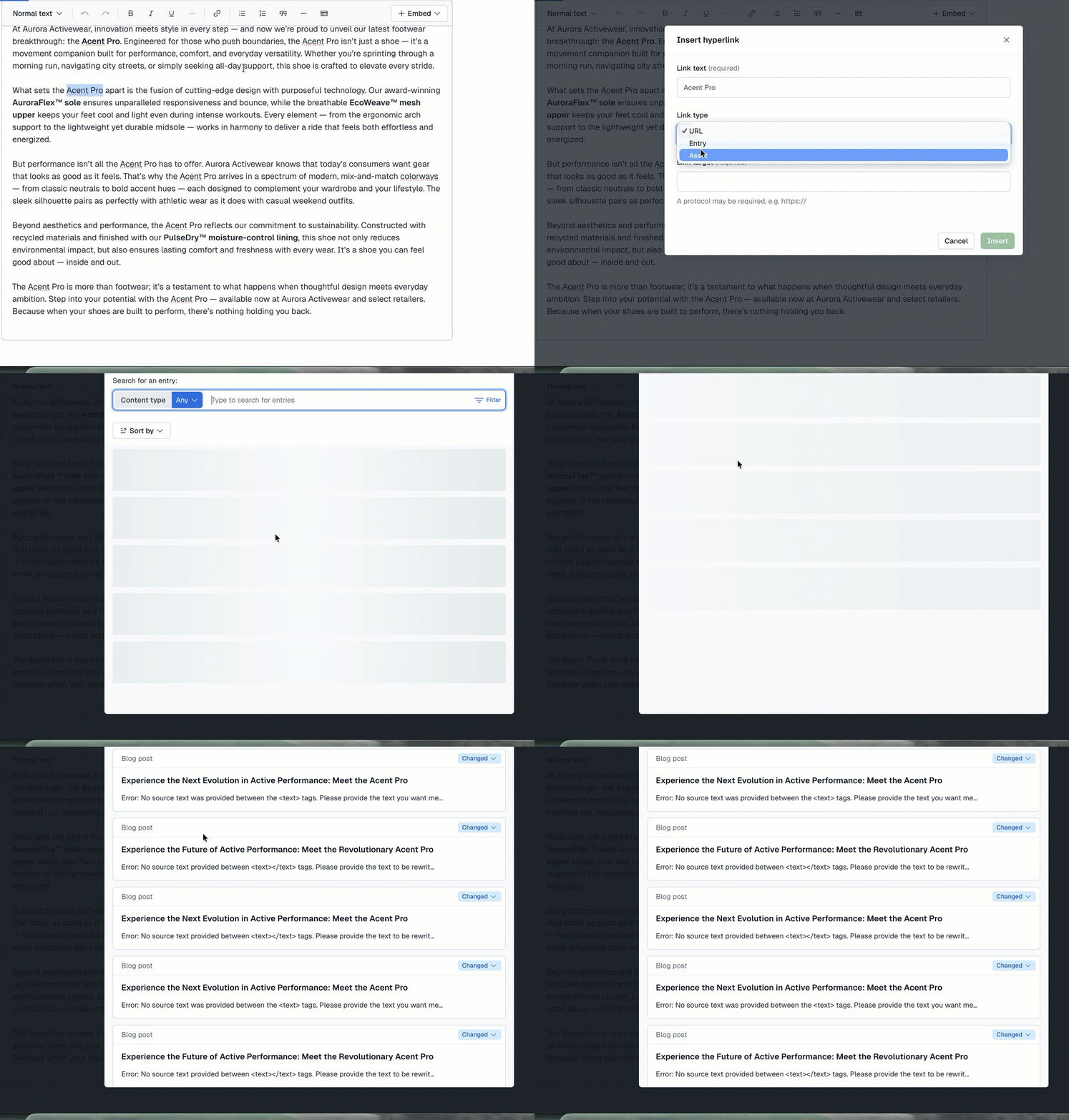
When adding a hyperlink in a rich text field and selecting an Entry link type, suggestions are generated based on the selected text. This helps surface entries that best match the intended link context.
Smart context in AI Actions
Content semantics introduces Smart context, a variable available in all AI Actions.
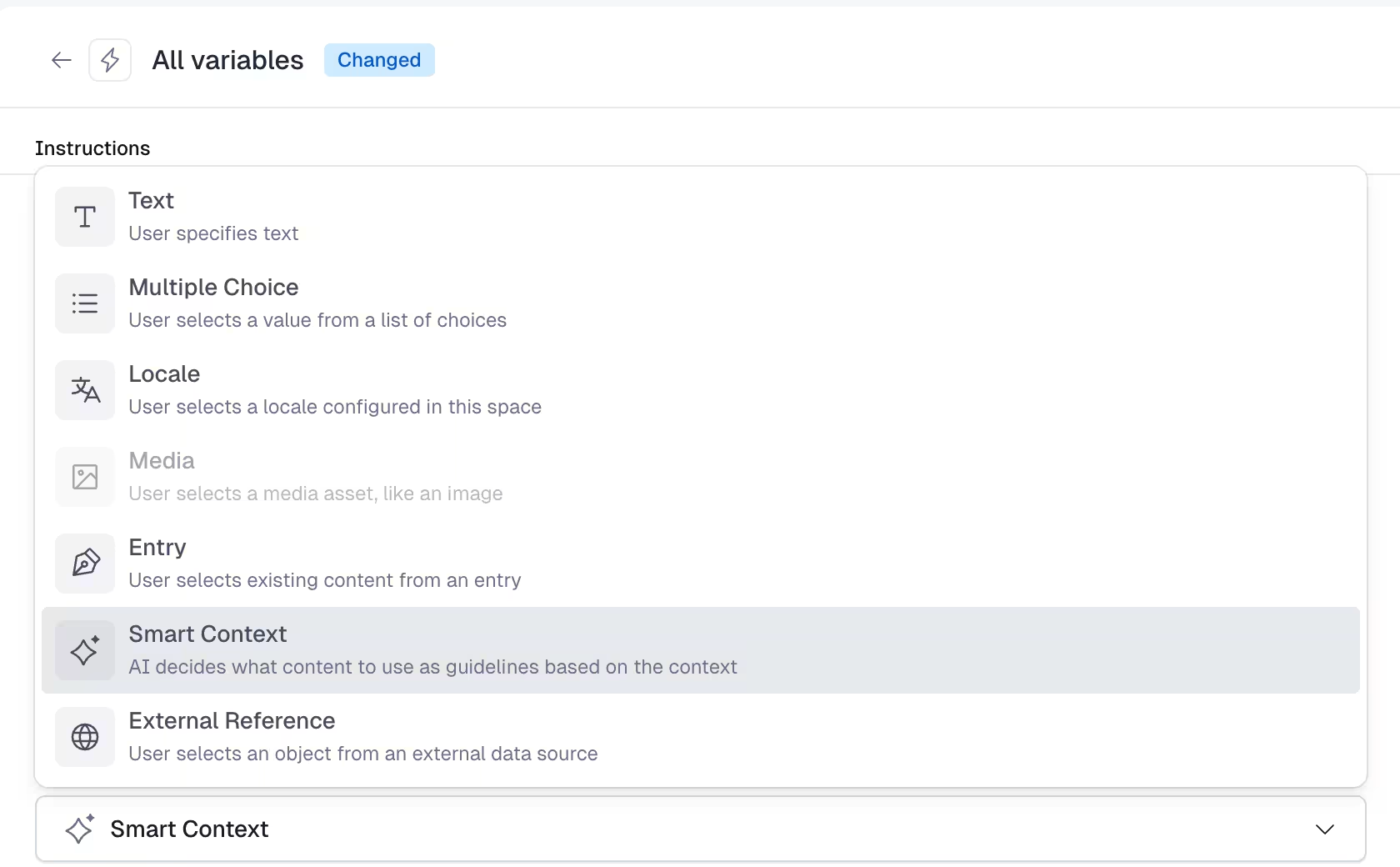
Smart context takes a text input that describes what you’re looking for and resolves it to semantically relevant entries in the space.
For best results, use a short paragraph or descriptive text that closely matches the content you want to reference, rather than a single keyword or topic.
The resolved entries are then used as reference material when the AI Action runs.
This allows your AI Actions to:
Check consistency across existing content.
Compare tone, terminology and accuracy.
Generate new content grounded in your existing content.
Pricing
Content semantics is available on all paid Contentful plans.
Limitations
Content semantics is available in the master environment only.
Available only for the following locale prefixes: EN (English), ES (Spanish), FR (French), DE (German), PT (Portuguese), IT (Italian) and NL (Dutch).
Semantic retrieval operates within a single space.
Only entries are supported (assets are not yet included).
Semantic queries are exclusively available through the Content Management API (CMA).