Optimization Agent
Overview
The Optimization Agent is an AI assistant in Contentful Personalization that allows you to ask contextual questions in plain language about your audiences, personalizations, experiments, tracking, and content data, and receive AI-powered answers.
NOTE: The agent runs on your own space data. As a result, the answers it provides are about your content and performance, not a generic dataset.
In addition to its analysis capability, the Optimization Agent can create audiences, build personalizations, and flag problems before you go looking for them.
Disclaimer: Note that the Optimization Agent can make mistakes.
How to think about it
Most questions you can ask the agent fall into one of the following moments in a natural cycle:
Understand: See what already exists (your audiences, personalizations, experiments, tracking status).
Discover: Find what needs attention (gaps, drops, underperformers, opportunities).
Act: Create or change something (a new audience, a new personalization, a new experiment).
Validate: Check whether it worked (confident results, reach, conversion lift).
NOTE: These moments are a way to frame what you want to ask, not stages you need to follow in order. They describe the different kinds of questions you might ask, and you can move between them freely or focus on just one.
TIP: If you’re not sure what to ask next, you can prompt the agent to come up with a suggestion: “What should I do next with Contentful Personalization?”
What you can ask
The moments above (Understand, Discover, Act, and Validate) describe what you want to accomplish with a question. The product areas and diagnostic capabilities below show what you can ask about.
NOTE: They are illustrative rather than exhaustive, and availability may vary by workspace and permissions.
Not every category supports every moment. For example, Inspect is a diagnostic lens focused on understanding what is happening and finding tracking problems. Content does not include Act because entries are authored elsewhere.
Product areas
Audiences
Audience questions help you understand who you can reach, find gaps or opportunities, create new segments, and evaluate their performance.
Moment | Example prompt |
|---|---|
Understand | Show my published audiences |
Understand | How many audiences do I have? |
Discover | What audience opportunities should I create? |
Discover | Find audiences that aren't reaching anyone |
Act | Create standard starter audiences |
Act | Create an audience for [a country, segment, or behavior] |
Validate | Compare this audience's conversion to the baseline |
Validate | How has [audience] performed since I created it? |
Personalization
Personalization questions help you understand what is running, find underperforming or unused personalizations, create new experiences, and evaluate their reach and impact.
Moment | Example prompt |
|---|---|
Understand | Show my active personalizations |
Understand | How many personalizations do I have running? |
Discover | Are any of my personalizations getting no traffic? |
Act | Suggest personalization ideas |
Act | Create a personalization for an audience |
Validate | Which personalization is performing best? |
Validate | Is my personalization actually reaching the audience I targeted? |
Validate | How has [personalization] performed since launch? |
Experiments
Experiment questions help you understand what is running, identify tests that need attention, choose what to test next, and determine whether a result is meaningful.
Moment | Example prompt |
|---|---|
Understand | Show my active experiments |
Understand | How many experiments are running right now? |
Discover | Find experiments still waiting for a clear result |
Discover | Which experiment is closest to a decision? |
Act | Suggest experimentation ideas |
Act | Where should I run my next test? |
Validate | Find experiments with a confident result |
Validate | Did my last experiment actually move the needle? |
Inspect
Inspect is a diagnostic category. Use it before relying on a number or after something looks unusual. It focuses on understanding what is happening and finding tracking or analytics problems, rather than taking action or validating an outcome.
Moment | Example prompt |
|---|---|
Understand | Is my tracking setup healthy? |
Understand | Show my top events |
Understand | Show my traffic and engagement over time |
Discover | Find tracking gaps |
Discover | Show me unusual drops in event volume |
Discover | Which metrics or data sources need attention? |
Content
Content questions focus on understanding and diagnosing performance. Components and entries are authored elsewhere, so this category does not include Act.
Moment | Example prompt |
|---|---|
Understand | Show my top-performing components |
Understand | What are the components on my top landing page? |
Discover | Why are my top-performing components working better than others? |
Discover | What component is losing conversions that used to convert well? |
Validate | What content is converting best right now? |
NOTE: When asking about content, we recommend you try to distinguish between visibility and impact. Visibility is about what gets seen, while impact is about what actually converts. These can point to different components, so be specific about which one you want to understand.
Enable the Optimization Agent
Before you can get started with the Optimization Agent, you must first enable the Built-in AI Features option in your organization settings.
NOTE: Only organization admins can enable AI Features.
To enable the built-in AI Features for the Optimization Agent:
Log in to the Contentful web app.
Navigate to the “Optimization” tab. The Optimization Agent page is displayed.
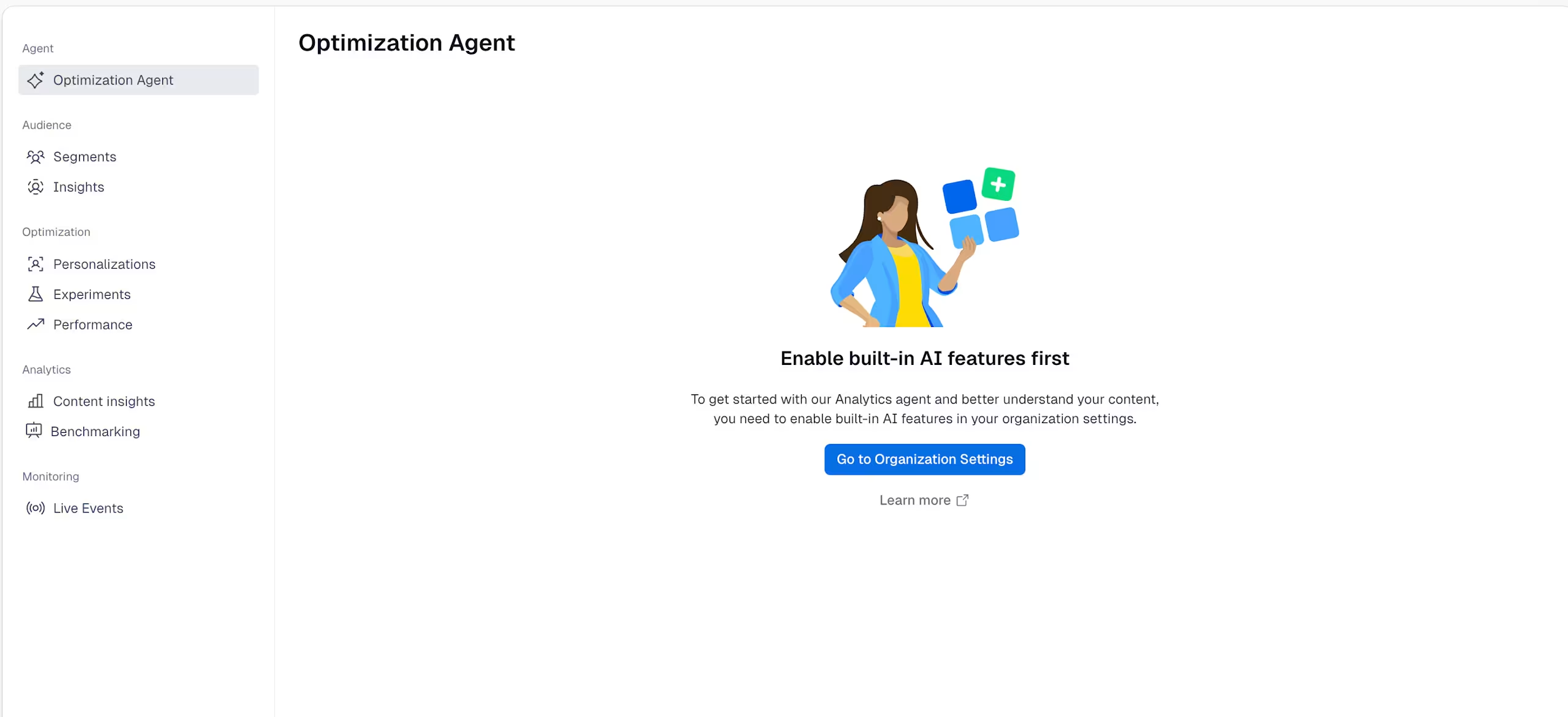
Click Go to Organization Settings. A modal is displayed notifying you that only organization admins can enable built-in AI features.
Click Continue to organization settings.
Select the Built-in AI Features option.
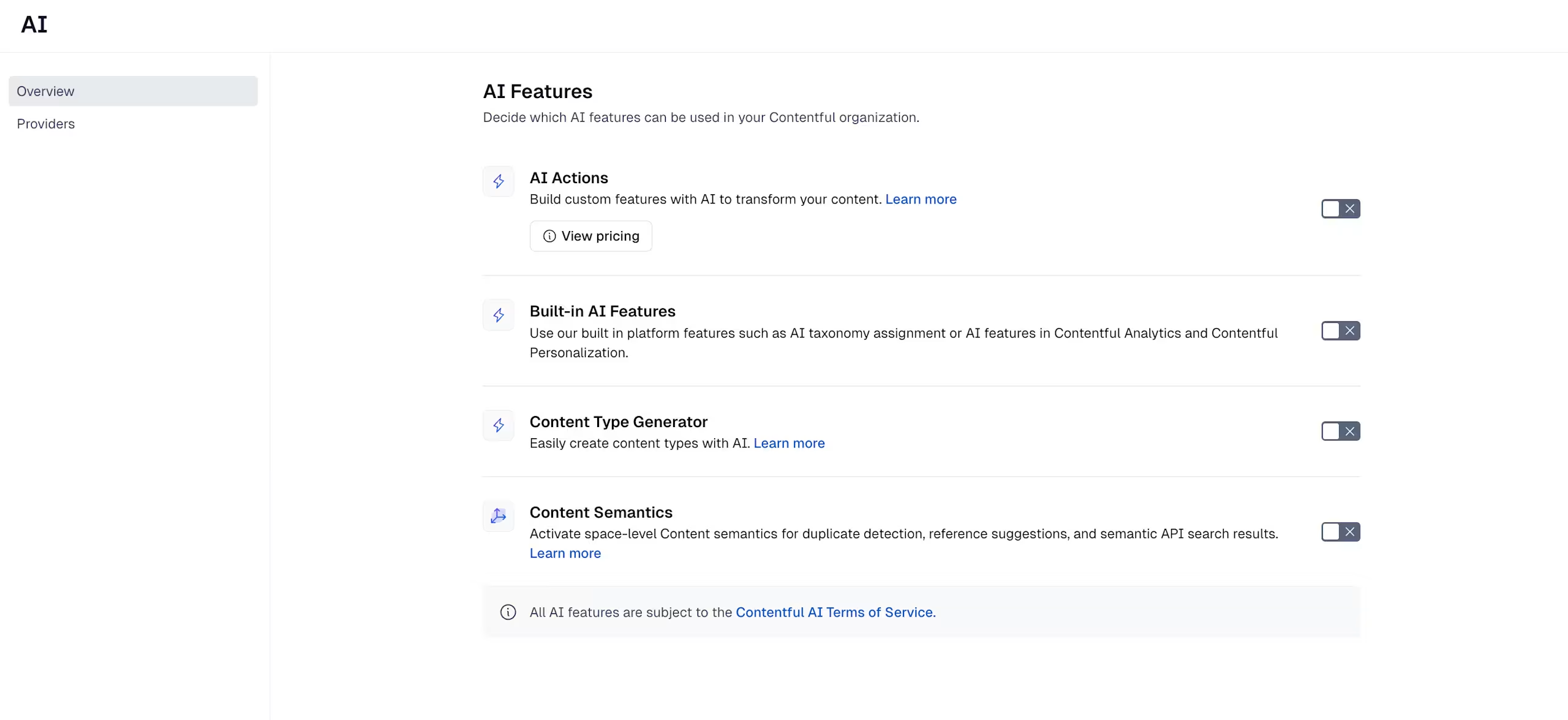
Review the pricing and number of approved output words modal, then click Next.
Review Contentful’s AI Terms of Service. If you agree, click Accept terms. The agent is automatically enabled.
How to interact with the Optimization Agent:
To interact with the Optimization Agent:
Log in to the Contentful web app.
Navigate to the “Optimization” tab. The Optimization Agent page is displayed.
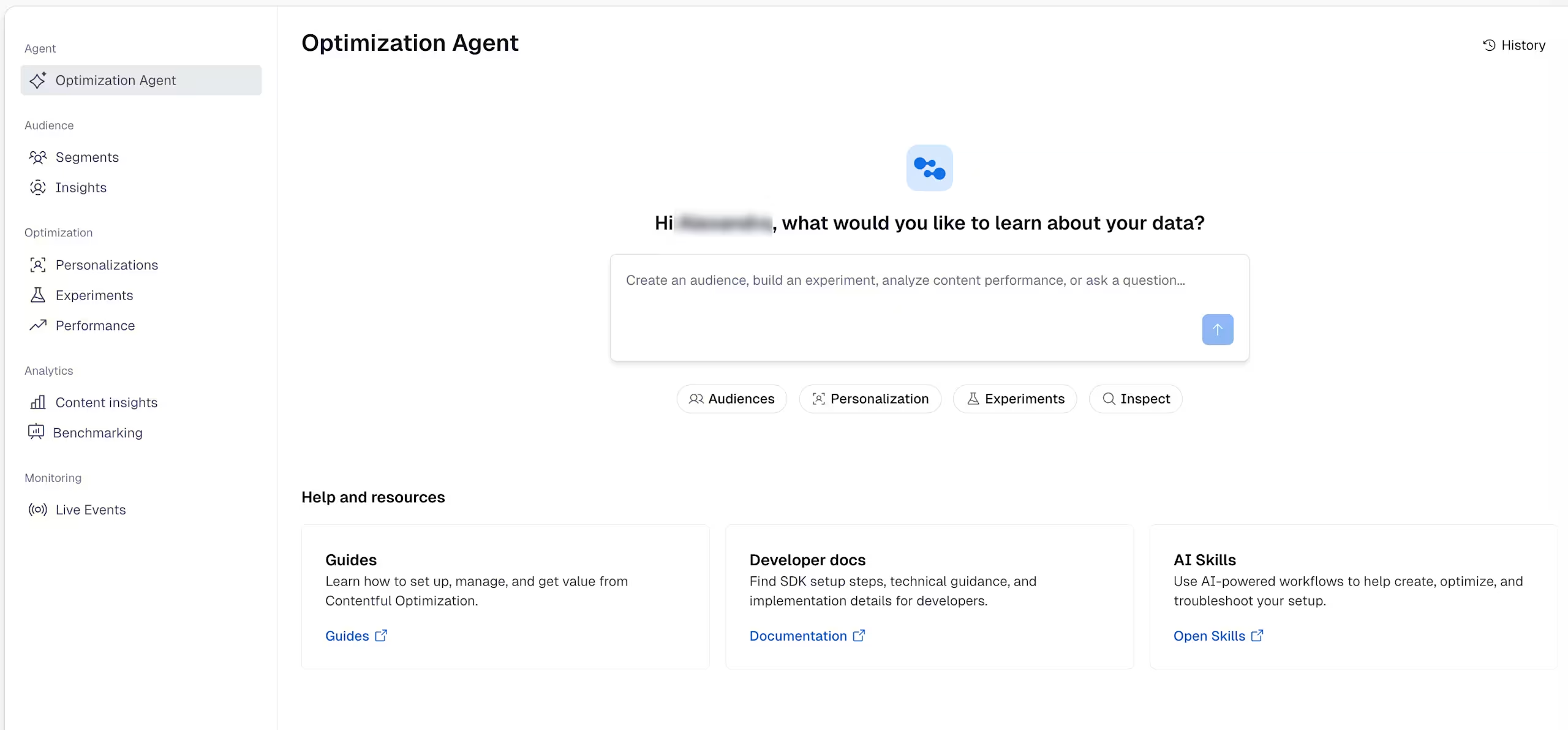
Enter a question about your content, or ask the agent to perform an action, and press Enter. The agent will provide an answer, or return the result for the action you requested.
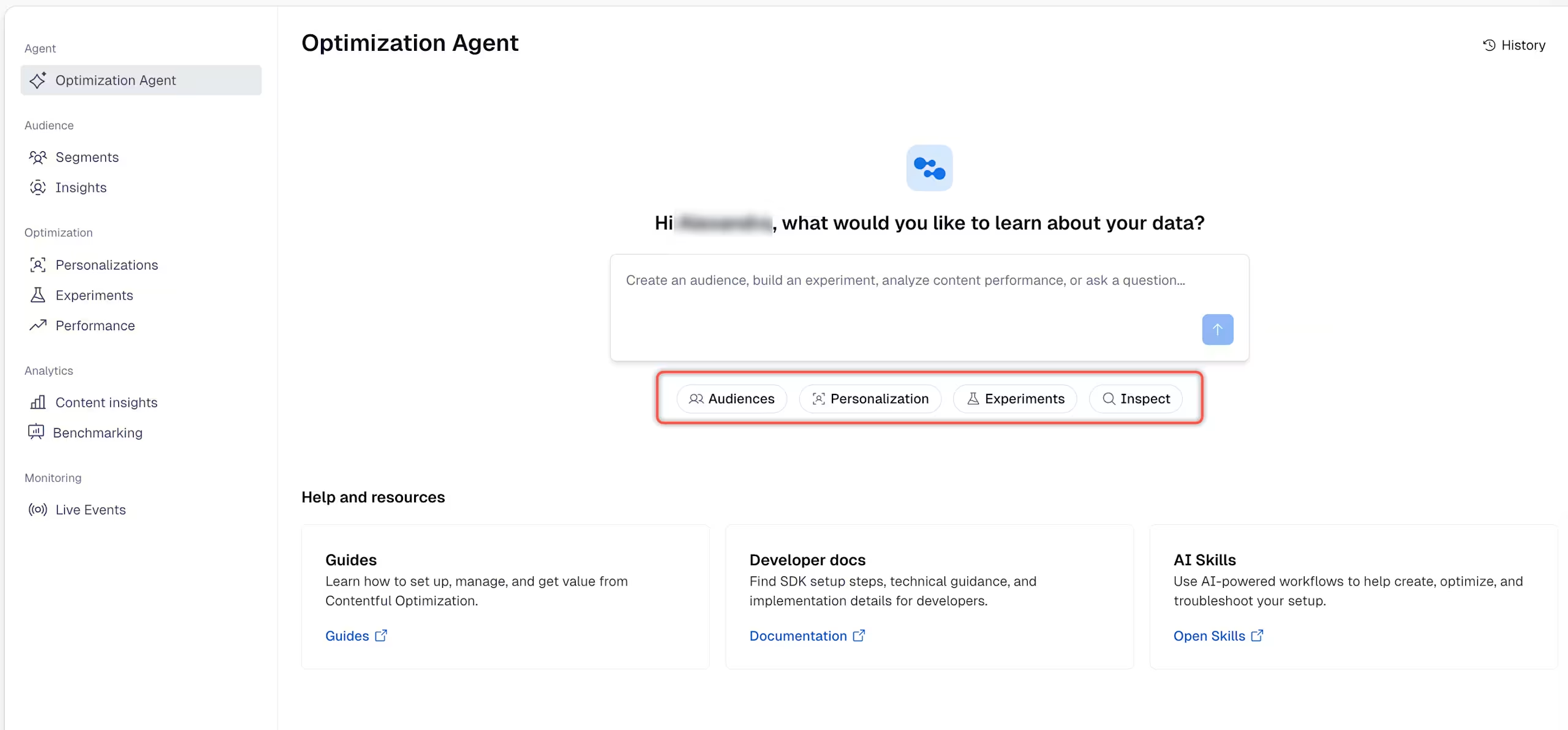
Optional: Click on one of the categories to get a suggestion on how to get started with the agent, or what kind of action it can perform.
Enter a follow up question, or request, if you want a more refined answer or dig deeper.
NOTE: You can also use the Optimization Agent directly into Slack by installing and using the Contentful Optimization Slack Agent app. For more information, see Contentful Optimization Slack Agent.
Best practices
Give the agent a time range
Specify the time range you have in mind. If you don't, the agent chooses a sensible default, usually the last full day for day-level questions. You can always follow up with "make that the last 7 days" or "show me last month instead."
NOTE: The maximum time range you can query is 90 days.
Name what you want to find
When asking the agent to find or list components, audiences, pages, or other data, you can use a name, a plain-language description, or an ID if you have it. For example, you might ask about "the homepage hero," "the checkout page," or provide the relevant ID.
Lists are also a useful starting point for exploring your data: ask the agent to show you what exists, then use the results to choose a specific item and drill into it with a follow-up question.
Treat follow-up questions as part of the conversation
If the agent asks a follow-up question, it's not stuck. It needs one more input to answer precisely. For example, asking "What's converting best?" may prompt the agent to ask which metric you mean, such as signups, bookings, or revenue. It will show your account's active metrics so you can choose one rather than typing it from memory.
Keep exploring with follow-up questions
After an answer, keep exploring by asking the agent to explain a result, list related audiences or metrics, or show more detail. For example, after getting a ranked list or a number, ask "Why is this one ahead of the others?" . You can also ask which audiences are set up or what metrics are available without repeating your original question.
Choose the format you need
Ask for a table when you want to see the numbers laid out. Ask for a chart when you want to see a trend, for example, "Plot that over time" or "Show me that as a bar chart." You can switch formats after the fact. "Turn that into a chart" is enough.
Review actions before applying them
For requests that create or change something, confirm the target, audience, environment, and intended change before applying the action.
NOTE: The available actions and any confirmation steps may vary by workspace, permissions, and capability rollout.
Interpret results in context
Validation depends on the configured tracking, selected metric, comparison baseline, attribution window, and amount of available data. Ask the agent to clarify these when they matter, and treat results as directional when the underlying evidence is incomplete or uncertain.
New to Personalization?
Start with the Understand-stage prompts. They show you what currently exists before you move into diagnosis or action.