Automations: tags and taxonomy
Overview
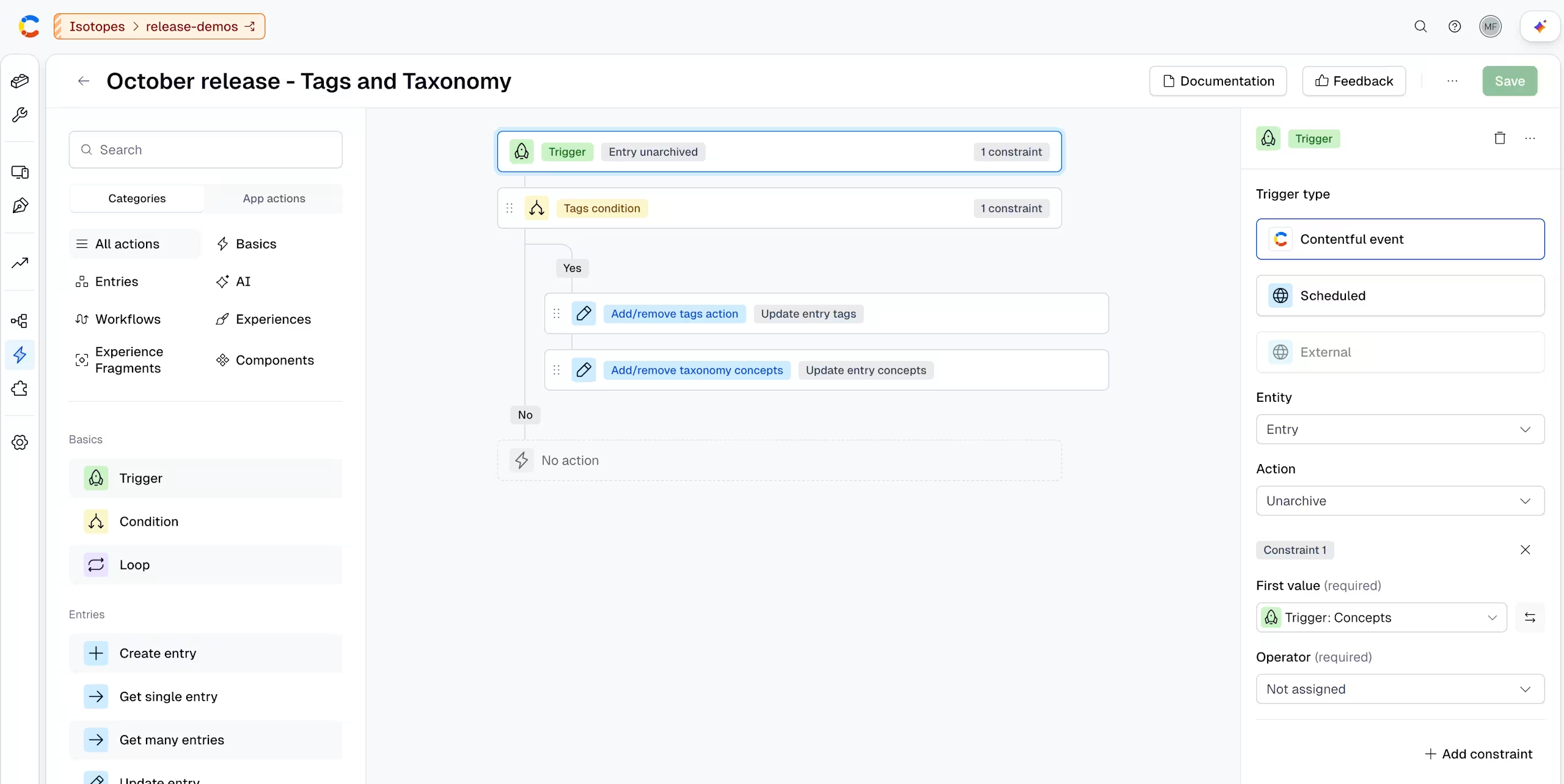
You can add tags and taxonomy concepts in the Automations visual builder to control which content an automation runs on and to keep classification up to date automatically. This allows admins to scope a trigger, branch on a condition, add or remove values and filter bulk retrieval by tag or taxonomy concept.
Before you begin
You need permission to create and edit automations in the environment.
The tags you want to use must already exist in the environment. For more information, see Tags.
The taxonomy concepts you want to use must already exist in your organization's Taxonomy manager. For more information, see Taxonomy.
NOTE: Automations can only add or filter by tags and concepts that already exist. You cannot create new tags or concepts.
Scope a trigger by tag or taxonomy concept
Add a tag or taxonomy constraint to a trigger so the automation only runs on content with the selected values. For example, run a compliance review only when an entry tagged Regulated is published.
To add a tag or taxonomy constraint to a trigger:
Navigate to the AI & Automations tab and select Automations.
Open an existing automation or click Create Automation.
Select the Trigger node. The trigger settings open in the right-hand sidebar.
Under Constraints, add a Tags or Taxonomy constraint.
Select one or more tags or taxonomy concepts.
Click Save.
NOTE: The constraint is evaluated when the trigger event occurs. If the content doesn't have the selected values at that moment, the automation doesn't run.
Branch on a tag or taxonomy concept
Add a tag or taxonomy constraint to a condition to send content down different paths based on how it's classified. For example, route content tagged “US” to one set of actions and all other content to another.
To branch on a tag or taxonomy concept:
In the visual builder, add a Condition node after the step that returns the content.
Select the condition. The condition settings open in the right-hand sidebar.
Add a Tags or Taxonomy constraint.
Select one or more tags or taxonomy concepts.
Add the actions to run when the condition is true, and when it's false.
Click Save.
TIP: Conditions read the content's tags and concepts at the moment the condition runs. If an earlier action in the same automation assigns a tag, a later condition can branch on it.
Add or remove tags and taxonomy concepts
Use the tag and taxonomy actions to keep classification accurate as part of a run, without a manual re-tagging step afterward. Each action can add or remove values, and you can select more than one value per action.
The following actions are available:
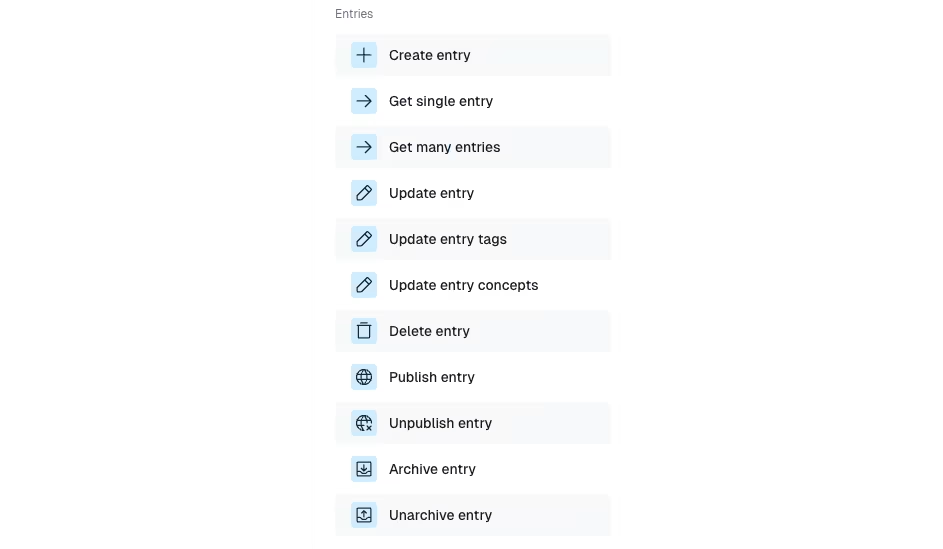
Update tags: Adds tags to the content or removes tags from it.
Update taxonomy concepts: Adds taxonomy concepts to the content or removes concepts from it.
Both actions work on entries:
To add or remove tags or taxonomy concepts:
In the visual builder, select the trigger. For example, Entry created to classify new entries, or Entry unpublished to remove values when content is taken down.
Add an Update tags or Update taxonomy concepts action node.
Select Add or Remove.
Select one or more tags or taxonomy concepts.
Click Save.
To check the result after the automation runs, open the entry and review its tags and the Taxonomy tab.
Example: Classify new entries automatically
Trigger: Entry created.
Update tags: Add one tag.
Update taxonomy concepts: Add two concepts.
Result: Each new entry gets the tag and both concepts as soon as the automation runs. To reverse this, use the same actions with Remove and a trigger such as Entry unpublished.
NOTE: Action steps count against the space's rate limit. For more information, see Automations overview.
Filter Get many by tag or taxonomy concept
Add a tag or taxonomy filter to the Get many action to retrieve only the content an automation should touch. This replaces manual selection or exporting content to a spreadsheet to build a list.
To filter Get many by tag or taxonomy concept:
In the visual builder, add or select a Get many action node.
Under Filters, add a Tags or Taxonomy filter.
Select one or more tags or taxonomy concepts.
Optional: add a Loop after the Get many node to run actions on each returned item.
4. Click Save.
NOTE: Automations may have a maximum of 1000 steps during execution. When a Get many filter returns a large set of content, check that the loop stays within this limit.
Use cases
Use case 1: Update content for a specific market or brand
Target recurring content updates with the market or brand tags you already use. For example, an automation can process only US-tagged content without affecting other markets.
Example setup:
Trigger: Scheduled trigger.
Get many: Filter by the "US" tag.
Loop: For each returned entry and run “Update entry.”
Result: in this case, only US content will be updated, with no manual selection or unintended changes to other markets.
Use case 2: Flag content for review automatically
Assign a needs-review tag automatically when content reaches a configured step, instead of tagging items by hand. Later steps in the same automation can then use the tag.
Example setup:
Trigger: Workflow step completed.
Assign tags: Assign the "Needs review" tag to the entry.
Condition: If the entry has the "Needs review" tag, run the review actions, for example "Update workflow."
Result: Content is consistently classified for review, and the classification is available to the rest of the automation.
Limitations
Automations can only use tags and taxonomy concepts that already exist in the Taxonomy manager.
Tag and taxonomy action steps count against the space's rate limit.
All existing Automations limitations apply.