Setup and health
Overview
The "Setup and health" tab in Contentful Personalization provides a step-by-step guide that enables you to correctly configure your setup for experimentation, personalization, and analytics. It replaces manual, scattered configuration with a guided checklist.
NOTE: The checklist has three steps that you must complete in order.
Following the guidance from the "Setup and health" tab, you can reach a working setup faster and with more confidence. This feature makes setup up easier to understand, and, once complete, it gives teams a way to monitor whether their implementation stays healthy over time.
You can access the Setup and health tab from the Contentful Personalization app configuration.
Access Setup and health
To access the "Setup and health" tab:
Log in to the Contentful web app.
Click Apps, and select Installed apps. The list of apps installed in your environment is displayed.
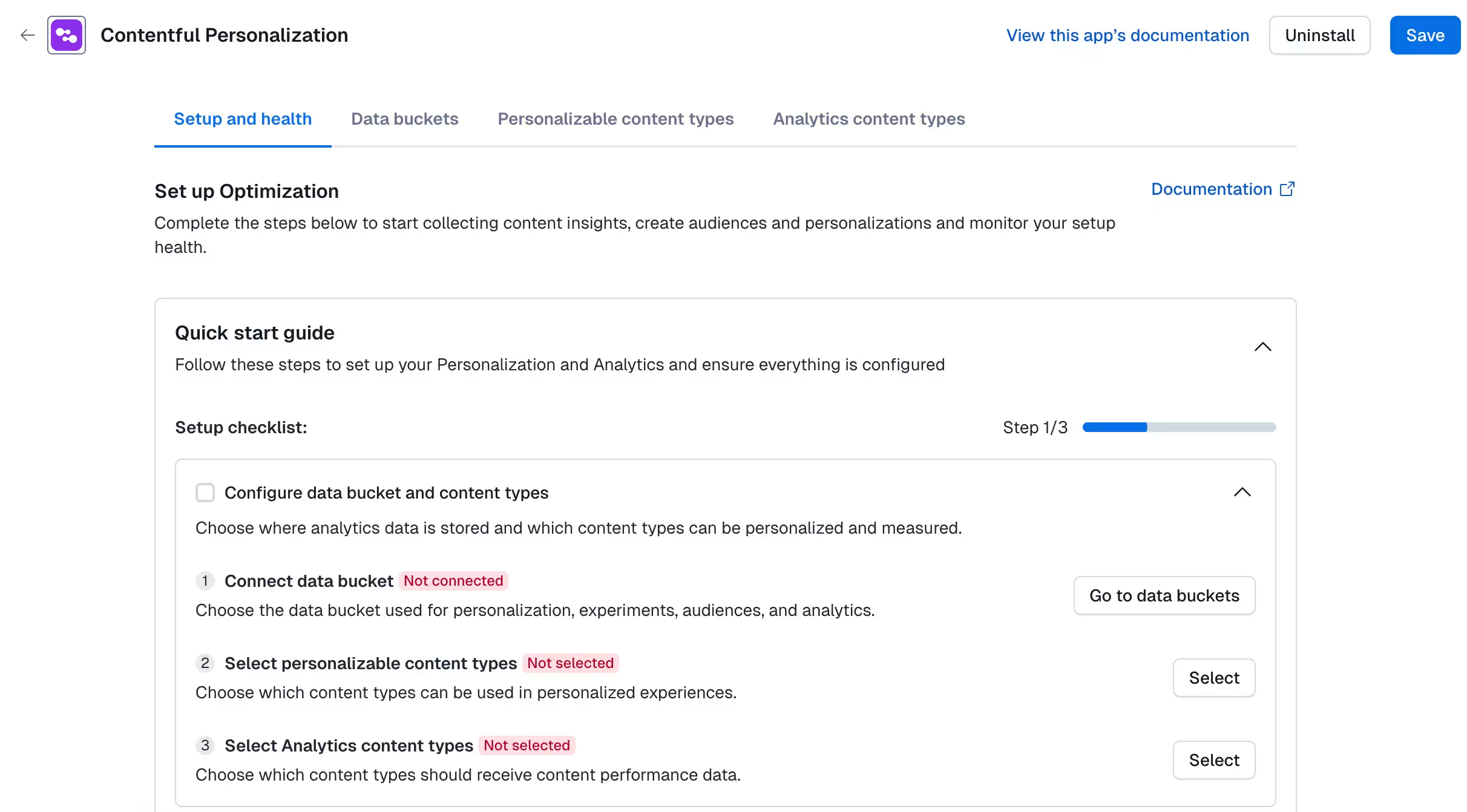
Click Configure next to Contentful Personalization. The “Setup and health” tab is displayed on the app configuration page.
Complete your Setup and health checklist
To complete the Setup and health checklist:
Step 1: Configure your data bucket and content types
Click Go to data buckets to connect the data bucket, and choose where analytics data is stored.
The “Data buckets” tab is displayed.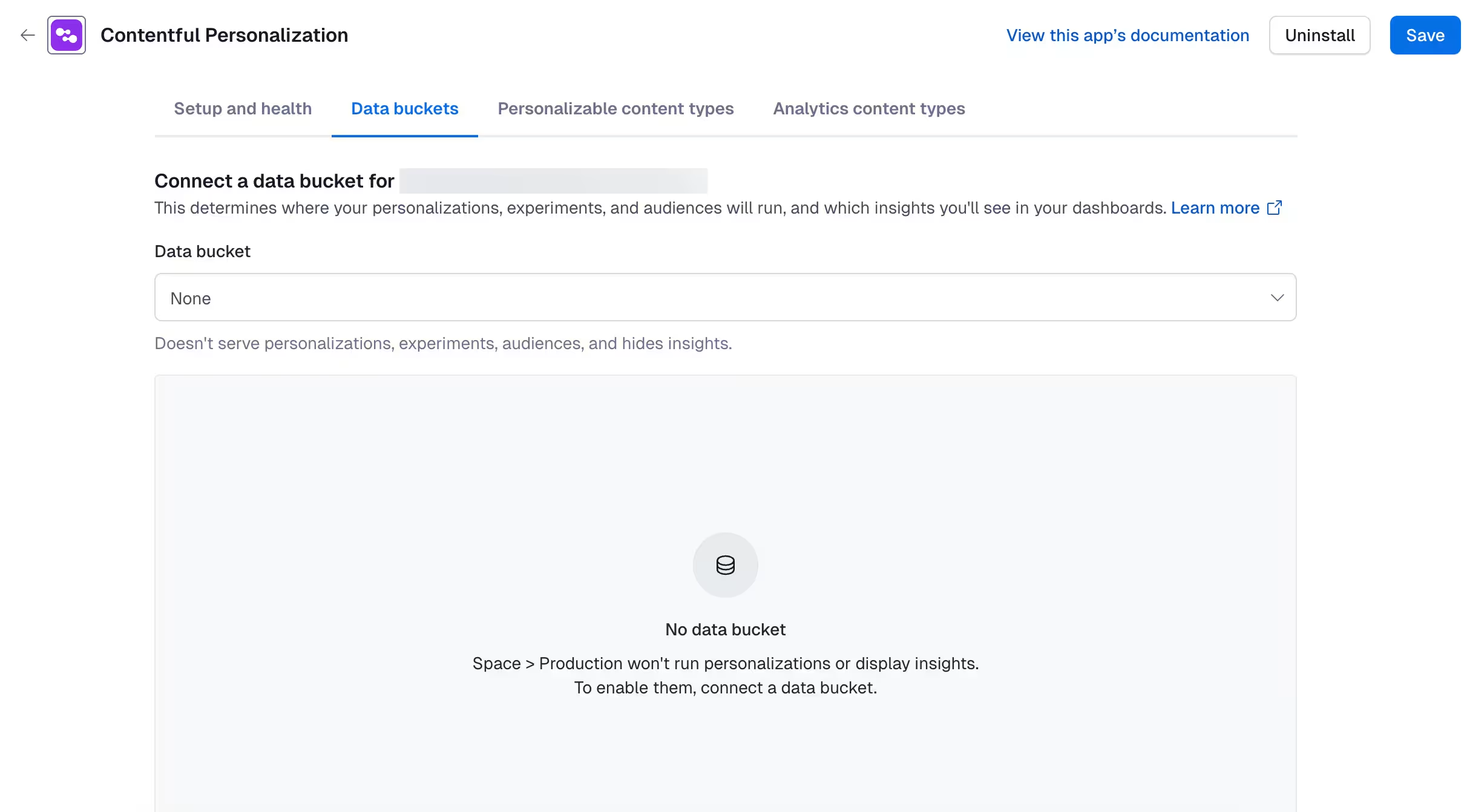
Select the content types you want to be personalized.
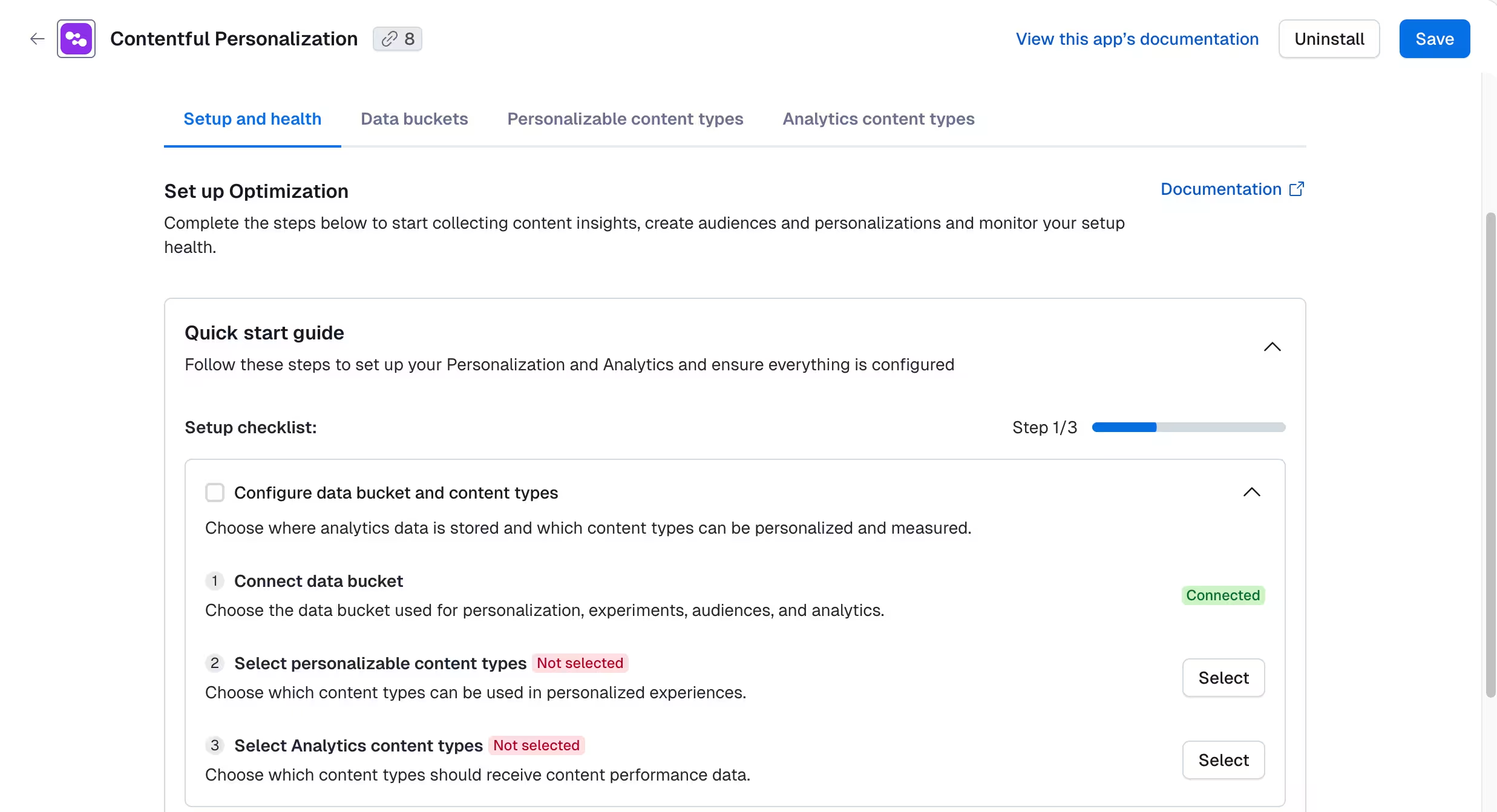
The “Personalizable content types” tab is displayed.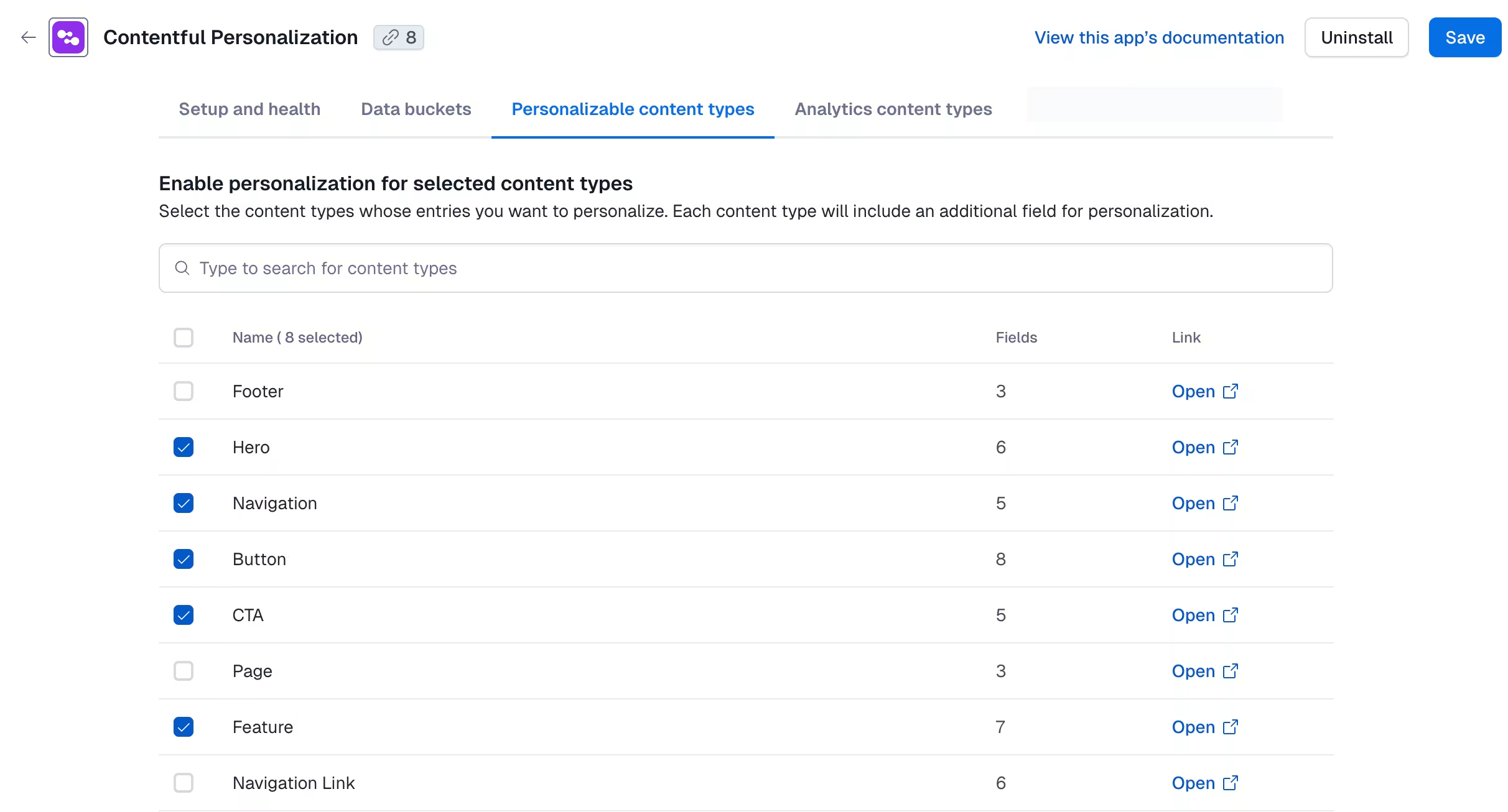
Select the content types you want to be measured. The “Analytics content types” tab is displayed.
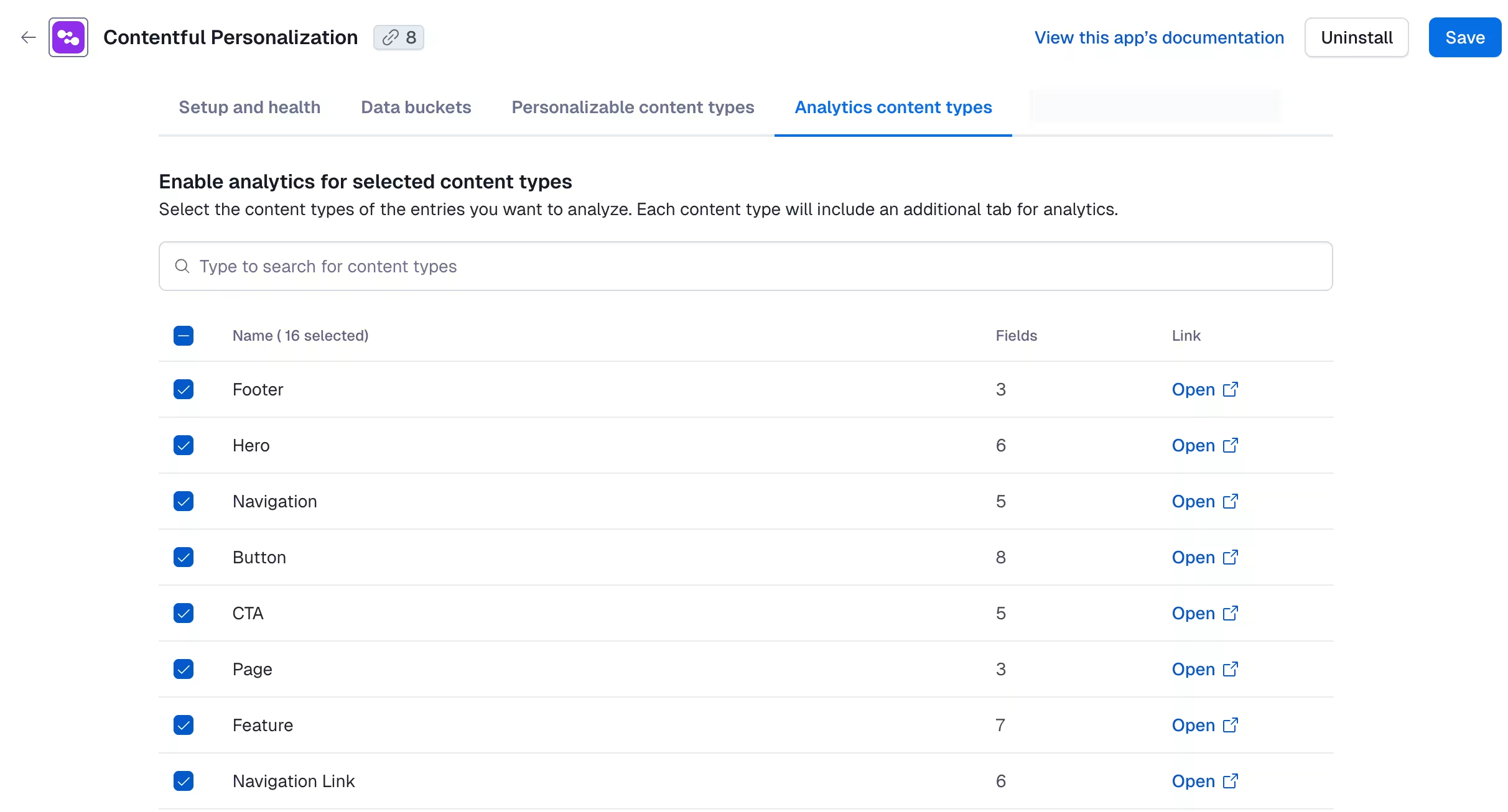
Once you have connected the data bucket and selected the content types, the step is marked as complete, and you can move on to the next one.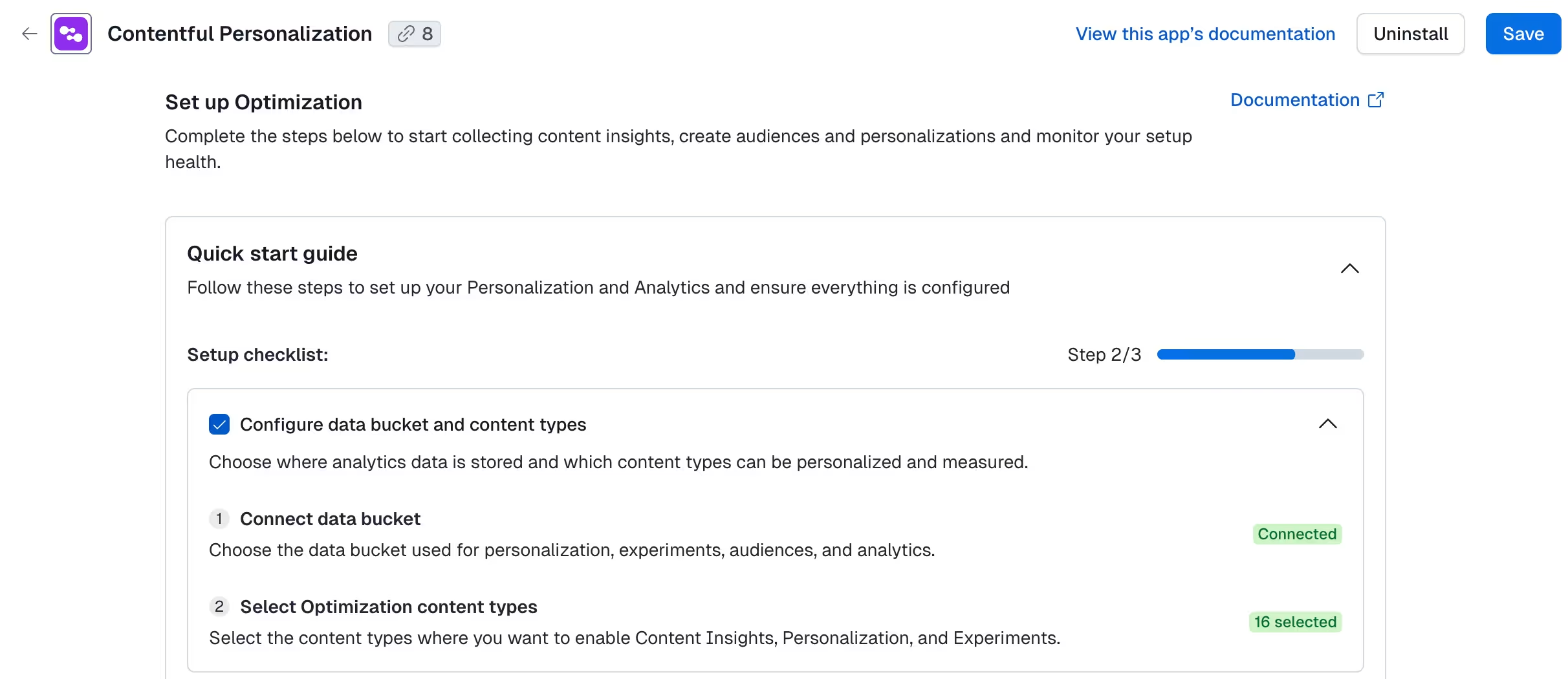
Step 2: Create a test audience and personalization
Under “Create test audience”, click Create to have a test audience automatically created.
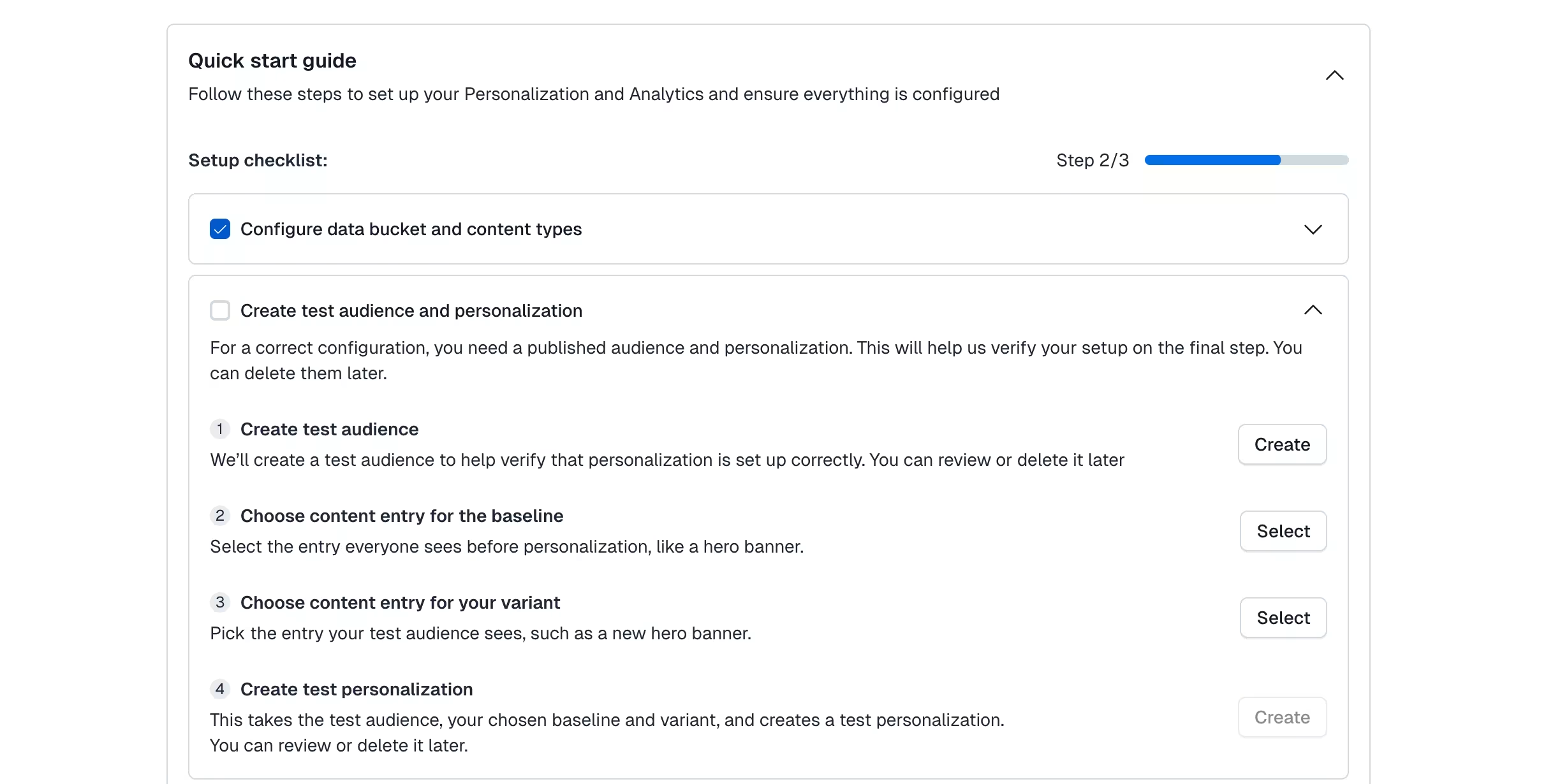
NOTE: You don't have to name or configure it, everything is pre-configured. You can delete this audience later on.
Under “Choose content entry for the baseline”, click Select to choose a baseline content entry, for example, an existing hero banner or landing page.
NOTE: The baseline content entry you choose determines where on your site the test personalization renders. Use that page to verify your SDK implementation is tracking events correctly.
Under “Choose entry for your variant”, click Select to choose a variant content entry that your test audience will see, for example, a new call-to-action.
Under “Create test personalization”, click Create to link your baseline, variant, and test audience together.
NOTE: You don't have to name or configure it, everything is pre-configured. You can delete this personalization later on.
Review the changes, and click Publish.
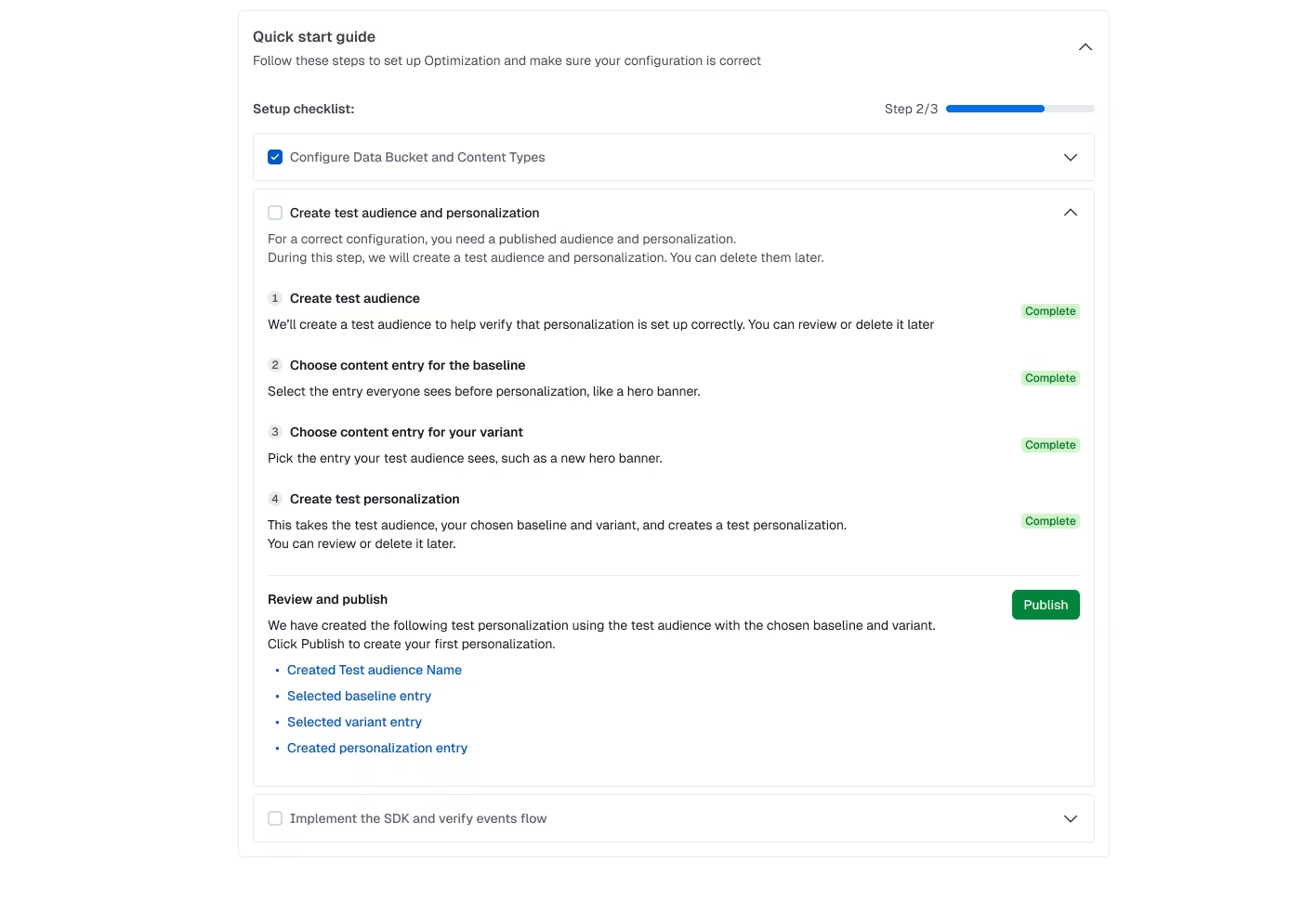
Once you click Publish, the step is marked as complete, and you can move on to the next one.
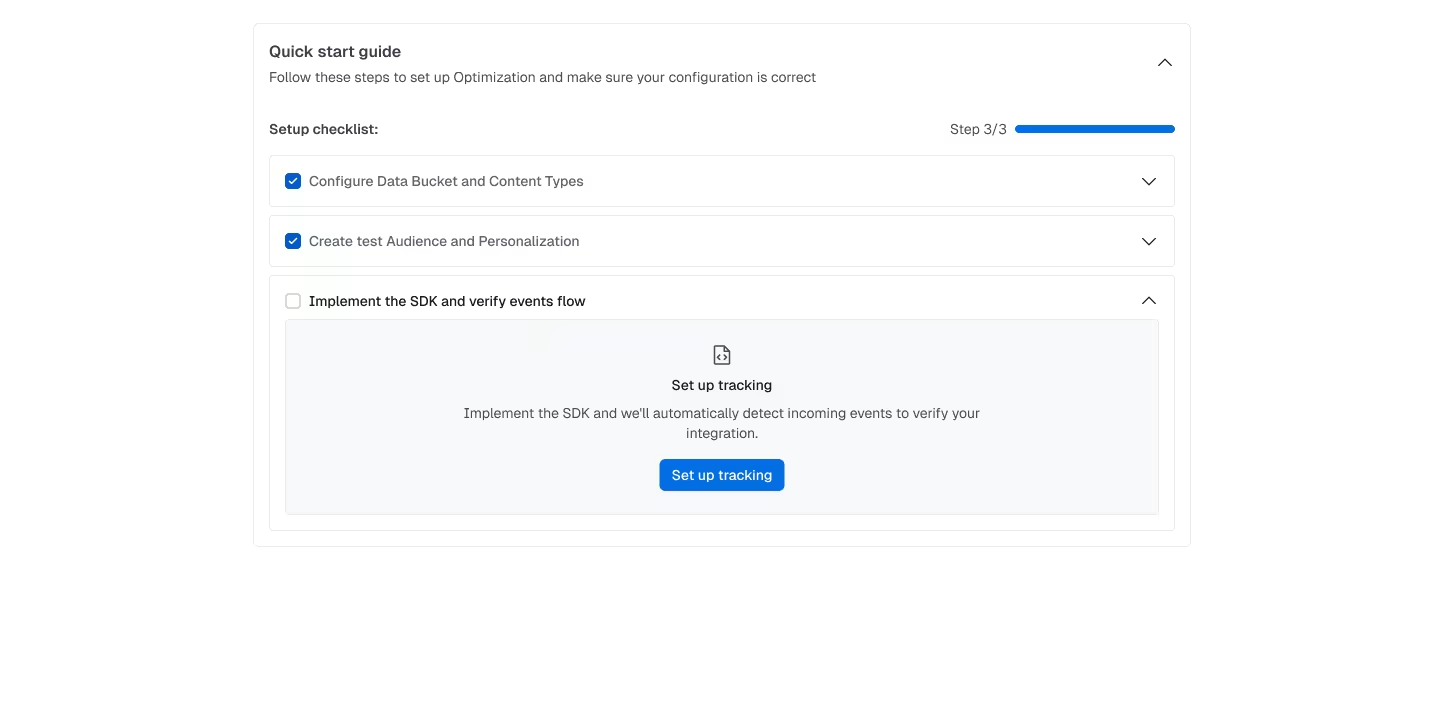
Step 3: Implement the SDK and verify events flow
Click Set up tracking to implement the SDK required for your setup.
Follow the guided SDK installation, either using the installation guide or the AI skills.
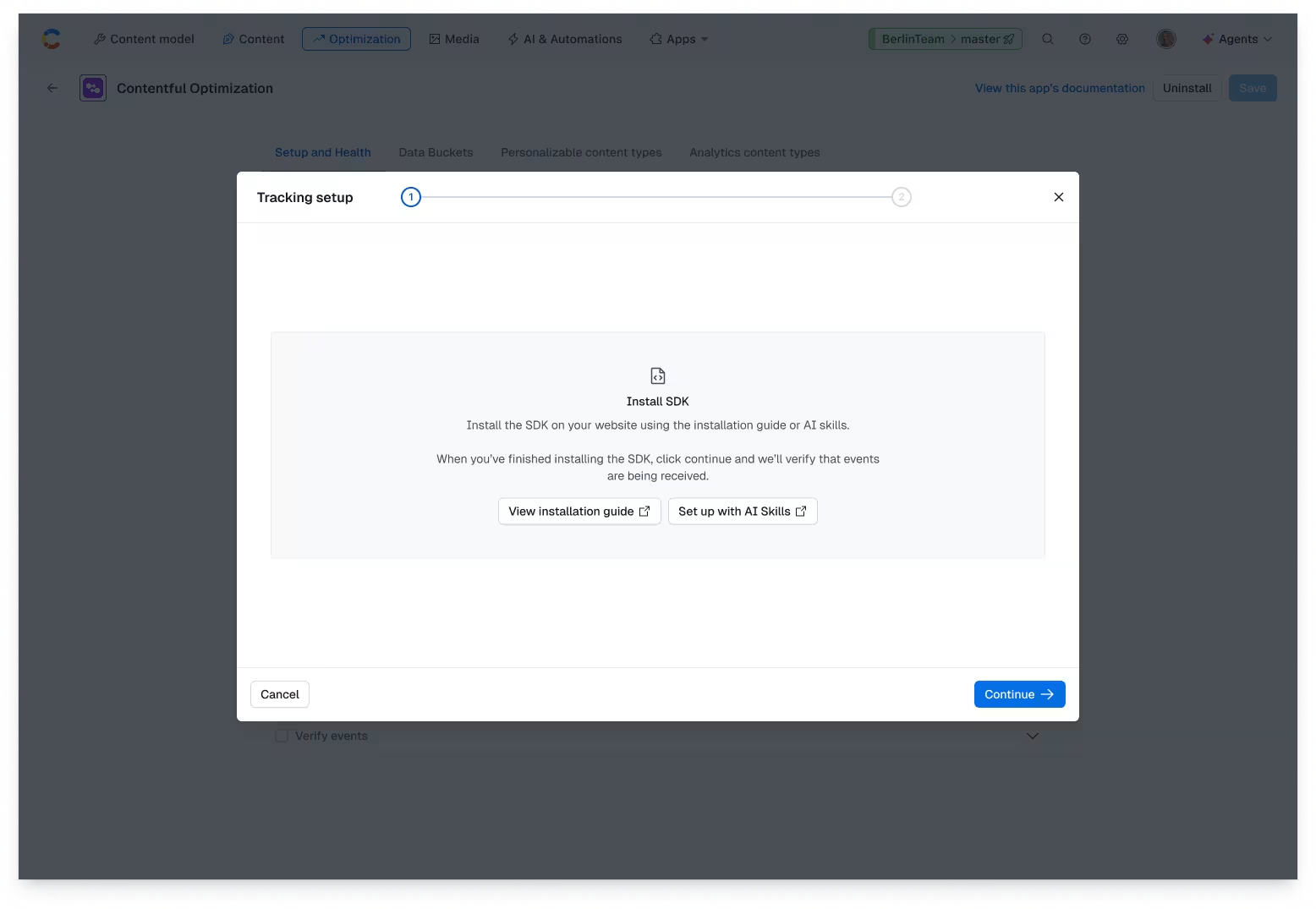
Click Continue. The “Verify tracking” page is displayed.
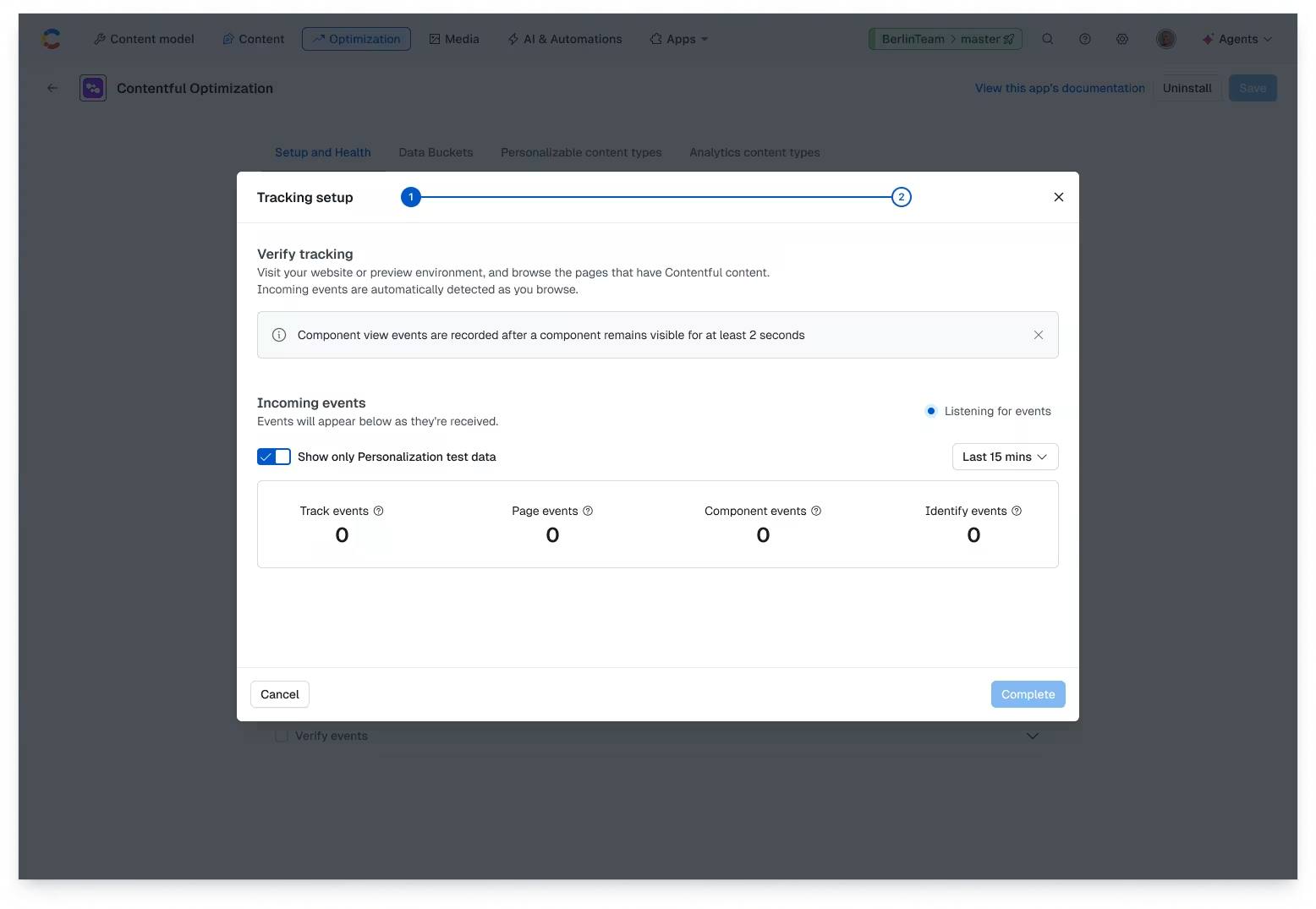
Wait for Contentful to automatically check for incoming events.
Test your setup by accessing the website or preview environment using the URL parameter. The created test personalization is triggered when visiting the website with the
?utm_source=test&utm_medium=setupparameter attached. For example,{your URL}/?utm_source=test&utm_medium=setup.NOTE: If events are already flowing from an existing implementation, this step can be completed without waiting on events from your new test personalization.
Once all steps are complete, the checklist collapses and the tab displays your ongoing health view.
Monitor your setup health
After setup, use the health view in the Setup and health tab to confirm your implementation is still working correctly.
To monitor your setup health:
Log in to the Contentful web app.
Navigate to the "Setup and health" tab in the Contentful Personalization app configuration.
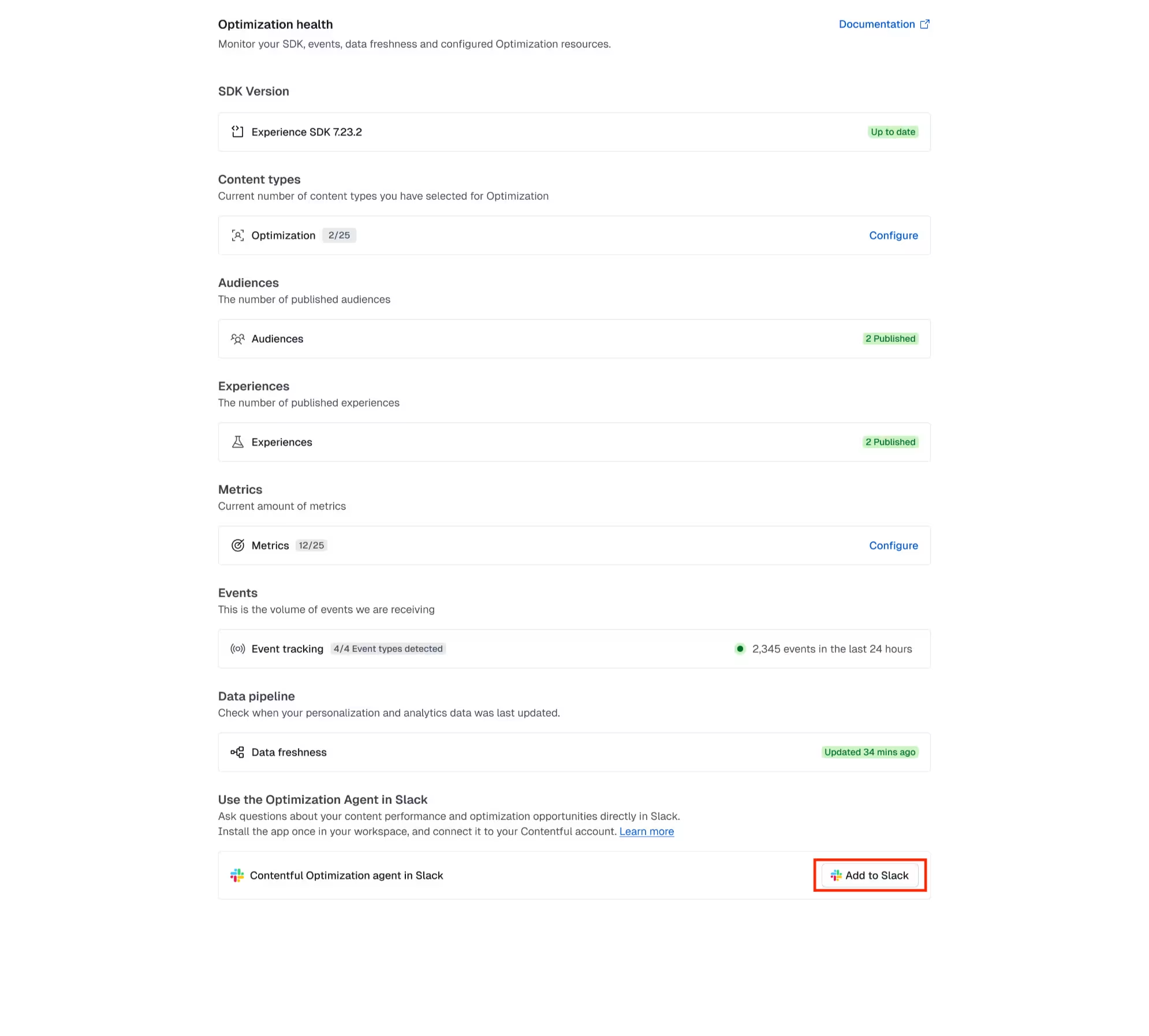
Review the Optimization health view, which displays:
Whether you're running an outdated Experience SDK version.
NOTE: This is only applicable if you are using the Experience SDK. We currently do not display the same details if you are using a different SDK.
The number of audiences, experiences, and metrics you have configured.
Whether events are currently being received.
How fresh your data is.
NOTE: We recommend checking this view periodically, especially if personalization results seem stale or you suspect a tracking issue. It's the fastest way to confirm whether events and SDKs are correctly configured.
Use the Optimization Agent in Slack
The Contentful Optimization Slack Agent is an app that allows you to pull your audience, personalization, and experimentation data directly into Slack workspace.
Click Add to Slack to request the installation of the Contentful Optimization Slack Agent app into your workspace, and use it in Slack. For more information, see the Contentful Optimization Slack Agent page.