Linked optimizations
Overview
Linked optimizations allow you to run the same optimization across multiple content sources. Each optimization is eligible to be linked into any other content source that is connected to your environment. In turn, each content source has access to all optimization that have been created in your environment.
Linked optimization will always be in sync with the published configuration from its original. Only the original optimization is allowed to make changes to its configuration. However, each content source can add its individual components to that linked optimization. In doing so, you can personalize content from multiple sources in a single optimization and make sure that individual visitors will see only a single variant across all of your content.
Create a linked optimization
To link an optimization from an original:
Log in to the Contentful web app.
Navigate to the "Content" tab.
Create a new Optimization entry.
Click Link existing optimization.
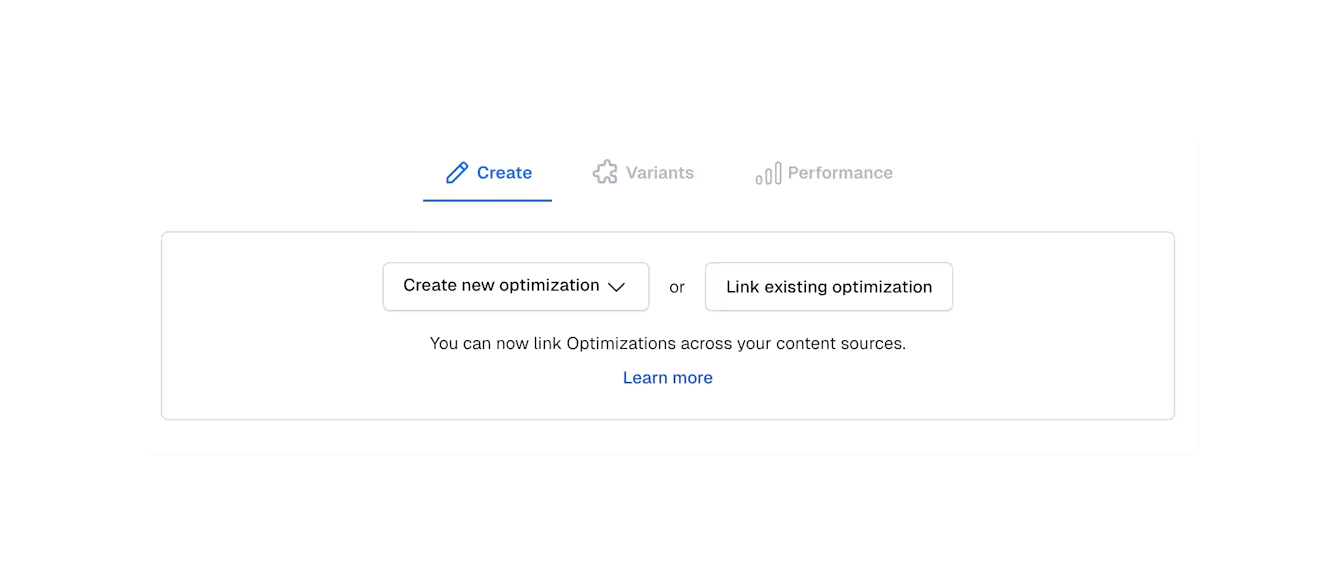
NOTE: Since only the original optimization is allowed to make changes to the configuration, any configuration fields are disabled. However, you will still be able to view the current configuration as well as Insights from both the original entry and any linked entries.
Resolve conflicts
In certain cases, creating or duplicating audiences across content sources can result in conflicts. When a conflict occurs, the following error message is displayed:

NOTE: This error resolves itself if only a single content source is connected to your data bucket. In most cases, you only require a single content source connection. If you need further assistance, contact support.
Usually, this error message occurs when the optimization is cloned into another content source, such as another space or environment, and both of them are connected to the same data bucket. In this case, both optimization entries are attempting to own the configuration. To make sure that the original optimization is not simply overwritten, Contentful Personalization only allows one entry to own the configuration of an optimization.
Depending on your goal, there are multiple ways to resolve this situation:
If you want to use the same optimization across multiple content source connections — In this case, Linked optimizations are the solution. Delete the optimization where the error message occurs, then create a new linked optimization. That way, configurations are synchronized across your content sources.
If you want to have different configurations of that optimization in your content source connections — In this case you want to set up separate optimizations. The easiest way to do so is by duplicating the current optimization entry in the content source where the error message occurs. This will create an optimization with a new ID, resolving the conflict.
If you want to work on a development version of your setup and push these changes to production in the future — In this case we recommend to use separate "main" and "development" environments. You can switch between these environments.