Contentful Optimization Slack Agent
Overview
The Contentful Optimization Slack Agent is an app that allows you to pull your audience, personalization, and experimentation data directly into Slack workspace.
Once the app is installed, you can use the Optimization Slack Agent to review performance, view generated charts and tables, and find optimization opportunities without leaving Slack.
Important: The Optimization Slack Agent is read-only. You can review data and recommendations, but you can't create, update, or delete data. To make changes, such as creating an audience, use the Optimization Agent in the Contentful web app.
Use cases
Daily performance pulse-check: You can query the Contentful Optimization Agent each morning in a dedicated channel to review overnight experiment results.
Collaborative troubleshooting: You can start a thread when an experiment is underperforming, pull in teammates to review trend charts together in real-time, and come up with a solution.
Stakeholder self-serve reporting: Once approved into an authorized thread, a non-technical stakeholder, for example, a marketing director, can query personalization performance in a shared channel without needing direct Contentful login access.
Requirements
To use this app, you need:
A Contentful account with access to a space
The Contentful Personalization app installed in the Contentful web app
The built-in AI Features enabled at organization-level
A Slack account
The Contentful Optimization Slack Agent app installed in your Slack workspace
Usage
Step 1: Request the installation of the Contentful Optimization Slack Agent app
NOTE: Only Slack admins can install the Contentful Optimization Slack Agent app in your workspace. Contact your Slack admin to request the installation of the Contentful Optimization Slack Agent.
To request the installation of our Slack App inside your workspace, you can either:
Click Add to Slack on the “Setup and health” tab in the Contentful Personalization configuration page. For more information, see Setup and health.
Access this link
Important: By installing the Optimization Agent Slack App, you confirm that you are authorized to connect your organization’s Contentful and Slack accounts. You instruct Contentful to receive messages and related Slack information and to send Optimization Agent responses, including relevant aggregated Contentful Personalization metrics, to Slack. Information sent to Slack may be visible to anyone with access to the relevant channel or thread and will be handled under your organization’s agreement with Slack. Use of the App remains subject to your organization’s agreement with Contentful.
Step 2: Authorize the Contentful Optimization Slack Agent
To authorize the Contentful Optimization Slack Agent:
Log in to your Slack account.
Click Browse apps under “Agents & apps”.
Search for “Contentful Optimization Agent”, and click Go to app. The Contentful Optimization page is displayed.
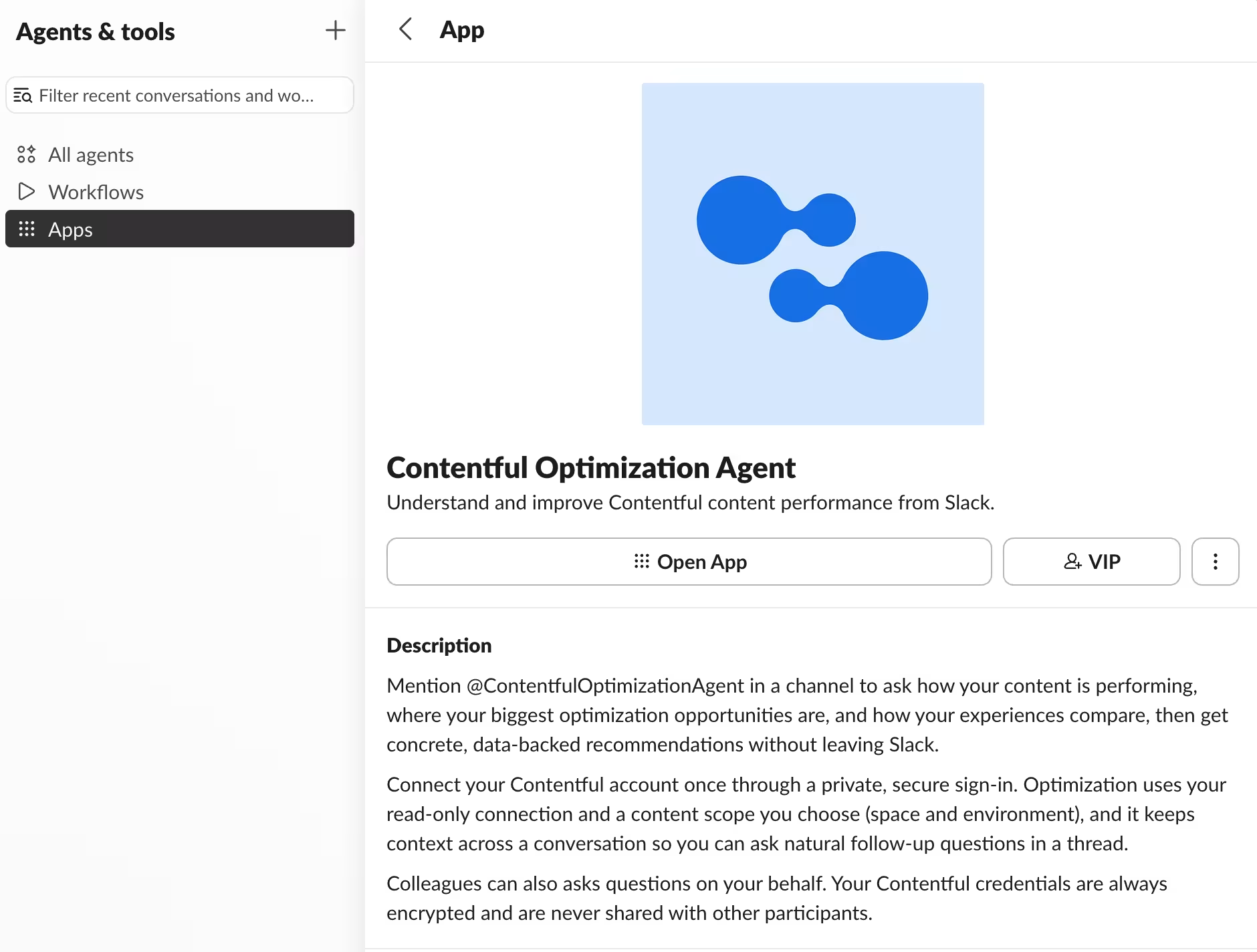
Click Open App. The “Home" tab of the Contentful Optimization Agent is displayed.
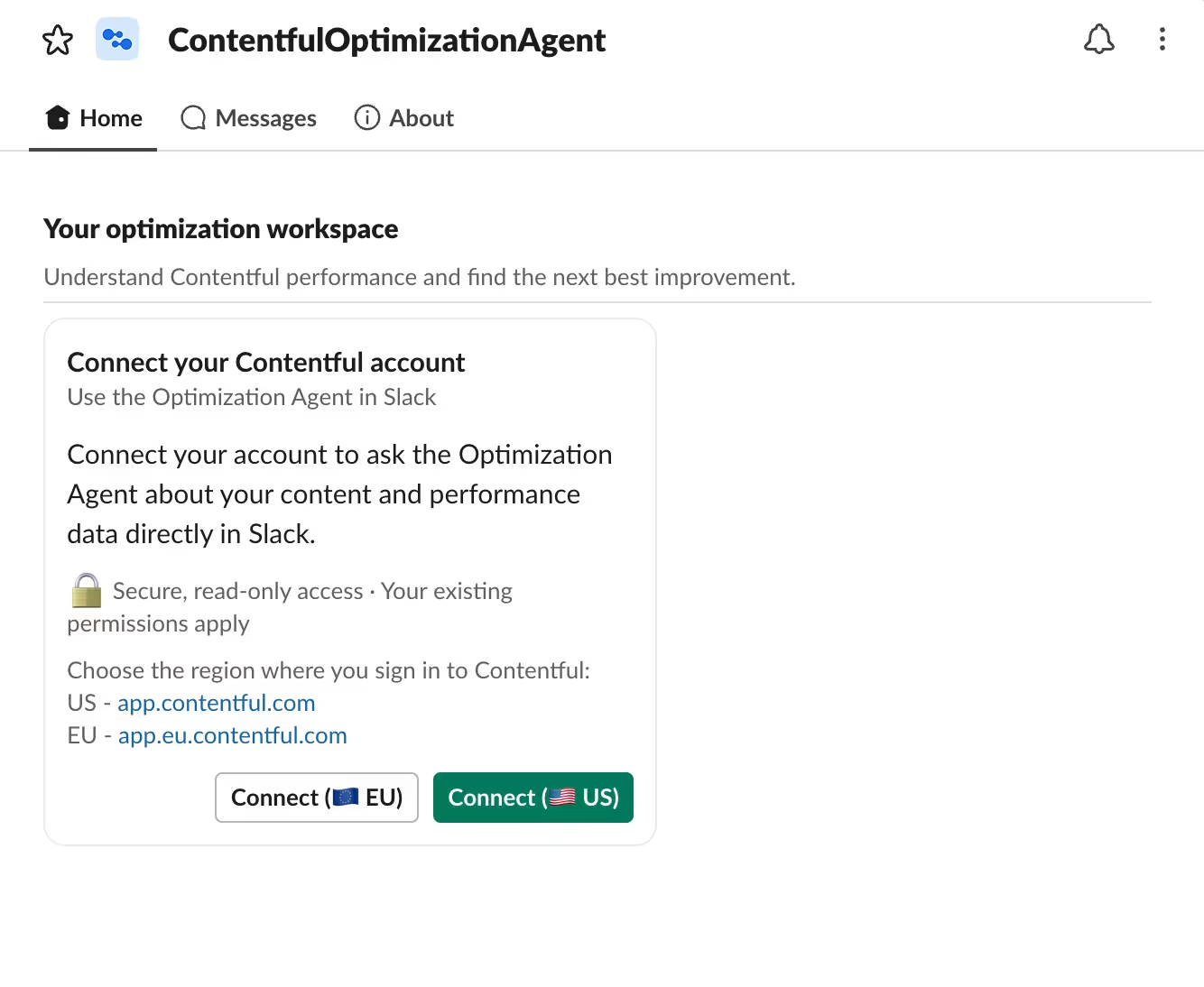
Click Connect to authorize the agent against your Contentful account.
NOTE: Make sure you select the correct region, based on your account settings.
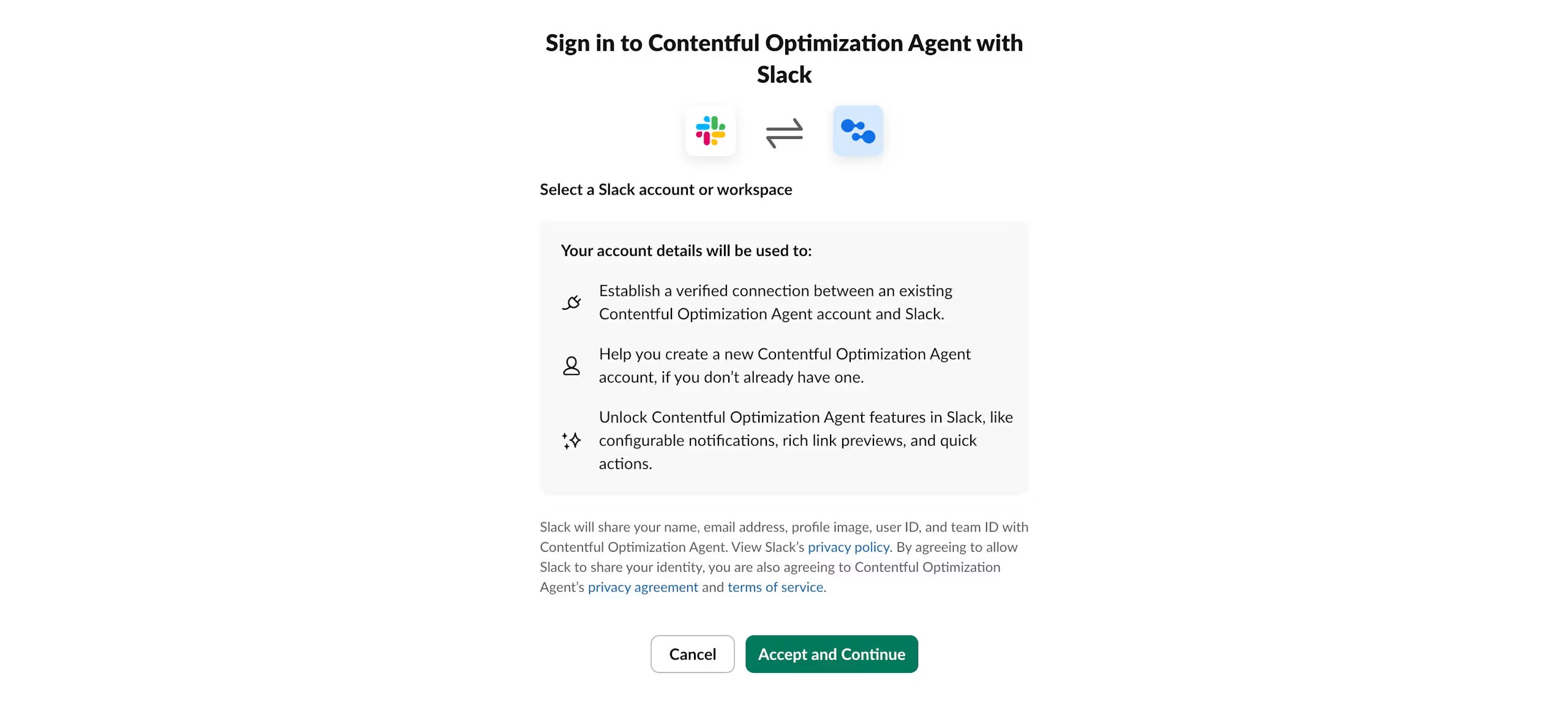
The Slack open authorization (OAuth) page is displayed. Click Accept and Continue.
The Contentful web app login page is displayed.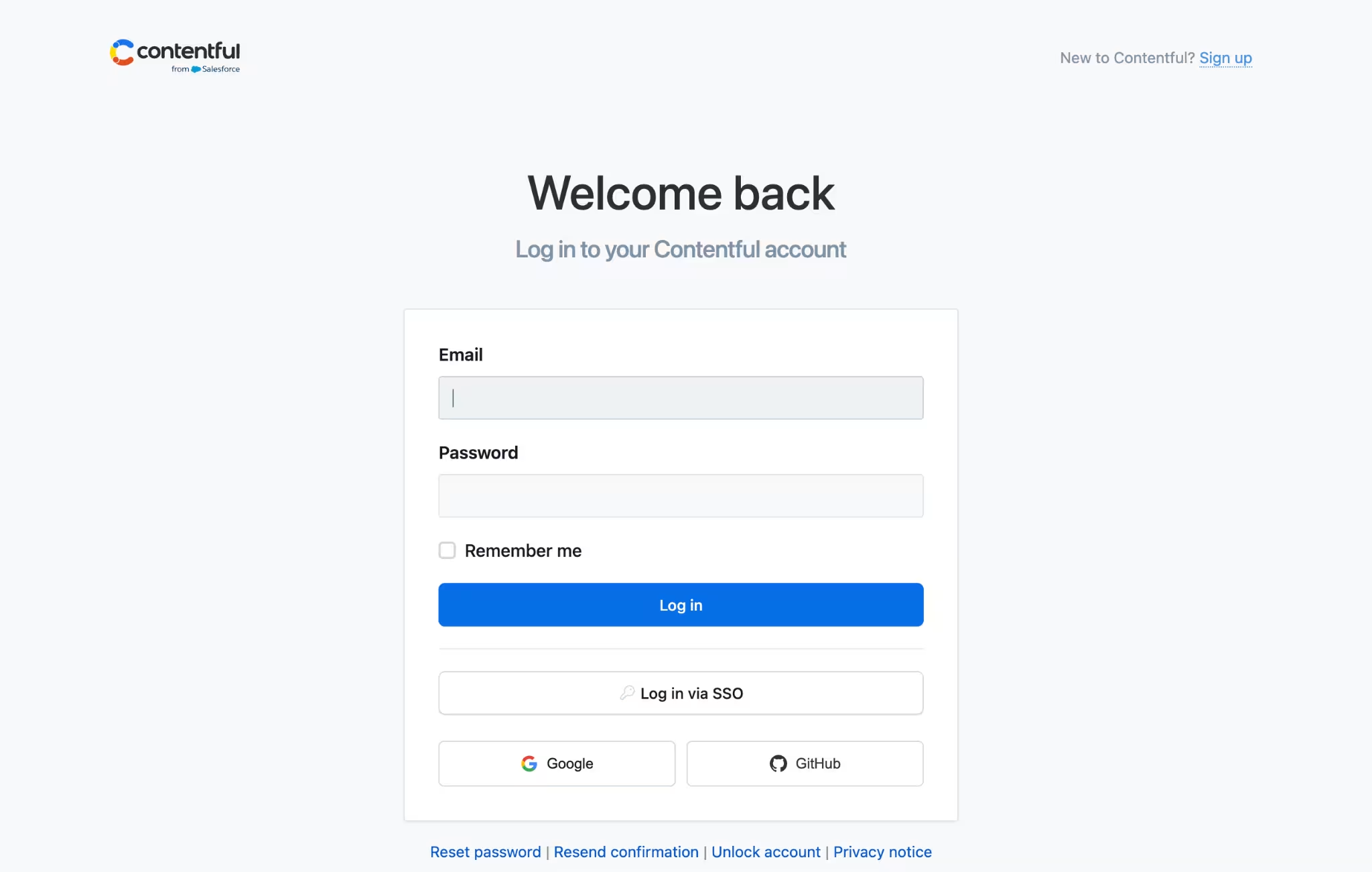
Enter your credentials, and click Log in. The Contentful authorization page is displayed.
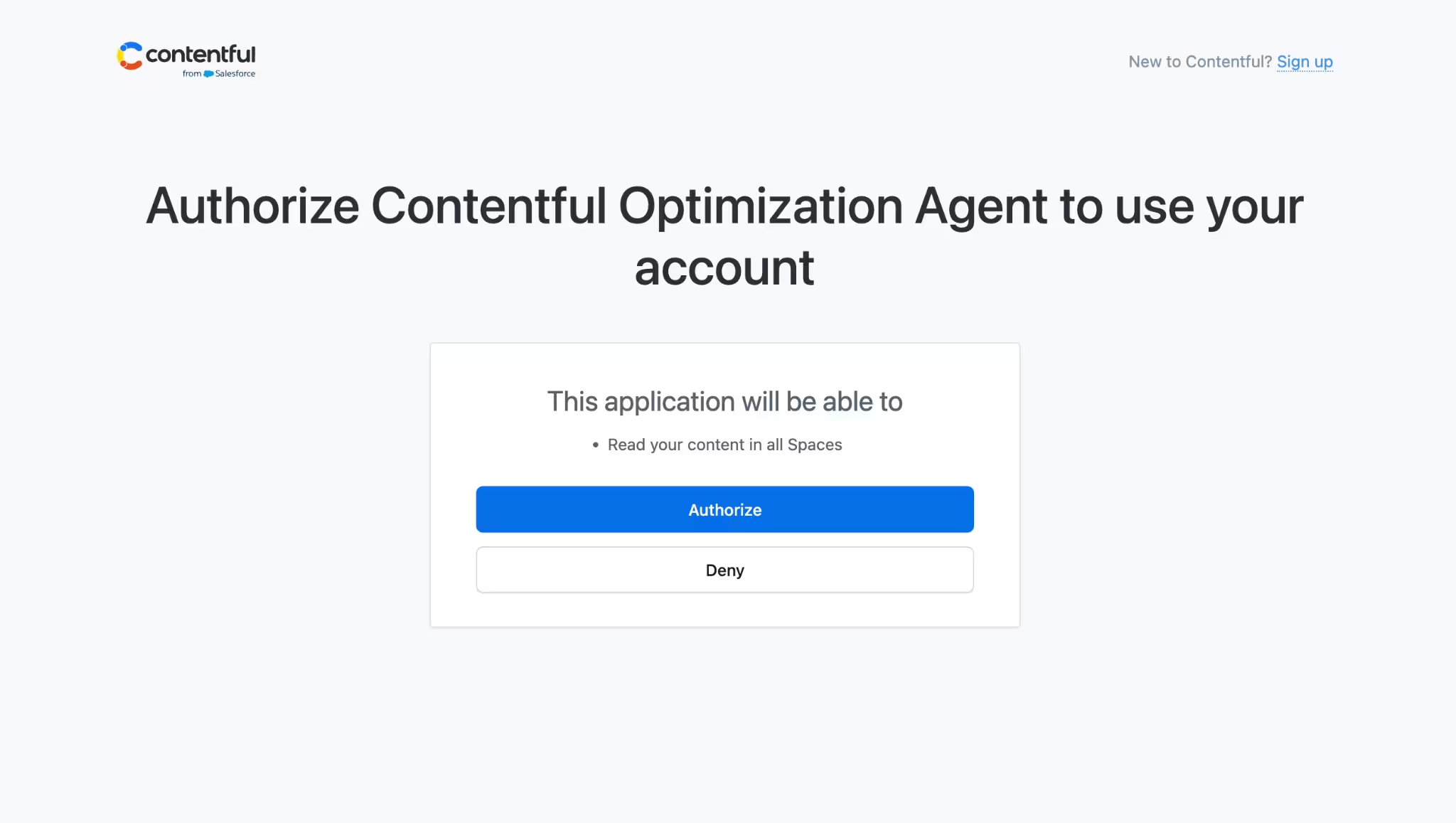
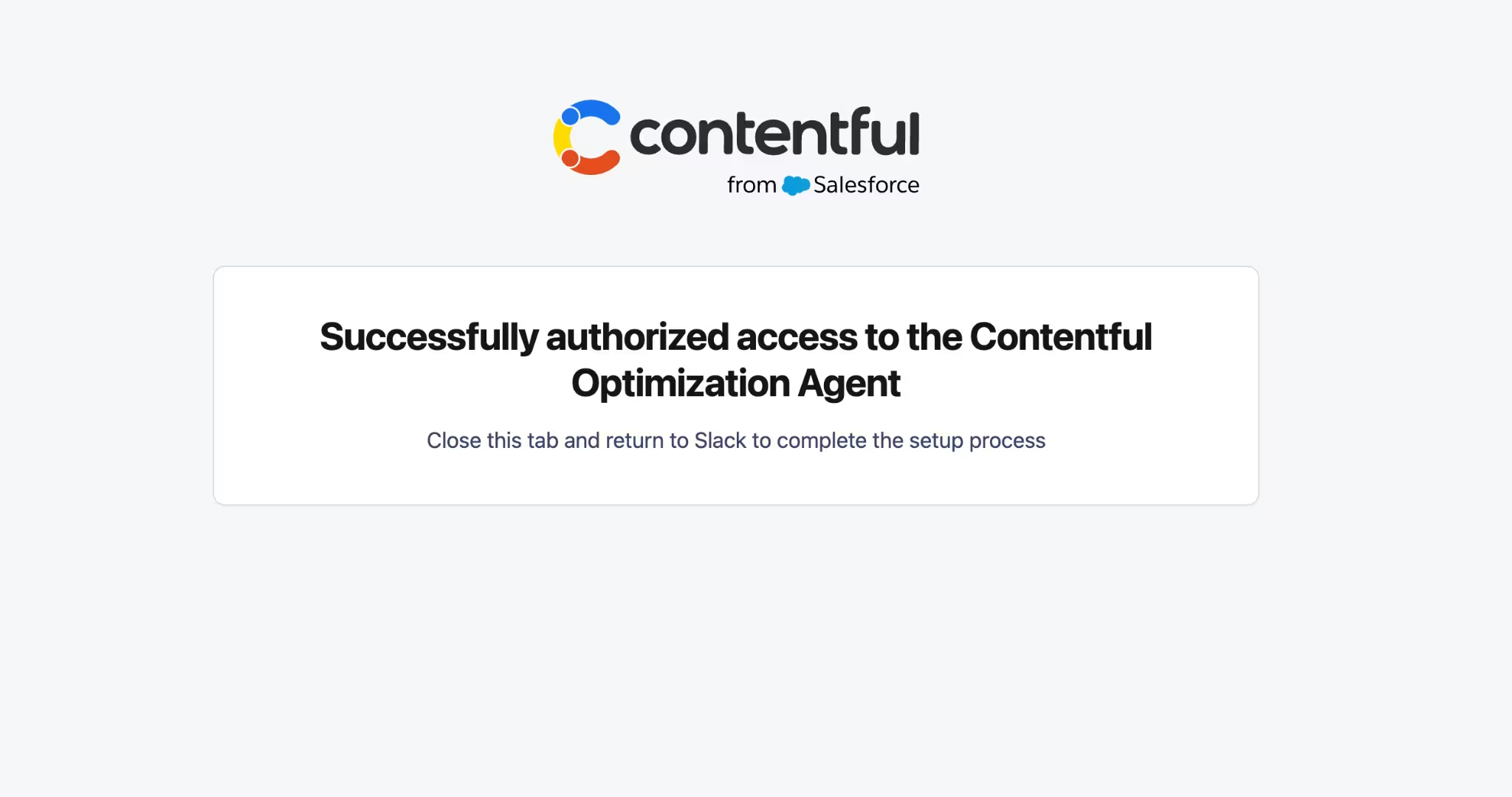
Click Authorize. You can now use the Contentful Optimization Agent in Slack.
Step 3: Select the context for the agent
Once the Contentful Optimization Slack Agent app is authorized, you must select a content scope to set the space and environment you want to query against.
NOTE: You can authorize the Optimization Slack Agent against only one space-environment pair at a time. To query a different space-environment pair, go to the app settings in Slack and select a new content scope. This points the Optimization Agent to a new space and environment, and it loses context from past conversations.
To select the context for the agent:
Go to the Home tab of the Contentful Optimization Agent in Slack.
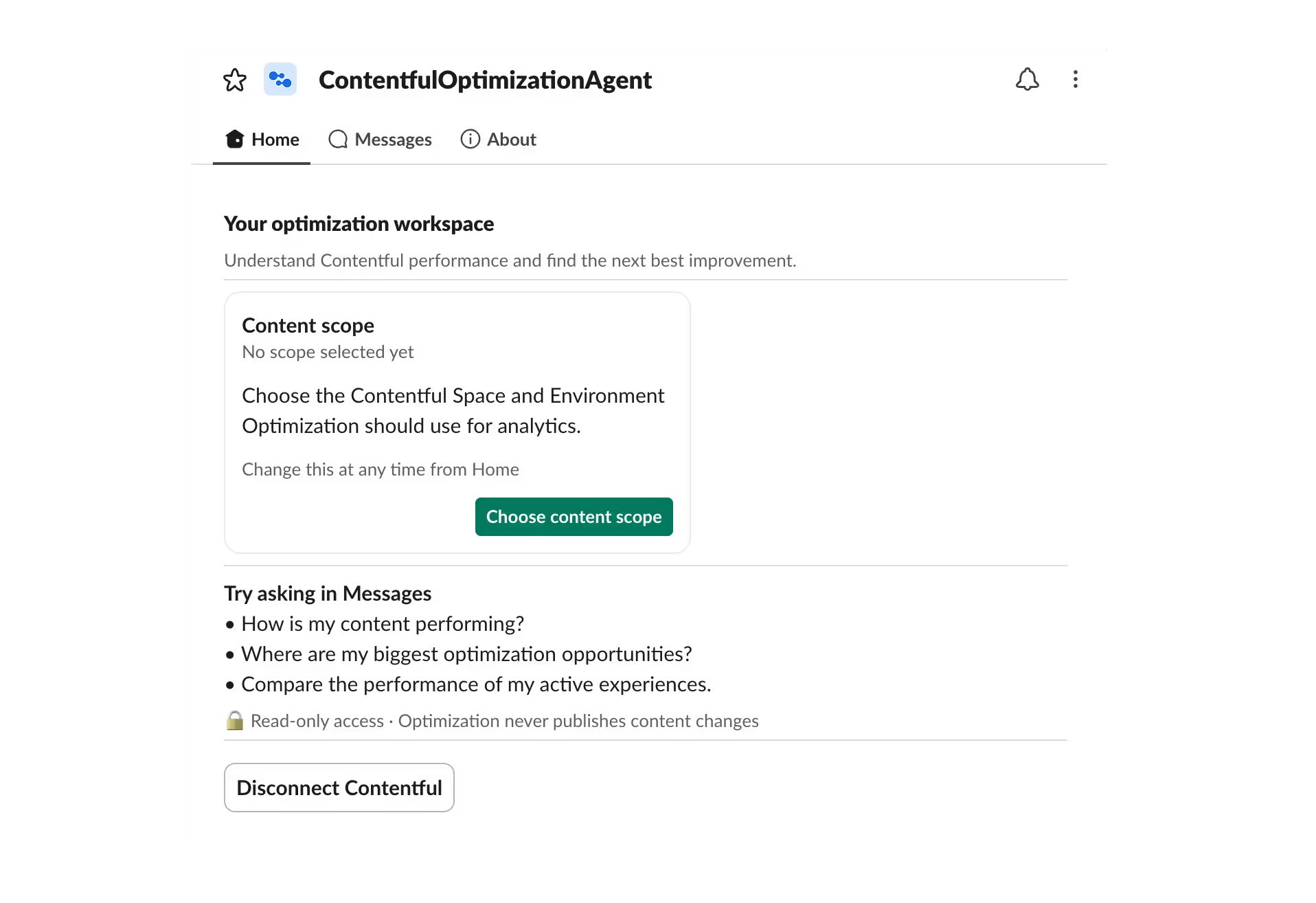
Click Choose content scope. The “Select context” modal is displayed.
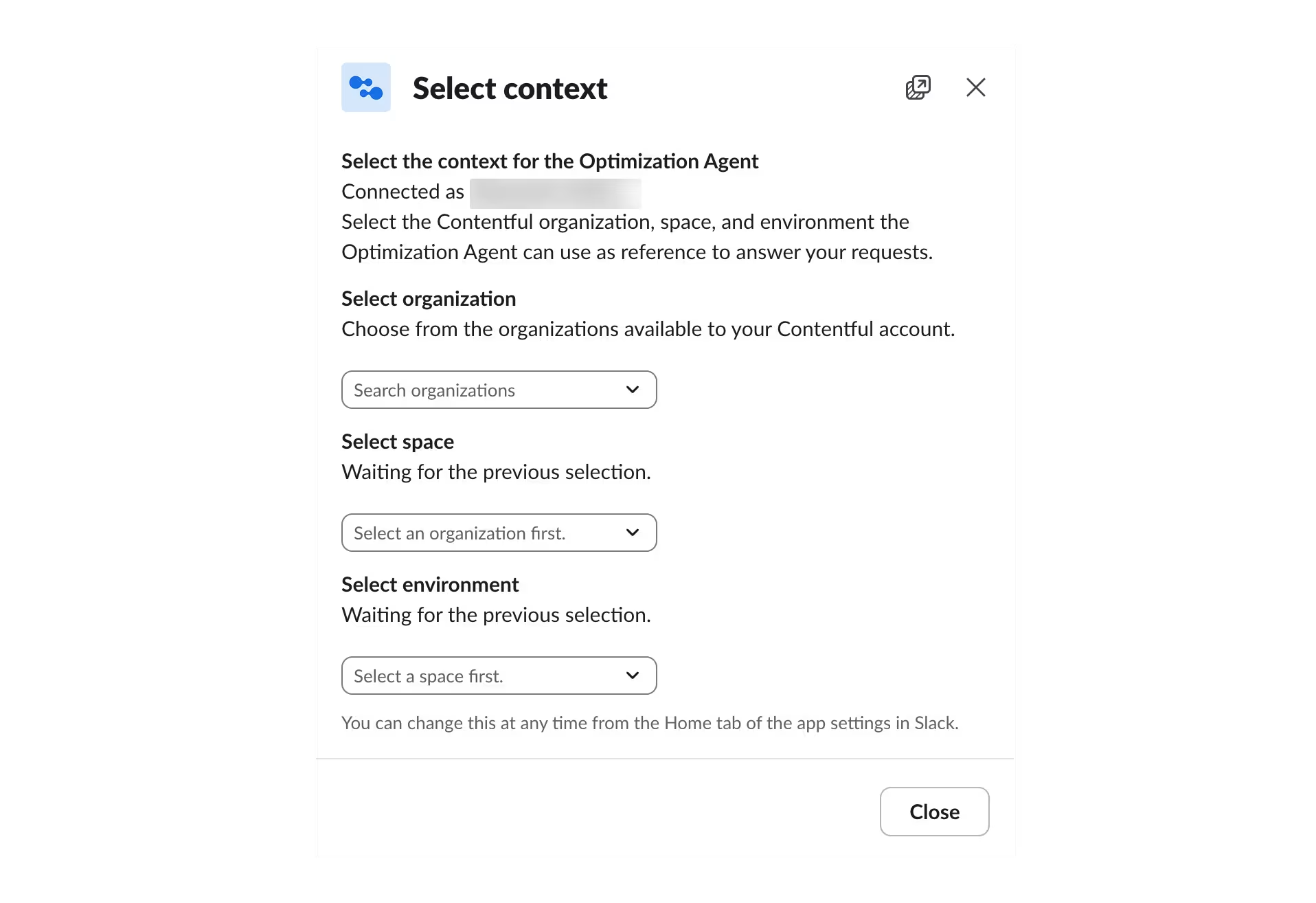
Select the organization you want to query.
NOTE: The organization you select must have the built-in AI Features enabled in the organization settings. For more information, see Enable AI Actions.
Select the space you want to query against.
Select the environment.
NOTE: If a space has more than 100 environments, only the first 100 are listed (in alphabetical order). To select an environment that isn't listed, enter its name directly into the field.
Click Select context. A verification modal is displayed, and the context is updated.
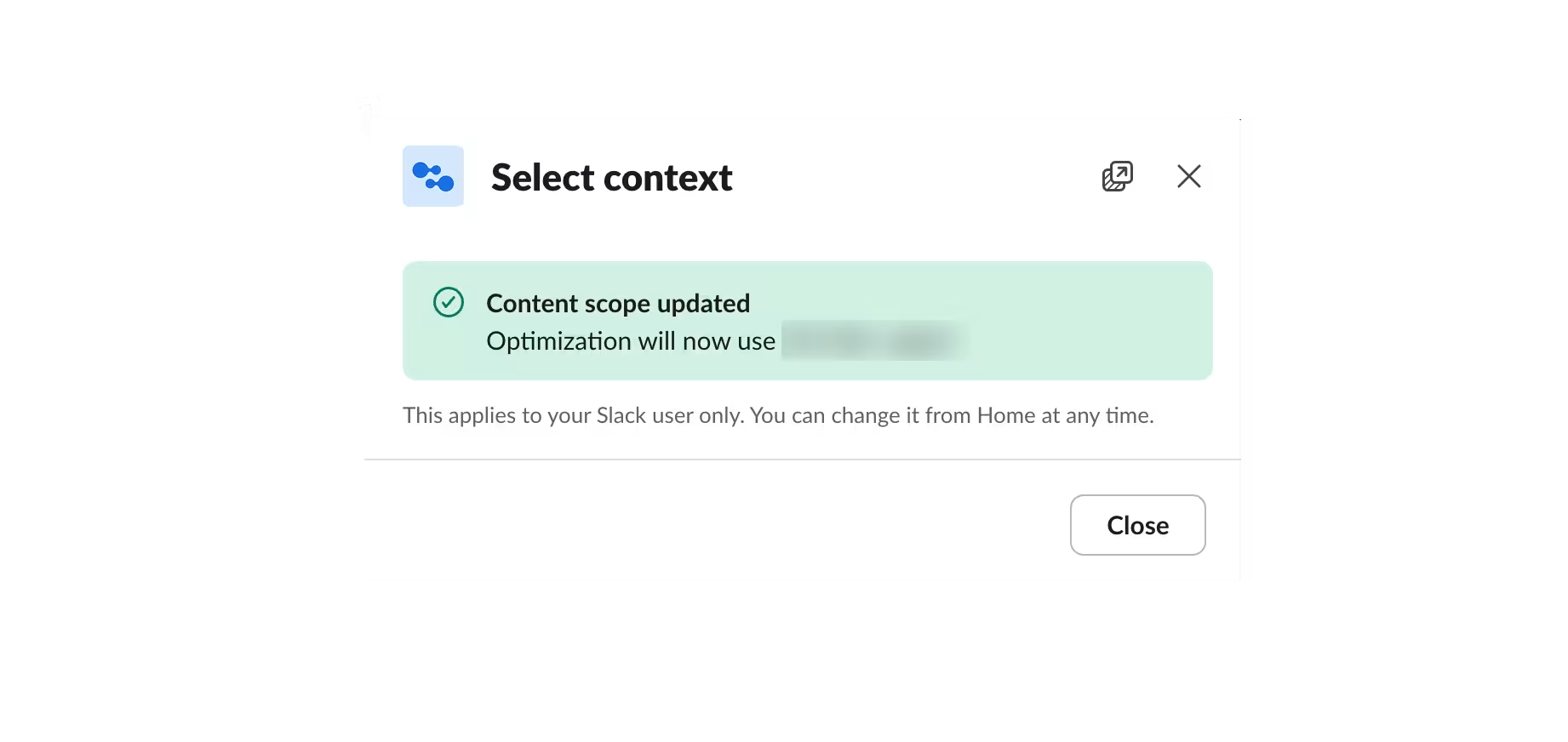
Click Close.
Step 4: Use the Contentful Optimization Agent in Slack
Once you're authorized, you can query the Contentful Optimization Agent directly in Slack.
To query the agent in Slack:
Send a direct message to the Contentful Optimization Agent to ask about your audience, personalization, or experimentation data.
Important: The Optimization Agent only returns data that you have access to in Contentful. It uses your existing Contentful entitlements, so you can only see the spaces and content you're already permitted to access.
Mention the Optimization Agent in a Slack channel to start a thread by typing @ContentfulOptimizationAgent, and type your request. For example: “What is the top performing audience segment?”.
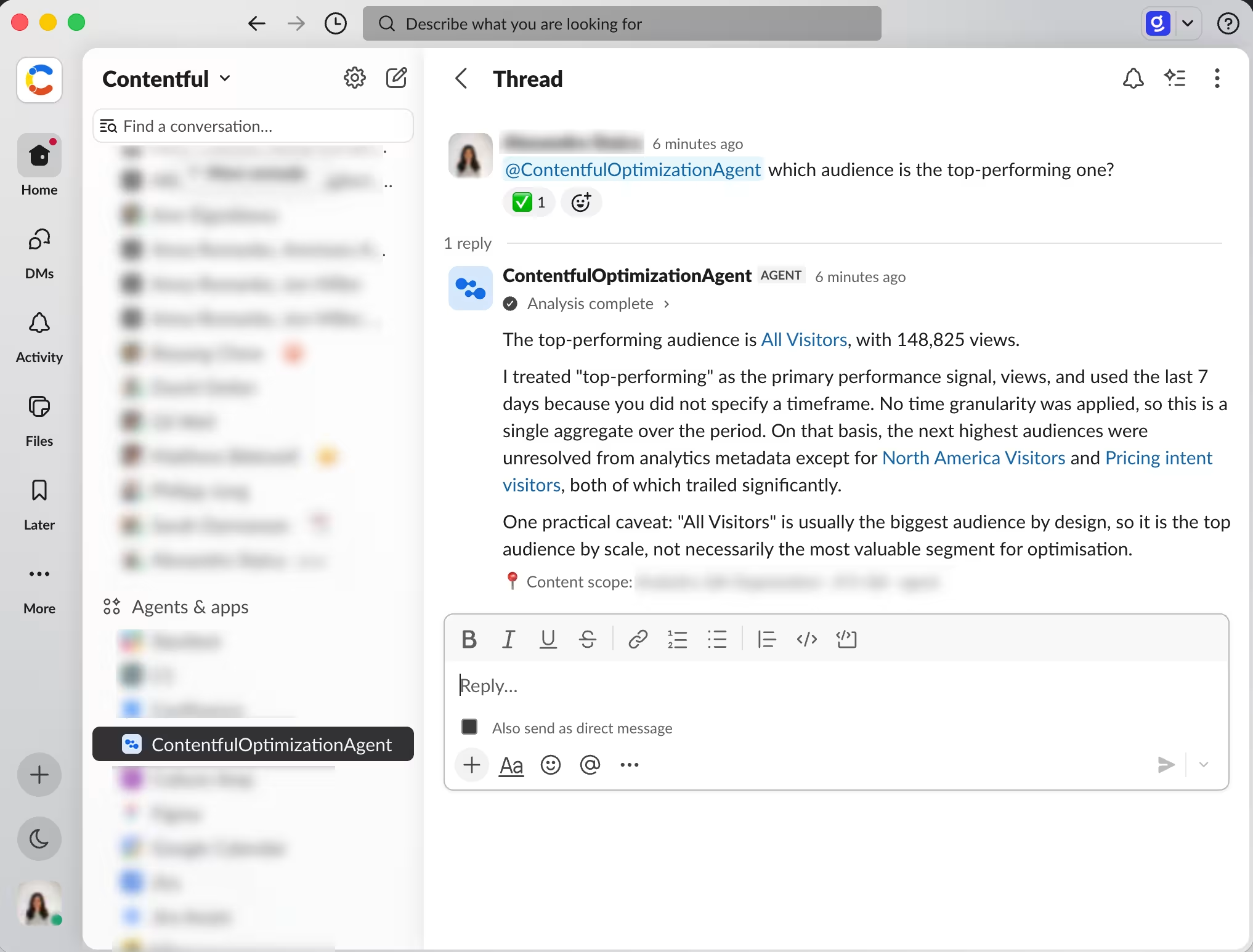
NOTE: If a Slack user without access to your Contentful space sends a message to the Optimization Agent in a channel outside of an approved thread, they receive an error.
Optional: Approve the request(s) from other Slack users that want to engage with the Contentful Optimization Agent and collaborate in the Slack thread you started.
Collaborate with other users through the Contentful Optimization Agent
To collaborate with other Slack users through the Contentful Optimization Agent, you can approve requests from other Slack users to let them query their own entitlements in a thread you started.
NOTE: Only you and any users you approve can participate in that thread.
You can allow the selected user(s) to participate in that thread:
Once
Always allow the user
Always allow every other participant in the channel, or
Deny their request.
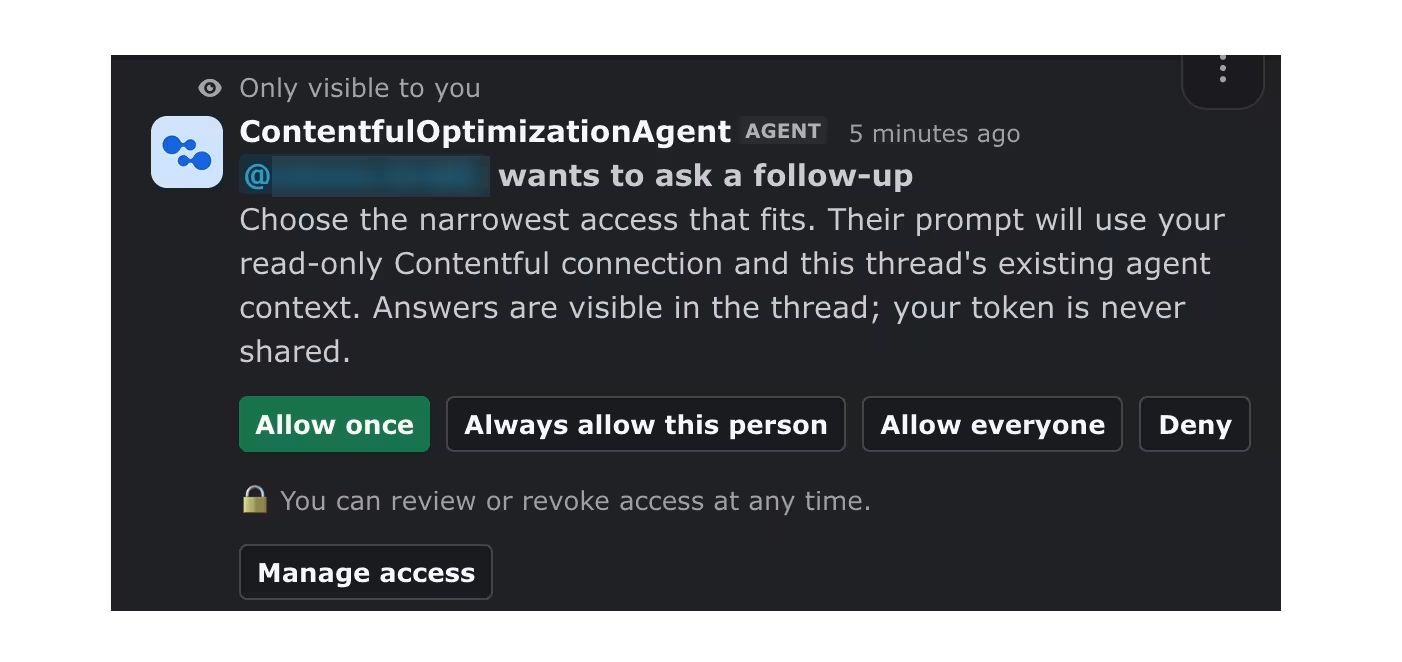
Important: Allowing access lets this user ask questions and receive Optimization Agent responses using your connected Contentful account and selected space and environment. Responses may contain your organization’s Contentful Personalization data. Only allow users who are authorized to access that data.
Manage access
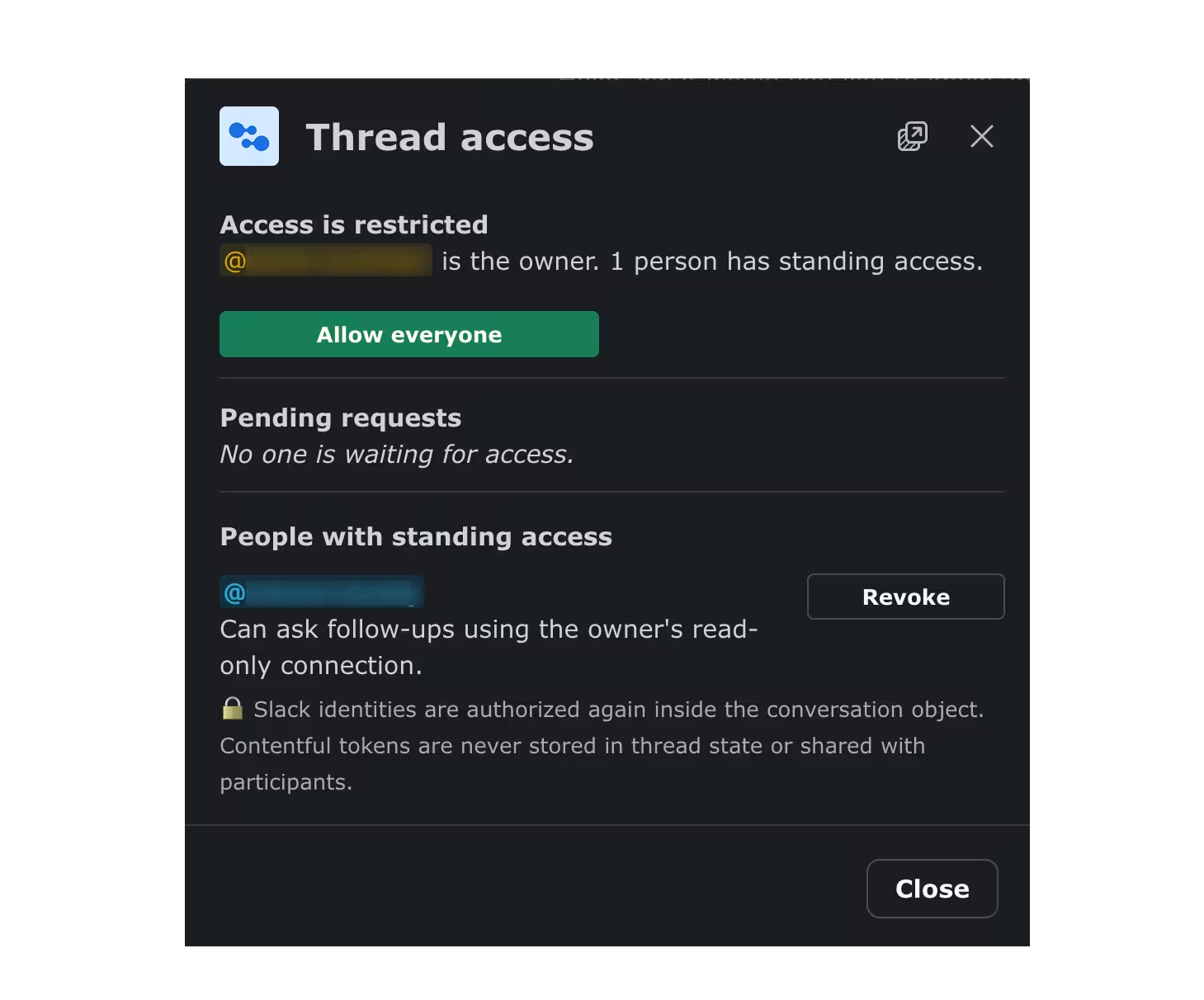
To manage channel participants access to a thread, click Manage access, and grant access for outstanding requests, or click Revoke to remove access.