Drive Integration app
Overview
The Drive Integration app lets teams keep collaborating in Google Docs, then import finalized documents into Contentful as structured draft entries. It helps reduce manual copy-paste work by using AI-assisted field mapping, supported formatting, and image handling to move approved content into an existing Contentful content model.
Drive Integration is useful for teams that regularly draft, review, and approve long-form content in Google Docs before publishing through Contentful.
Drive Integration works best when your content model is already defined and your Google Docs follow a consistent structure.
Requirements
To use this app, you will need:
Be assigned a space administrator role to install and configure the app in a Contentful space.
Your organization must be on Pro plan or above.
Your organization must be on a Contentful plan that supports using AI.
For the users importing documents - a Google account with access to the Google Docs to be imported.
Have already existing target Contentful content types and fields.
NOTE: Drive Integration maps content into an existing content model; it does not create or edit content types.
A finalized and ready-to-import Google Doc.
NOTE: Comments, suggestions, and tracked changes are not imported.
Usage
Step 1: Install the Drive Integration app
Log in to the Contentful web app.
Click Apps and select Marketplace.
Navigate to the Drive Integration app and click on its card. The App details window is displayed.
Click Install. The Manage app access window is displayed.
Under Environments, select the environments in which you want to install the app.
Click Authorize access.
In the installation screen, click Install. The Drive Integration app configuration screen is displayed.
Step 2: Connect Google Drive
NOTE: Each user connects their own Google account the first time they use Drive Integration.
To connect Google Drive:
In the Drive Integration configuration screen, go to the Drive Integration card and click Connect.
Complete the Google authentication flow and grant the requested permissions.
NOTE: Drive Integration respects Google Drive permissions. Users only see Google Docs and folders they already have permission to access in Google Drive, including shared drives they have access to.

Step 3: Prepare the Google Doc
For best import results, prepare the Google Doc before importing:
Use Google Docs heading styles, such as Heading 1, Heading 2, and Heading 3.
Use clear section titles so the app can suggest better field mappings.
Replace Google smart chips, such as people chips, date chips, and file chips, with plain text.
Split very large or mixed-content documents into smaller, focused Google Docs.
Use one Google Doc per locale for localized content.
Step 4: Import a Google Doc into Contentful
To import a document:
Open Drive Integration app in Contentful.
In the Select your file card, click Select.
Browse Google Drive and select the Google Doc you want to import. Click Select.
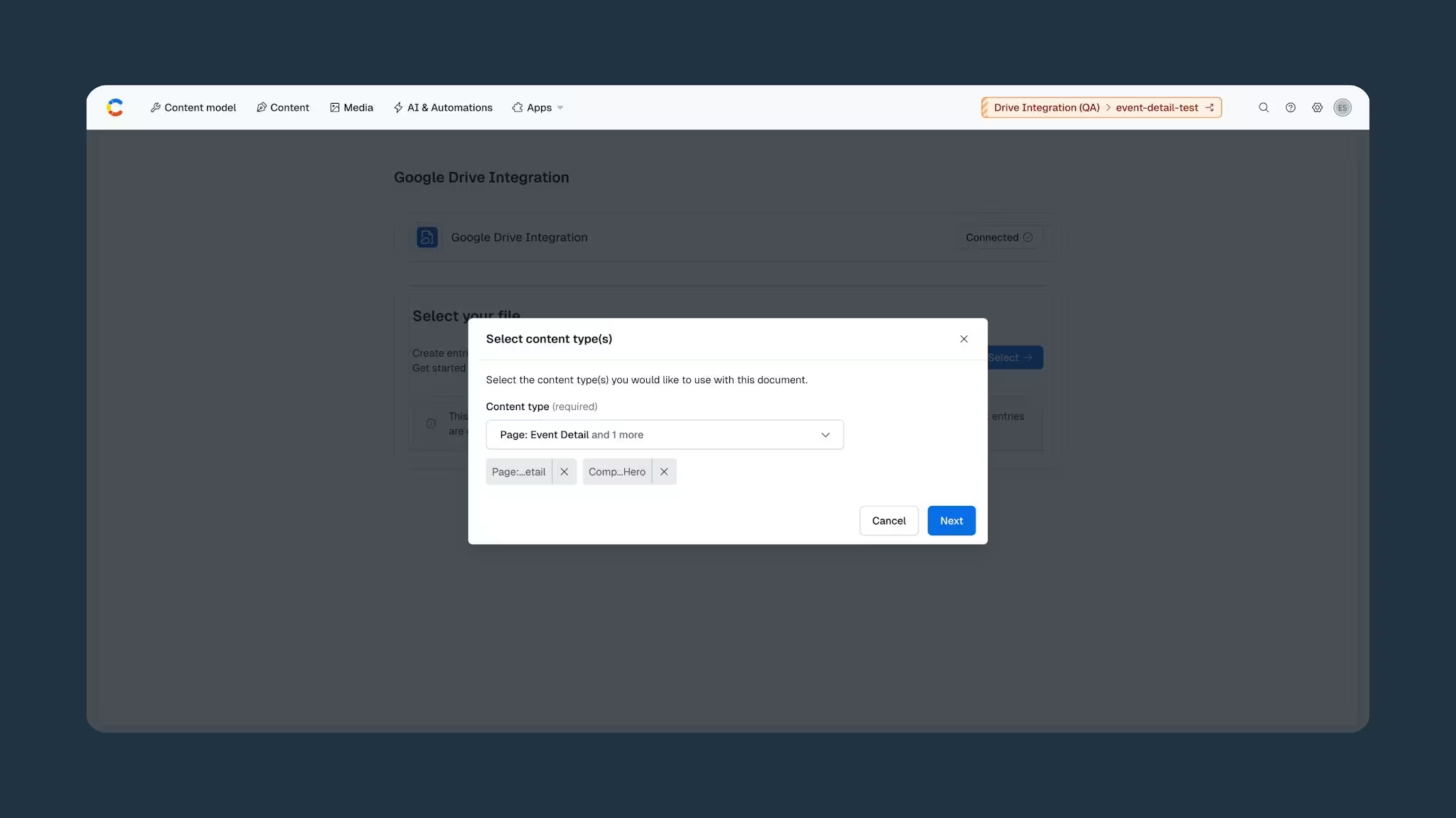
In the Select content type(s) window, select one or multipe target content type(s) from the drop-down. Click Next.
Review the AI-assisted mapping suggestions.
NOTE: AI-assisted mapping requires human review. Users should review all mapping suggestions before creating entries.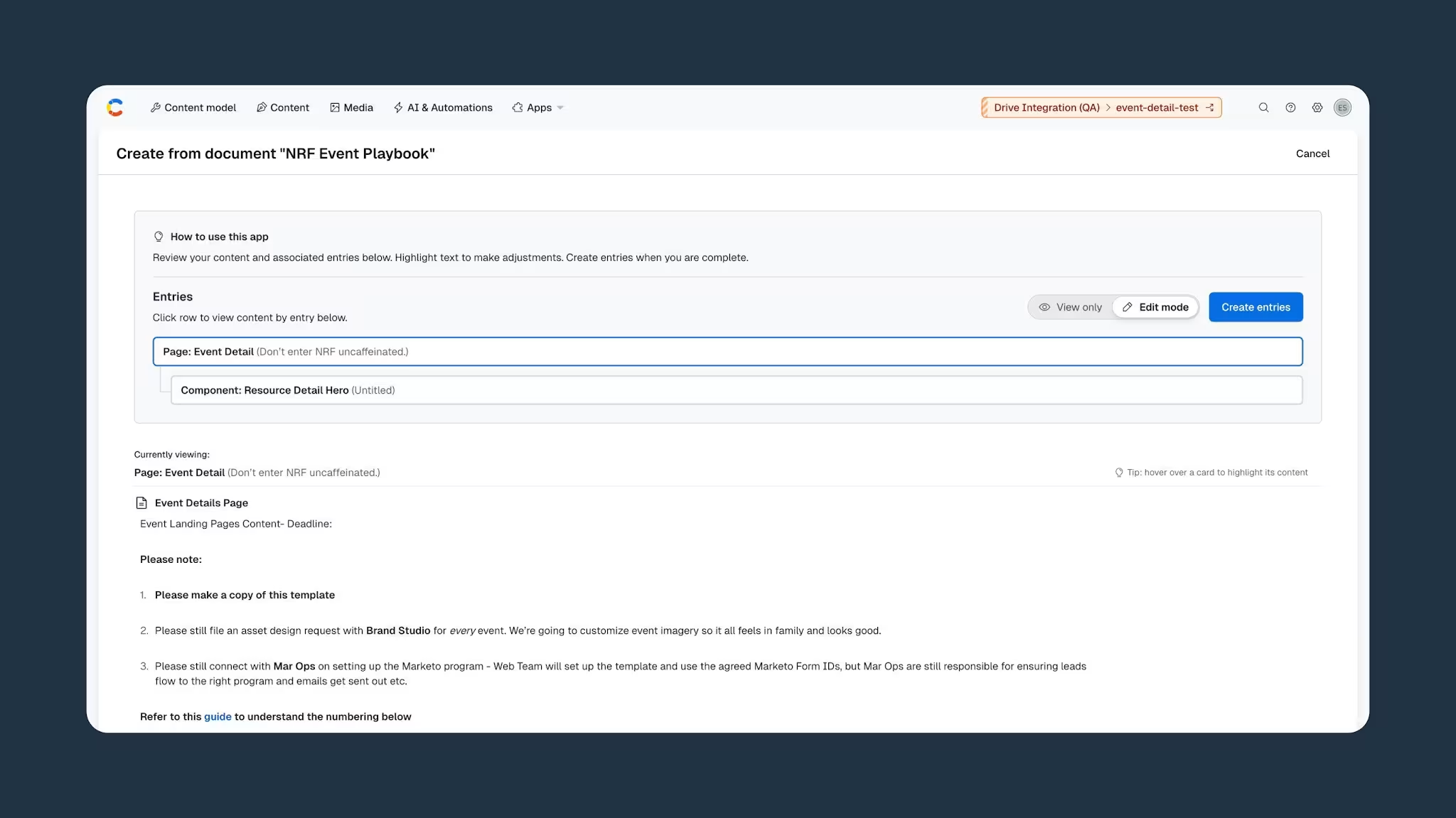
Adjust any suggested field mappings as needed.
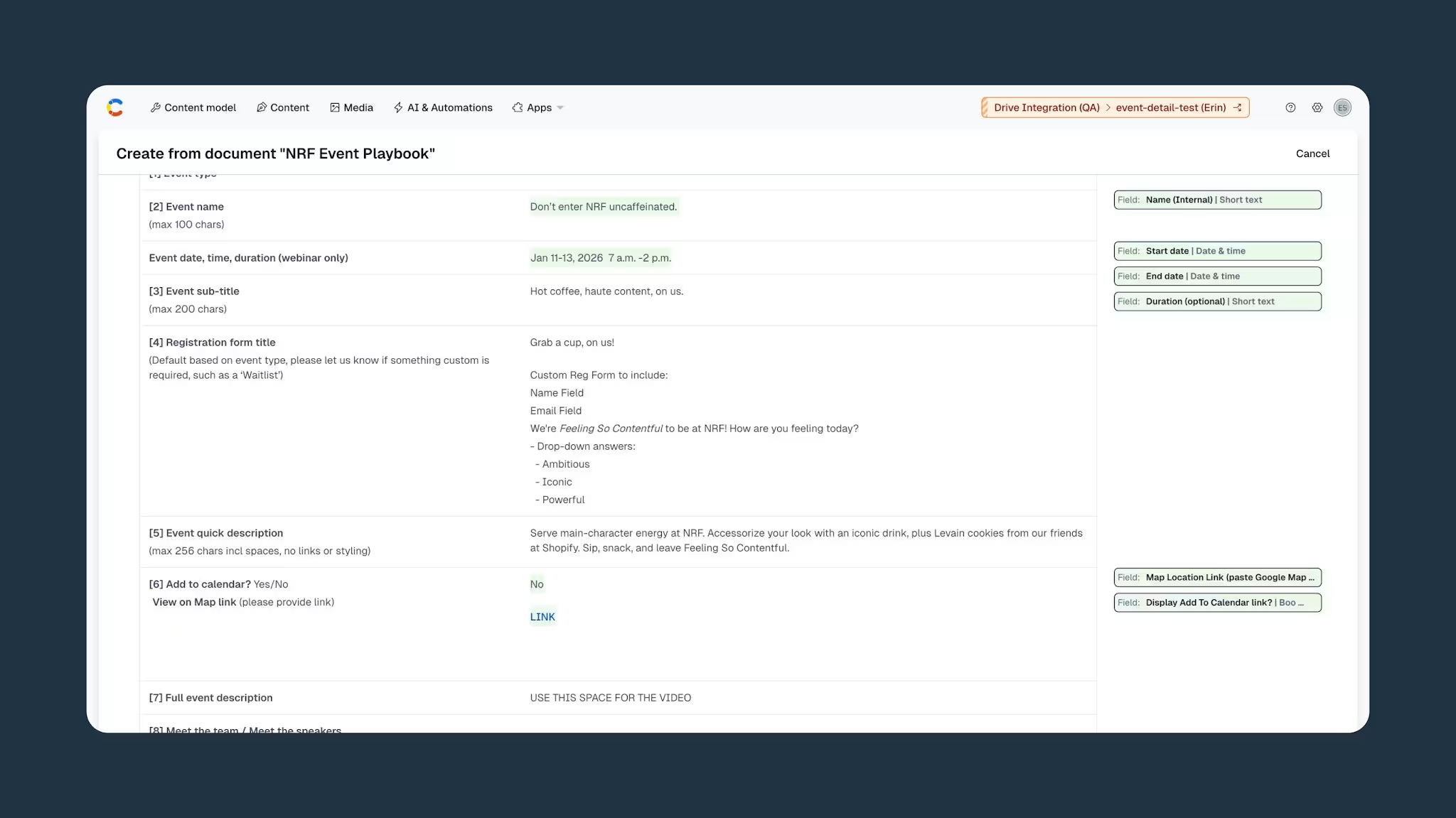
Skip any content that should not be imported.
Confirm the import.
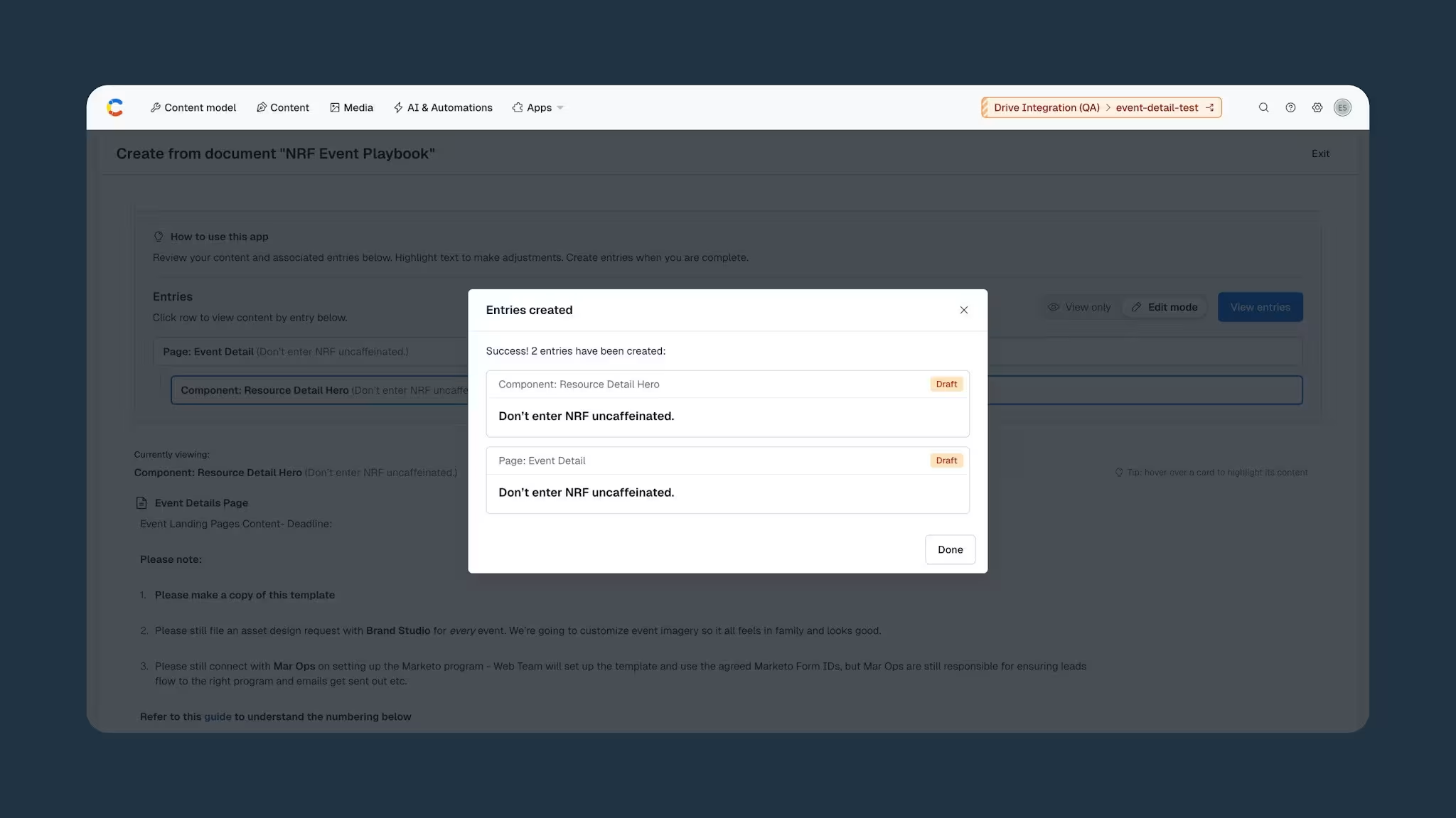
NOTE: Drive Integration creates draft entries in Contentful. If images are included in the import, the app uploads them to the Contentful media library and links them to the appropriate fields where supported.
NOTE: Large or image-heavy documents can take longer to import.
Step 5: Review and publish the draft entry
After the import is complete:
Open the draft entry created by the Drive Integration app.
Review imported text, formatting, images, and field mappings.
Make any required edits in the Contentful entry editor.
Add or adjust references manually if the entry needs to be linked to other content.
Publish the entry using your normal Contentful workflow.
Supported content
Drive Integration can preserve or handle common Google Docs content, including:
Headings
Bold, italic, and underline formatting
Ordered and unordered lists
Hyperlinks
Basic paragraph structure
Images embedded in the Google Doc
Tables, where supported by the target Contentful field
Unsupported content
Google smart chips are not imported. Replace them with plain text before importing.
Comments, suggestions, and tracked changes from Google Docs are not imported.
Complex visual formatting, special embeds, and layout-heavy documents might not import as expected.
Troubleshooting
The app is not visible
Ask your space administrator to confirm that Drive Integration app is installed in the correct space and enabled for the environment where you are working.
A user cannot connect Google Drive
Ask the user to try the Google authentication flow again. If access was revoked from the user's Google account settings, the user must reconnect Google Drive.
A Google Doc does not appear in the file browser
Confirm that the user has access to the document in Google Drive. Contentful space administrators cannot grant access to Google Docs from Contentful. Google Drive permissions control which documents the user can see.
The import doesn't start
Confirm that the selected file is a Google Doc. Other Google file types, such as Sheets and Slides, are not supported. If the user's Google session expired, reconnect Google Drive and try again.
Imported content is missing
Check whether the missing content was skipped during mapping review, stored in a Google smart chip, or included only in comments, suggestions, or tracked changes. Content in those areas is not imported.
Mapping suggestions are inaccurate
Use clearer Google Docs heading styles and section names, then try again. For repeated workflows, create Google Doc templates that match your Contentful content model, such as a blog post template with sections for title, summary, body, and author.
Images are missing or of low quality
Confirm that the images are embedded directly in the Google Doc. If imported images are of low quality, replace them in Contentful after import.
The import is slower than expected
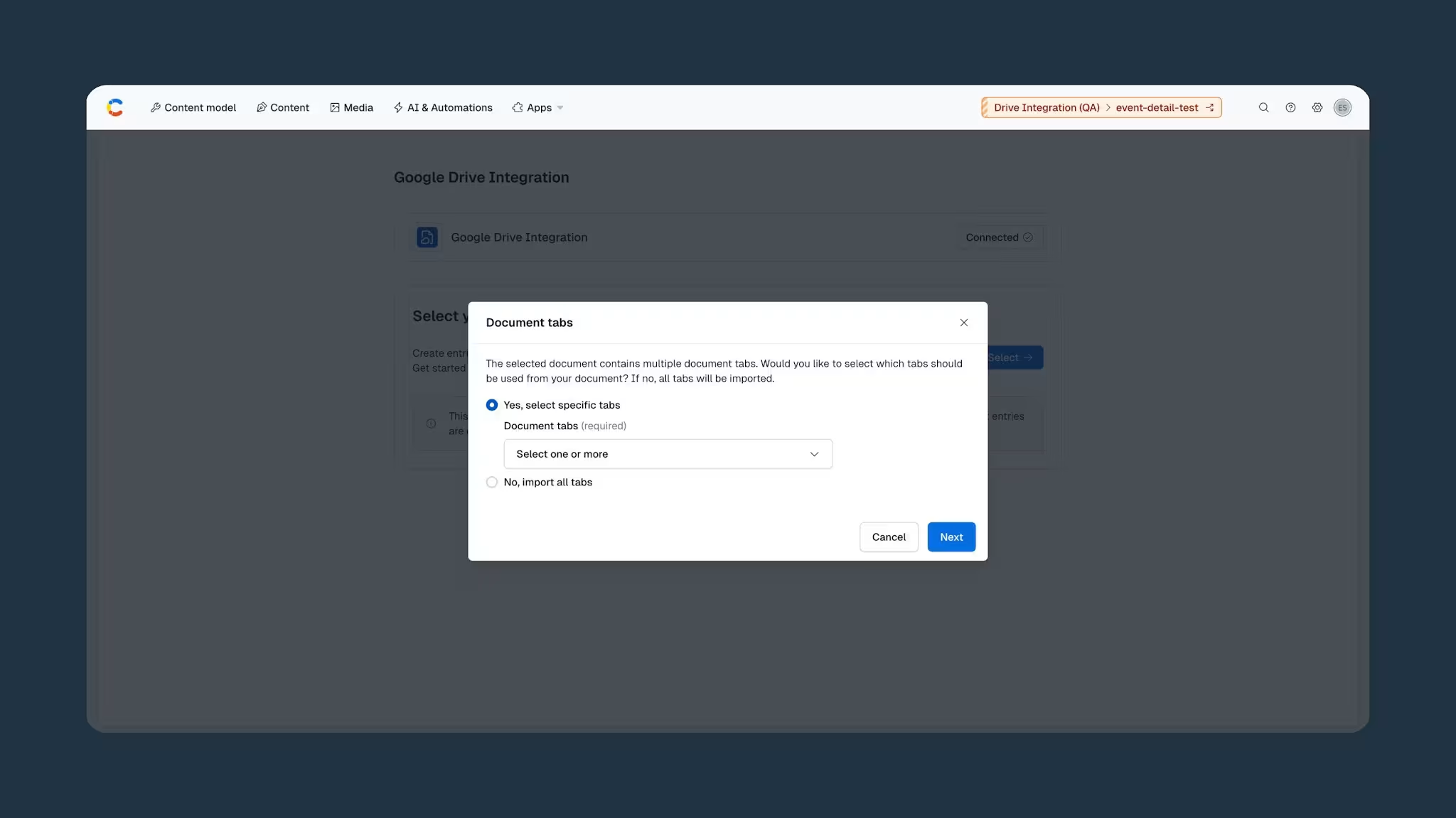
Large, image-heavy documents, or many simultaneous imports, can take longer. Split large documents into smaller files or import only the tab you need, if tabs selection is available in the app UI.
FAQs
Which Google file types are supported?
Drive Integration supports importing Google Docs. Other Google file types, such as Sheets, Slides, and Gmail, are not supported.
Does Drive Integration sync Google Docs and Contentful entries?
No. Drive Integration imports finalized Google Docs into Contentful. It does not keep the Google Doc and Contentful entry in sync after import.
Can Drive Integration update existing entries?
No. Drive Integration creates draft entries from Google Docs. To update or connect content after import, edit the draft entry in Contentful.
Can Drive Integration create content types?
No. Drive Integration maps Google Docs into existing Contentful content types and fields.
Does Contentful get access to an entire company's Google Drive?
No. Each user connects their own Google account. Drive Integration can only access documents that the user is allowed to access in Google Drive and chooses to import. Google Drive permissions remain the source of truth for document access.
Is Google Docs content stored by Contentful?
Drive Integration retrieves the content needed to create the selected Contentful entries and assets. Imported content is stored in Contentful as part of those entries and assets.
How are images handled?
If images are included in the import, Drive Integration extracts supported images from the Google Doc, uploads them to the Contentful media library, and links them to the appropriate fields where supported.
How should localized content be imported?
Use a separate Google Doc for each locale. After import, manage localization in Contentful using your standard localization workflow.