Live Events
Overview
Live Events is an event streaming dashboard that displays the incoming events from your setup. It helps you quickly confirm that your setup is correct, tracking is working and troubleshoot potential issues, as they occur.
With Live Events, you can:
Validate your SDK integration in real time.
Identify and fix tracking issues early.
See changes reflected instantly without waiting for reports.
Prerequisites
Before using Live Events, make sure your setup is complete by:
Installing the Contentful Personalization app.
Installing and integrating the Experience SDK, version 7.17.6 or higher, into your application with the correct API key and environment.
NOTE: The API key is the Client ID field value displayed under the "SDK Keys" section, on the Optimization tab of your organization settings.
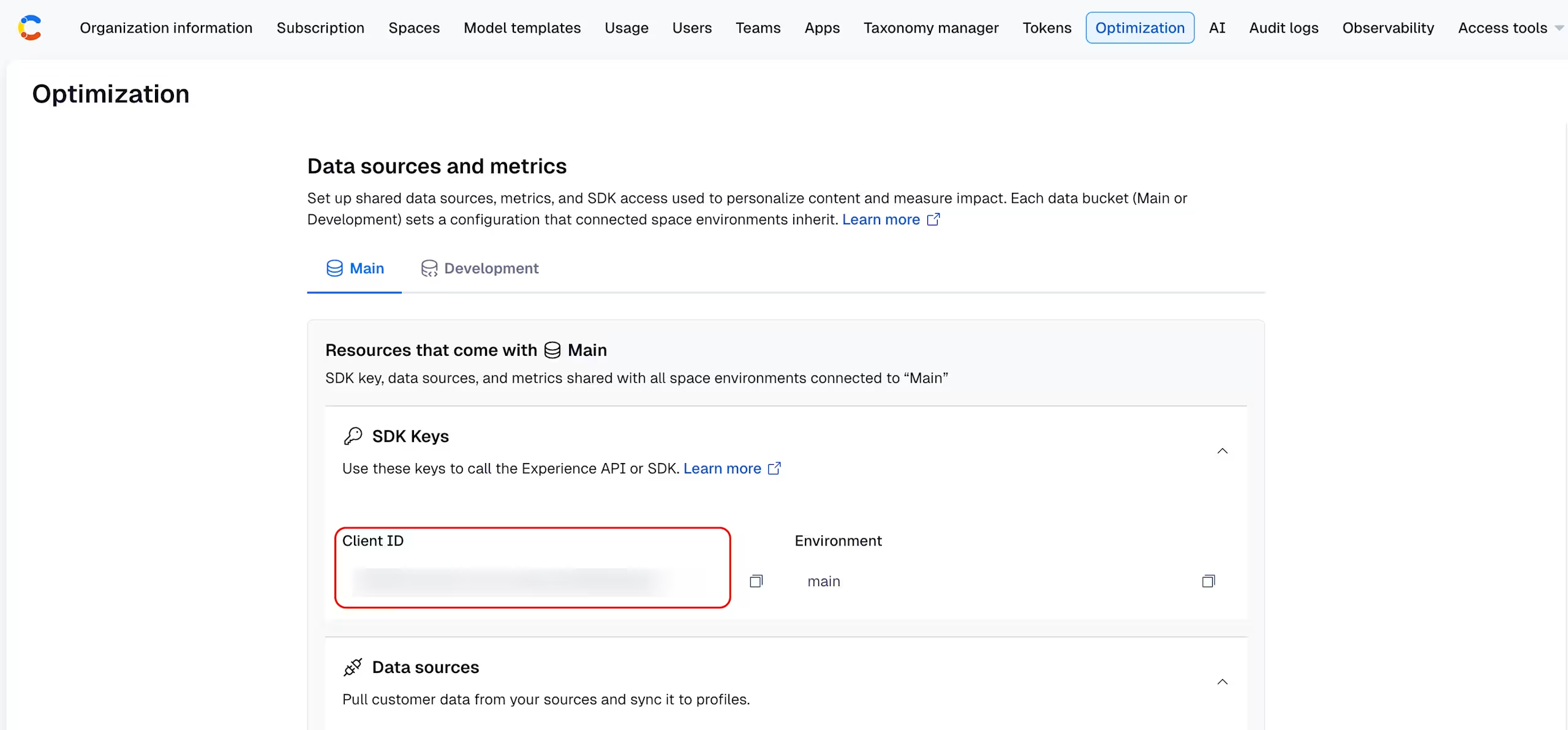
Installing and registering the Insights Plugin to enable component event tracking. We highly recommend installing the plugin for all Contentful Personalization customers as it is required for Experience Insights, personalized experiences, A/B testing, and entry-level analytics.
Open the Live Events dashboard
To access the Live Events dashboard:
Log in to the Contentful web app.
Navigate to the Optimization tab.
Click Live Events. The dashboard is displayed.
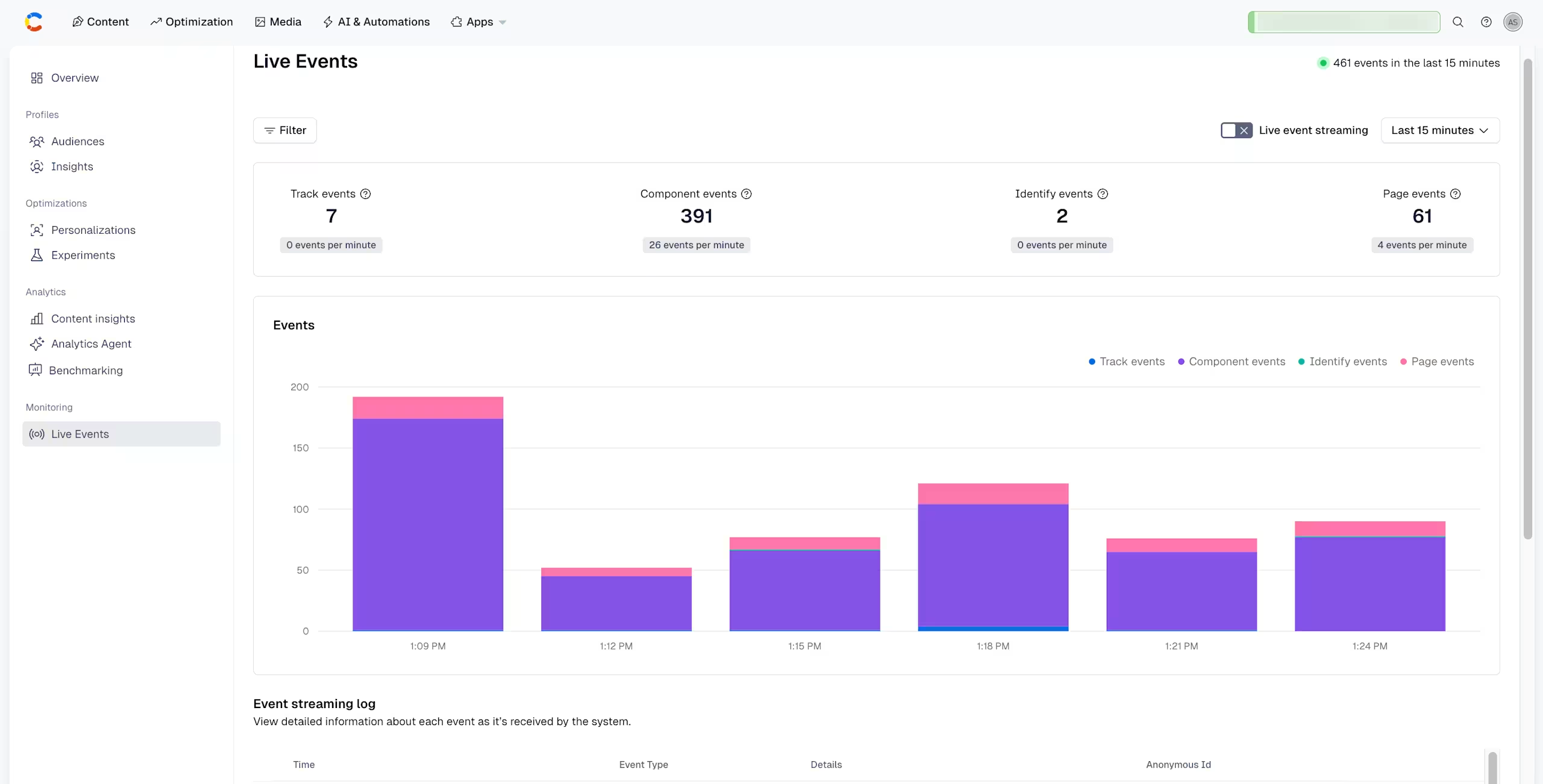
NOTE: When accessing the Live events dashboard, the Live event streaming option is turned off by default. Enable the option to see your events update automatically every 5 seconds.
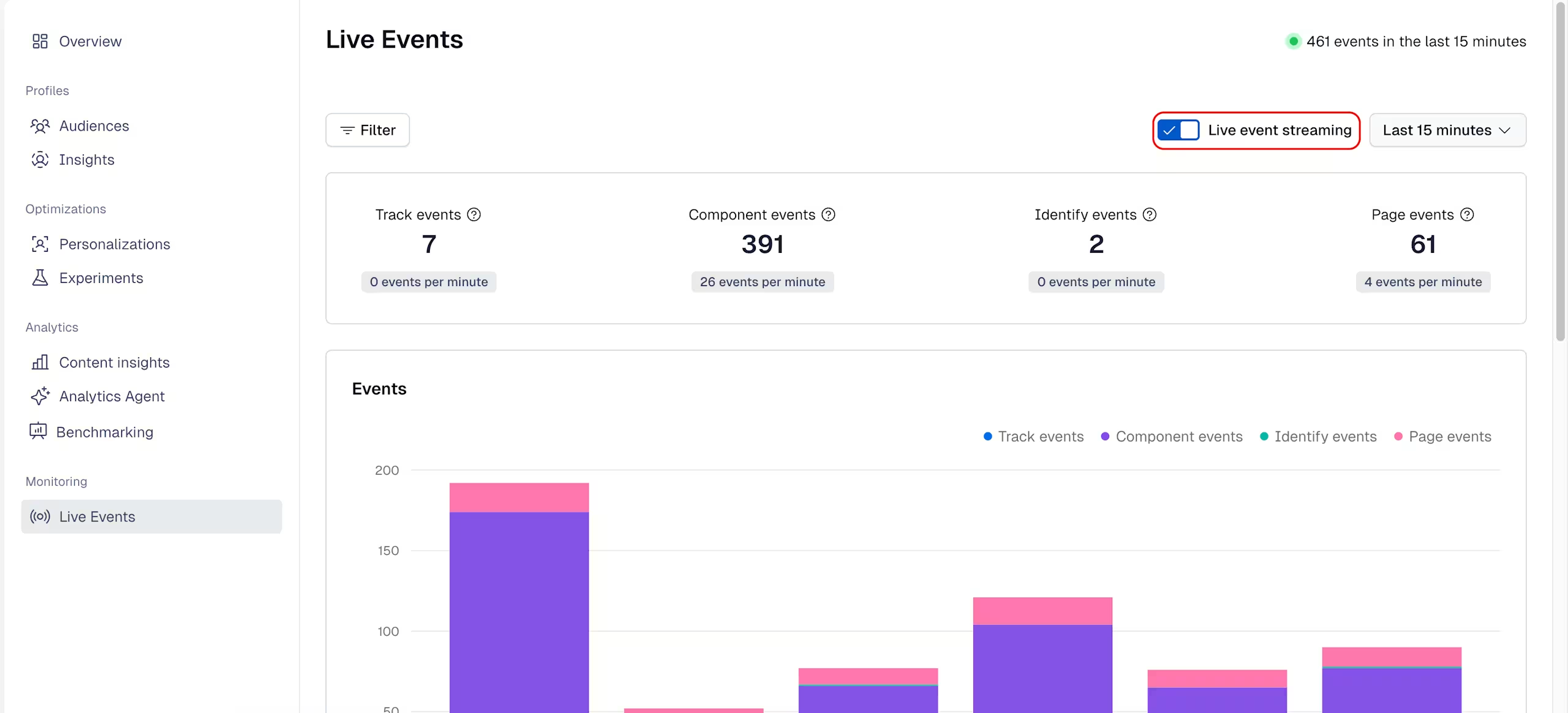
Dashboard overview
The Live Events dashboard includes the following sections:
Event count
Displays the total event counts over a selected period of time (15 min to 48 hours), broken down by:
Event type:
track,component,identify,page.Events per minute.
Event chart
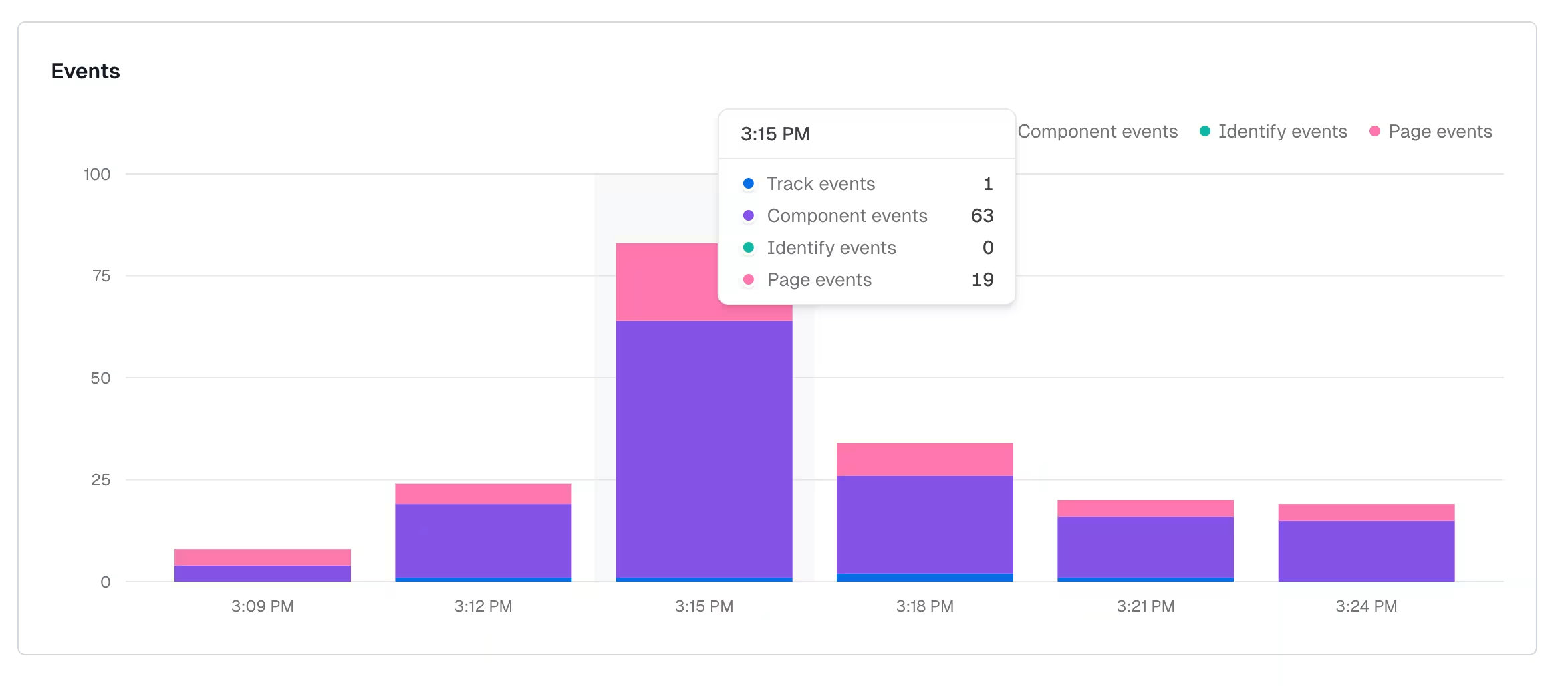
Displays the event counts over time, as a chart. Each vertical bar is split into segments, per event (track, component, identify, page).
Hover over a data point to see a breakdown by event type.
Event streaming log
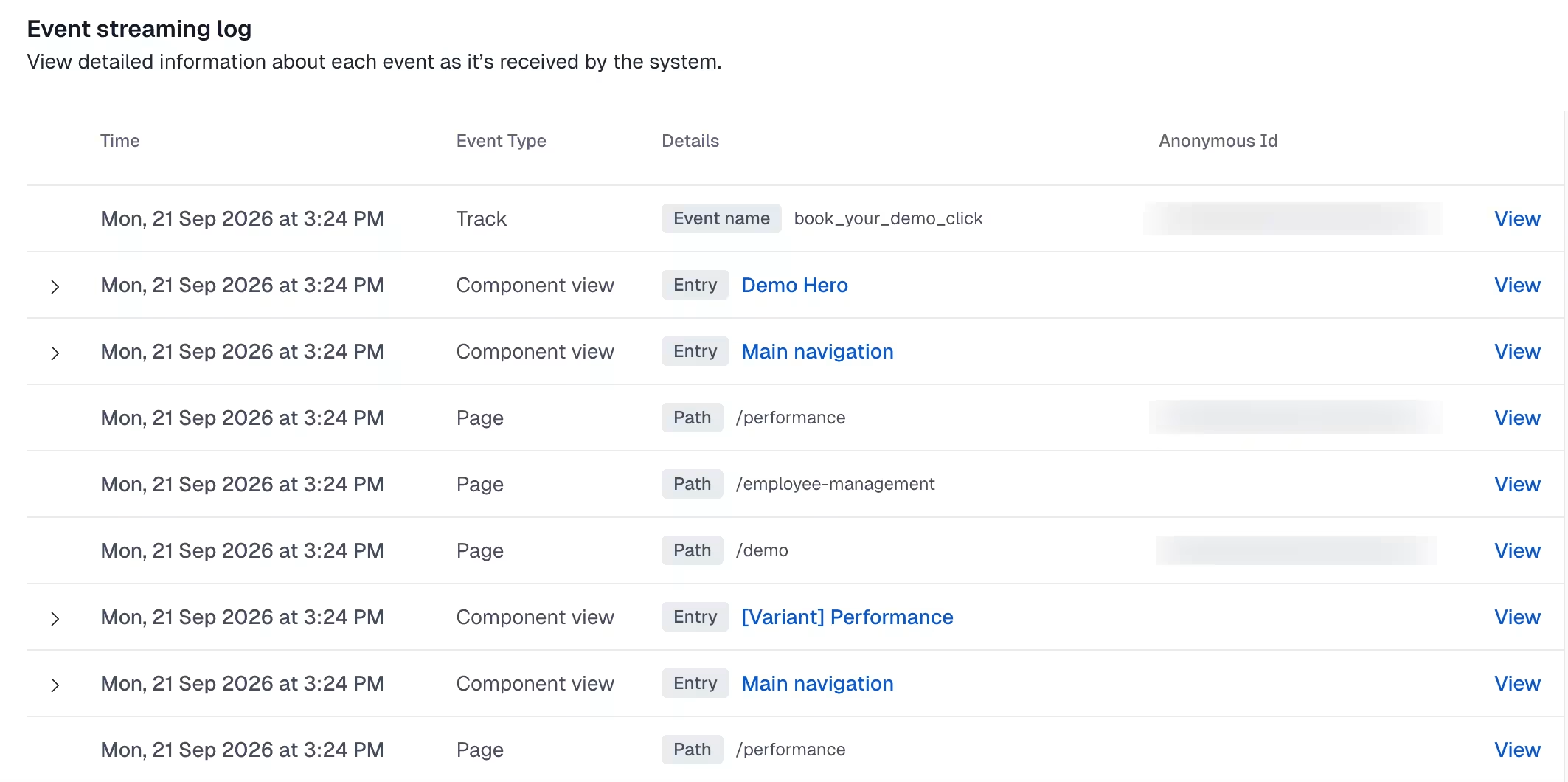
Displays the most recent 100 events as a table that updates every 5 seconds. Click View to see the full event details in JSON format.
NOTE: Only space admins can access the JSON payload.
Event types
The following type of events are captured:
Track– Logs specific named actions a user takes, for example, button clicks or conversions.Component– Triggered every time a user views a component (such as a content entry) on a website. This event is used to track the total number of views for each component, attribute user actions (like conversions) to specific components, and analyze content engagement and performance at component-level.NOTE:
Componentevents are grouped if they have the sameviewId. This is automatically enabled by installing the SDK version 7.22.0, or higher.Identify– Adds custom traits to a user profile and allows you to assign an alias for future reference.Page– Indicates that a user has viewed the current page.
For more information about events, see the Experience SDK documentation.
Validate your setup
To confirm your setup is working:
Log in to the Contentful web app.
Navigate to the Optimization tab, and click Live Events.
Enable the Live event streaming option.
If events are displayed, your setup is correctly configured.
If no events are displayed, check your SDK API key, environment, and that events are being triggered in your application.
Best practices
Start with page events
Make sure the Experience SDK is installed and sends at least page events before using Live Events.
Install the Insights Plugin
The Insights Plugin is required for component events to be generated.
Use Live Events during development
After any SDK update or configuration change, enable streaming to confirm events are flowing correctly.
Check event JSON payloads
Click View on individual events in the streaming log to display the JSON payload and make sure names and properties match your metric configurations.
NOTE: Only space admins can access the JSON payload.
Wrap entries correctly (React SDKs)
To automatically generate component events, use the <EntryAnalytics /> wrapper for Analytics, or <Experience /> for Personalization.
Use the correct data bucket
Make sure the data bucket connected in the Contentful Personalization app configuration matches your deployment environment. For example, main for production.