Create a Benchmark
To create a Benchmark:
Log in to the Contentful web app.
Navigate to the Optimization tab, and click Benchmarking.
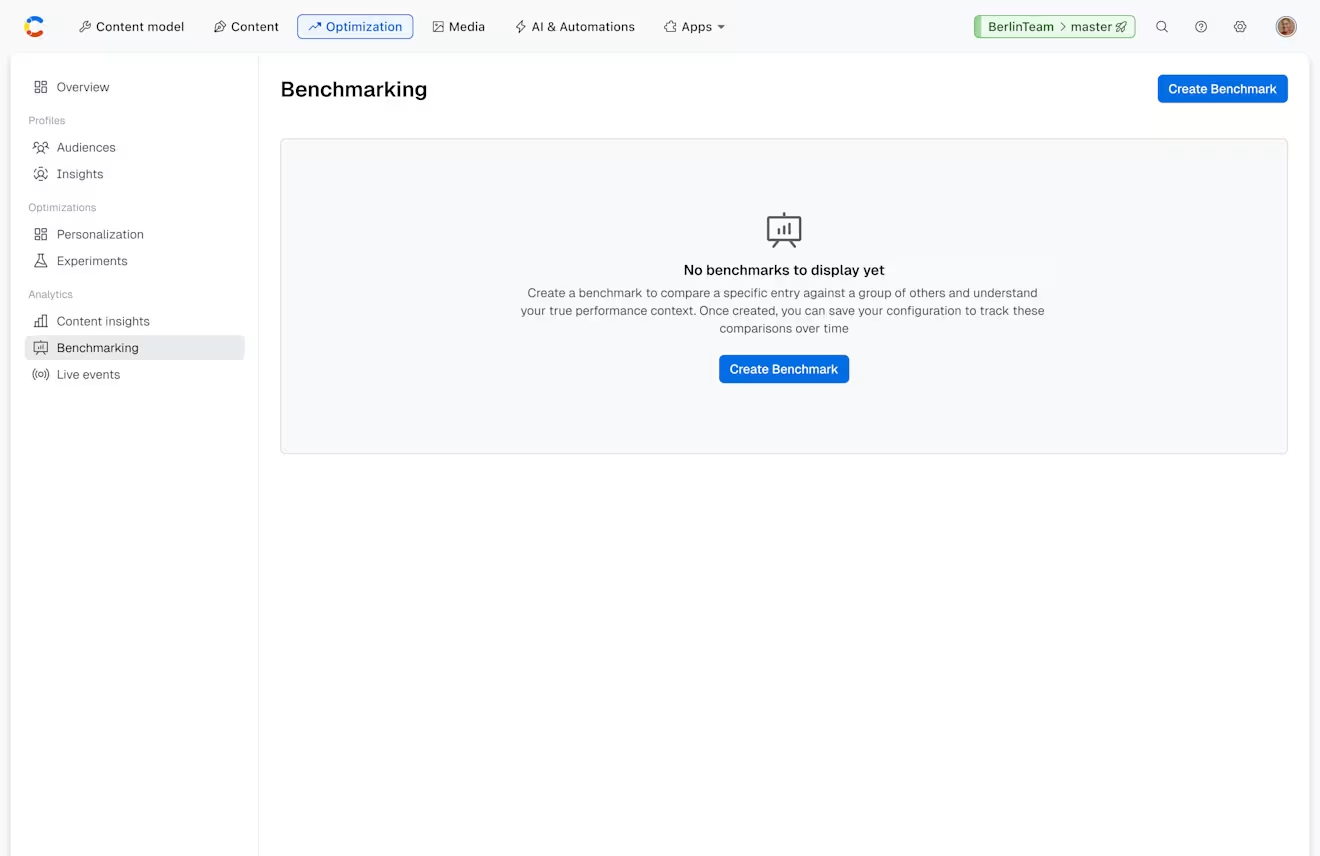
Click Create Benchmark. The “New Benchmark” modal is displayed.
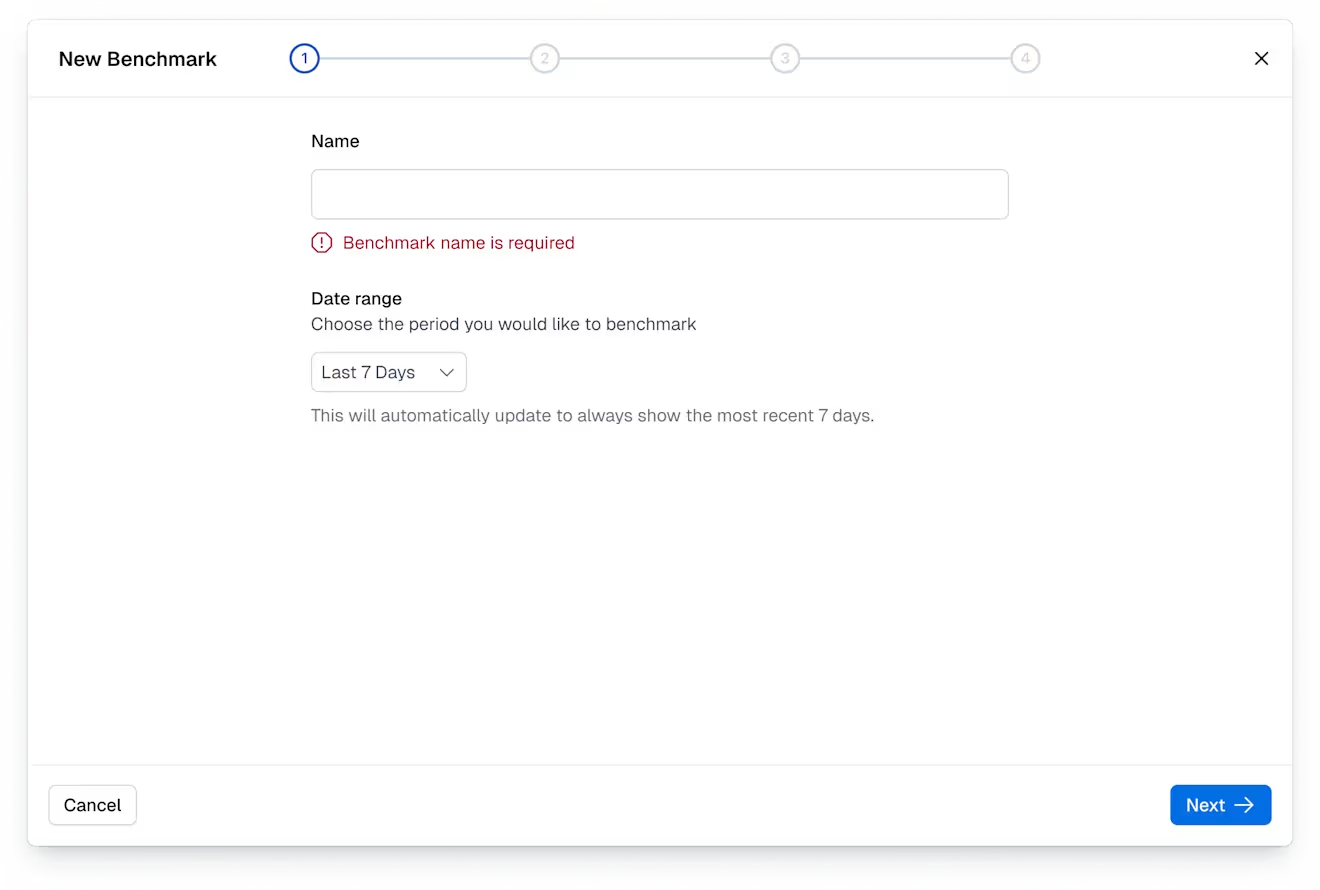
Enter a relevant name.
Under “Date range”, select the period you would like to use for benchmarking: Last 7 days, Last 30 days, or Last 90 days.
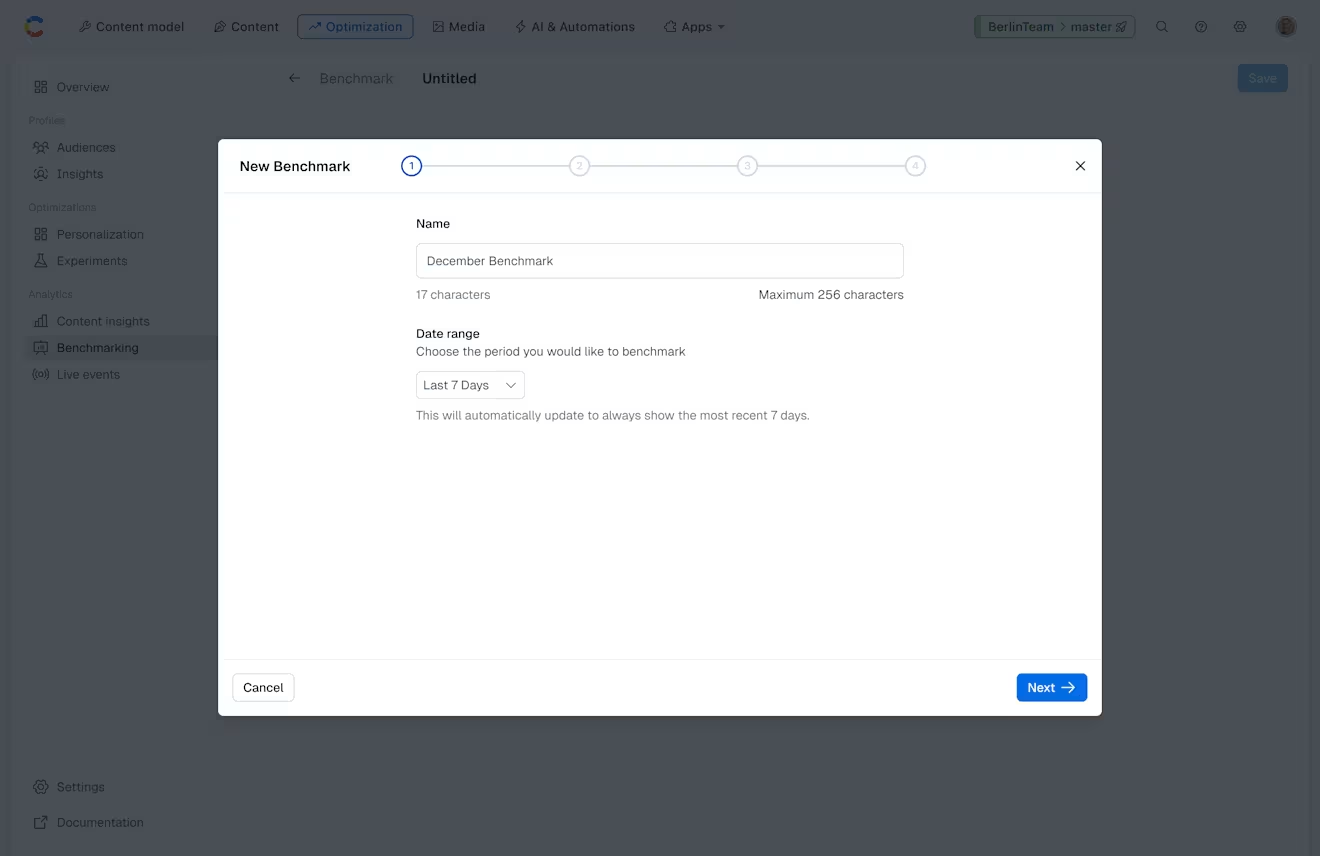
Click Next.
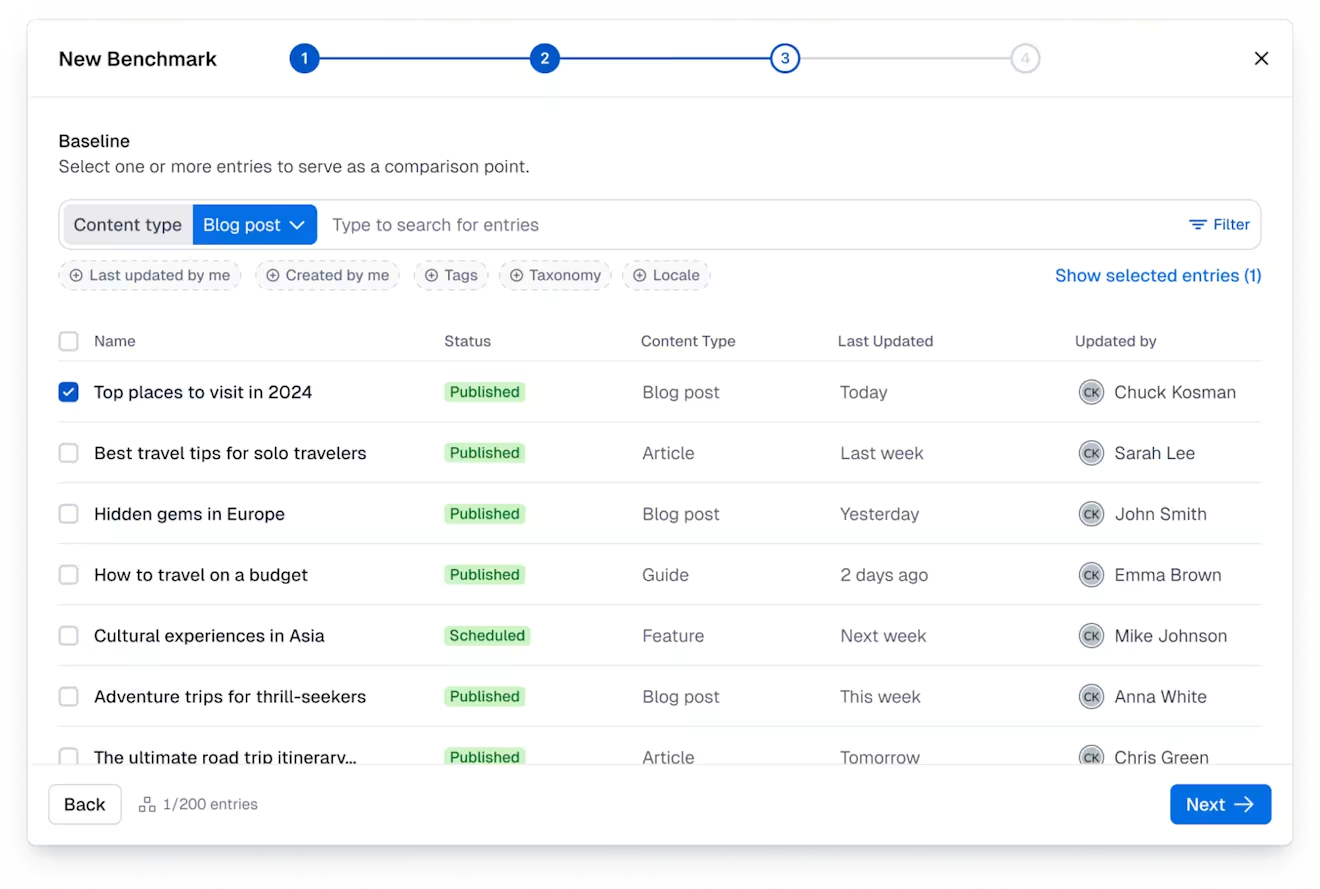
Under “Baseline”, select the entry or group of entries you want to use as a reference point.
NOTE: You can only select from the entries included in your space.
When you are satisfied with your selection, click Next.
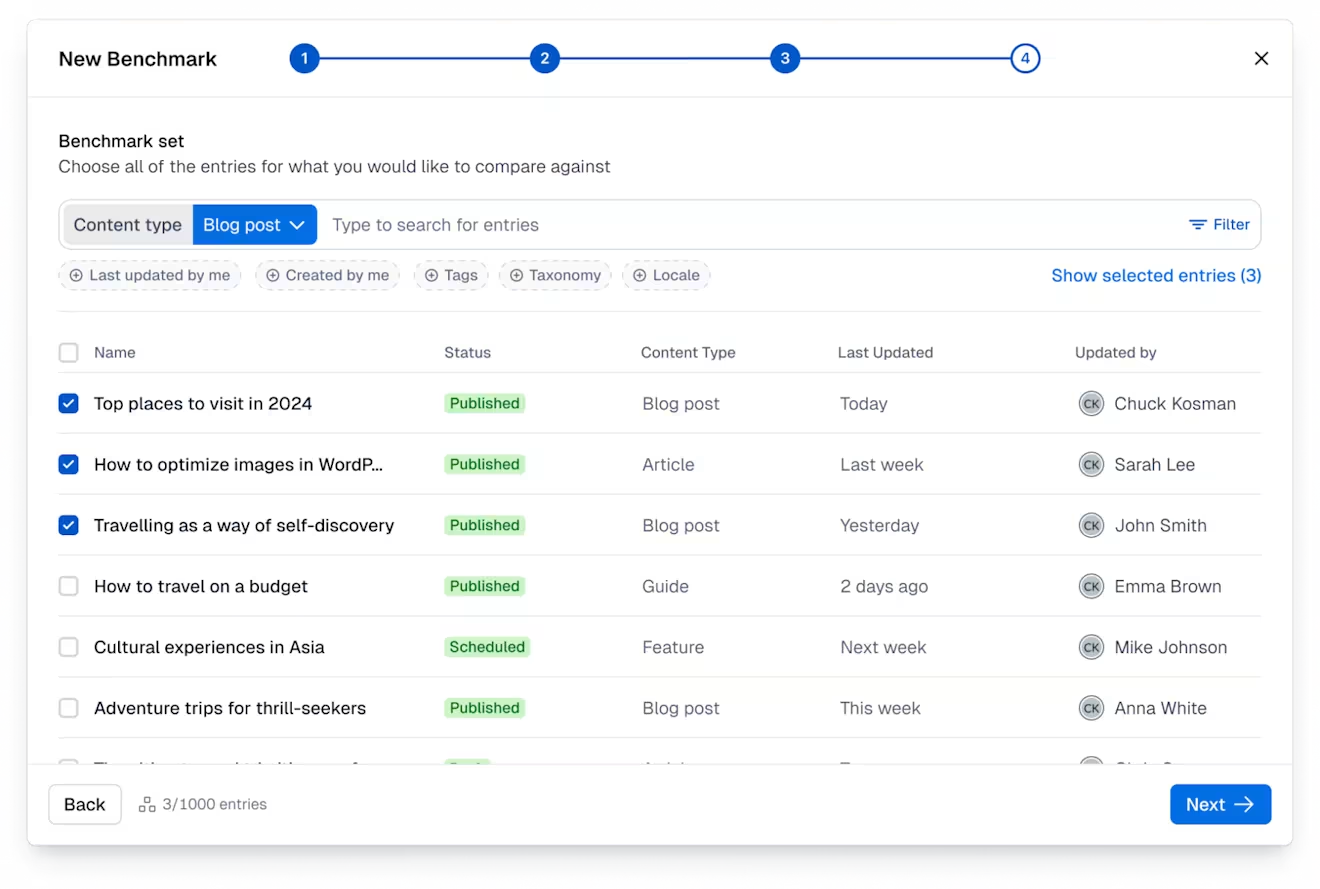
Under “Benchmark set”, select the entries you want to compare against, and click Next.
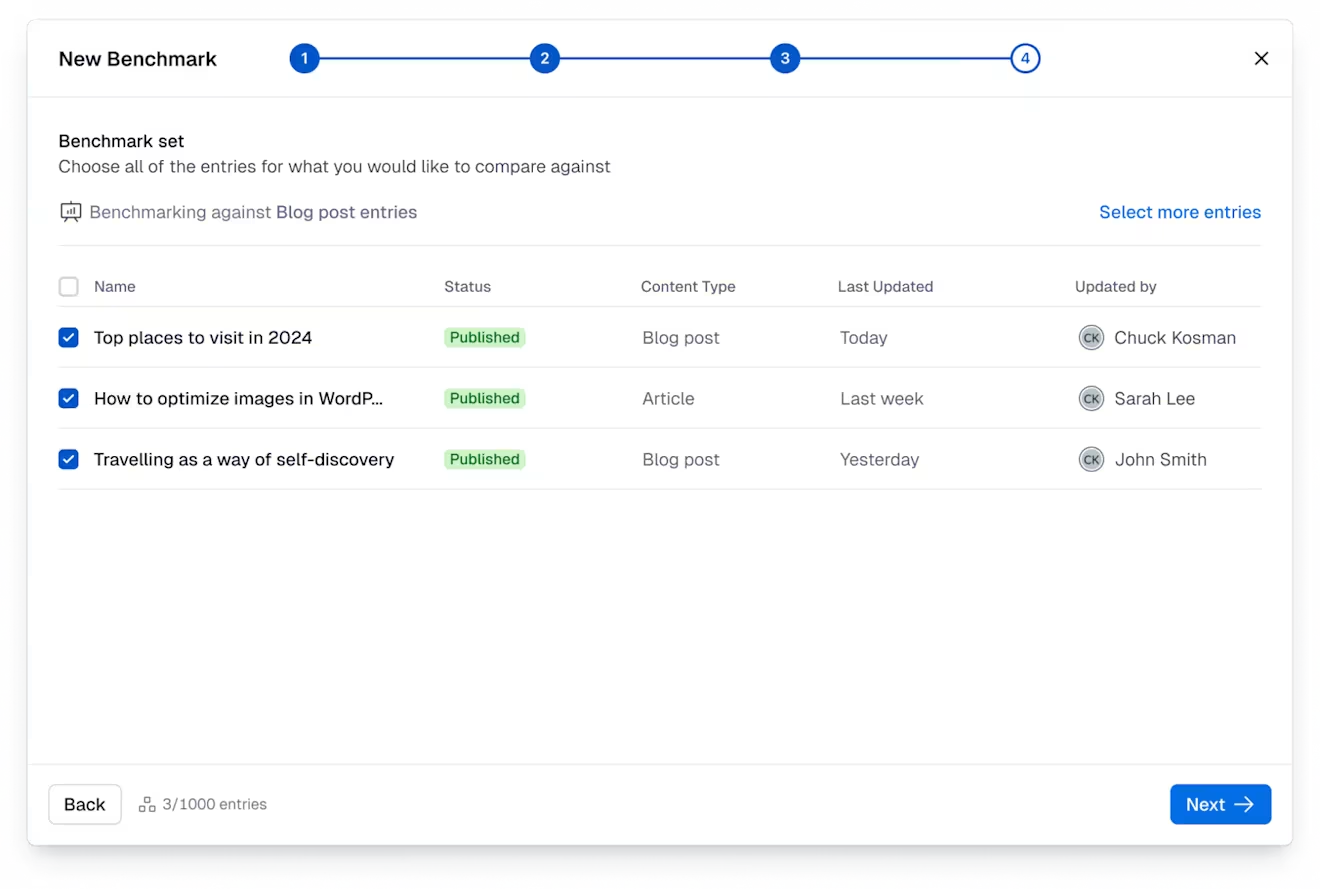
NOTE: Click Show selected entries if you want to see all the entries you have chosen grouped together for a final review before proceeding to the next step.
Under “Summary”, check if you have selected the right baseline and entry or group of entries that you want to compare against.
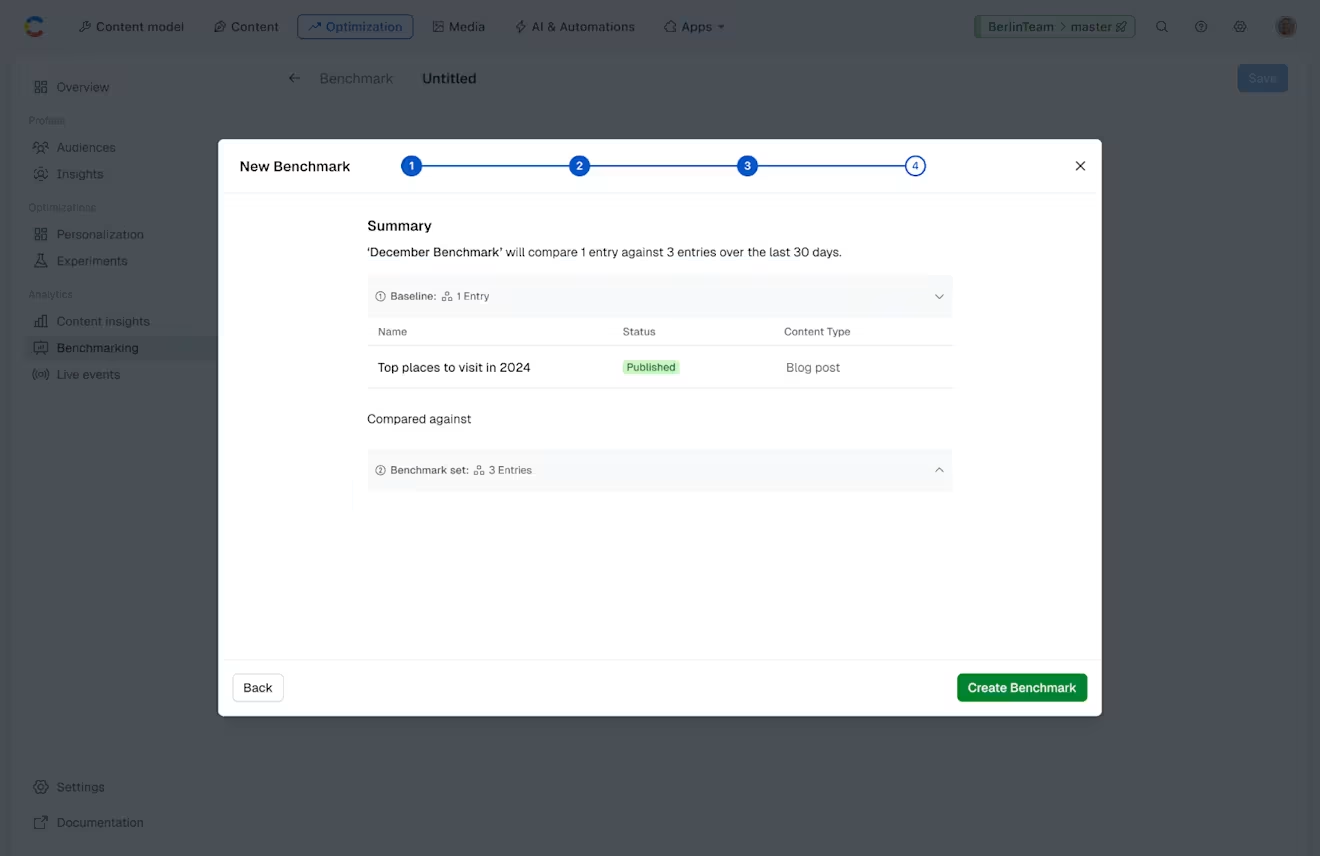
Click Create Benchmark. Your Benchmark is created.
Important: Your benchmark is not saved until you actually click Save. If at any point you navigate away from the creating process, your progress will be lost.
Click Save. Your Benchmark is saved and displayed on the main page.
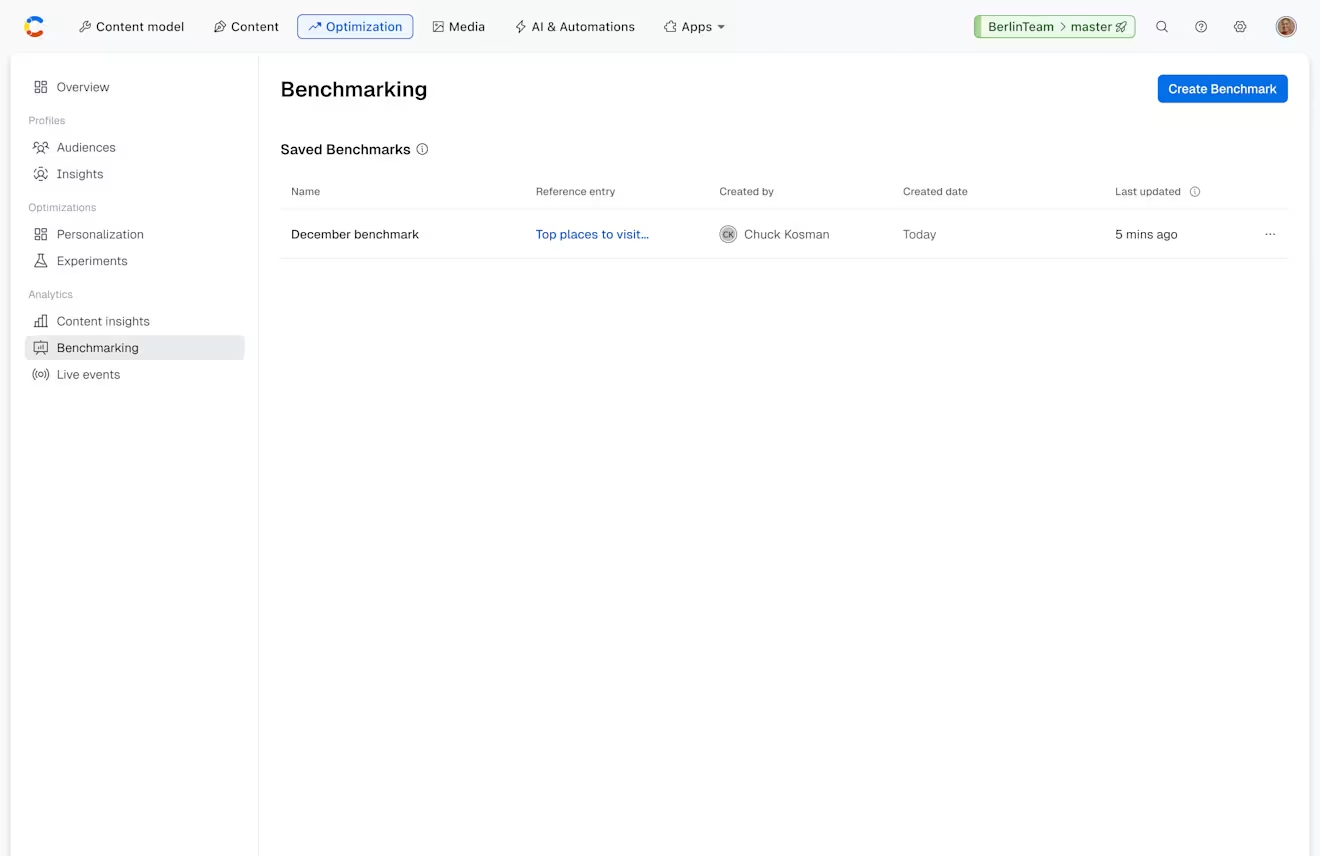
Once you’ve selected what to compare, Contentful Analytics retrieves and processes the relevant data.