What is Hydrogen?
Hydrogen is Shopify’s React-based framework for building custom storefronts.
Prerequisites
1. Contentful Account
Ensure you have a Contentful space set up and have access to the following:
Space ID
Content Delivery API Access Token (found here: Authentication)
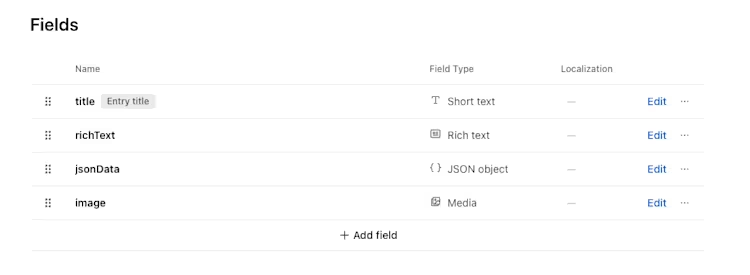
A content type in this space with the following attributes:
Content type name: data
Fields:
It should look like this when fully configured:
2. Node.js and npm
Installed locally for managing dependencies and running the project.
Initialize your Hydrogen Project
Run the following command to create a new Hydrogen storefront:
The CLI will ask a few questions around how you’d like to configure the project. These are suggested answers if you are new to Hydrogen and want to get un and running quickly. If you are more familiar, feel free to change your responses to more appropriately meet your needs, though this guide does not cover the changes or additional answers you may need to provide as a result.
1. Connect to Shopify
Select: Use sample data from mock.shop (You can connect a Shopify account later).
2. Choose a project location
Example:
3. Select a Langauge
Select: TypeScript
4. Select a styling library
Select: Skip and set up later
5. Install Dependencies
Choose: (y) Yes
6. Create a Global h2 Alias
Choose: (y) Yes
7. Scaffold Routes and Core Functionality
Select: Yes, set up now
8. URL Structure for Multiple Markets
Select: Set up later (You can run the command below alter if needed)
Once complete, Hydrogen will display the next steps.
Configuring and Running Hydrogen
Navigate to your project folder and start the development server:
Open the .env file at the root of the project (or create it if it does not exist) and add your Contentful credentials. Leave any existing env variables if they already exist:
You can find and create your access token here
Integrate Contentful
Create a new route file for Contentful integration:
File path: app/routes/contentful.tsx
Add the following code to fetch and display data from Contentful:
Contentful Content
If you haven’t already, create a few entries in Contentful of the data type described at the start of the article. The app/routes/contentful.tsx file we created earlier is able to handle missing attributes, so not all fields are needed depending on what you’d like to test.
Viewing your Contentful content
Finally, navigate to http://localhost:3000/contentful (after ensuring your dev server is running) to see your content inserted into the page. You should see a basic output of the the Contentful data fields you’ve created. From here, you can begin to make the changes to this Contentful content in your Hydrogen Storefront.
Next steps + additional reading
Check out some of the following links for some of the next steps you might take with your Hydrogen + Contentful app: