

Configure a webhook
Configuring a webhook within the web app
In the top navigation bar, open Settings → Webhooks. Click Add webhook, configure the remote host and click Save.
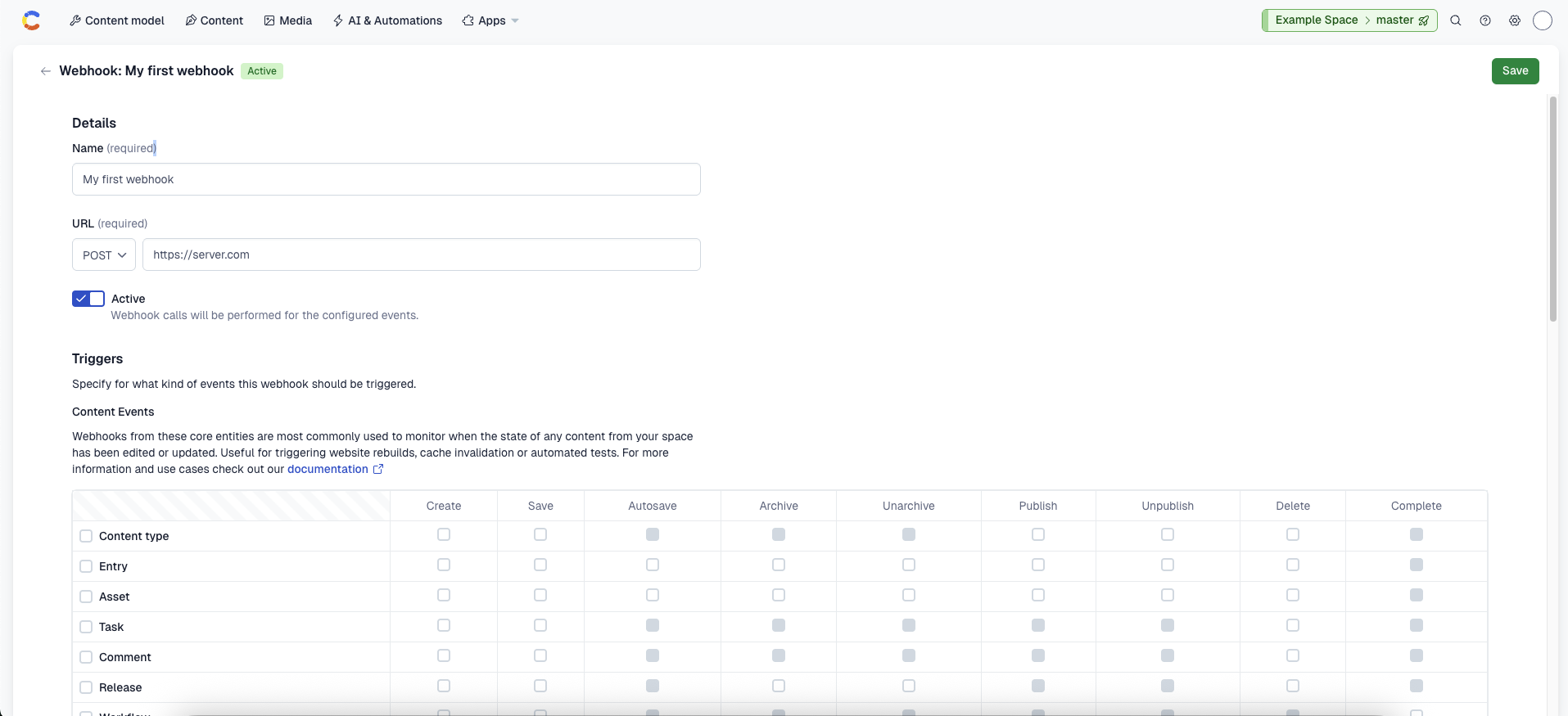
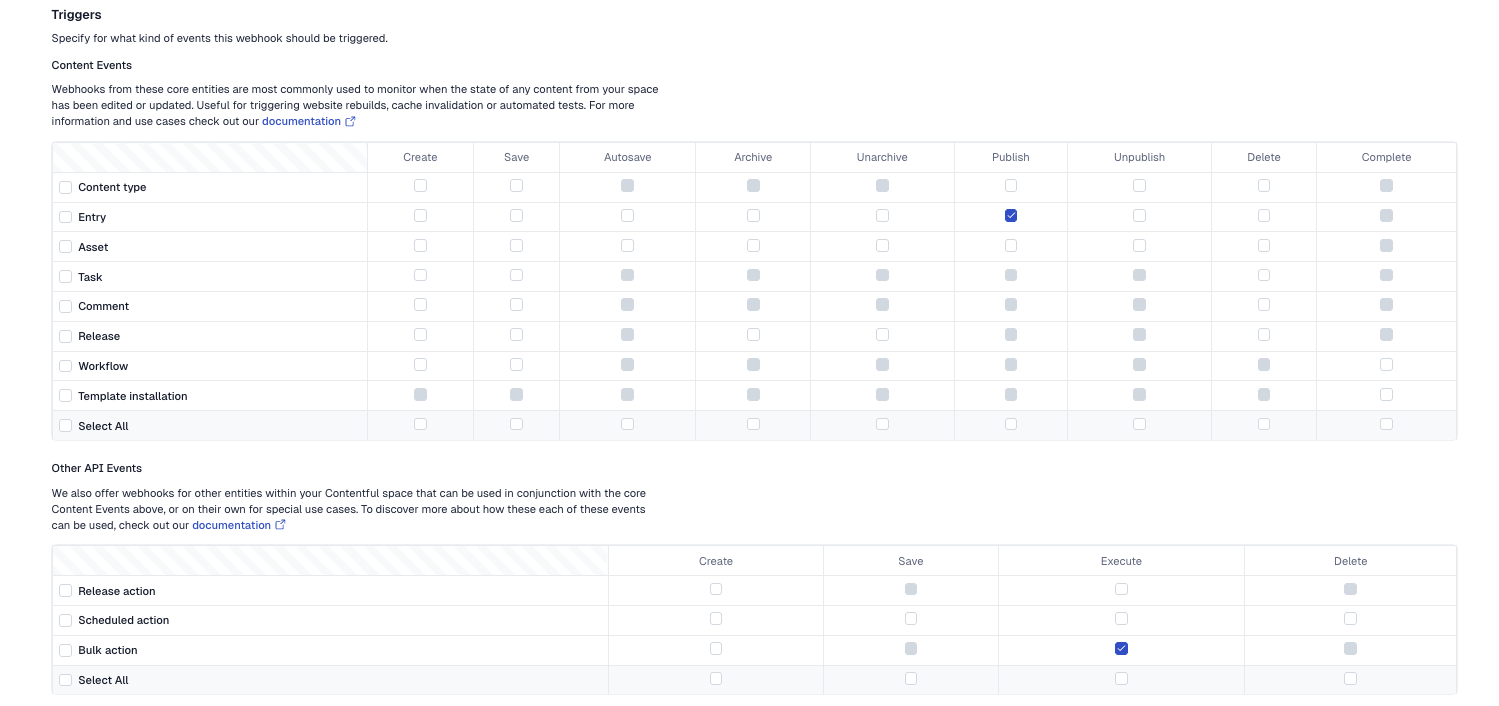
You can configure the specific events that trigger a webhook at the bottom of the screen.
Configuring a webhook via API
Create a webhook by sending the settings for the webhook in a request body with your API call, for example, the following the http request:
This webhook request will create a new webhook url in the specified space with a url, name, it will trigger for all topics and will not apply any filtering constraints.
URL requirements
The webhook URL must meet the following requirements:
- Scheme: Must be
httporhttps. Other schemes (e.g.ftp://) are not accepted. - Host: Cannot be
localhostor an internal network address. Use a publicly reachable host. For local development, a tunneling tool such as ngrok can expose a local server to the internet. - Port: Must be
80,443, or any port number greater than1023. Low-numbered privileged ports other than 80 and 443 are not allowed.
Topics
When creating a webhook you have to explicitly specify for which changes on your content (topics) you want your webhook called.
For example, your webhook could be called when:
- Any content (of any type) is published.
- Assets are deleted.
These filters have to be translated into a list of [Type].[Action] pairs, [*.publish, Asset.delete, Entry.*], and included in the payload that defines the webhook.
* is a wildcard character that can be used in place of any action or type. The combination *.* is also valid and means that your webhook is subscribed to all actions across all types.
* allows your webhook to be called for future actions or types that didn’t exist when the webhook was created or updated. Find more details on creating a webhook with the API in our reference docs.. or Type.* are not recommended for production webhooks. Subscribing to more events than necessary increases call volume significantly, which can slow down your endpoint and make it harder to identify relevant events. Stick to explicit topic combinations whenever possible.Topic rules:
- You must specify at least one topic — an empty topics list is not allowed.
- Duplicate topics are not permitted.
- Each topic must use the exact
[Type].[Action]format. Both the type and action are case-sensitive. - Only the type/action combinations listed in the table below are valid. An unsupported combination (for example,
Entry.executeorAsset.complete) will be rejected when saving.
Supported topic types and actions:
Headers
By default, all webhooks will contain the following headers
Additionally, extra headers may be sent to provide extra context, such as which scheduled action or bulk action triggered the action. A summary of these headers can be found in the webhooks section in the reference documentation of the Content Management API.
Custom header rules:
When adding custom headers to a webhook, the following constraints apply:
- Header key format: Keys must contain only letters (
A–Z,a–z), digits (0–9), and these special characters:! # $ % & ' * + - . ^ _ ` | ~. Spaces and other characters are not accepted (per the HTTP standard). - Header value format: Values must contain only printable characters. Control characters (with the exception of tab) are not allowed.
- No duplicate keys: Each header key must be unique within the webhook definition. If the same key appears more than once, the webhook doesn’t save.
- Secret flag: The
secretproperty, when included, must be the booleantrueorfalse.
Webhook names may contain Unicode characters.
When sending X-Contentful-Webhook-Name:
- Names that exclusively contain characters below byte
255are sent verbatim. - Names containing characters above byte
255are sent asutf-8''<percent-encoded-utf8>. - Consumers should decode the value only when it starts with
utf-8''.
For full details on configuring headers, marking headers as secret, and using header transformations, see the webhook headers documentation.
HTTP Basic Authentication
Webhooks support HTTP Basic Auth to authenticate outgoing requests to your endpoint:
Rules:
- Username and password must always be provided together. Supplying one without the other causes validation to fail.
- To remove basic auth from an existing webhook, set both
httpBasicUsernameandhttpBasicPasswordtonullin the same request. Setting only one tonullis not allowed. - Username: Maximum 50 characters.
- Password: Maximum 255 characters.
Filters
The webhook definition holds a filters property. Filtering is a second step after defining the topics. Typical use cases for filtering are enabling a webhook only for a specific environment ID or entry ID. Without a filter, a webhook with the topic Entry.publish is triggering for all entries in the master environment of a space. By applying a filter we could make the webhook only trigger for specific entry IDs within a specific environment.
A filter is defined by adding one or multiple parameter constraints to the webhook definition. The constraints consist of:
A property of the entity to evaluate:
sys.idsys.environment.sys.idsys.contentType.sys.id(for Entry events only)sys.createdBy.sys.id(not applicable to Unpublish and Delete events)sys.updatedBy.sys.id(not applicable to Unpublish and Delete events)sys.deletedBy.sys.id(only applicable to Unpublish and Delete events)
An operator, or a negation of an operator using not:
equalsinregexpnot(wraps any of the above operators to invert the match)
An argument for the selected operator:
- A string value (e.g.
"myEntryId") forequals - An array of strings (e.g.
["idOne", "idTwo"]) forin - A pattern definition (e.g.
{"pattern": "^ci-.+$"}) forregexp
Filter value constraints:
- String values used with
equalsandinmay only contain letters, digits, underscores (_), hyphens (-), and dots (.). Values must be between 1 and 255 characters long. inarrays must contain at least one string value.regexppatterns must be between 1 and 1024 characters long.- Each filter object must contain exactly one operator key (
equals,in,regexp, ornot).
So for example filtering a webhook to only trigger for two specific environments of ID master or development, the constraint would look like:
Multiple constraints are connected with logical AND. Let’s narrow the above’s filter further down so it only triggers for an entry of ID foo in environments with ID master or development:
The last example uses a regular expression to match all environments that have an ID which uses a common prefix of ci- followed by 3-5 lowercase characters (e.g. ci-foo, ci-bar but not ci-foobar):
To invert any constraint, wrap it with not. For example, to trigger for all environments except master:
Please note that filtering is done on the literal value of the path. It means that if you access your content through multiple environment aliases, you need to include all of them when attempting to filter based on sys.environment.sys.id.
For a full reference on how filters are defined please refer to the webhooks section in the reference documentation of the Content Management API.
Troubleshooting
The following table covers the most common reasons a webhook fails to save and how to fix each one.
Disabling a webhook
Sometimes you may need to disable a webhook. Perhaps the web service that should receive webhooks is still under development, or perhaps you want to avoid receiving webhook calls whilst you perform a data migration in Contentful.
The webhook configuration UI provides a toggle that can be used to disable or enable a webhook. It is also possible to disable a webhook through the api. For more details about webhooks see the Webhook API guide.