

Quick start guide
Introduction
This quick start guide walks you through setting up Contentful Analytics from scratch.
It assumes that your application implements Contentful Analytics in a React-based frontend and covers the following steps:
-
Create a Contentful account.
-
Create a new space in the Contentful web app.
-
Install and configure Contentful Personalization.
-
Install and integrate the Experience SDK.
Use version 7.17.6 or later. -
Enable Built-in AI Features for the Optimization Agent.
Step 1: Create a Contentful account
To create a Contentful account:
- Open the sign-up form.
- Enter the required details to set up your account.
- Select the CAPTCHA check box.
- Click Sign up. Your account is created.
Step 2: Create a new space in the Contentful web app
To create a new space:
- Log in to the Contentful web app.
- Click the environment switcher.
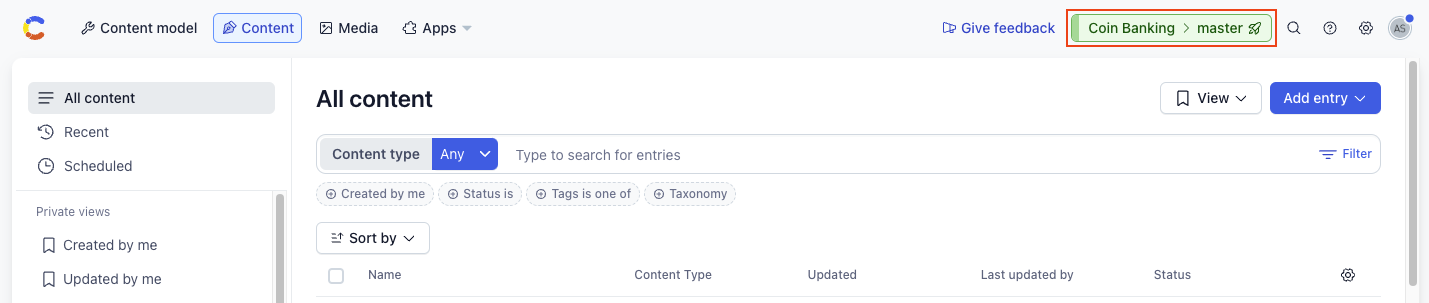
- Click the organization name, and select Organization settings & subscriptions.
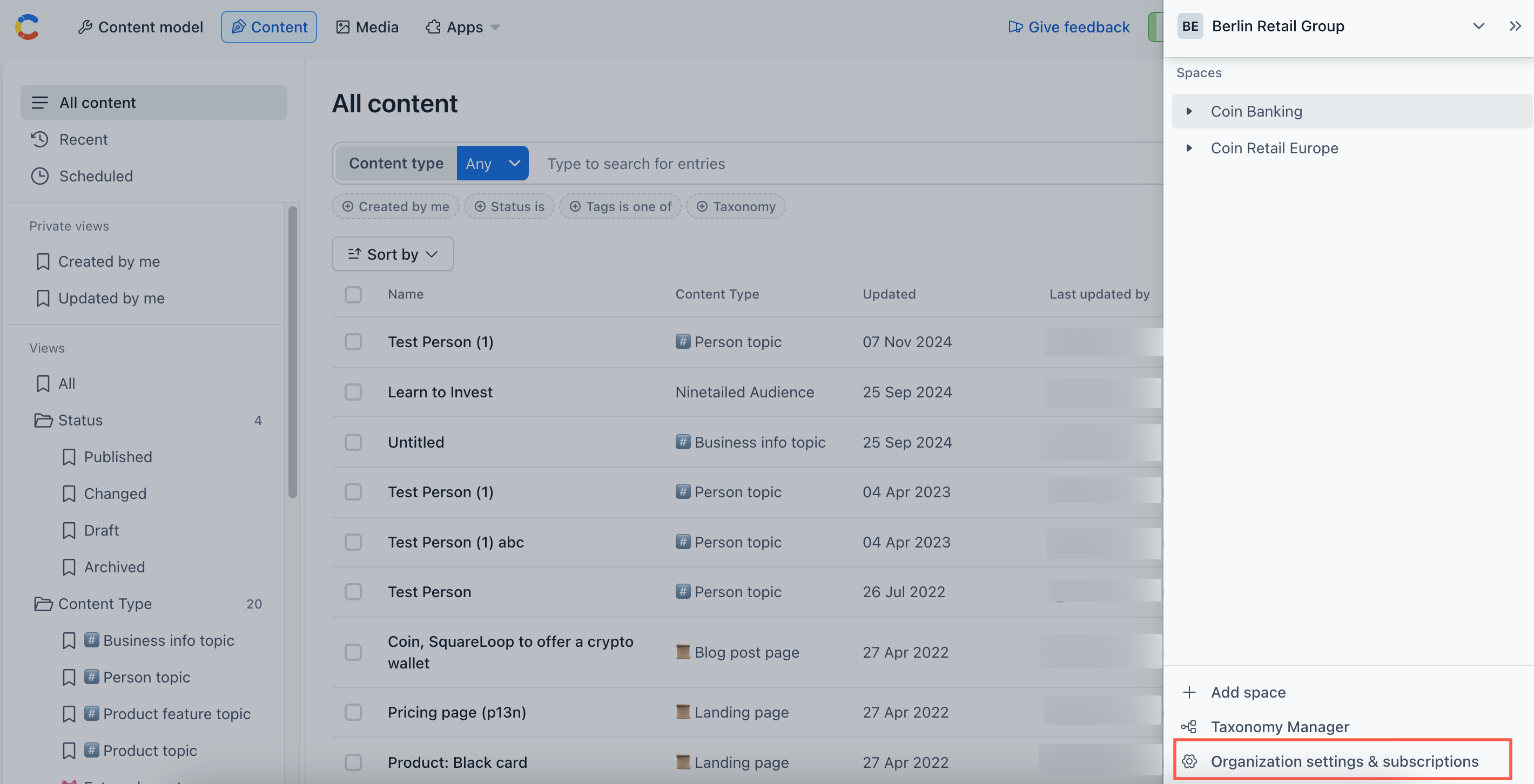
- Navigate to the “Spaces” tab. The spaces overview page is displayed.
- Click Add new space. The space configuration page is displayed.
- Choose a space license for your space, and click Continue.
- Enter your space details, and click Continue.
- Review the details, and, if everything is in order, click Confirm and create. Your space is created.
Step 3: Install and configure Contentful Personalization
To install and configure Contentful Personalization:
- Log in to the Contentful web app.
- Click Apps, and select Marketplace.
- Search for Contentful Personalization, and click on its name. The “App details” page is displayed.
- Click Install. The “Manage app access” modal is displayed.
- Select the environment in which you want to install the app.
- Click Authorize access. The Contentful Personalization configuration page is displayed with an overview of the upcoming steps required to correctly configure the app.
- Click Install. The app is successfully installed and the configuration page is displayed.
- Select the data bucket you want to connect to: Main or Development. For more information about data buckets, see the Data buckets page in the Help Center.
- On the “Analytics content types” tab, select the content types you want to extend with Contentful Analytics. Each content type you select will include an additional “Analytics” tab in the entry editor for any entry of that content type.
- Click Save.
Step 4: Install and integrate the Experience SDK
The fastest way to integrate Contentful Analytics into your application is by using our JavaScript Experience SDK.
The installation and integration can be broken down into four steps:
a. Install the SDK
Install a suitable version of the Experience SDK for your application and install the Insights Plugin.
b. Create a Ninetailed instance
The Experience SDK provides a Ninetailed instance that holds and updates the profile that identifies a user and provides methods to send events to the Experience API. It is instantiated by providing the API key and environment, and can be further configured through optional parameters.
The API key is the Client ID field value displayed under the “SDK Keys” section, on the Optimization tab.
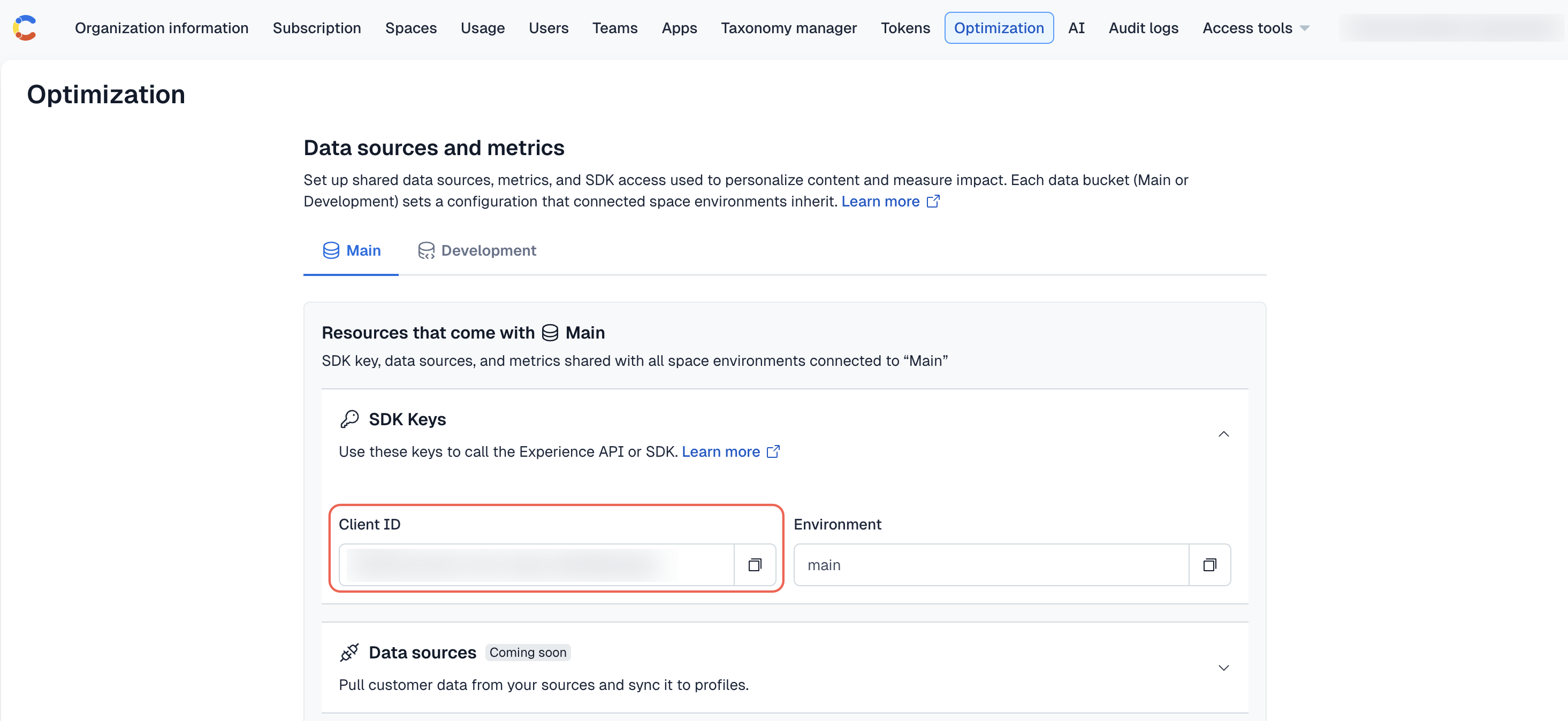
Your environment will be either main or development.
c. Create and send events
In Contentful Analytics, user activities are stored as page, track, and identify events, which the application sends to the Experience API.
Integrate your application with Contentful Analytics by ensuring that the application:
- Sends a
pageevent when a user views a page. - Sends a
trackevent when a user performs an action that you want to measure. - Sends an
identifyevent when a user performs an action that identifies them as a user who has visited the application before. - Sends a
componentevent when a user views a Contentful entry.componentevents are automatically sent by the SDK.
The Experience SDK provides an <EntryAnalytics /> component for wrapping React components. A wrapped component will automatically send a component event to the Experience API if a user views it.
Sending events directly to the API is possible, but using the Experience SDK is much more convenient. For more information on integrating your application with the Experience SDK, see the Send events section of its documentation.
d. Validate your integration
We recommend using Live Events to validate your setup and confirm that Contentful is receiving the event types required for Analytics.
To access Live Events:
- Log in to the Contentful web app.
- Navigate to the “Optimization” tab.
- In the left sidebar, click Live Events.
- Enable the Live event streaming toggle.
- Load a page that contains tracked content, and trigger a user action that sends a
trackevent. For example, clicking a button on the page.
If your setup is working correctly, you should see at leastpage,track, andcomponentevents displayed in the event stream on the Live Events page.
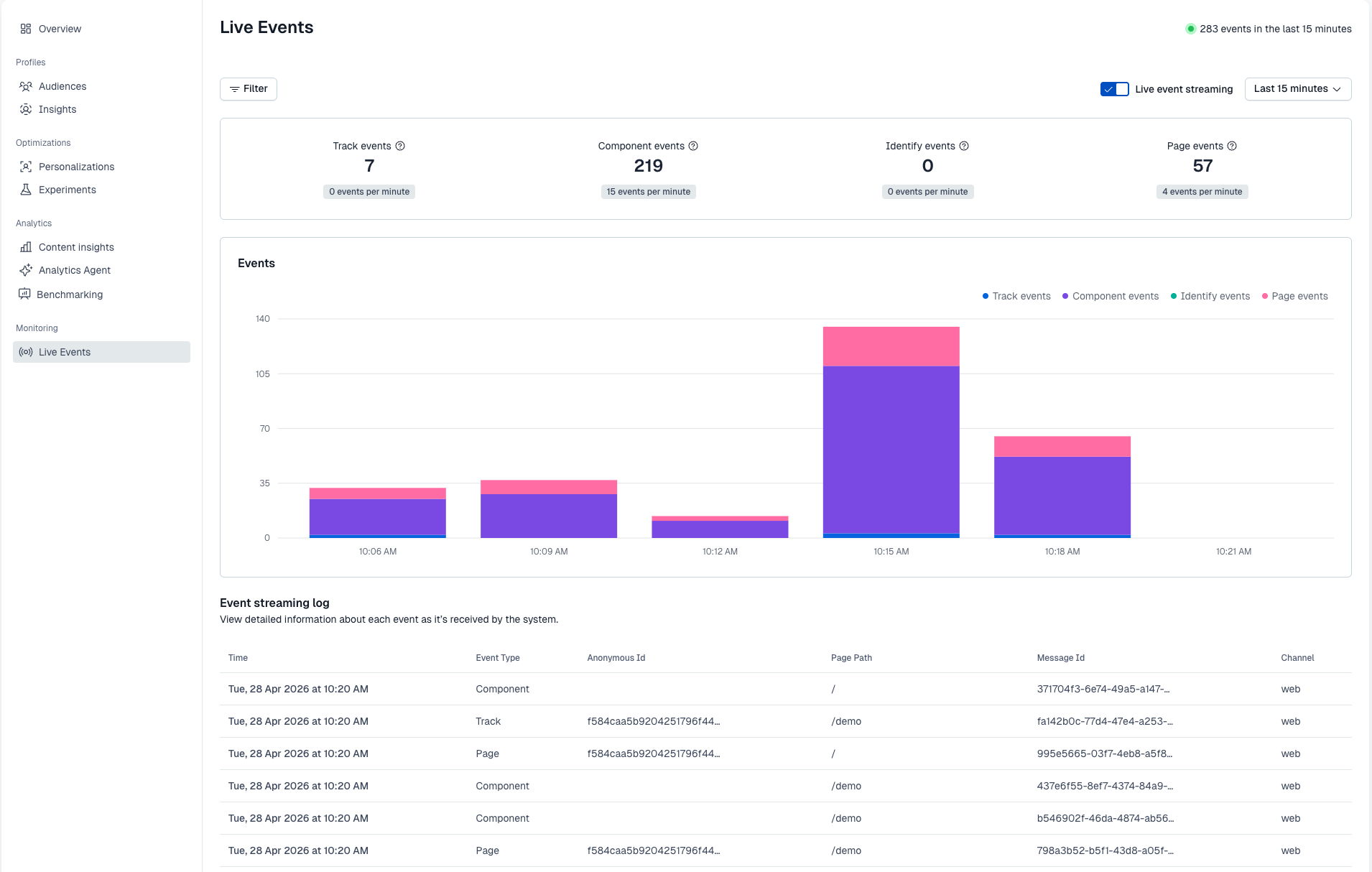
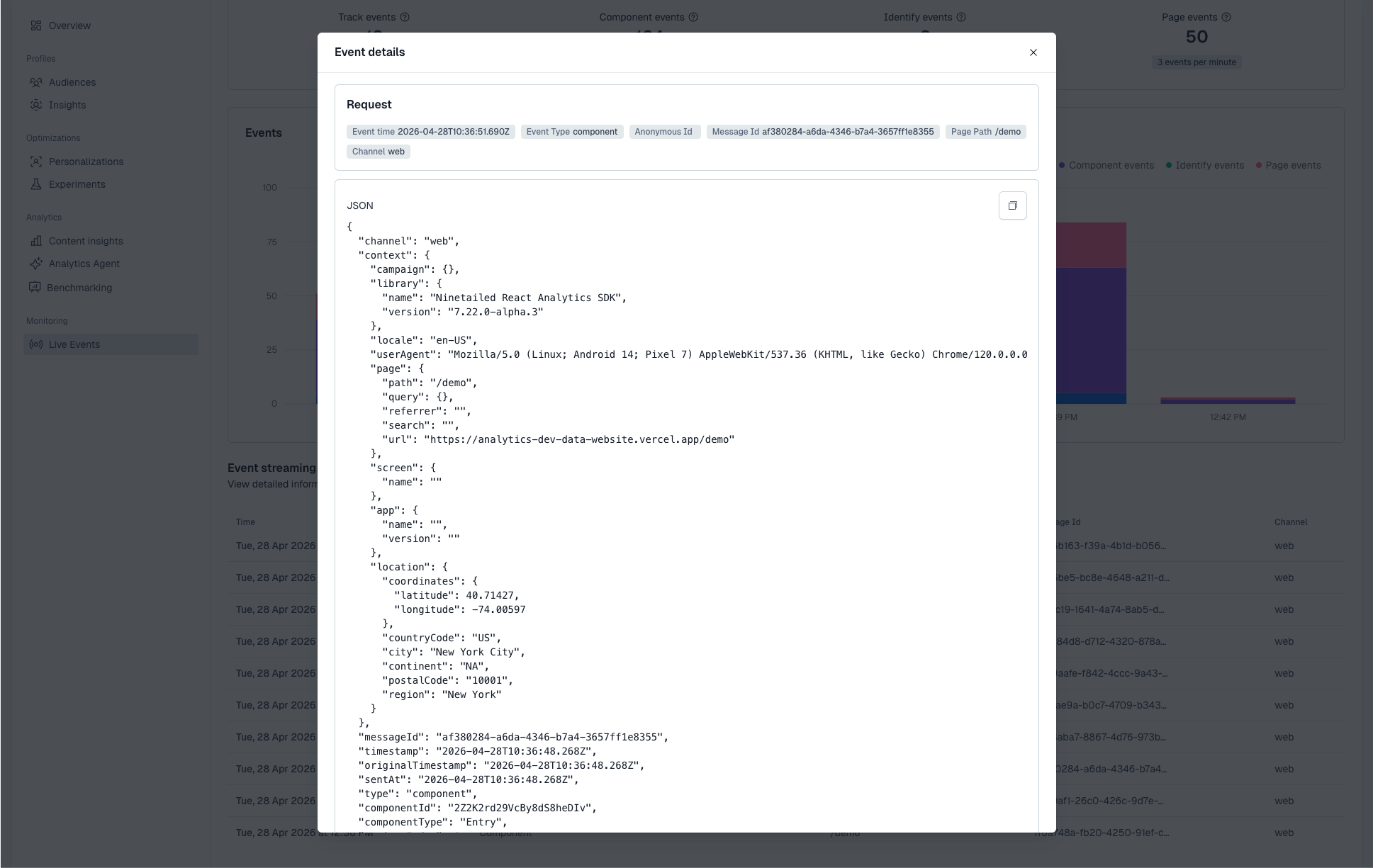
The Events dashboard displays the type of events that Contentful Analytics receives over time, and the Event streaming log lists individual events. If you want to inspect an event more closely, open its event details and review the JSON payload.
Only organization admins can access the Event streaming log and the event details.
When checking the JSON payload for component events, confirm that the payload identifies the viewed component correctly. If the component was rendered as part of a personalization or experiment, also confirm that the payload includes the associated experience metadata, such as experienceId. This is especially important for sticky variant persistence, where experienceId and variantIndex must be present.
Troubleshoot
If no events appear
If no events appear in Live Events, check that your setup is sending events at all. The most common issues are:
- an incorrect SDK API key
- the wrong environment
- not triggering any events in the application.
Make sure the Live event streaming toggle is enabled, then reload a tracked page and trigger a user action that should send a track event.
If component events are missing
If only page and track events are displayed, but no component events, the most common cause is that your components are not being tracked correctly.
For React-based setups, make sure Contentful entries are wrapped in <EntryAnalytics /> or <Experience />, and that the Insights Plugin is installed since it is required for component events to be generated and sent.
Step 5: Enable built-in AI Features for the Optimization Agent
The Optimization Agent is the AI assistant that allows you to ask contextual questions about your content and instantly receive AI-powered content answers, both as text and visual elements. The Optimization Agent relies on Contentful’s AI features, so you must first enable them at the organization level.
To enable AI features at the organization level:
- Log in to the Contentful web app.
- Navigate to the “Optimization” tab.
- Under Analytics, select the Optimization Agent tab.
- Click Go to Organization Settings.
- Click Continue to organization settings.
- Enable the Built-in AI Features option.
- Review the pricing and number of approved output words modal, then click Next.
- Review Contentful’s AI Terms of Service. If you agree, click Accept terms to enable built-in AI features.