Automation actions
An action defines the behavior of an automation. You can drag and drop these actions from the left sidebar into the visual builder. Each action includes more granular details. Actions are divided into different categories: Basics, Entries, AI, Workflows and App Actions.
Basics
The Basics are the fundamentals to creating any automation.
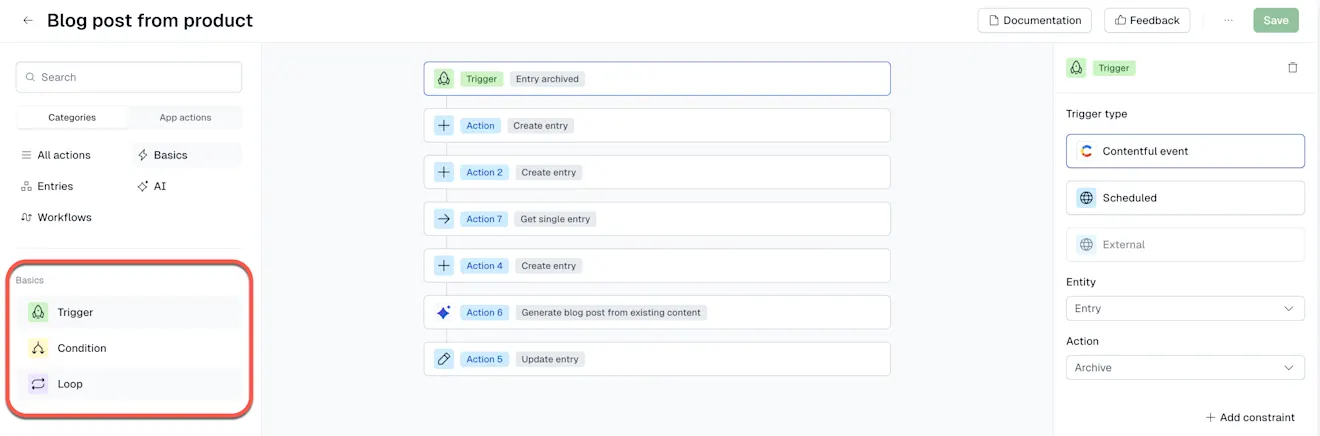
Triggers
Every automation must start with at least one trigger. Triggers define when the automation starts.
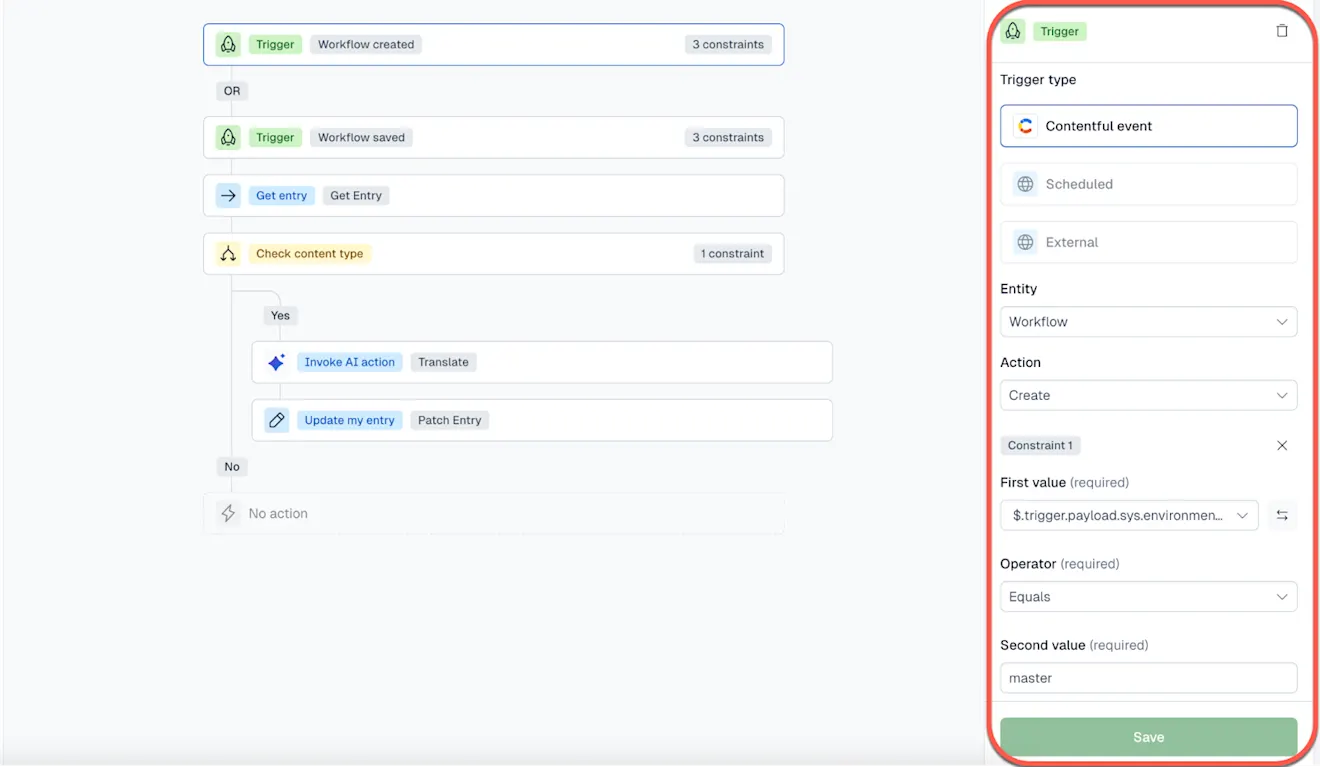
Trigger types:
Entry triggers: run when an event is created, saved, published, unpublished, archived and unarchived.
Workflow triggers: run when a workflow is created, saved, or completed.
Trigger constraints
Trigger constraints allow you to narrow when an automation starts by adding conditions directly to the trigger.
Constraints defined at the trigger level apply before the automation runs, while similar logic can also be added later using condition nodes to branch the automation after it has started.
For example, you can limit a trigger to only run for a specific content type, such as “Blog post,” or for a specific workflow step.
Use a Scheduled trigger to run an automation on a repeating cadence.
Start date and time: when the first execution starts.
Frequency: the interval between each automation execution how often to repeat (e.g., daily, weekly, monthly).
Time zone: time zone of the start date and time of the automation execution.
Conditions
A condition is a true/false check that evaluates whether a defined rule is met and routes the automation to different paths based on the result.
You can define one path for the condition with its own set of automation steps. whether an automation should resolve or continue.
For example, you can run an AI Action only if an entry matches a specific content type. For more information on these condition fields, read values and secondary values.
For more information on triggers, constraints and conditions, read our best practices page.
Loops
Loops is an automation action that allows you to process automations to multiple entries in sequence not in parallel. This makes it possible to apply updates or generate AI output for multiple items at once.
Example: create an automation to run through specific entries of a content type and translate the necessary fields.
Entry actions
Entry actions allow you to perform automations on your content in your content creation workflows. You can include one or multiple entry actions within a single automation
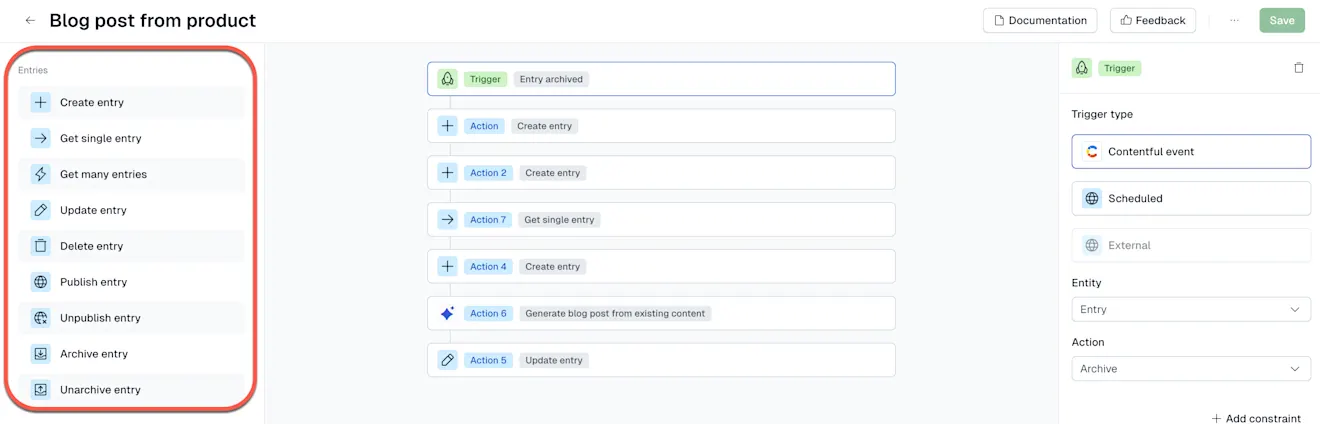
Archive entry
When an entry is archived, it’s removed from delivery APIs and taken out of active use. Use this to retire content without deleting it.
Create entry
When an entry needs to be created automatically, this action generates a new entry of the content type you choose.
Delete entry
Permanently deletes and removes the entry from your environment.
Get entry
Fetches a specific entry so its fields, metadata, or values can be used as inputs in later steps. This can often be the first step when you need to reference existing content.
Update entry
Updates one or more fields on an existing entry. Use this action to write AI-generated output or merge new data into an entry.
Publish entry
When an entry is successfully published and delivered via Contentful APIs. Use this after creating or updating an entry when the changes should go live.
Unarchive entry
When an entry needs to return to an active editing or publishing state, this action restores it from the archive.
Unpublish entry
Unpublishes the entry, removing it from delivery APIs while keeping it editable in the space. Useful when content needs a temporary takedown or revision.
AI
To use AI Actions in automations, you must first create and configure in the AI page, under the AI Actions tab. Once the action is saved to your environment, it will appear under the AI category in the sidebar of the visual builder.
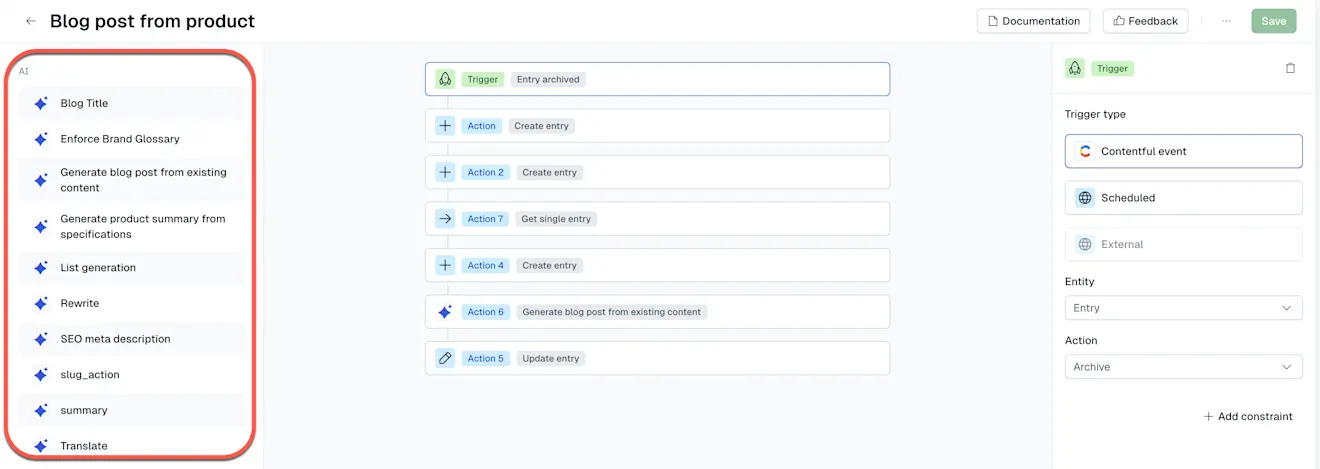
Similar to the other automation actions, you can include one or multiple AI actions within a single automation to chain steps. For example, in the translation use case, you can move a workflow step from “Draft” to “Translation” to translate multiple fields with AI. In the same automation, create another to move the workflow step to “Ready for review” for a translator to check.
Workflow actions
Workflow actions allow your automations start, move, or update workflow instances in response to content changes.
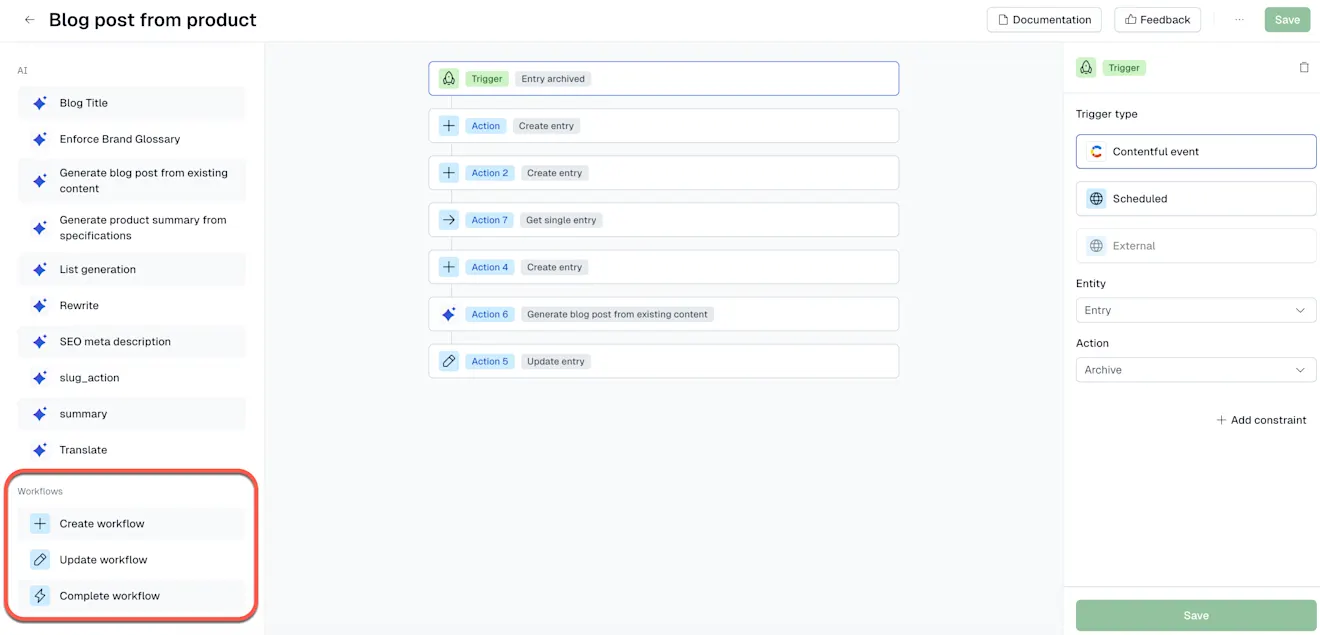
Complete workflow
When added to a workflow, this action completes a workflow if there is a trigger related to that workflow. Use it to move content forward once a workflow is marked complete.
Create workflow
This action initiates a new workflow once a step is marked complete.
For example, adding this action when reaching the completion of the review step and initiates a new workflow for a translation workflow.
Update workflow
When a workflow requires changes, this action updates the current state of the workflow, based on conditions in your automation.
For example, keeping workflows in sync with automated content changes.
For more information on integrating automations with workflows, read our use cases page.
App Actions
You can create actions to trigger messages or perform tasks with installed Marketplace and custom apps with App Actions (e.g., Slack, Microsoft Teams or Merge).
NOTE: To use any app, ensure the Contentful app must be installed in the target environment.
To see how to set up an automation with App Actions, read our documentation here.
To learn more about setting up App Actions and the framework, read our documentation here.