Automations
Overview
Automations allow you to set triggers and define actions so the system can execute tasks for your team to help streamline content workflows.
In these automations, you can integrate other existing features, such as AI Actions and Workflows.
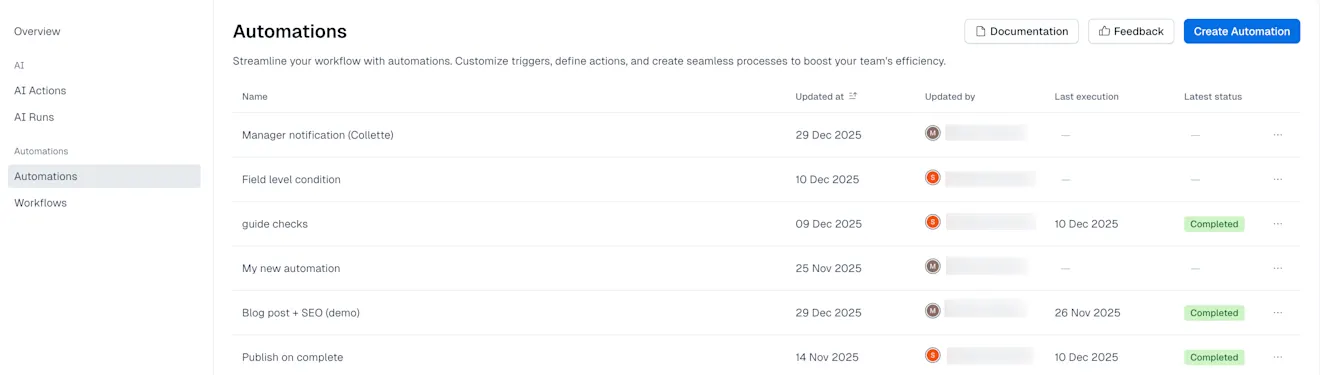
How automations work
An automation includes a series of nodes that execute a sequence of actions, conditions and loops when a particular event trigger occurs. Action nodes run a certain task while conditions allow you to change the execution flow depending on the output of action nodes.
In the Automations overview page you can:
View all created automations.
Edit and delete automations.
Check the status of automation executions.
To locate the Automations overview page:
Navigate to the AI & Automations tab.
Select Automations to open the list of existing automations.
Visual builder
In the visual builder, you can create your automation definitions. An automation definition includes these nodes in a tree structure, which represent one of the following:
Trigger - defines when the automation runs (green).
Action - defines the specifics of what the automation does (blue).
Condition - defines how the automation should continue (yellow).
Loops - repeat a set of multiple automation steps over a list of items (purple).
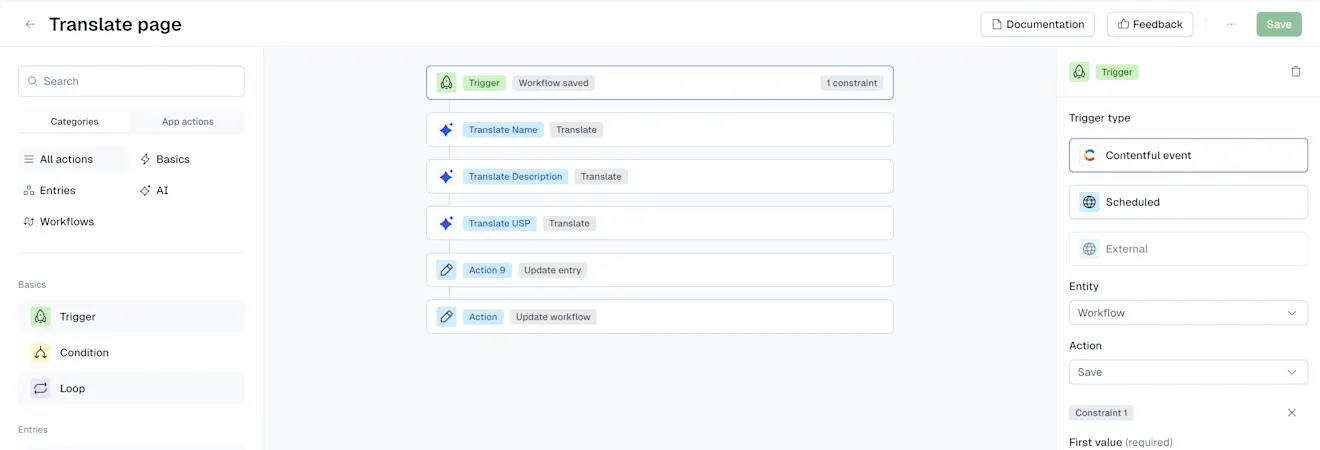
To locate the visual builder:
NOTE: only admins will be able to locate and edit in the visual builder.
Navigate to the AI & Automations page and select the Automations tab.
In the Automations overview page, you can view your automations. Select an automation from the table, to open the visual builder.
Pricing
This feature is only available on Pro plans and above. For more information, reach out to your sales representative.
Limitations
During execution, an automation may only have 1000 steps. (NOTE: automations that have a maximum number of execution steps, such as complex automations or large loops that reach this limit and may cause the automation to stop running).
Amount of automations: 100 per environment (Pro V3 and above).
Amount of executions per organization within 24 hours: 650 (Pro V3), 2000 (Premium and Premium +).
Automation action steps consume your space’s rate limit.