Automations: Use cases
The following use case tutorials give insight into leveraging Automations in practical content workflow scenarios. These use cases include creating new content from a published entry, enriching entries with AI-generated SEO metadata before review, localizing content and handing it off for human review and notifying team members with integrated apps like Slack when content is ready for the next workflow step.
Use case 1: generate new entries based on published entries
Once a Product Page (content type) is published, create an automation to create a draft for a Blog Post (content type) with AI-generated content from that Product Page.
Pre-requisites:
Create AI Action for generating blog post content (install the AI Action template “Generate blog post from existing content”).
Create two different content types: Product and Blog post.
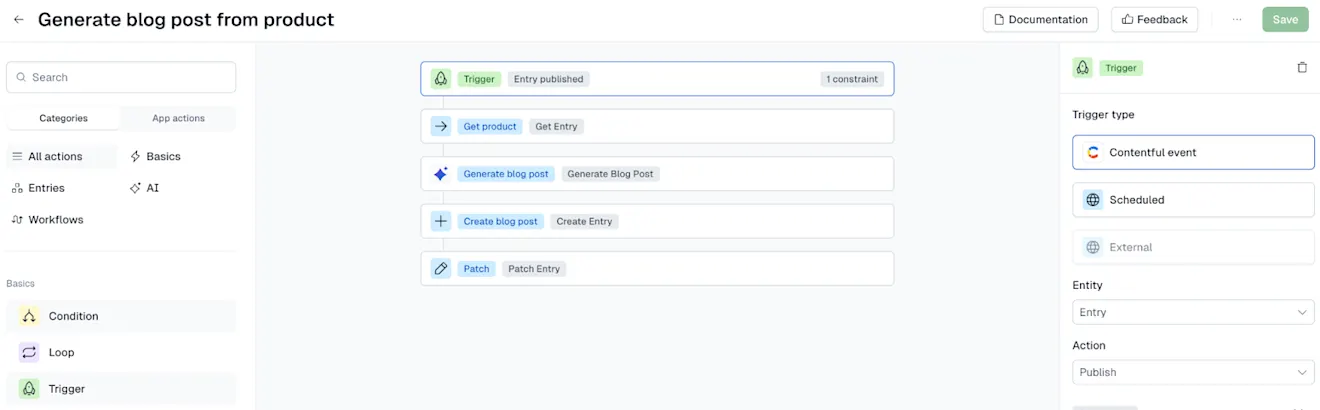
Set up in the automation nodes in the visual builder:
Trigger
Set Entity as “Entry” and Action as “Publish.”
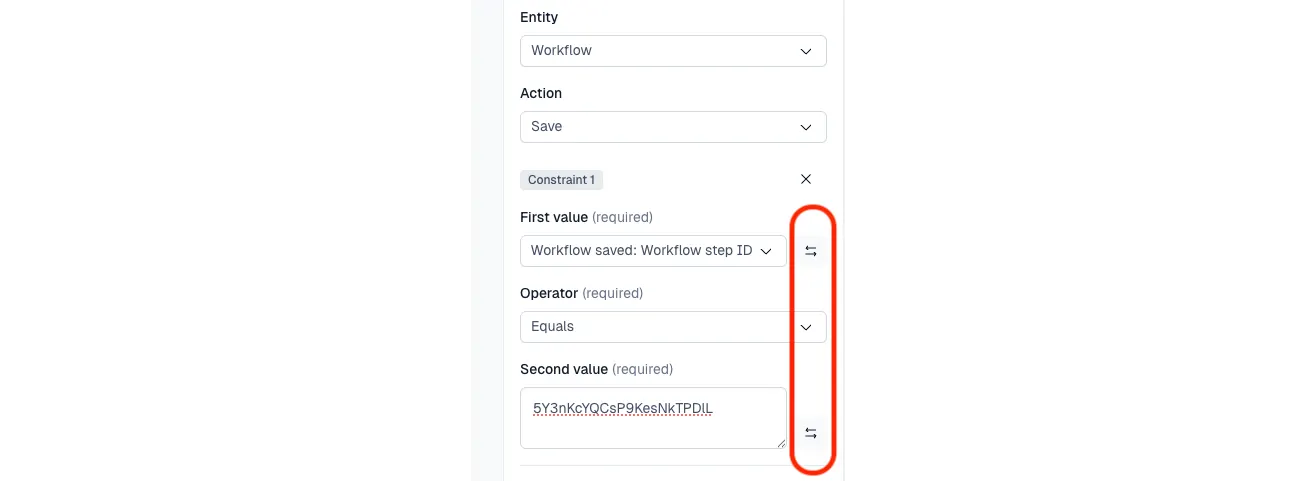
Set a constraint in the trigger. For the first value “Content type”, Operator as “equals” and Second value as “Product. (for the Second value, you need to click on the double arrow icon to change the dropdown to a free text field – and here the user needs to write the ID of their content type)
Get entry
Select Entry ID.
AI Action for Generate blog post
Output format: this is the format of the content (AI-generated content in this case). To match the formatting of the Content field from the blog post, select Rich Text.
Product name:
First field: select Entry ID under “Entry publish”.
Second field: select the field(s) you want to be used by AI to generate the content for a blog post (in this case, “Name"). NOTE: this can include multiple selections.
Create an entry
Select your content type for blog post (in this case it’s called “Blog post”).
Update entry
Entry: select Entry ID under “Create blog post”.
Field: select the field you want the content generated by AI to be added to (in this case, “Blog Post: Content”).
Value: select Result from “Generate blog post.”
Use case 2: generate SEO metadata for an entry and move for review
Once an entry moves from workflow step “Draft” to “Generate SEO metadata”, create an automation to generate SEO metadata from that entry with AI-generated content and move the workflow step to “Ready for review.”
Pre-requisites:
A workflow configured with steps “Draft”, “SEO generation” and “Ready for review”.
Create AI action for SEO metadata generation (install the AI Action template “SEO meta description”).
Have content type “SEO metadata” as a reference field in the “Blog post” content type.
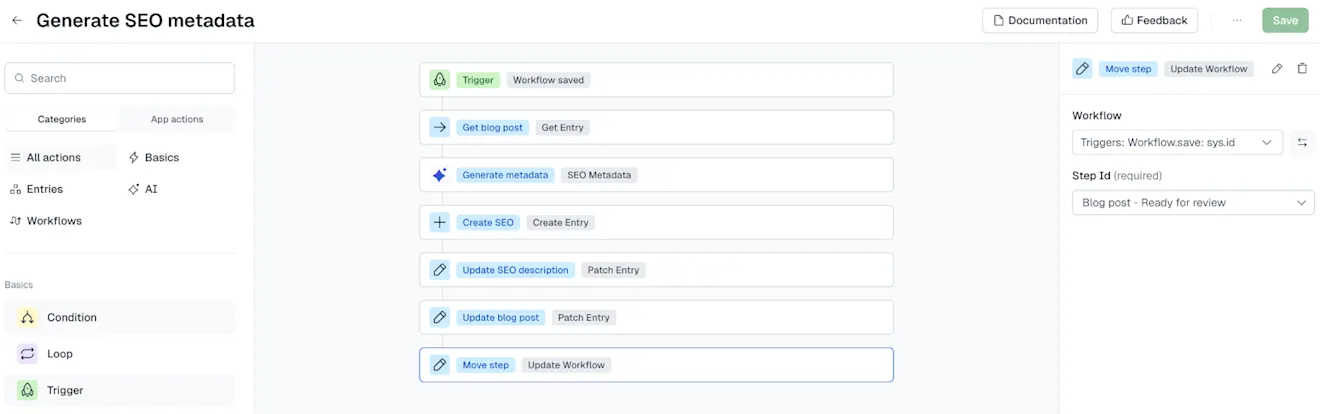
Set up the automation nodes in the visual builder:
Trigger
Select "Entity" as Workflow and "Action" as Save.
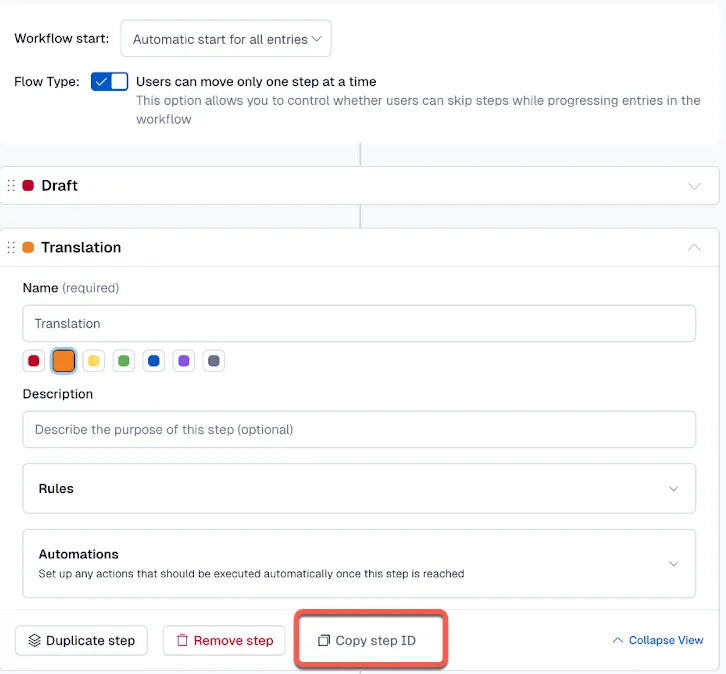
Add constraints for “step ID” and change “Second value” to the Free Text option. You can find step ID in the workflow editor:
AI Action: SEO metadata
Output format: needs to match the field you will be adding the AI generated content (in this case, “Content” from the SEO metadata content type, so “plain text”).
Entry
First field: select Entry ID from “Get blog post”
Second field: select field(s) you want to be used for AI to generate the SEO metadata (in this case, “Title” and “Content”) . NOTE: you can select multiple fields for this field.
Create entry
Select SEO metadata: this is the content type you want to create.
Update entry
Entry: select Entry ID from “Create SEO”.
Operation: “Set value”.
Field: Select the field you want to use for adding the AI generated content (in this case, “SEO metadata”).
Value: Select Result from “Generate SEO metadata”.
Update entry
Entry: select Entry ID from “Workflow saved”.
Operation: “Set value”.
Field: select the field you want to update inside the blog post (in this case, “SEO”).
Value: select Entry ID (Link) from "Create SEO."
Update workflow
Workflow: select Workflow ID from “Workflow saved”.
Step ID: select Ready for review.
Use case 3: Translate fields from an entry and move to a “human in the loop” step
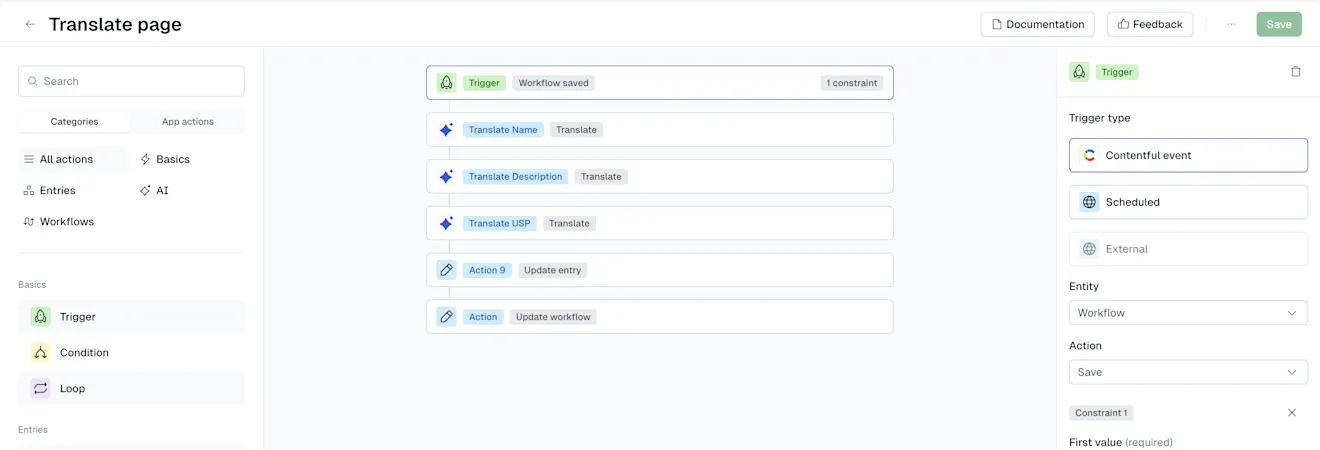
Create an automation to move a workflow for the Product Page draft from the workflow steps “Draft” to “Translation”. Translate multiple fields with AI and move the workflow step to “Ready for review” for a translator to check.
Pre-requisites:
Configure the workflow with steps: “Draft”, “Translation” and “Ready for review”.
Create an AI Action for translation (use AI Action template called “Translate”).
Set up the automation nodes in the visual builder:
Trigger
Select "Entity" as Workflow and "Action" as Save.
Add constraints for “step ID”, change "Second value" to Free Text to add the step ID. You can find step ID in the workflow editor.
AI Action for Translate: add one AI Action node for each field you want to translate in the entry (total of three for this use case). For the following, we will walk through the “Name” field.
Output format: match the AI-generated content format with the field you will be translating (in this case, “Name” from the Product page, so “plain text”).
Source locale: select the locale you want AI to translate from (in our case, “English”).
Target locale: select the locale your content to be translated to (in this case, “German”).
Content
First field: select Entity ID from “Workflow saved”.
Second field: select the field you want to be translated (in this case, Name field from “Product” content type).
Update entry: add one node for each AI translation action (in this case, three different “Update entry” nodes).
Entry: select “Entity ID” from “Workflow saved”.
Operation: select Set value.
Field: select the field you want the translation to be added to (in our case, Name from “Product” content type).
Value: select Result from “Translate name”.

Update workflow
Workflow: select Workflow ID from “Workflow saved”.
Step ID: select Product - Review.
Use case 4: send Slack notifications once an entry is ready to be reviewed

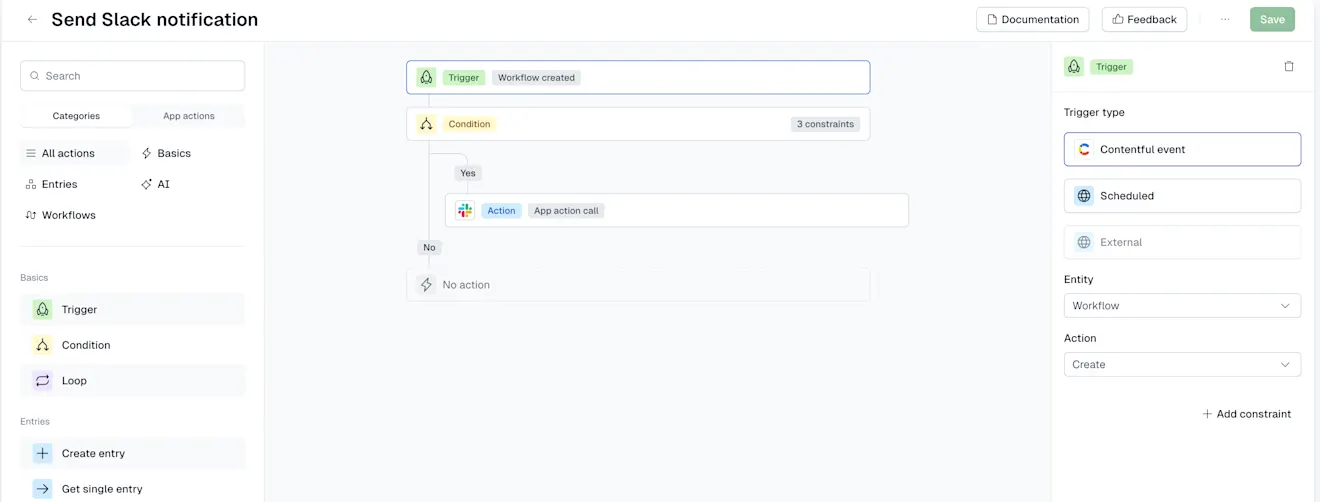
Create an automation to notify the appropriate recipients with a Slack message whenever an entry moves from one workflow step to the next .
Pre-requisites:
The Marketplace App Slack must be installed and enabled to the same environment.
The “Contentful App” needs to be added to the Slack group/channel you want the message to be sent to
Set up the automation nodes in the visual builder:
Trigger
Select Entity as “Workflow” and Action as “Save”.
Add constraints (as done in the previous use cases depending on which step you want the message to be sent – in this case we didn’t add anything)
App Action Call: Slack message
Message content: Write the message you want to be sent (if you click on the {...} icon, you can add dynamic fields to your message – for example, “The content from {created by} is now in {Step ID} step and ready for your review.”)
Slack channel name or ID: add the name of the group/channel you want to send the message to.
Workspace ID [Optional]: if left empty, the action app will use the workspace configured for the slack app in the environment.