Data buckets
Overview
Data buckets are a type of container for your data, similar to a Google Analytics 4 property. They are used by Personalization and Analytics to store and retrieve data, and they define configurations or connections such as metrics and data sources.
Every environment where Contentful Personalization or Contentful Analytics is installed, comes with two data buckets:
Main – This bucket should be used as the place for production data.
Development – This bucket should be used for testing purposes.
Each data bucket has its own configuration:
SDK key – A unique identifier that authenticates and authorizes the Experience SDK and Experience API. Using the sdk key, you can determine where events are written for analytics and which profiles/personalizations are read.
Data sources – A data source is an app that contains relevant customer data you can connect to Contentful Personalization and sync traits and events into the selected bucket. For more information about data sources, see Data connectors.
Metrics – Metrics measure your conversions and other actions for which you are optimizing with your Experiences. For more information about metrics, see Set up metrics.
For information on how to connect a data bucket, see Set up Contentful Personalization.
Connect a different data bucket
You can change the data bucket your environment is connected to so you can run experiments and personalizations on different audiences.
To connect a different data bucket:
Log in to the Contentful web app.
Click Apps, and select Installed apps.

Click Configure next to Contentful Personalization. The app configuration page is displayed.
In the Data bucket drop-down field, select a different bucket to connect to.
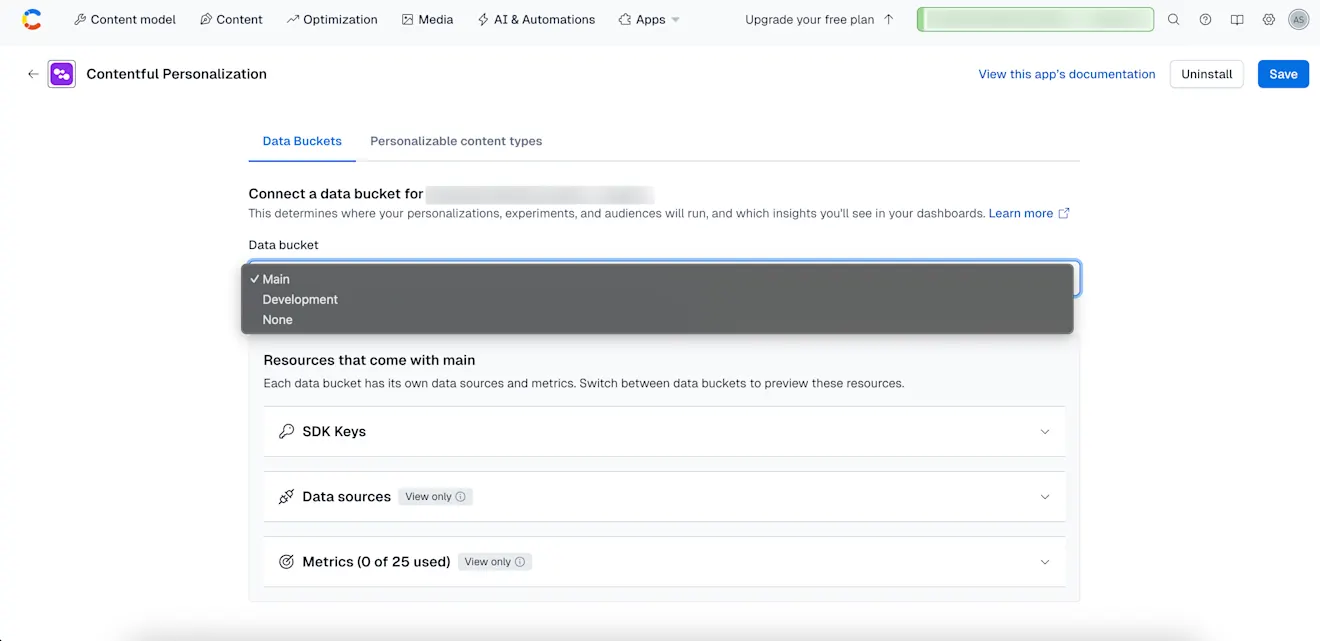
Click Save.
Best practice: connect an alias
As a best practice, we recommend connecting to an alias (e.g., production, staging) rather than a specific environment. When you later point the alias to a new environment, the data bucket connection remains intact because experiences/audiences follow the alias.
We recommend you connect a specific environment only when you explicitly need bucket bindings on an environment that is not behind an alias.
NOTE: This can introduce conflicts if multiple environments are connected that host identical Experiences or Audiences.
How to connect an alias
To connect to an alias:
Log in to the Contentful web app.
Click the environment switcher, and select an alias that points to your target environment.
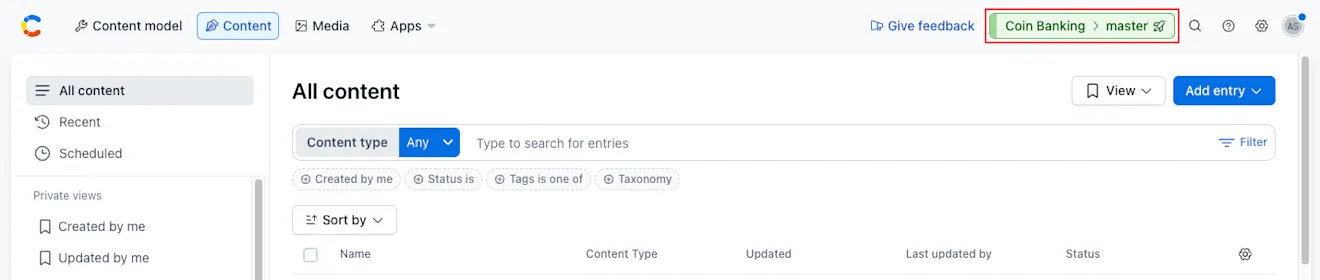
Click Apps and select Installed apps.
Click Configure next to Contentful Personalization. The app configuration page is displayed.
Under the “Data buckets" tab, choose Main or Development as your data bucket.
Click Save. The alias is now connected. Switching the alias later preserves the connection.
How to connect a specific environment
To connect to a specific environment:
Log in to the Contentful web app.
Click the environment switcher, and select the environment (not the alias).
Click Apps and select Installed apps.
Click Configure next to Contentful Personalization. The app configuration page is displayed.
Under the “Data buckets" tab, choose the desired bucket.
Click Save to bind that environment directly.
View‑only Data sources and metrics
The current bucket’s Data sources and Metrics are read‑only. To edit them, navigate to the Optimization tab under the organization settings. For more information about editing metrics, see Set up metrics.