Environments permissions
Environments access levels
Under Access to environments, you can choose one of the following options:
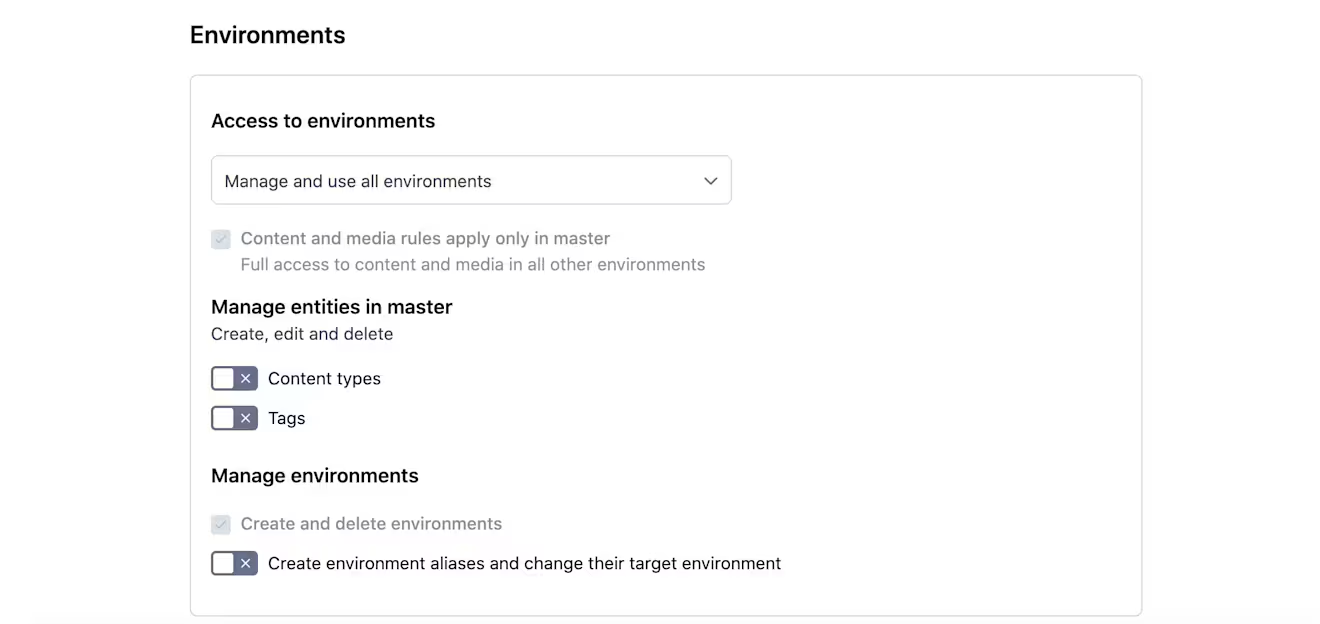
Manage and use all environments - Grants full access to all environments within the space. The user can manage all content and tags, depending on the role’s assigned permissions.
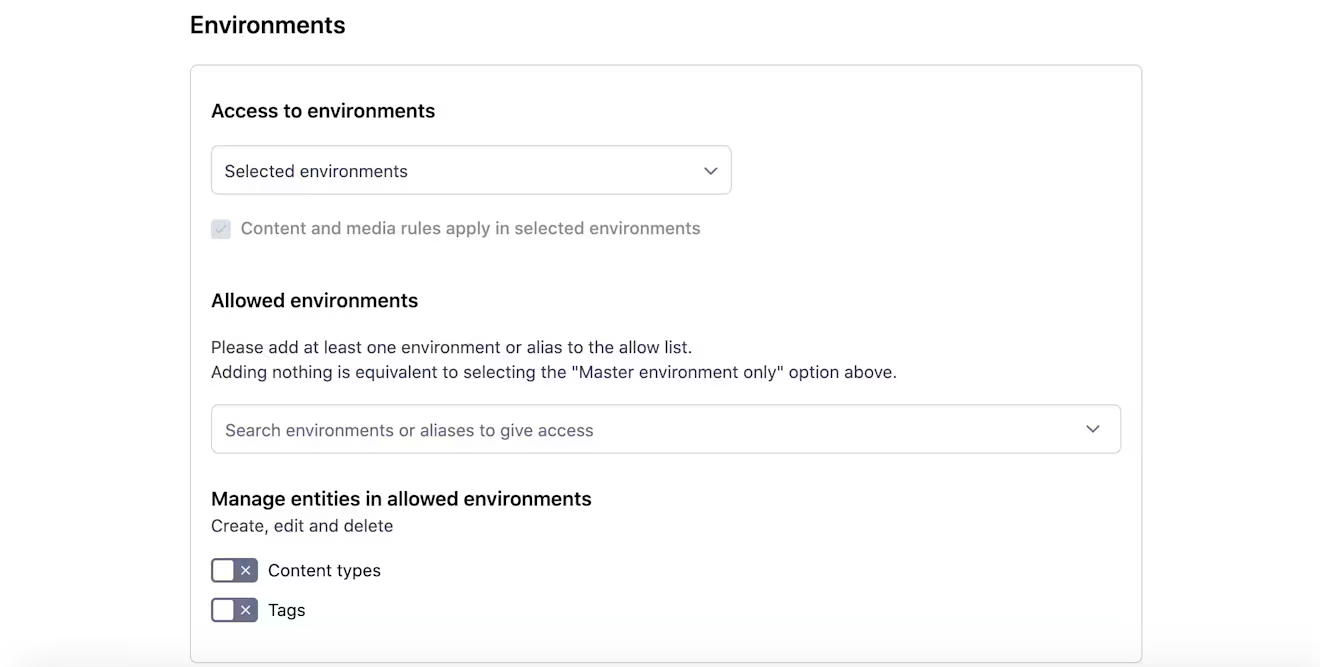
Select environments or aliases to give access - Allows you to select specific environments and configure granular permissions for each. For example, you can give read-only access in Production and full edit rights in Development.
Master environment only (default) - Allows you to set your role to access only the master environment. The role won't be able to access non-master environments.
NOTE: With the “Manage and use all environments” permission, the role’s access to master environment content is defined by its content and media permissions. In sandbox environments, this role has full access to all content.
NOTE: A space Administrator role has full access to all environments (including the master environment) and their content.
How to configure access to environments
To configure a role's access to environments:
Go to the Environments tab in the Role editor page.
Under the Access to environments area, select the required environments' access level. If you selected the Selected environments option, please continue to step 3 in How to configure access to a selected environment.
Optional: Under the Manage entities in master/ Manage entities in selected environments area, select the slider(s) to enable the user to create, edit and delete content types and/ or tags.
Optional (only for Manage and use all environments option): Under the Manage environments area, select the slider to enable the user to create environment aliases and change their target environment.
Click Save changes to save the role.
How to configure access to a selected environment
To configure a role's access to a selected environment:
Go to the Environments tab in the Role editor page.
Under the Access to environments area, select the Selected environments option.
Under the Allowed environments area, select the environment you would like your role to be able to access. The environment is added to the Allowed environments list.
Optional: Repeat step 3 to add another environment to the Allowed environments list.
Optional: To remove an environment from the Allowed environments list, click the X button against this environment.
Finish setting environments permissions starting from step 3 in How to configure access to environments.
Assigning multiple environment access options to a single user
When multiple roles are assigned to a single user, the environment access options and related content policies for those roles will be merged. Different environment access options defined in these roles override or combine with each other according to the following principles:
“Manage and use all environments” option overrides the “Selected environments” option.
NOTE: The “Manage and use all environments” option is equivalent to setting the Environment permission to “all”. You can read more about this override here. If it is set in any of the roles assigned to a user, this user can access all environments, and any content- or media-related Allow or Deny rule only applies to the master environment. Other environments are fully accessible without restrictions.
“Selected environments” option overrides the “Master environment only” option.
NOTE: The “Selected environments” option needs to explicitly define all environments that a user is allowed to access. A user doesn’t have access to the master environment unless the master environment is added as one of “Allowed environments”.
“Selected environments” options combine to cover all “Allowed environments” across roles.
Set up granular environment permissions
Overview
You can configure permissions per environment, allowing the same user to have different access levels in each environment.
This approach ensures environment-specific access while maintaining predictable permission evaluation. Granular environment permissions allow you to:
Protect the production environment while allowing more flexible access in staging or development environments.
Prevent accidental edits to live content by limiting create/edit/delete actions.
Grant permissions per environment
If you want a user to have different permission levels in different environments (for example, read-only access in Master, and create/edit access in Development), you must:
Create separate roles that define the required permission set for each environment.
Assign these roles to the user.
To explain how to configure different permission sets per environment, let’s consider the following example setup: you would like your user to access and view content in the Master environment, but not to be able to edit it, and create and edit content in the Staging and QA environments.
To configure this access:
NOTE: If your roles were set up before January 8, 2026, you must enable granular environment permissions for the permission policies to apply correctly. Go to the organization settings and in the Organization information tab, switch on Activate granular environment permissions toggle.
Log in to the Contentful web app.
Click Settings and select Roles and permissions.
Create a new role and enter its name in the Name field (Role A).
Go to the Environments tab and under the Access to environments field, select Master environment only.
NOTE: Optionally, you can grant access to the master environment by selecting the Selected environments option and then selecting Master from the Allowed environments dropdown.Go to the Content tab and add a new allow rule. In the Action drop-down, select the Read action.
Click Save changes to save Role A.
Repeat step 3 to create another role - Role B.
In the Environments tab, under the Access to environments field, select Selected environments.
Under the Allowed environments field, select Staging and QA environments from the drop-down.
Go to the Content tab and add new allow rules, selecting the following actions per rule:
Read
Create
Edit
Click Save changes to save Role B.
Assign Role A and Role B to your user as described in Assign a role to a user.
The resulting access for this user will be as follows:
Environment | Access | Description |
|---|---|---|
Master environment | Read-only | The user can access the Content tab and open and view entries. |
Development + QA environments | Read, create, edit | The user can access the Content tab and open, view, and change the existing entries, as well as create new ones. |
Migration note for existing organizations
What is the granular environment permissions toggle?
Granular environment permissions were introduced with a toggle switch to ensure that existing organizations' current role and permission assignments would not be unexpectedly changed.
If your organization was created before granular permissions were introduced (January 8, 2026), your existing permission model may continue to behave according to the previous evaluation logic until you migrate. We recommend reviewing your roles and environment access settings to ensure they align with your intended permission structure.
How environment permissions apply with toggle on/off
Granular environment permissions are enabled with a toggle in the organization settings. This toggle’s state defines how permissions from multiple roles assigned to the same user are applied:
Toggle on - Permissions from each role apply only to the environment that role allows access to.
Toggle off - Permissions from all roles are merged and apply to all environments the roles allow access to.
The table below explains what scope of access a user with multiple roles has with granular environment permissions toggle on/off:
Environment | Permissions set | Granular environment permissions toggle on | Granular environment permissions toggle off |
|---|---|---|---|
Master environment | Read content | The user can view entries, but can’t edit them or create new ones. | The user can view, edit, publish, and create entries. |
Development environment | Read, create, edit, and publish content | The user can view, edit, publish, and create entries. | The user can view, edit, publish, and create entries. |