Set up metrics
Overview
Metrics measure the actions you want to optimize in your content or Experiences through track events. They are available to customers of Contentful Personalization and Contentful Analytics. You can set up your metrics from the “Optimization” tab of the organization settings.
Important: Only organization admins or developer roles have access to the “Optimization” tab in the organization settings.
How to create a metric
NOTE: We recommend first sending relevant track events before creating metrics based on them. This ensures that the metrics reference valid events and allows you to select them from an auto-completion menu, reducing setup errors.
To create a metric:
Log in to the Contentful web app.
Click the environment switcher, and select Organization settings & subscription.
Navigate to the “Optimization” tab.
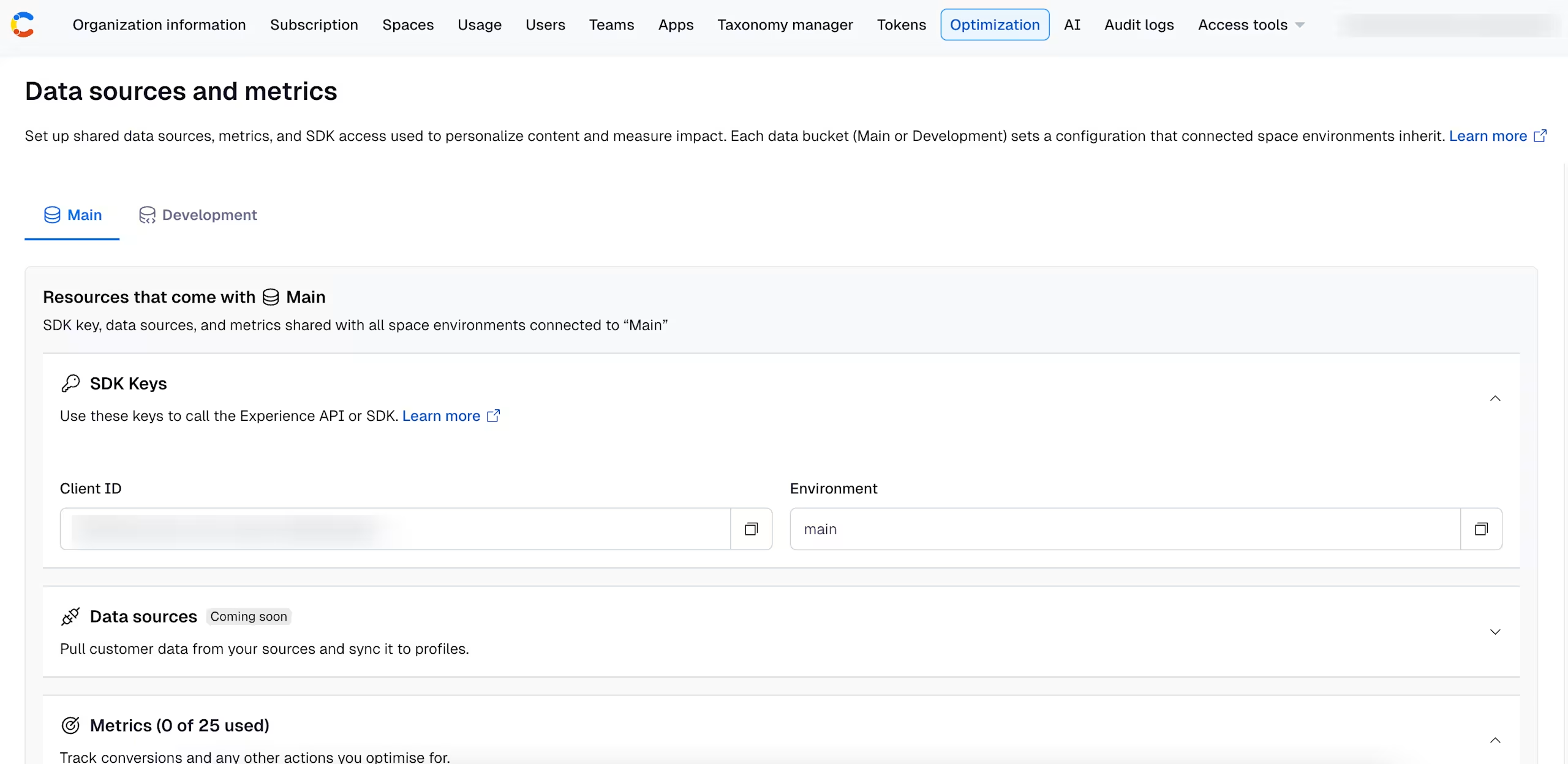
NOTE: The Main data bucket tab is displayed by default. If you want to add metrics to the Development data bucket, select the "Development" tab.
Under "Metrics", click +Add metric.
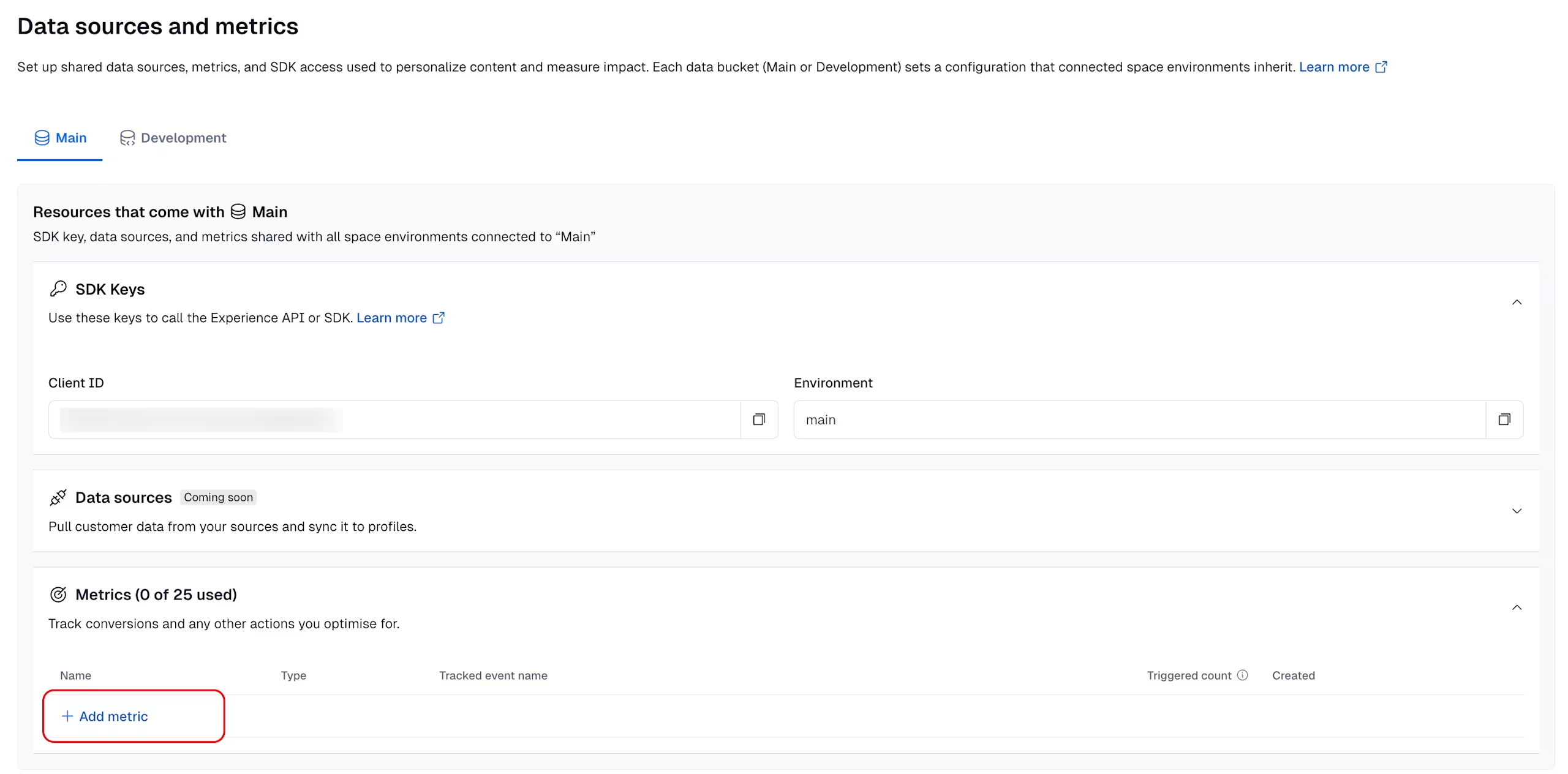
The “Add a metric” modal is displayed.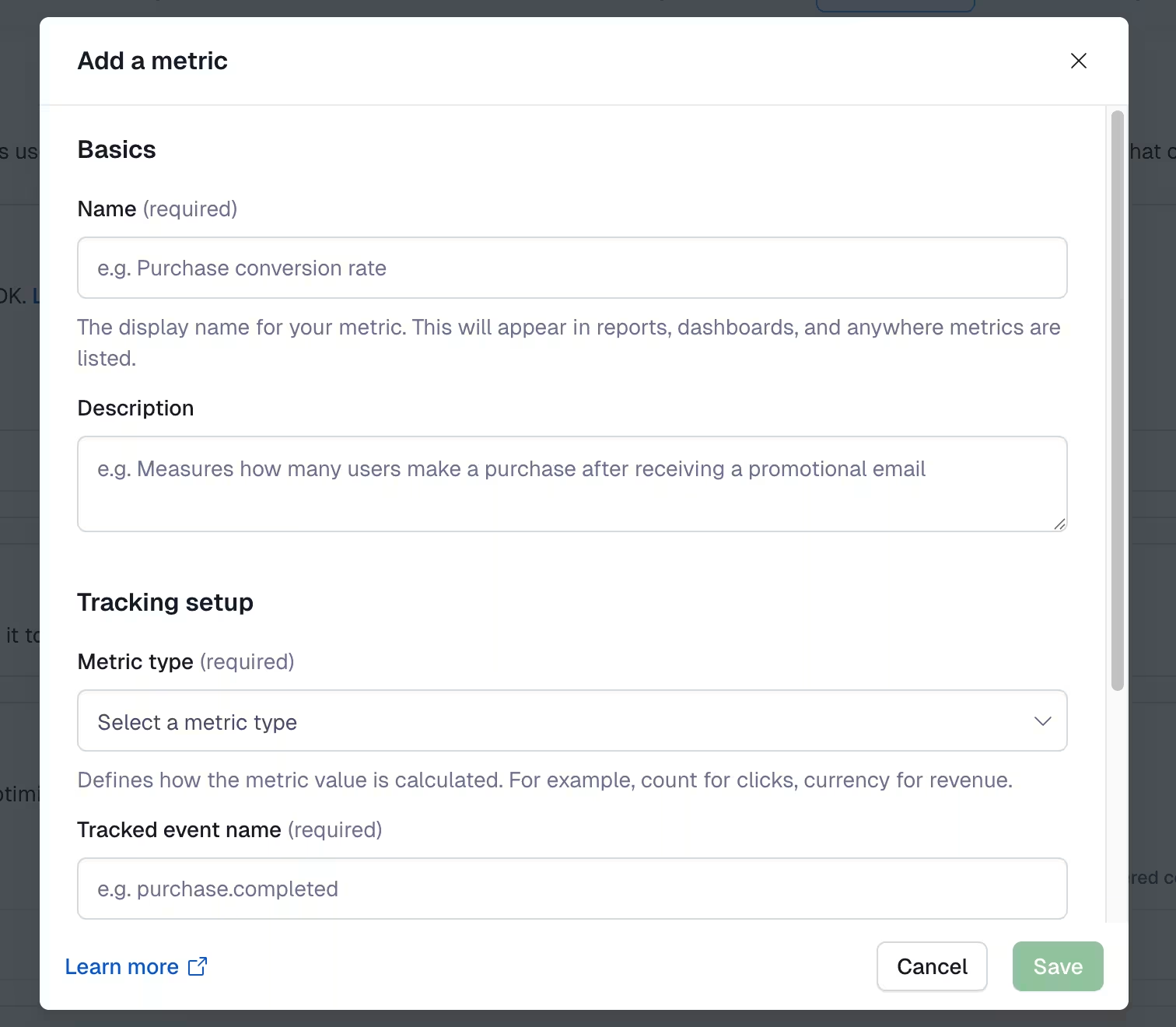
Under “Basics’, enter a relevant name for your metric.
Optional: Enter a suggestive description for your metric to help identify its purpose later.
Under “Tracking setup”, set the Metric type field value to how you want the metric to be calculated: Binary, Count, Currency, Time or Other. For more information about metrics, see the Metrics page.
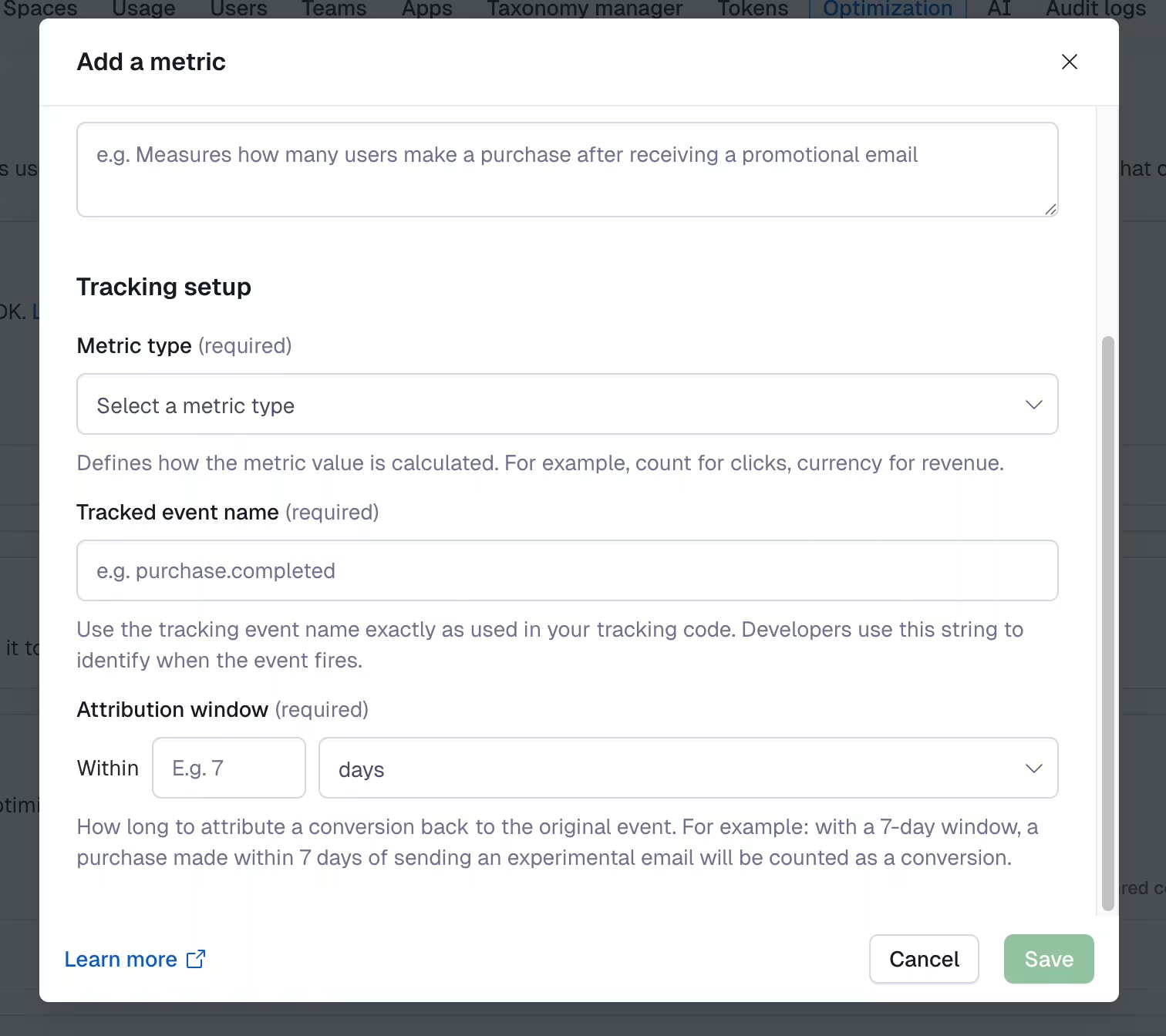
Under Tracked event name, enter the name of the
trackevents sent to Contentful. For more information, see the Event name section on the Metrics page.NOTE: We recommend sending relevant track events before creating metrics based on them. This ensures that the metrics reference valid events and allows you to select them from an auto-completion menu, reducing setup errors.
For Currency, Time and Other value metric types, you must specify the Event property that holds the relevant value.
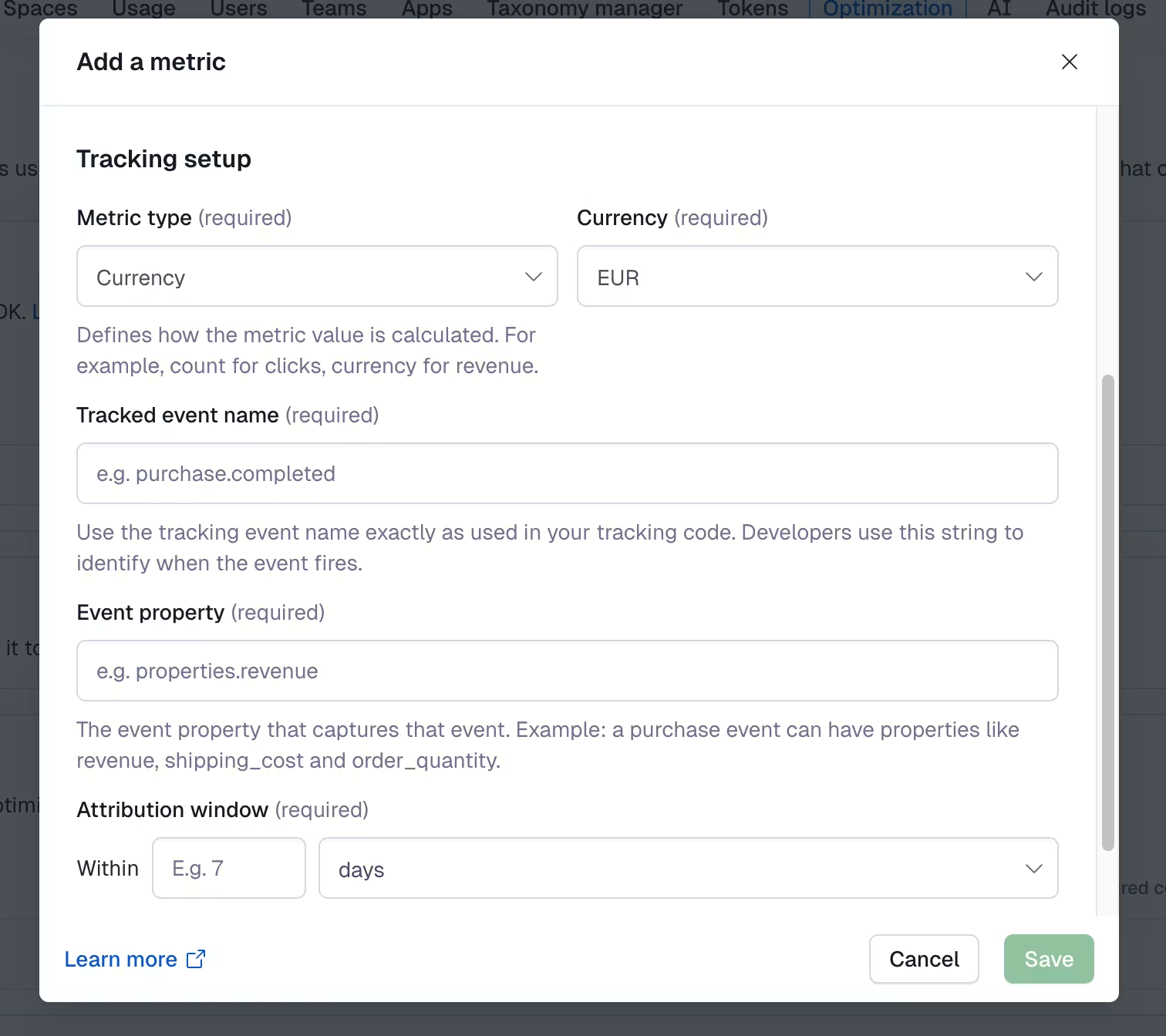
NOTE: As with the event name, we recommend sending events before creating metrics. If you want to analyze multiple properties of the same event, simply create multiple metrics. The Time metric type is expressed in milliseconds.
Under “Attribution window”, enter the amount of time for how long a conversion is attributed to the original event. For more information about the attribution window, see the Attribution window section on the Metrics page.
NOTE: Set the attribution window based on how long you expect the (personalized) content to influence a user.
Click Save. Your metric is created and displayed in the dashboard.
Manage metrics
The dashboard provides an overview of all configured metrics. By default, Contentful tracks the performance of all metrics across all of your content and Experiences. To confirm that a metric is set up correctly, a column displays how many times the defined metric was triggered by a track event in the past 30 days.
Important: After a metric is created, you cannot edit most configuration options, except the name and description. We do this to ensure data consistency. If you need to track a metric differently, create a new one and/or delete the existing metric.
Limitations
You can only create a maximum of 25 metrics that measure conversions and other actions in each environment.