Content Operations Agent: Palmata integration
Palmata is an answer engine optimization (AEO) platform. The platform analyzes how AI answer engines describe your brand, products, and competitors, then recommends which content to change and improve how it appears in AI-generated results.
The connection of the Content Operations Agent to Palmata allows you to see these recommendations generated by Palmata and act on them without leaving Contentful.
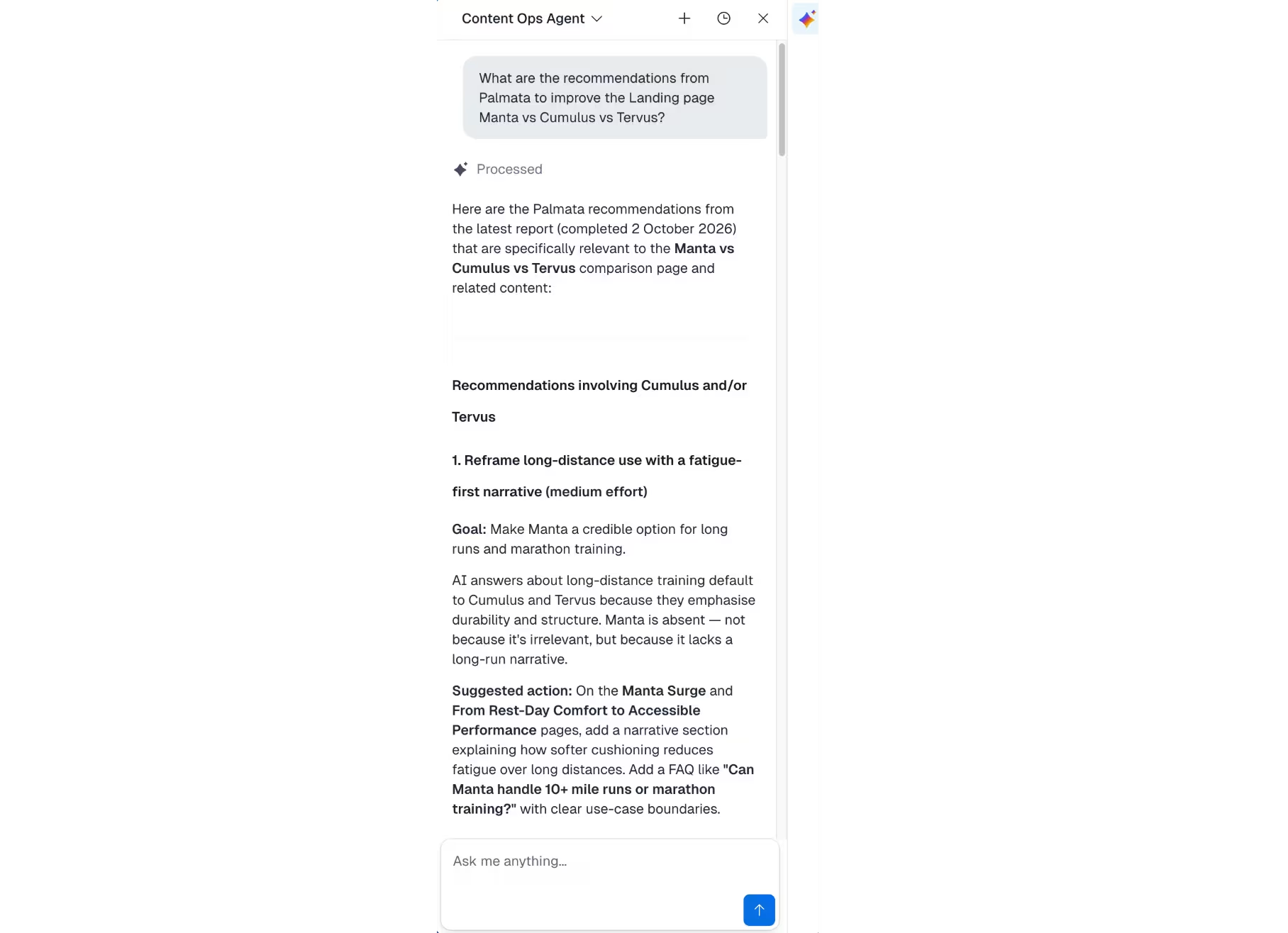
Overview
Palmata provides the recommendations. Contentful is where your content is created, updated, and governed. The agent connects the two and uses your existing Contentful permissions to do the work.
Before you begin
To use the Palmata integration, you will need:
Content Operations Agent activated in your Contentful space. For more information, see How to activate.
An active Palmata account.
A Palmata connection configured in Content Operations Agent by your space admin to set up this connection.
Connect Palmata to agent
To connect the Content Operations Agent with your Palmata account:
In the Contentful web app, open the side panel and select the Content Operations Agent from the AI agent dropdown.
In the agent bar, select the Settings icon. The configuration window opens.

Enter your Palmata account details:
Organization ID
Email
Password
Pre-approved login key
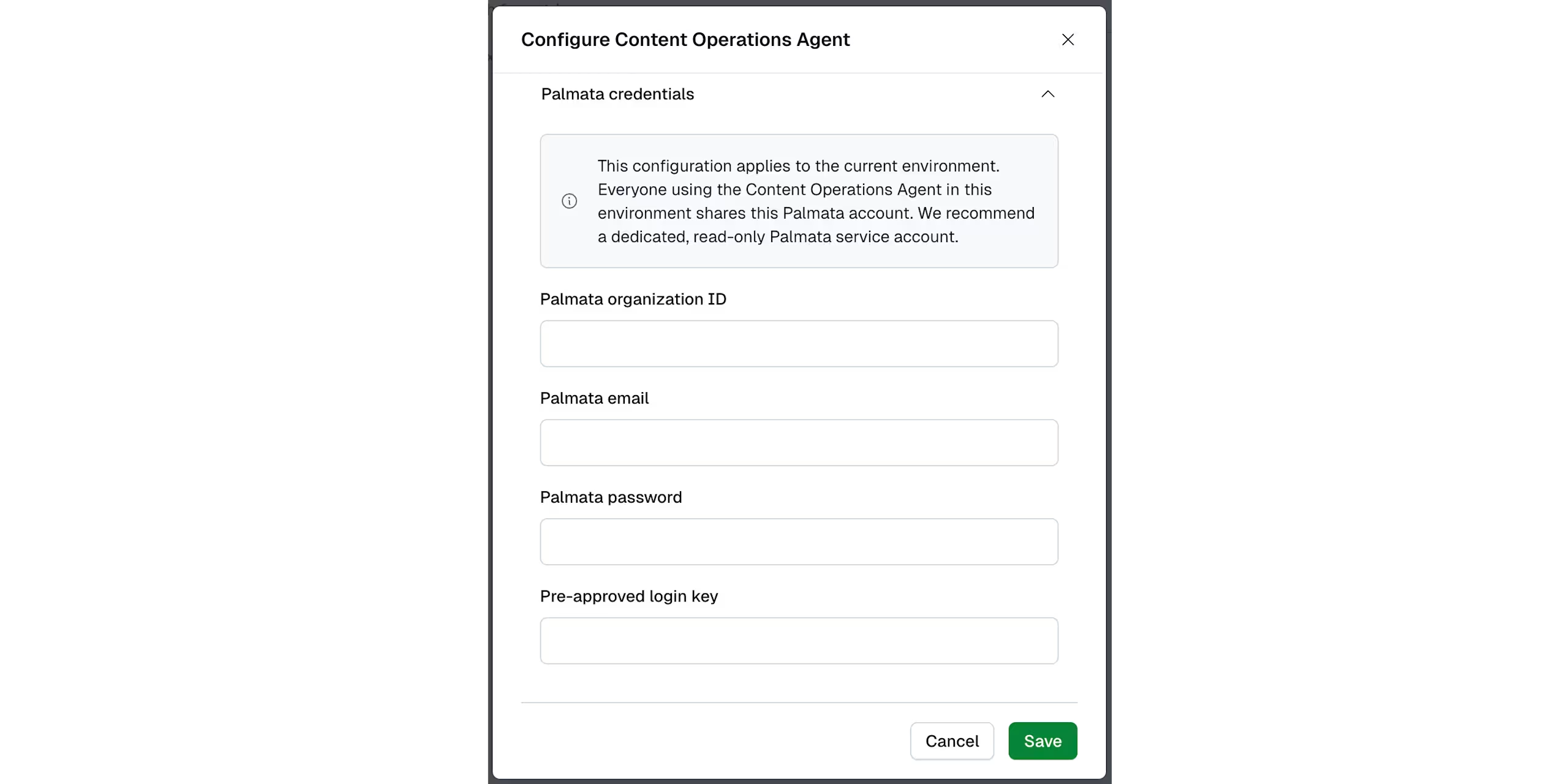
4. You can find your organization ID, email, and pre-approved login key on the Settings page in Palmata. For the password, enter the one you use to log in to Palmata. If you don’t know your password, you can reset it from the Palmata Settings page.
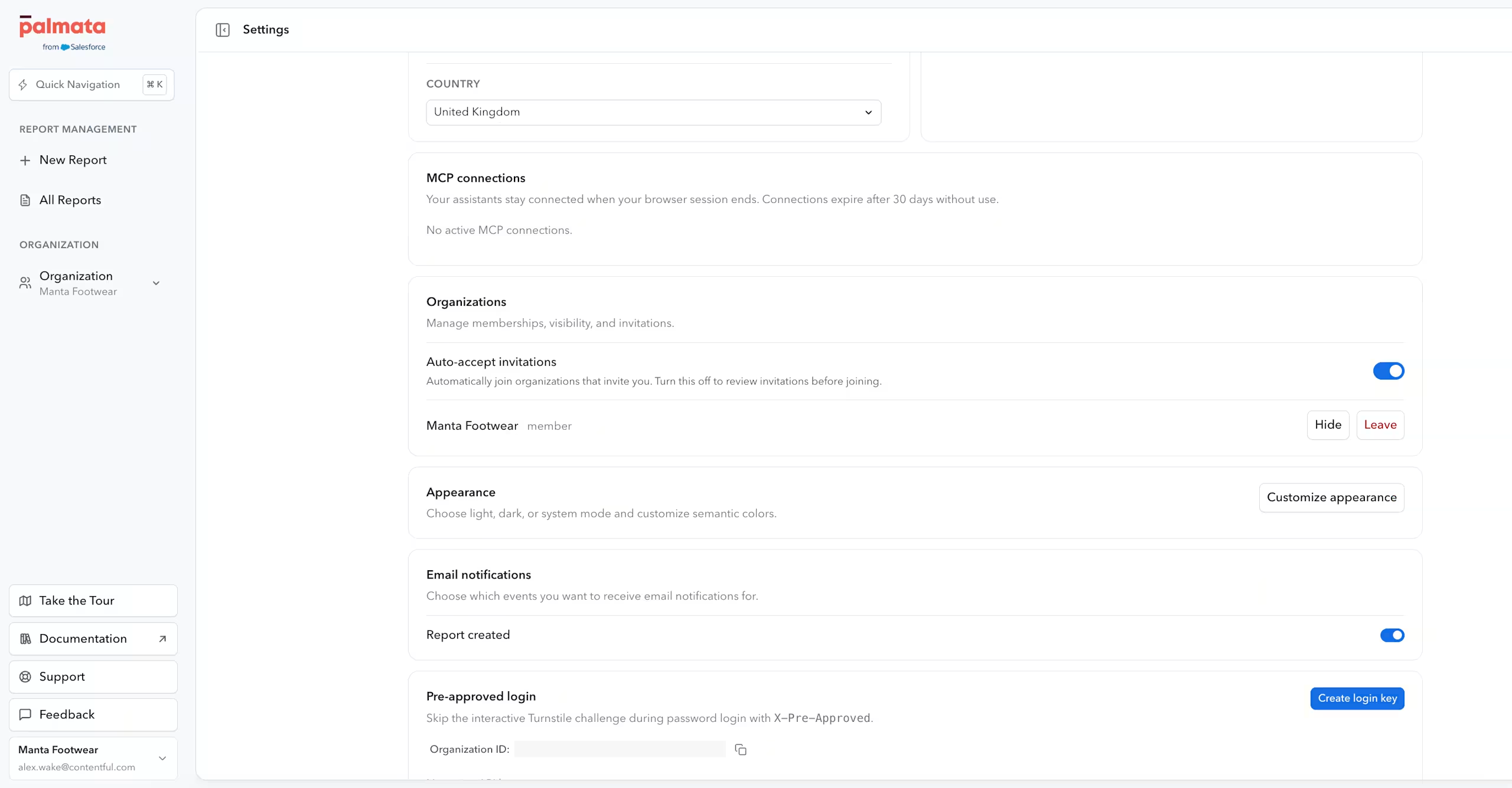
5. Save your changes.
To check the connection, start a new session with the agent and ask a question about your Palmata data. For example:
“What was in my last Palmata report?”
“What Palmata recommendations do I have for [product]?”
“What new content did the last Palmata report suggest creating?”
How integration works
You work with the agent using natural language, in two steps.
1. Retrieve recommendations
Ask the agent to show your Palmata recommendations. For example:
“Show me my latest Palmata recommendations.”
“Show me the Palmata report for [report name].”
The agent displays the report and its recommendations. Retrieving recommendations doesn’t change any Contentful content.
2. Act on recommendations
After you retrieve recommendations, follow up with what you want the agent to do. You can use recommendations depending on your use case:
Before publishing: ask which recommendations to factor into your content before you publish it. For example, “Before I publish this page, check whether any recommendation applies.”
Audit and update existing content: ask the agent to audit existing content against a recommendation. Review the proposed update, then approve it. For example, “Use the recommendation about [topic] to audit this content and apply the relevant update.”
Create new content: Ask the agent to create content for a visibility opportunity from a recommendation. For example, “Use this recommendation to create content that improves visibility for [topic].”
The agent will then:
Maps the recommendation to the relevant Contentful content. It uses the recommendation URL where available, resolves linked and reused entries, and searches the existing content you have access to when needed.
Shows the proposed scope and the operation it plans to run.
Asks for your approval.
Applies the approved change and returns links to the affected entries so you can review the result and implement changes.
Permissions and approval
The agent acts with your Contentful role and permissions. It can only find and change content you already have access to.
The agent doesn’t publish any content before you approve the change.